Sometimes, IT admins (e.g., in large schools or where IT admins wear multiple caps) find it necessary to share their Securly admin responsibilities with other co-workers. The assigned co-worker can then take up the regular admin activities of the Securly filter, such as creating policies, allowing or blocking websites & keywords, updating OUs, managing reports, etc.
Admin permissions are required in Google Workspace and Azure for access to Securly. Anyone else who needs to be given access to Securly Filter would have to be given permission in Google Workspace or included in the Admin Group in the Staff settings.
Enabling Admin Group
You would need to enable the ‘Admin Group’ located in the Users tab to create a select group of users with admin access to Securly Filter. Only users included in this group will have access to the Securly UI, irrespective of whether they are Super Admins in Google Workspace. Enabling this feature restricts access to Securly Filter to only users in the ‘Admin Group’.
To enable this feature in Securly Filter:
-
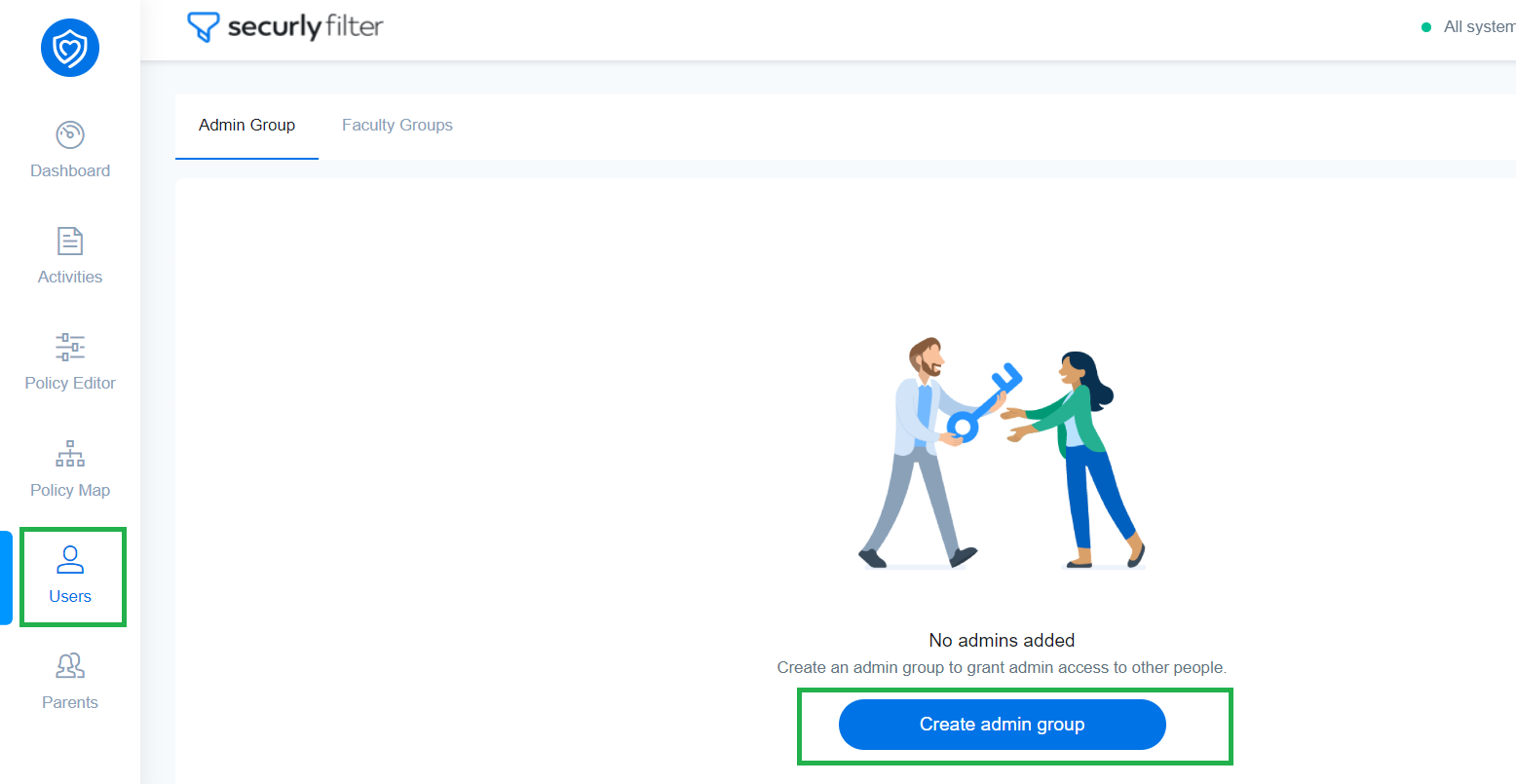
Log in and navigate to Users.
-
Select ‘Admin Group’ and click on ‘Create admin group’. In case there are multiple super admins, the first super admin to enable this feature would be able to exclude other super admins from the group.
-
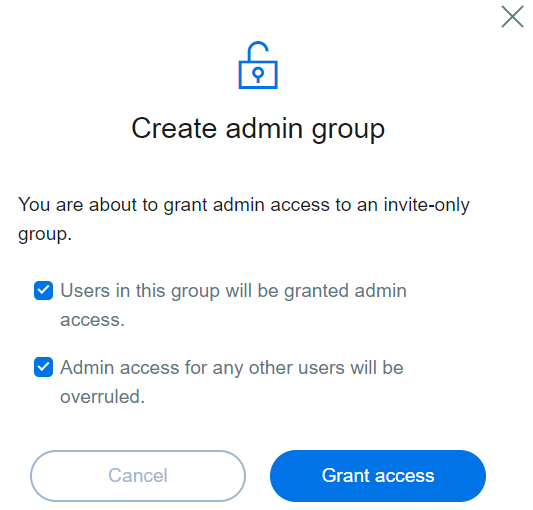
Click on checkboxes and select Grant access, after which you'll see the 'Admin access granted successfully' message.
-
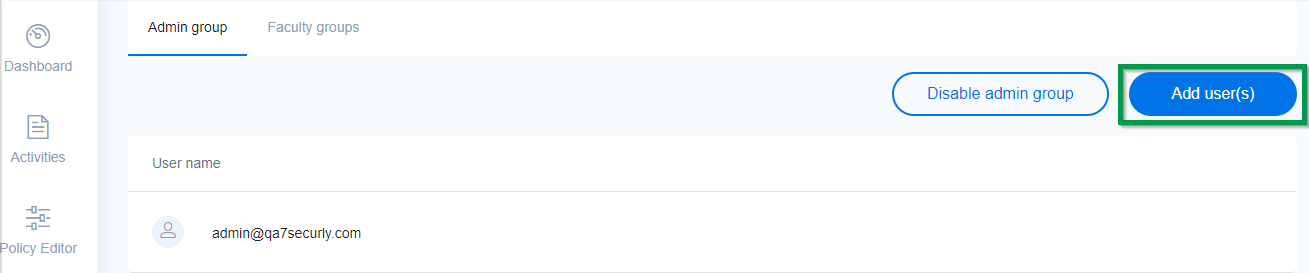
Click ‘Add User’ to add new users.
Disabling Admin Groups
You can disable this feature by clicking ‘Disable Admin Group’. Access to the Securly UI would then become available only to those with the Super Admin role in Google Workspace.

Granting Super Admin rights to other users
To give other users Securly super admin rights in Google G Suite, refer to Google's official documenation here. This method grants them full access to modidy policies for your organization.
However, you can also choose to provide users with partial access as well. To do this, you must create a faculty group in Securly Filter.