The Apply access plan function lets teachers apply an access plan during an active class session.

After clicking the button, in the access plan selection window, you can search for a plan using the search bar or filter your plans using the "My access plans" checkbox.
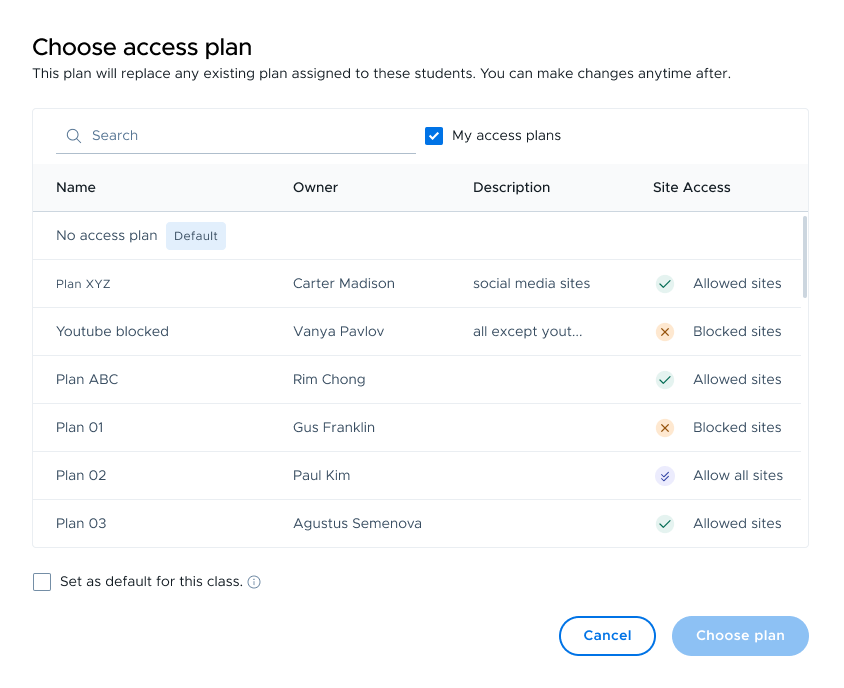
Click on any access plan to select it and then use the Choose plan button to apply it.
To apply the selected plan automatically every time you start the class, use the "Set as default for this class" checkbox at the bottom left corner.
Applying an access plan to an individual student or group
To apply different access plans to specific students or groups, select them using the checkboxes, then use the Apply access plan button, and follow the steps described above.
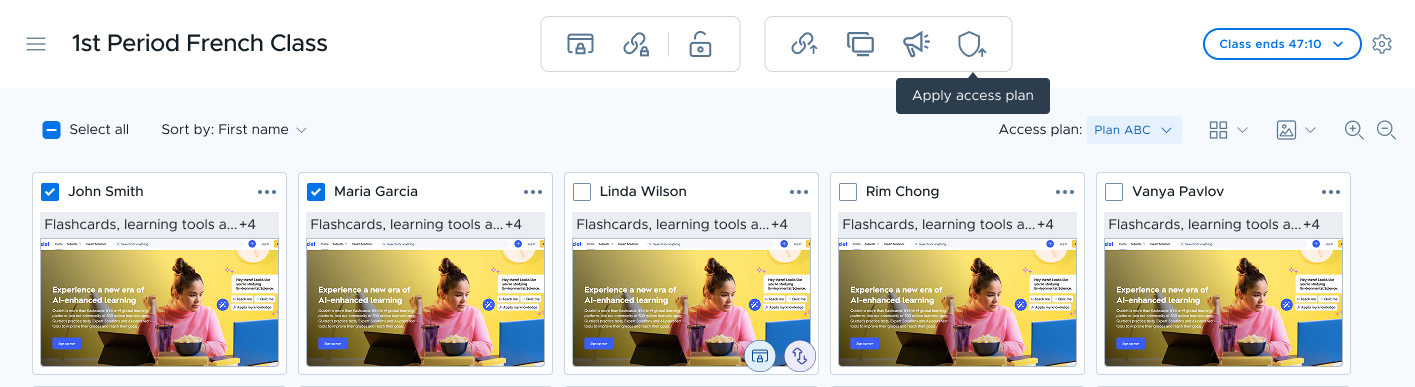
Alternatively, you can use the Access plan dropdown selector.
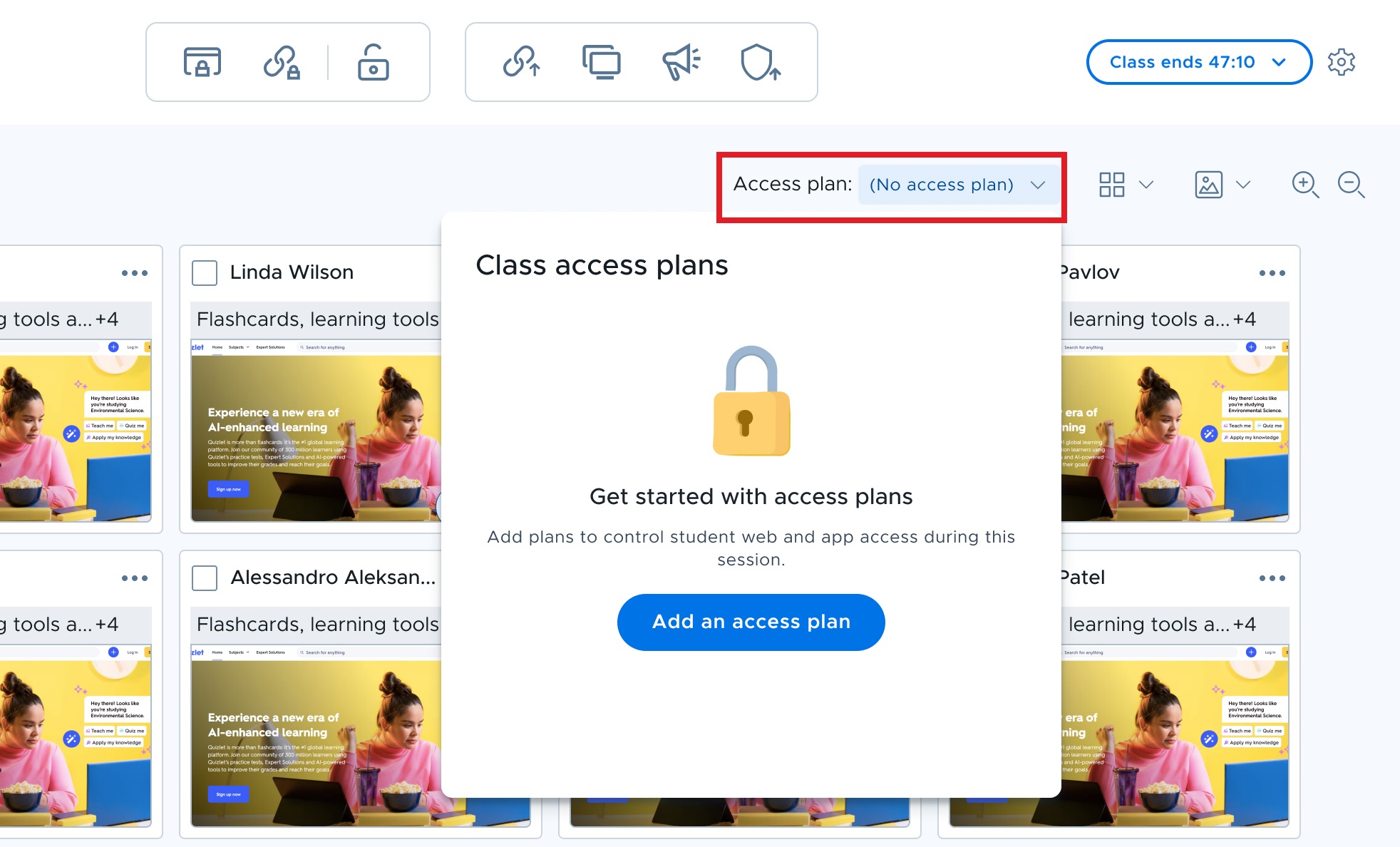
If no plan is selected, click the Add an access plan button (see above).
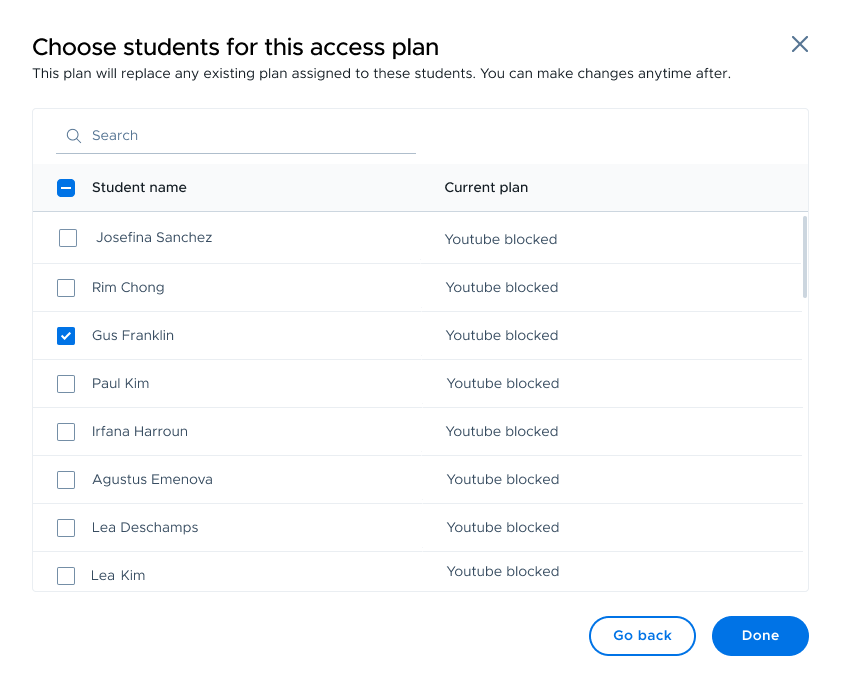
Select a plan and continue, then choose the students you want to apply it to and hit the Done button.
Finally, click the Apply now button. Now, you can add more plans as needed by clicking on "Add access plan".
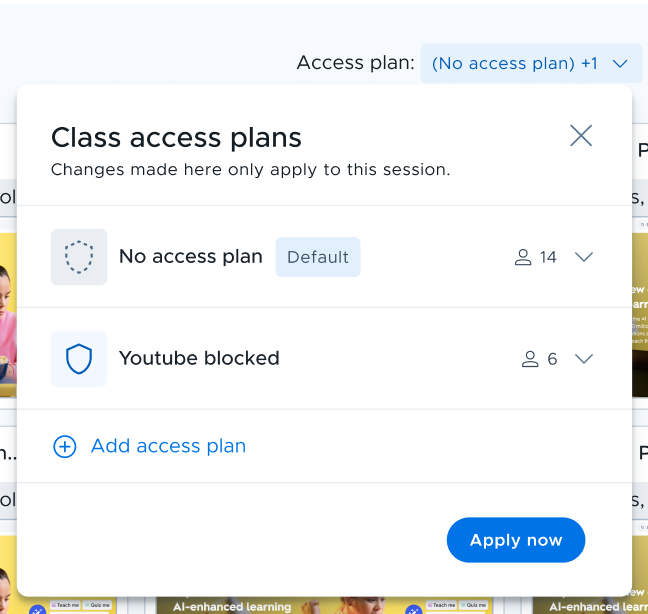
Moving a student to a different access plans
To apply a different access plan to a student from the existing one, click on the Access plan dropdown selector to view all the currently active plans.
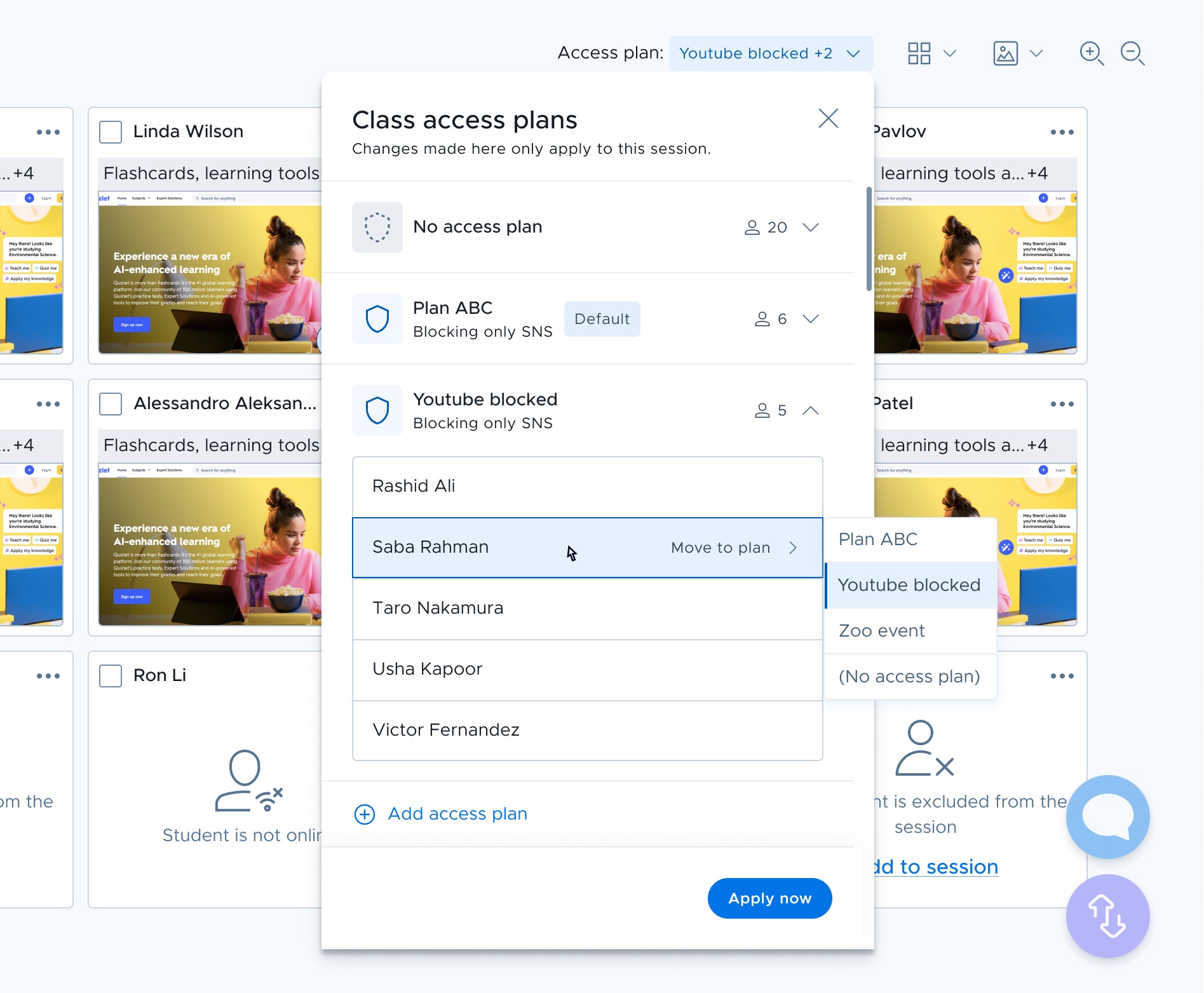
Click the dropdown icon next to a plan to see its students. Select a student, then choose the plan from the "Move to plan" options.