Follow the steps below to deploy SmartPAC on iPads using Casper/JAMF MDM :
-
Login to your JAMF/Casper MDM, navigate to Configuration Profiles > Mobile Devices, and create a new profile.
-
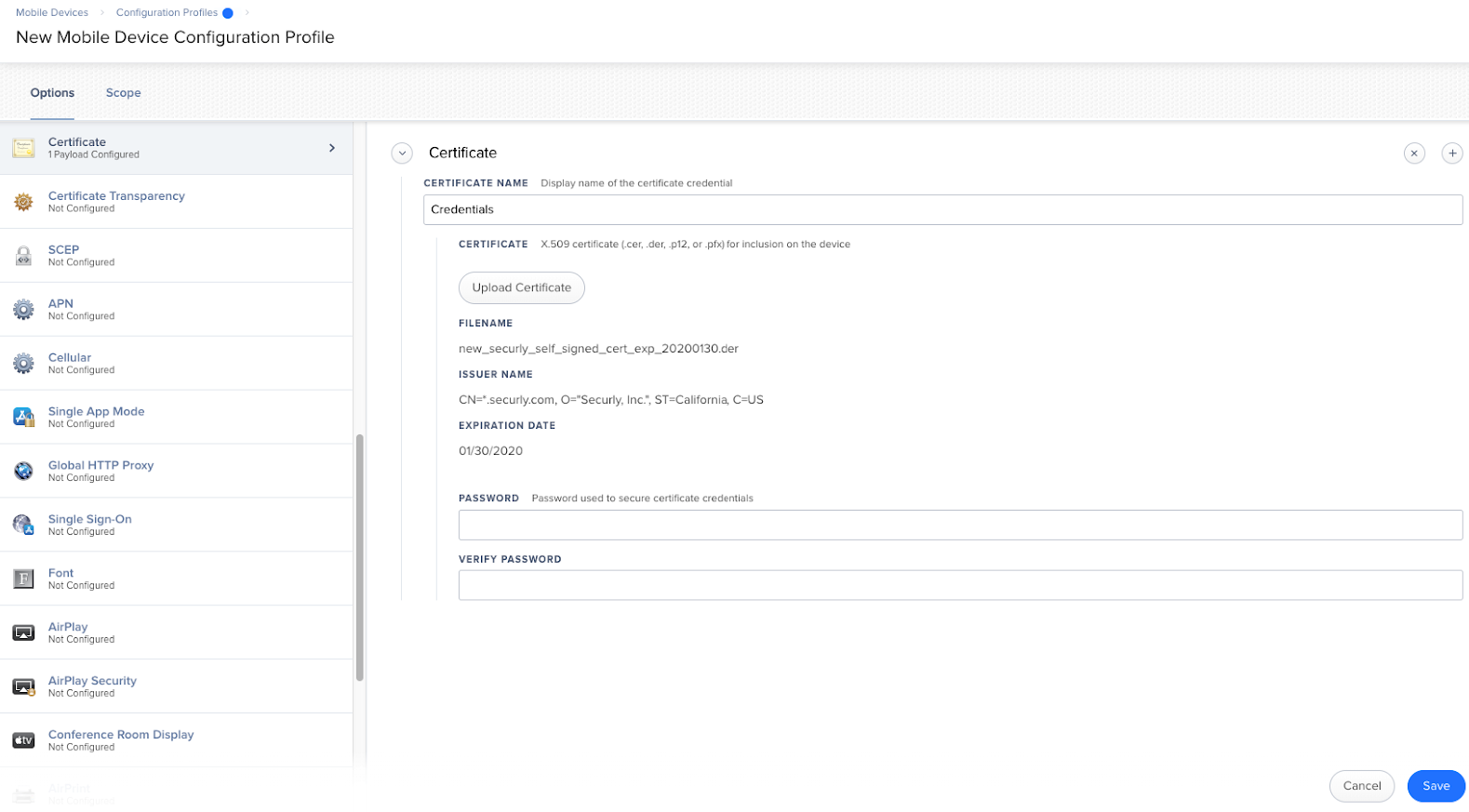
Under the left-side menu, scroll down to ‘Certificate’ and add the Securly certificate attached at the end of this article.
-
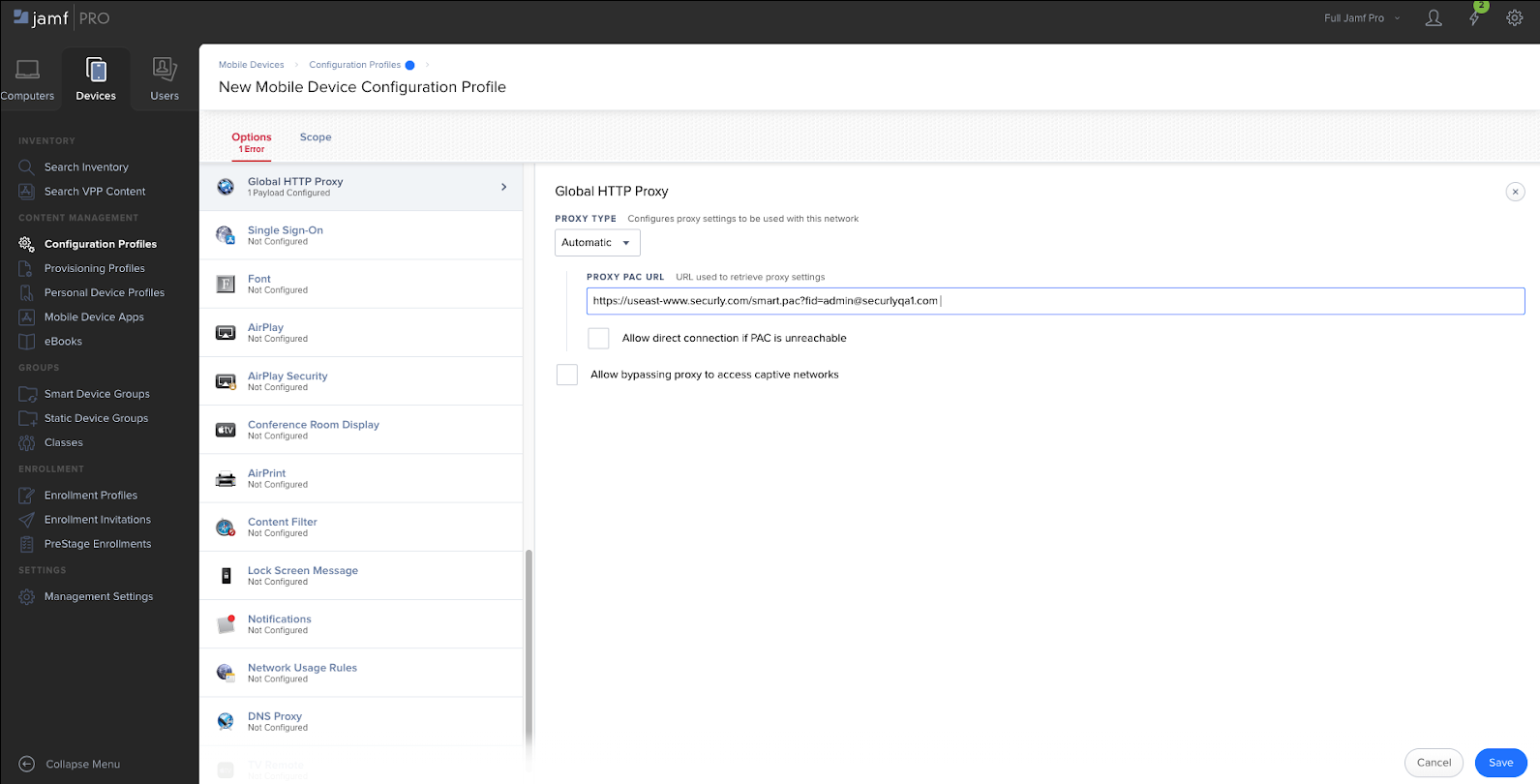
Under the left-side menu, scroll to ‘Global HTTP Proxy’ and select ‘Proxy Type’ as ‘Automatic’.
-
Input the SmartPAC File URL provided by Securly in the ‘Proxy PAC URL’ field. If you do not know the SmartPAC URL for your school, please contact support.
-
'Allow direct connection if PAC is unreachable' (Recommended) should be checked if you want students to have unfiltered internet in the event of a Securly outage.
-
'Allow bypassing proxy to access captive networks' (Recommended) should be checked if you want to ensure students are able to sign into captive portals. SmartPAC should allow captive portal traffic, but this control is good to have as a backup.