To install the Securly SmartPAC solution on your macOS device using Securly MDM, use the following steps:
- Download the Securly Certificate, log in to Securly MDM, and navigate to Profiles > Network profiles.
- Switch to the Mac Network Profiles tab and click on the Add Network Profile button.
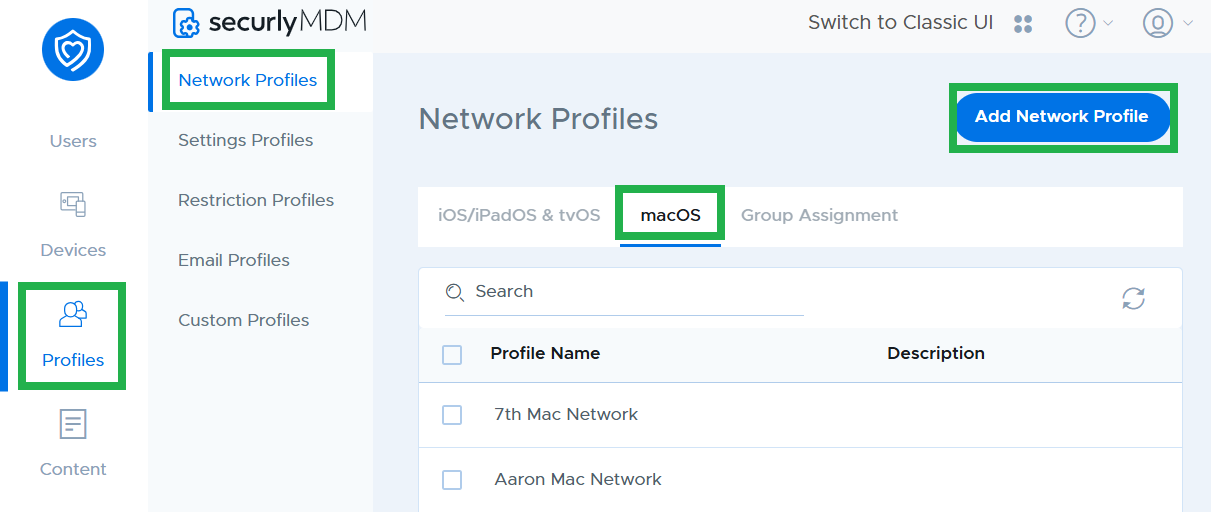
- Enter your name and description for the profile. Then, click on 'Save'.
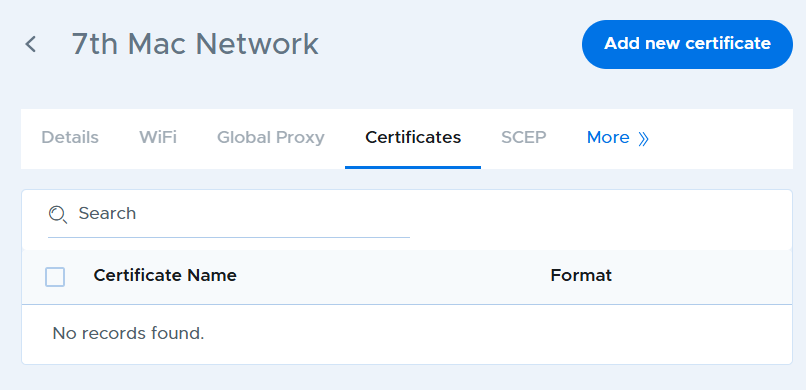
- Go on the 'Certificates' tab, click on the Add new certificate button to upload the Securly certificate, and hit 'Save'.
- Click on the "Global Proxy" tab under the profile you created.
- Change the 'Proxy' settings to 'Auto.'
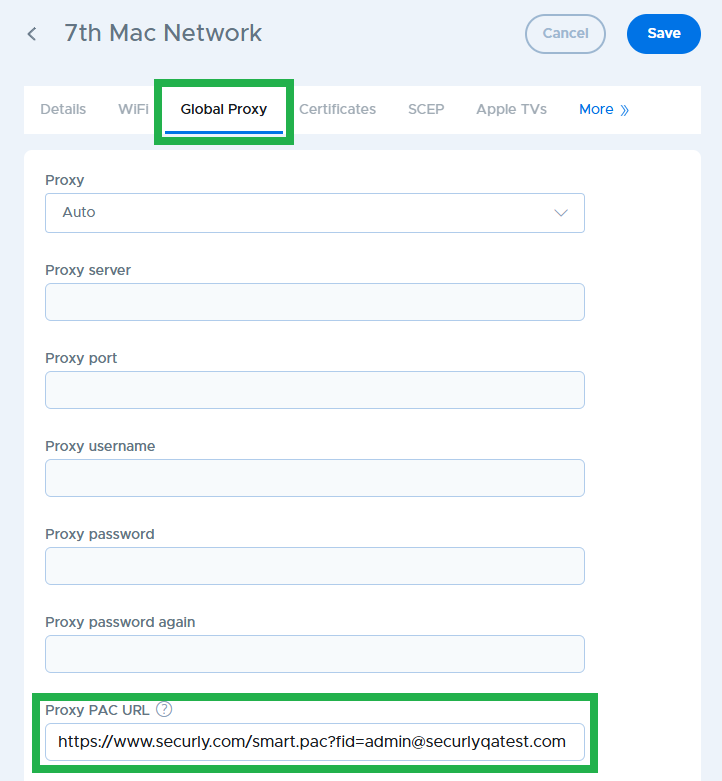
- Fill in the SmartPAC URL for your school under ‘Proxy PAC URL’ and click on 'Save'. If you do not know the SmartPAC URL for your school, please contact Support.