Global Settings apply to all policies irrespective of how a specific policy is configured.
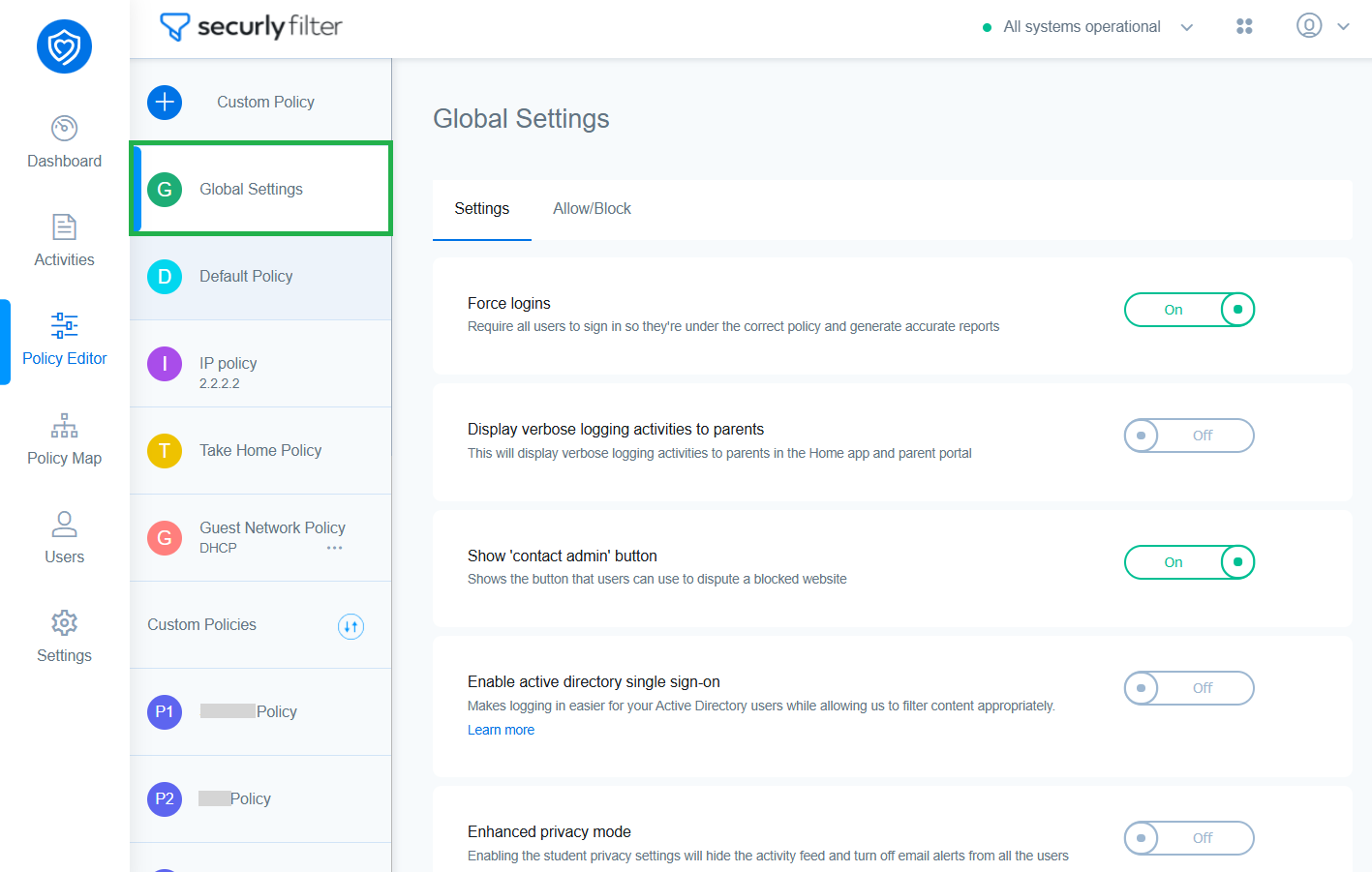
The Settings tab lets you configure the below settings which are globally applicable, meaning the changes you make here will take precedence over the settings configured in other policies. The Allow/Block lets you allow or block websites irrespective of whether they are allowed or blocked in other policy settings. Learn more about global allow and block.
| Setting | Description |
|---|---|
| Force logins | It is recommended that Forced Login is enabled. This ensures that users are required to log in to their school org’s Google or Microsoft accounts before starting their browsing sessions. This provides user names to match activity in the reports section and ensures users are served the appropriate policy as determined by you for their OU/SGs. Note that forced login is mandatory for off-site use to ensure maximum student safety. |
| Display verbose logging activities to parents | Enabling this setting will include verbose activities (additional data that may be useful when troubleshooting, including url redirections or pop-up links that run in the background) in the student activity reports that are sent to parents on the Securly Home app and the parent portal. Refer to this section to learn more about verbose logging. |
| Show 'contact admin' button | This setting allows students to ask admins for permission to view when they come across a blocked page. Learn more about how these access requests work. |
| Enable active directory single sign-on | Enabling this toggle makes logging in easier for your Active Directory users while allowing us to filter content appropriately. |
| Enhanced privacy mode | Enhanced Privacy Mode setting that hides certain information to protect student data privacy better. Enabling this will hide the Activity and turn off email alerts concerning student activity. |
| Request categorization using PageScan | Website categorization defines whether it will be blocked or allowed in accordance with its category enabled or disabled in the Categories tab. However, uncategorized sites may bypass this rule. In such cases, enabling PageScan allows Securly to continually assess the sites students are visiting and categorize them in real time. Learn more about how PageScan works. |
| Expire Temporarily Allowed Sites After (in minutes) | This setting determines how long a student can access the blocked site that has been temporarily allowed after a request has been placed. If left blank or 0, access will not expire. The duration set here is applied across all policies, and cannot be set at per-policy level. |
| Restrict Gmail logins to these domains | This setting ensures users with school devices will only be able to use their school’s Gmail account and not their own personal Gmail account to log in. ensure that no questionable material is accessed. For this setting, use the edit button and enter the domain name of your school and any other relevant domains separated by comma to apply the restriction. |
| Blocked page message | You can use the Edit button and enter a custom message that will be displayed to users when a site is blocked. |
| Set exception window for out of school policies | When enabled, take home policy and parent policy will not be applied in the configured exception time slot(s). Learn more how the exception window. |
| Redirect conversational AI sites | Enabling this automatically redirects conversational AI sites from blocked lists to AI Chat. Refer to this section to view the supported website redirections. |