You can easily upload your students’ photos into your Pass system by following the guidelines and steps outlined below.
- Uploading individual photos
- 50 photo limit per upload
- Uploading a Zip file
- Up to 25 MB and can be just one zipped file, multiple PNGs or JPEGs, or a combination of files.
- Make sure that your photos are formatted as JPEGs or PNGs.
- Your photos can be individual photos or placed in a Zip file folder.
- The photos need to be named with the same student number that appears in Pass Users so that the correct photo will be linked to the correct student.
- Admin, Staff, and Teacher photos are self-managed by the user uploading their own photo through their profile settings. Currently, there is not a mechanism to import those photos into our system outside of the user profile.
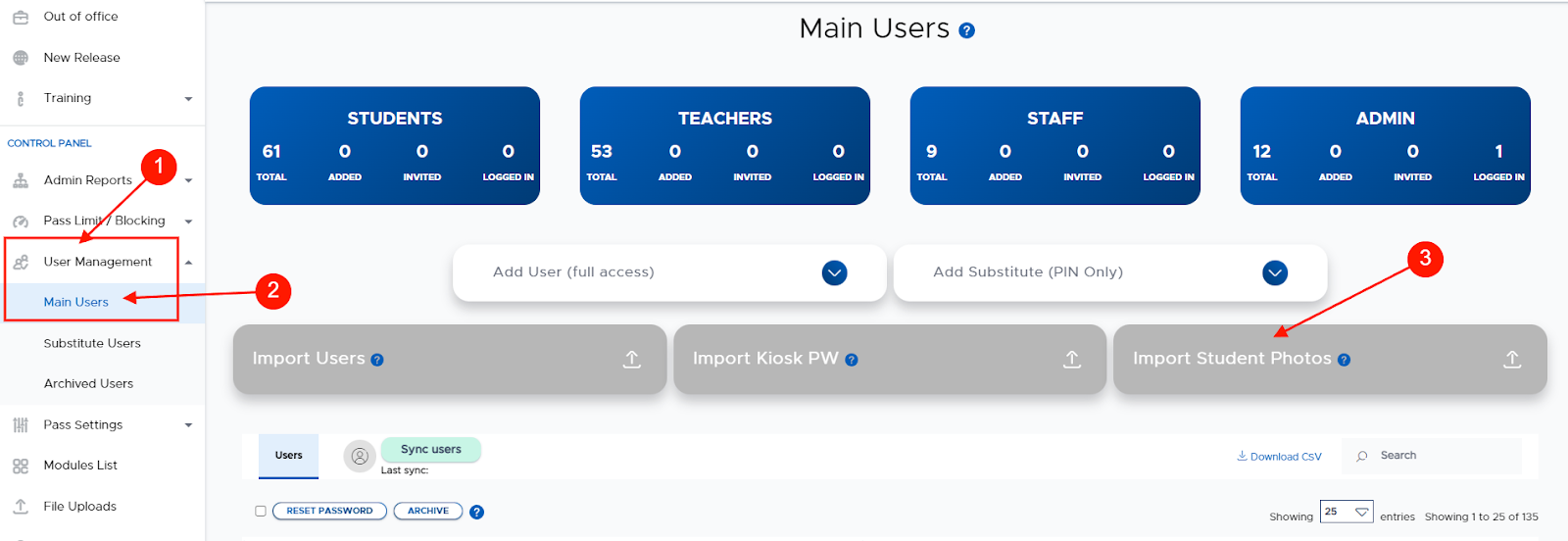
To upload your student’s photos, click on “Users” and then “Main Users”. On the “Main Users” screen, click on “import Student Photos” and follow the instructions on the next screen.
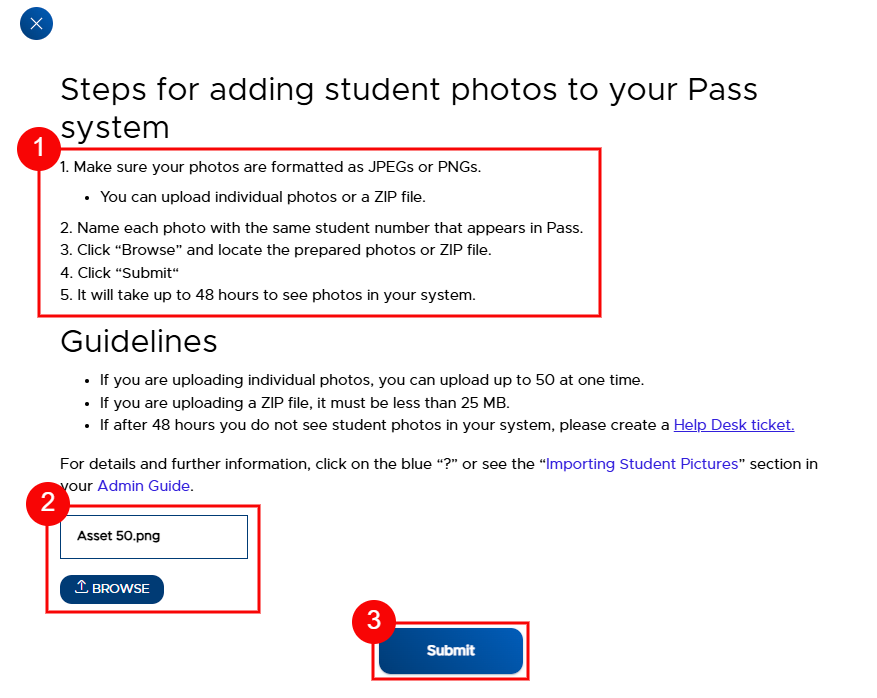
On the white popup screen, read through the directions and make sure that your students’ photos meet the requirements. When ready, browse for your photos’ file and then “Submit” your students’ photos.
After uploading your students’ photos into your Pass system, there is nothing more for you to do. Please allow 48 hours for your photos to appear in your Pass system. If you do not see your photos after that time frame, please create a Help Desk ticket so we can assist you.
After your initial student photo upload, you can upload additional students’ photos using the same process.
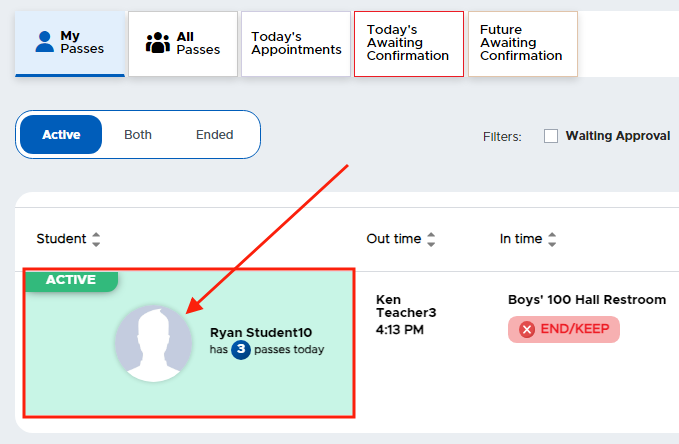
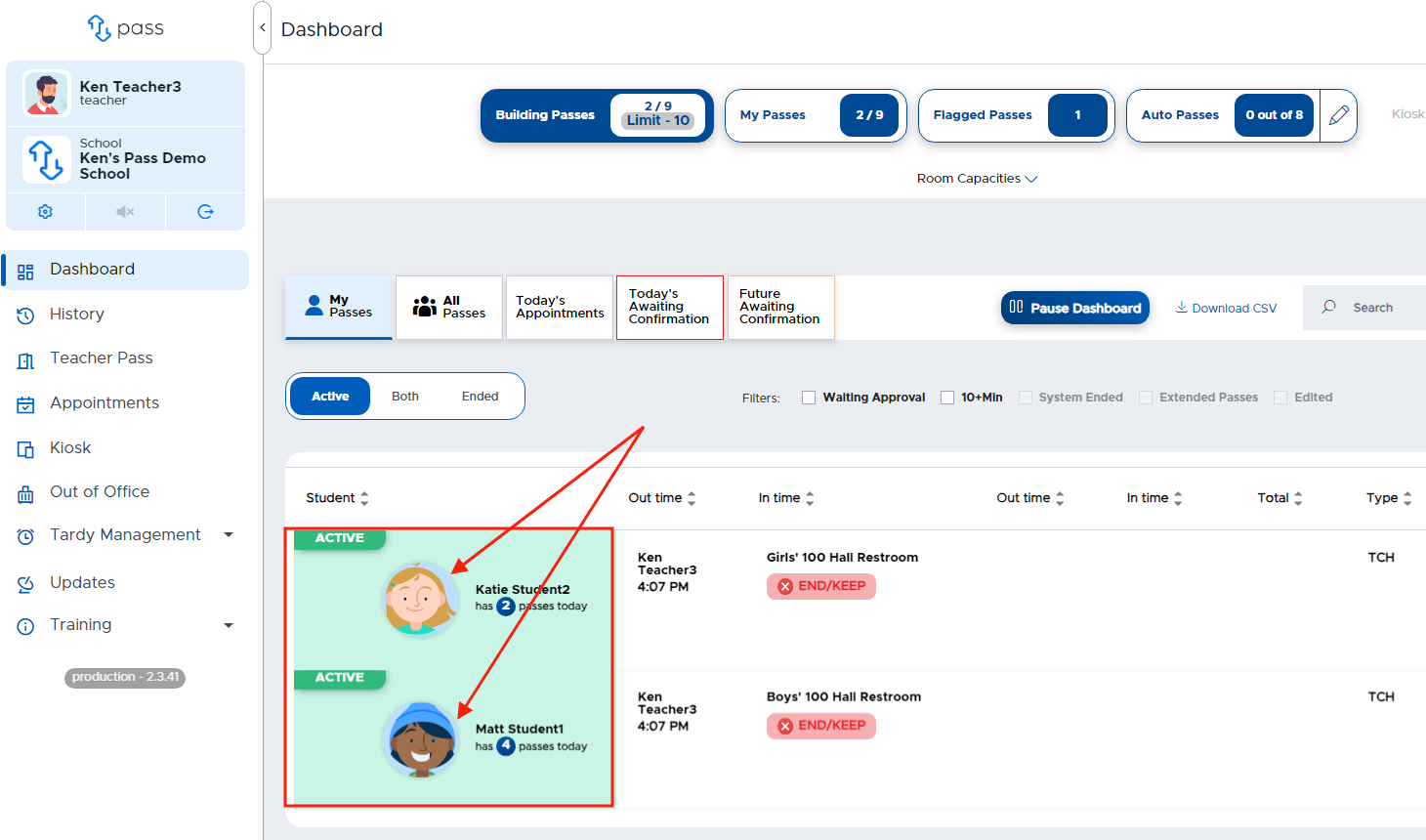
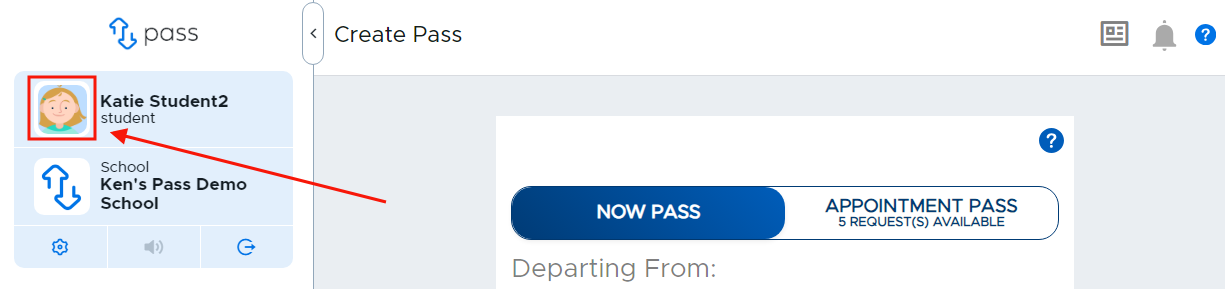
Once student photos are uploaded into Pass, they can be accessed/viewed in the following locations: Dashboard (active or ended passes), History, Appointment Pass, or Users (Main Users)
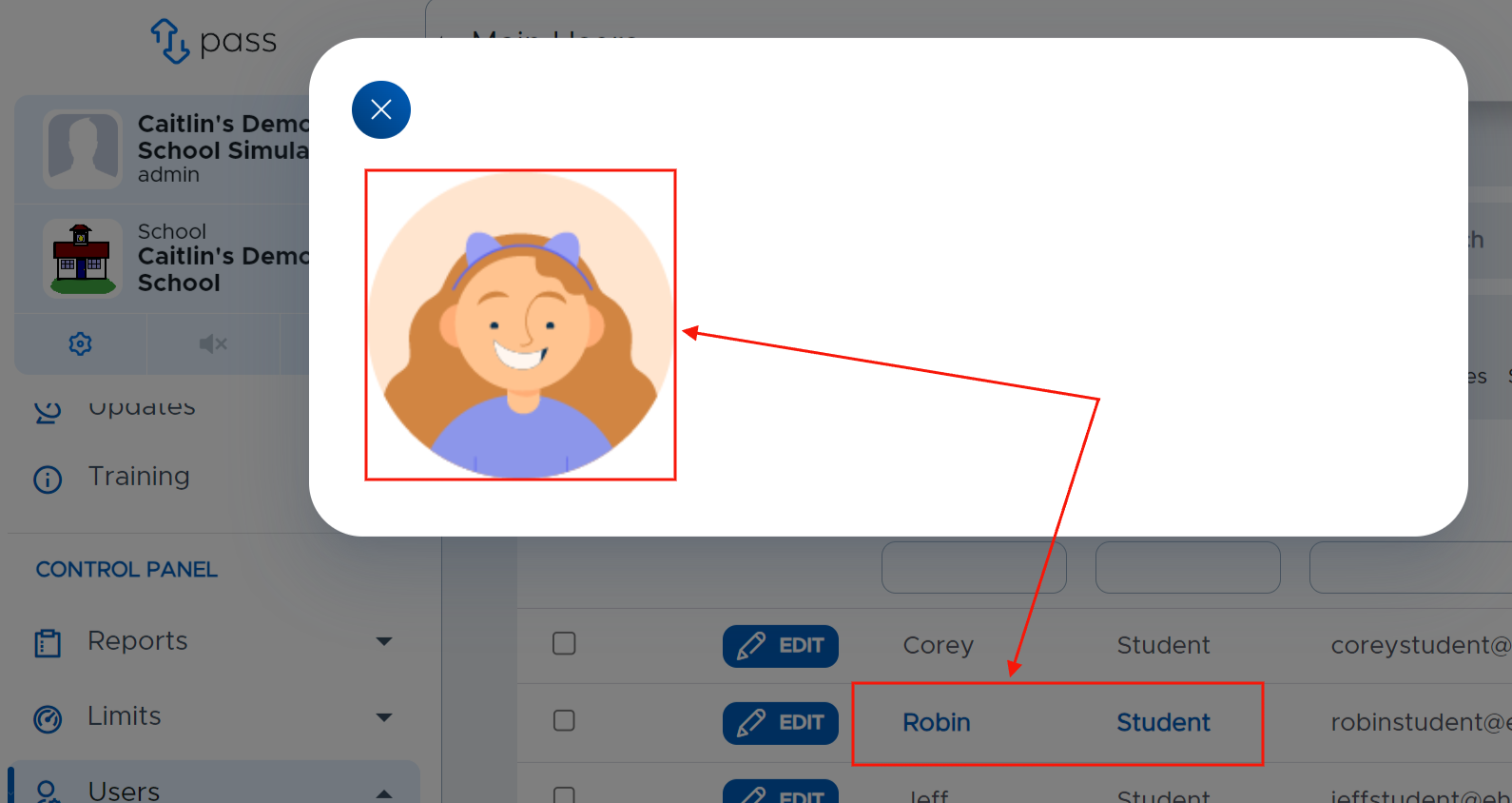
Control Panel → Main Users screen (Pass Admins can view photos for any user that has an uploaded photo by clicking on the blue hyperlink shown below.)
Student image in Admin/Teacher/Staff Dashboard
Student image in Student Pass screen
Student without a photo uploaded (silhouette will appear)