If you’ve deployed Filter using the Chrome extension, you’ll see the tab for managing YouTube in the Default policy, Guest Network policy and any Custom policy.
Note
- Securly YouTube settings will override the Google Workspace YouTube settings only if users are not logged into YouTube. When users are logged in, your Google Workspace settings override the Securly Filter's YouTube settings. This means that Google Workspace settings would also override videos added to any Allow lists.
- Placing certain Google or YouTube domains in the Global Allow or Block list may also affect how these settings are applied.
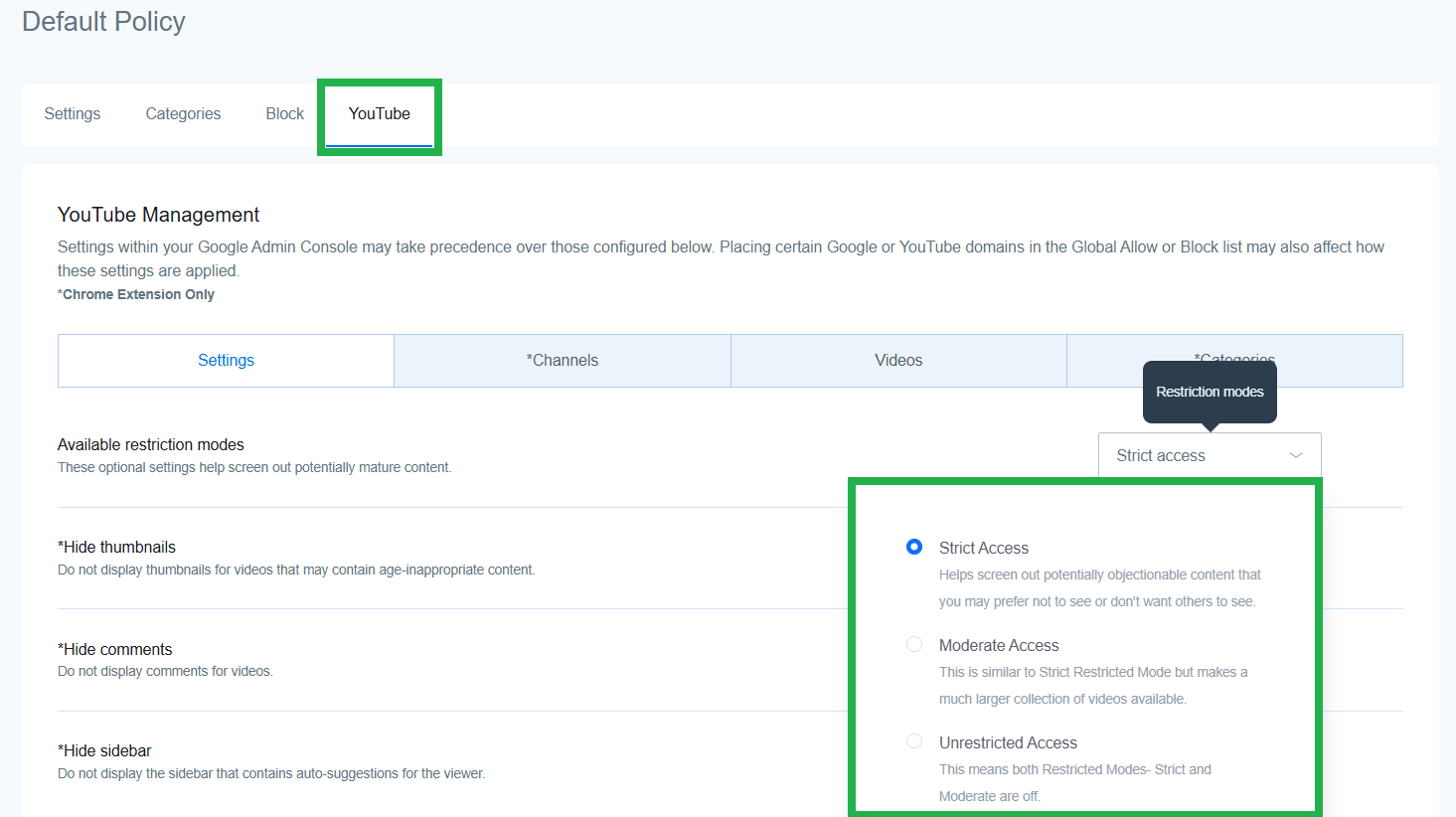
Under the YouTube tab, you’ll see four more sub-tabs. From settings, you can choose to hide video thumbnails, comments, and the sidebar. You also have the option to set the restriction mode to:
- Strict access: Screens out potentially objectionable content
- Moderate access: Similar to strict access but makes a larger collection of videos available
- Unrestricted access: Turns off both strict and moderate access
The Managing channels tab lets you allow or block channels. To do so, simply visit the channel page, copy the URL, paste it in the entry field, and allow or block it.
The Videos tab enables you to allow or block specific videos by entering the video link in the entry field.
Lastly, the categories lets you enable or disable videos based on their categories.