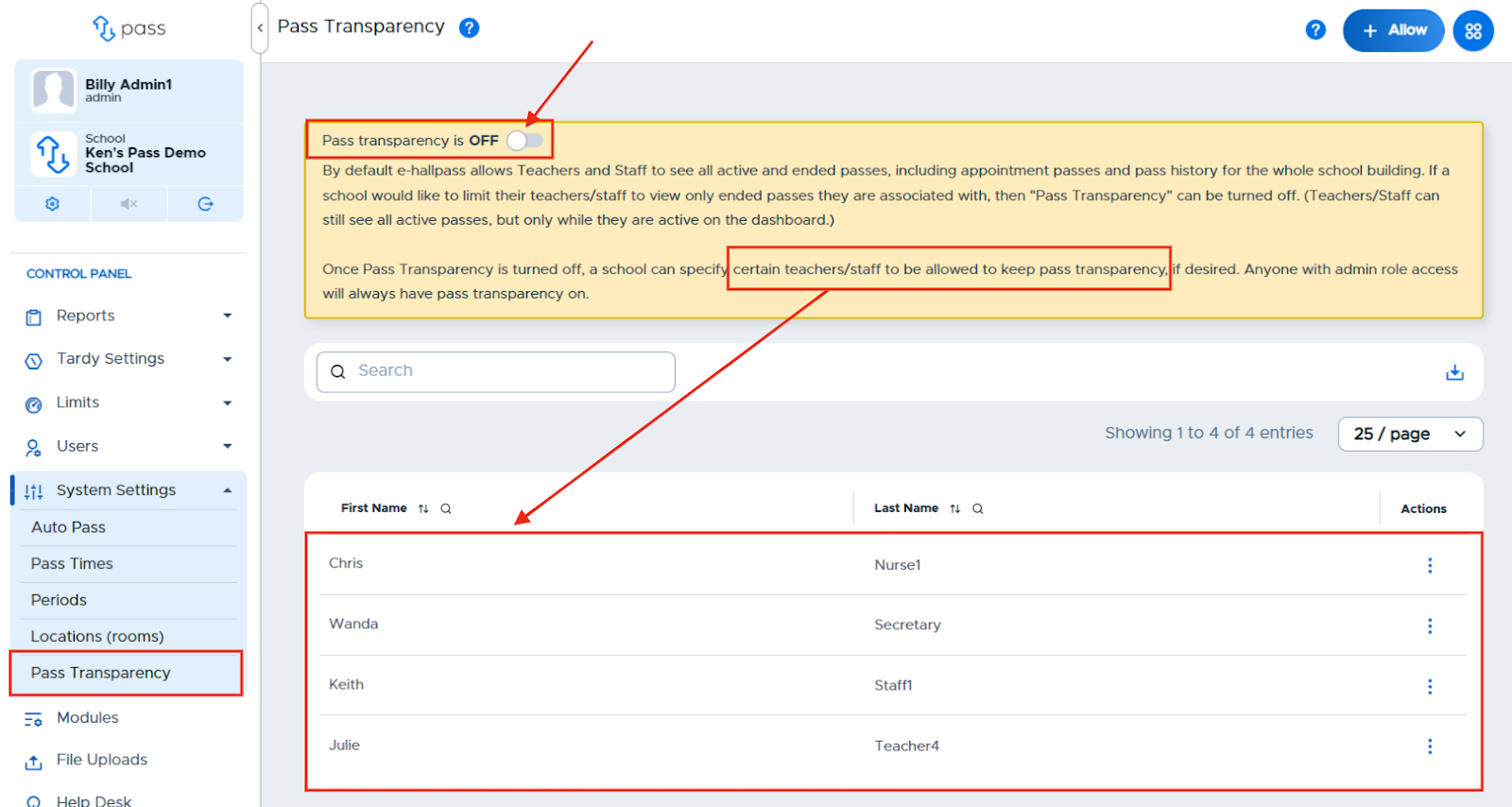
By default Pass allows Teachers and Staff to see all active and ended passes, including Appointment Passes and History for the entire school building. If a school would like to limit its Teachers/Staff to view only ended passes they are associated with, then "Pass Transparency" can be turned off. Teachers/Staff can still see all active passes but only while they are active on the dashboard. They will not be able to see ended passes anywhere in the system unless they were associated with the pass.
The Pass Transparency setting screen (shown below) can be accessed from the Control Panel by clicking System Settings → Pass Transparency.
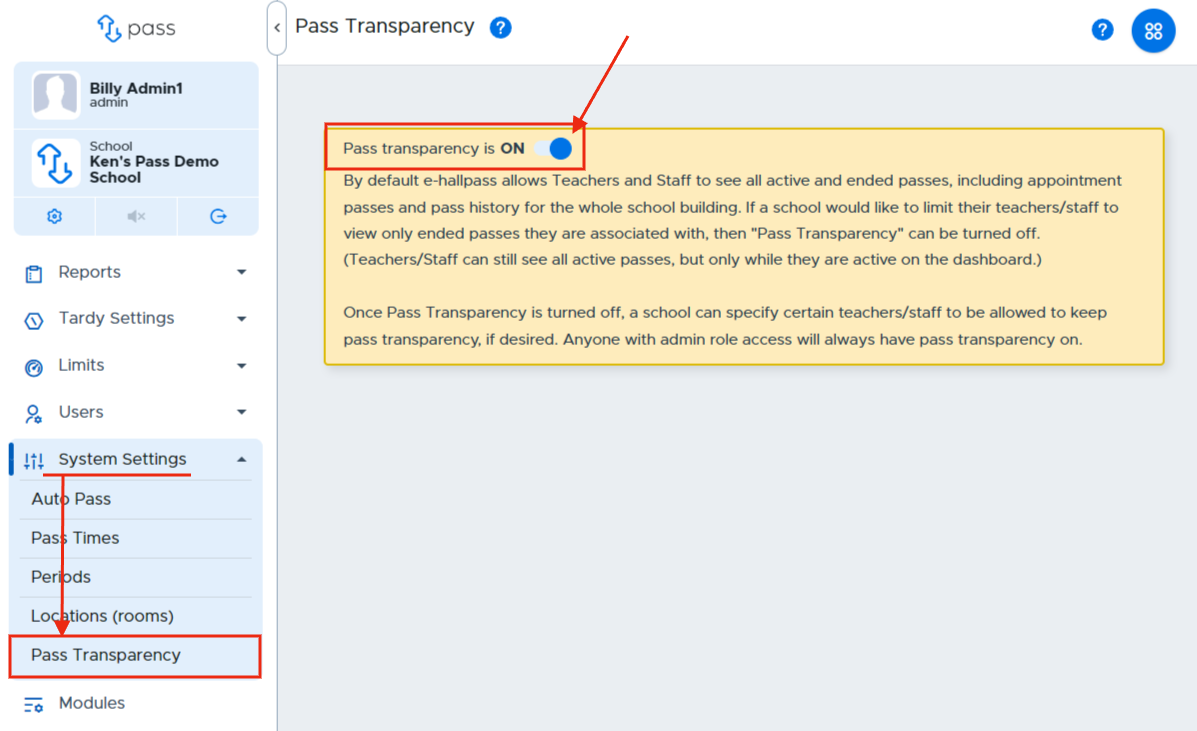
When Pass Transparency is turned off, admins can then specify certain teachers/staff to be allowed to keep pass transparency.
Admins will always have Pass Transparency turned on.
To turn Pass Transparency off:
-
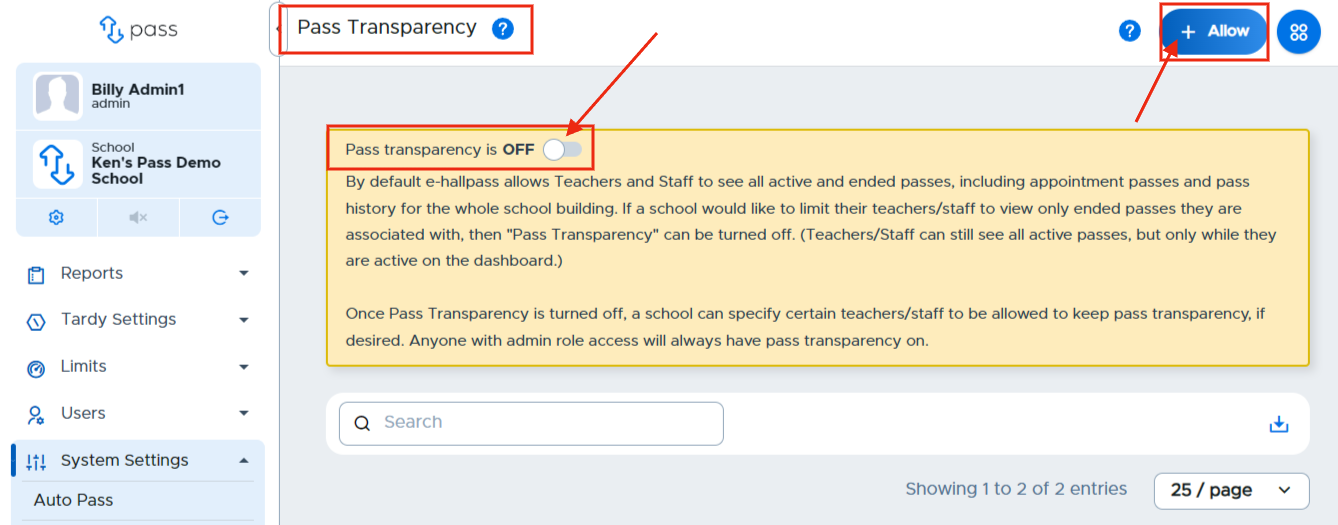
Click the toggle switch to OFF. This will allow you to select the specific individuals to give access to.
-
Click + Allow.
-
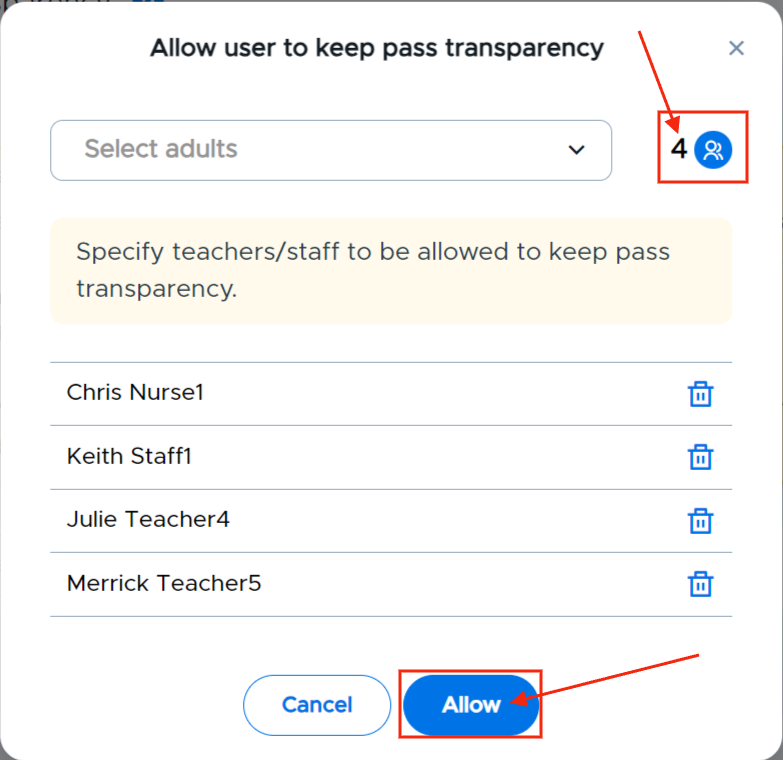
On the popup window, click Select adults and use the multi-select dropdown to select one or more adults at a time.
-
Use the multi-select dropdown to select one or more adults. To add an adult:
- Click in the Select adults name field.
- **Type the name, or scroll for the name, of that adult.
- Click on that adult's name.
- If other adults' names are needed, type or search for their names and click on their name(s) to add them.
-
Click Allow when finished.
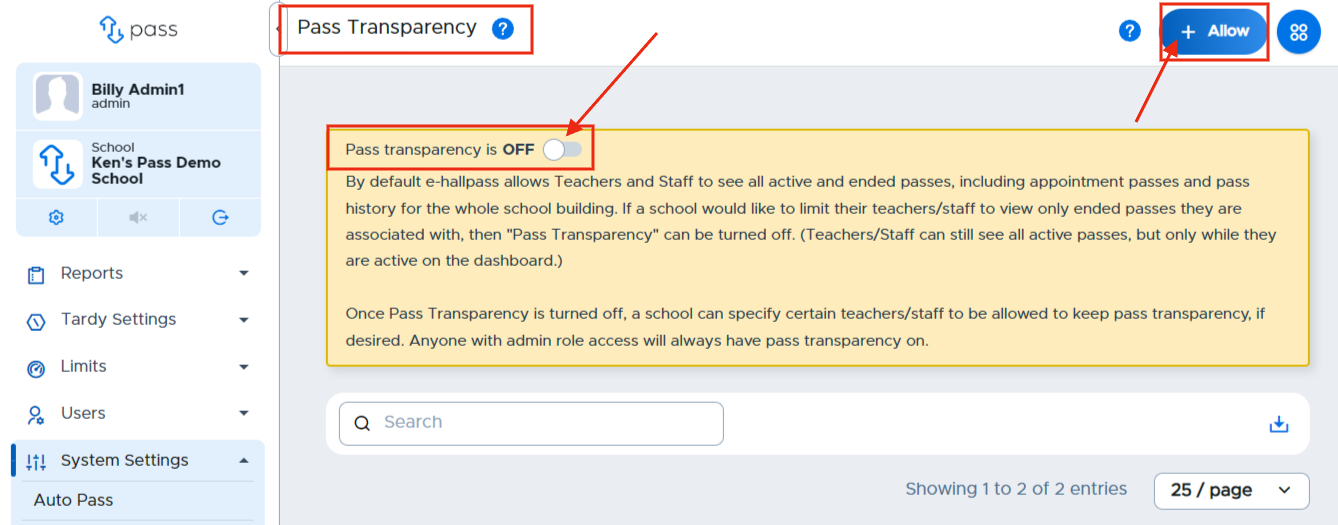
Once your adults who need Pass Transparency have been added, they will appear on the Pass Transparency page.
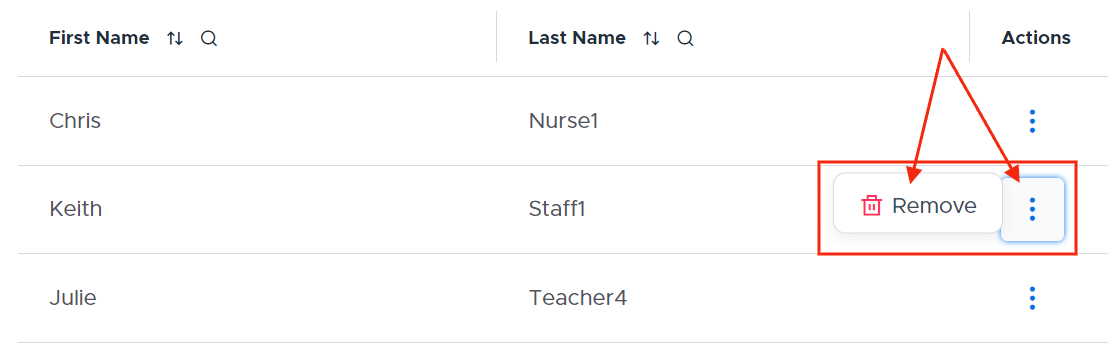
To remove an adult from the Pass Transparency list, click on the three(3) dots under the Action column on the right side of the screen for that adult and click Delete.
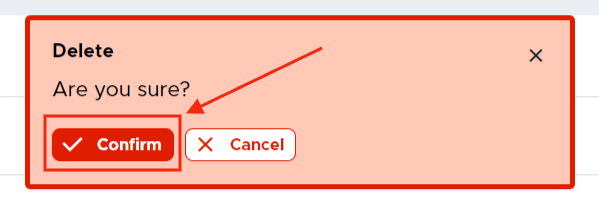
On the popup window, click Confirm, which will then remove the location from your list.
Video Alert:
Please watch the "Pass Transparency" video below.