Admins, Staff, and Teachers who run Flex activities can temporarily restrict a student from attending their “choice” activities. Adults have the option to set a restriction for 1-4 weeks.
Here are two videos that provide details about Student Restrictions:
Please see the Student Restriction section of this guide for details about the admin settings and options related to restrictions.
In this section:
- Principal Designation for Admins
- Creating & Managing Restrictions
- Restriction Notifications & Messages
- Student View of Restrictions
“Principal” Designation for Admins
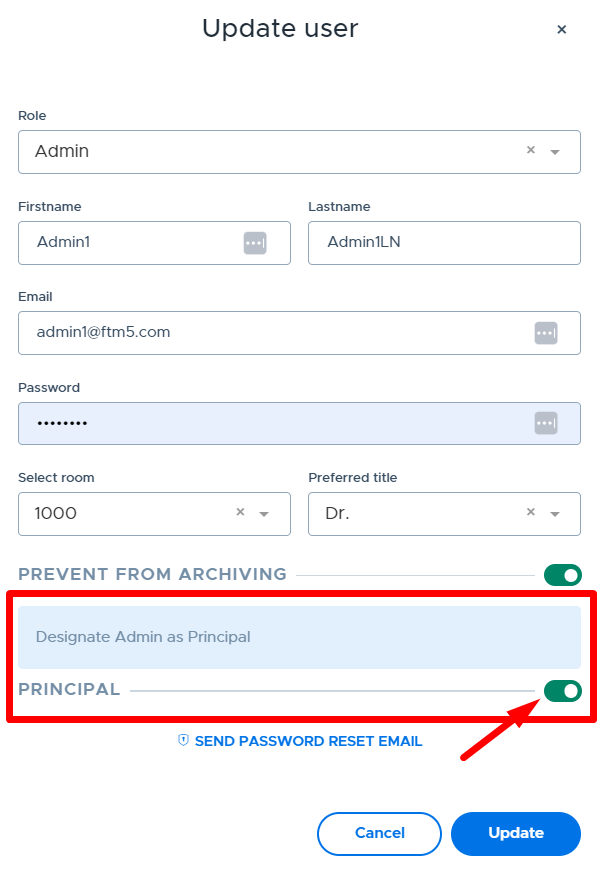
In order for an admin to see all student restrictions, related comments, and receive related notifications, they must be designated as a "Principal" in their user record.
- This is designed to help minimize the notifications going to all admin-role users in the system and help target only those admins with disciplinary responsibilities to receive notifications about student restrictions.
- Below is where the “Principal” designation can be turned on for a Flex admin. This is on the My School Settings > Users screen.
Creating & Managing Restrictions
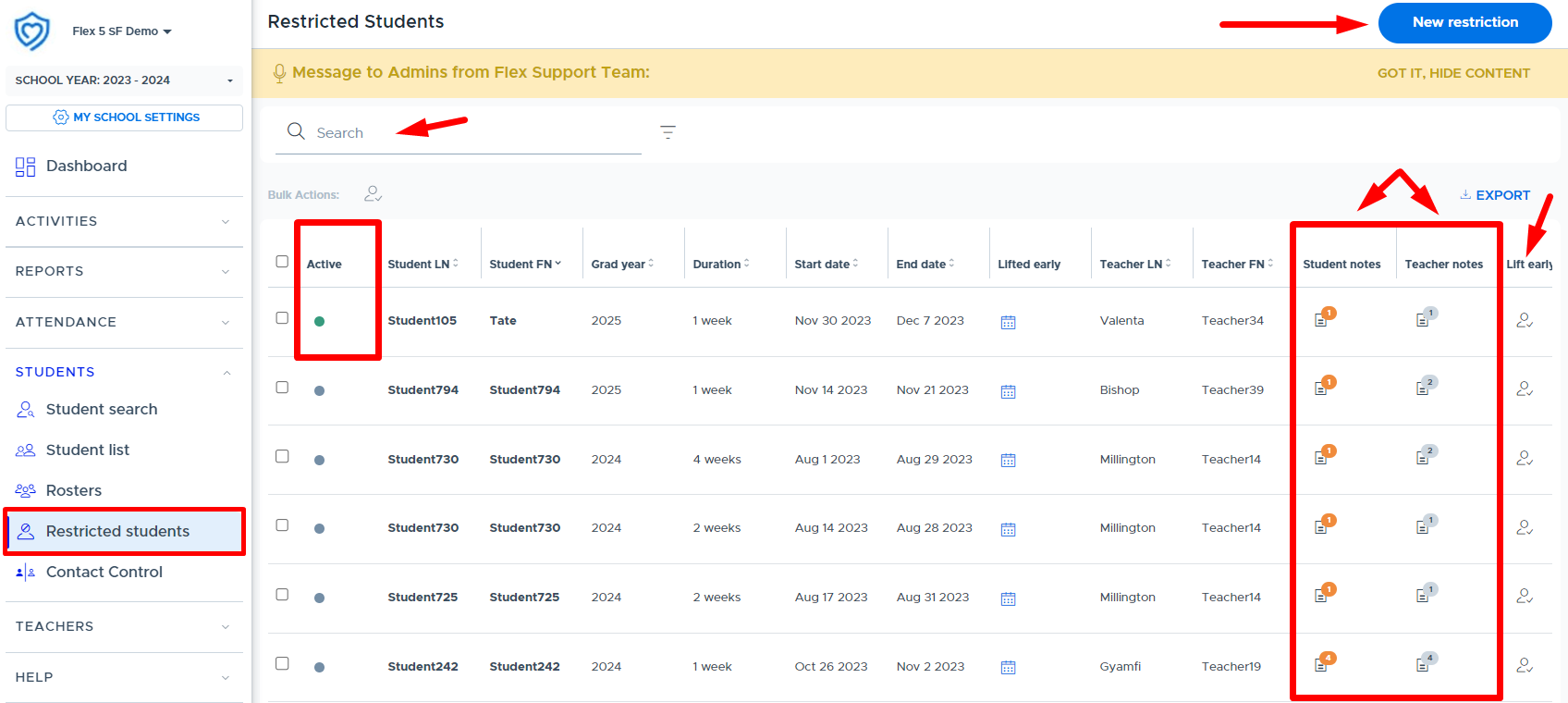
Below is the adult’s “Restricted Students” screen. From this screen, adults can set up a “New Restriction” for their choice activities, view & manage restrictions they have imposed, and admins (who are designated as “Principals”) can see details about all Student Restrictions.
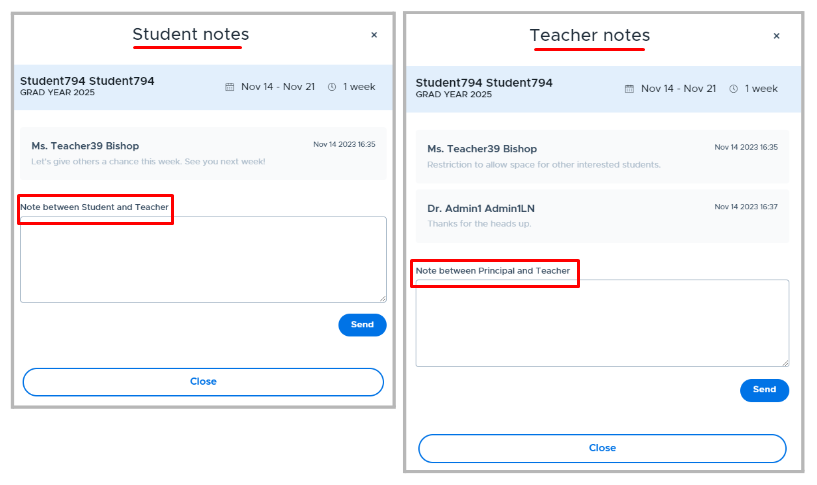
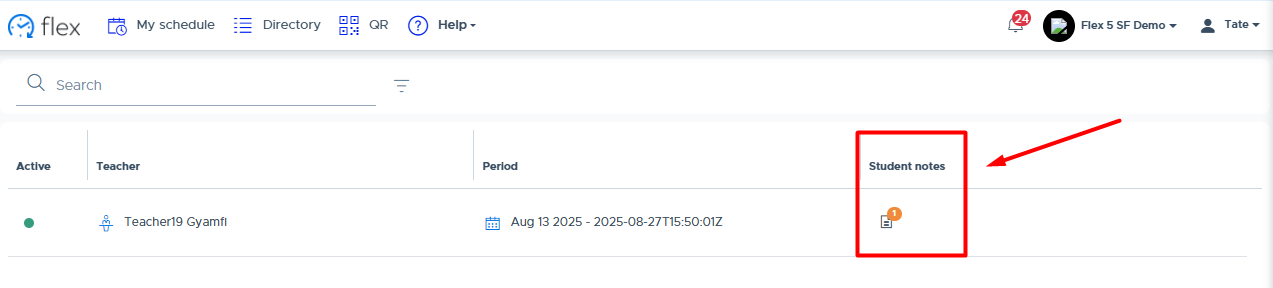
Principals and the adult who set the restriction can view and add notes/comments to the restriction from this screen. They can also lift the restriction early if desired. An active green circle will appear in the “Active” column if the restriction is currently being applied.
Tip: Admins who manage behavioral referrals from a teacher can simulate the teacher and set up the restriction on behalf of the teacher as part of the consequence for the referral.
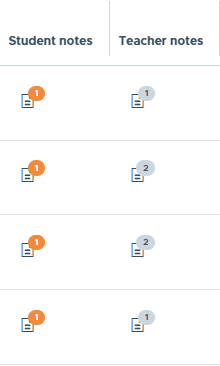
Below are some additional screenshots showing the notes/comments options related to Restrictions.
Restriction Notifications & Messages
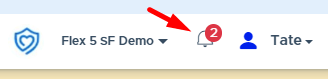
When an adult sets a student restriction, a system “in-app” notification will be sent to the student to let them know about the restriction. The in-app notification will put a number by the bell in the top right corner of the student’s Flex screen, as shown below. Students can click on the bell to see new in-app notifications.
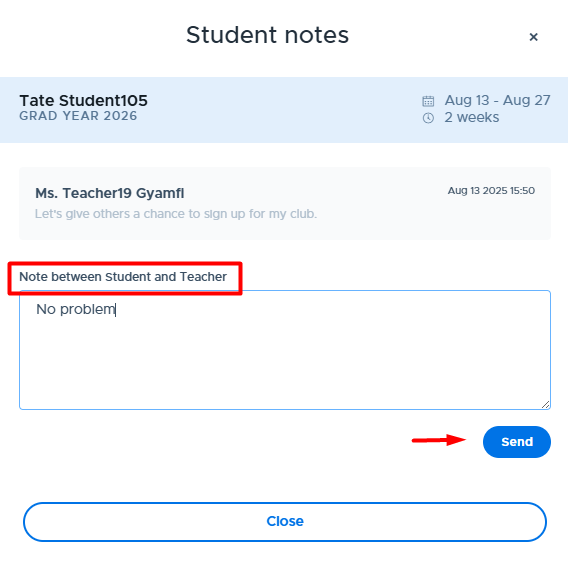
Below is an example of the in-app notification that the student will receive when a restriction is imposed. The student can click “View Restriction” in order to see the details which are located on the student’s Flex profile screen. (This is where the student can add a note back to the adult.)

Student Profile Screen:
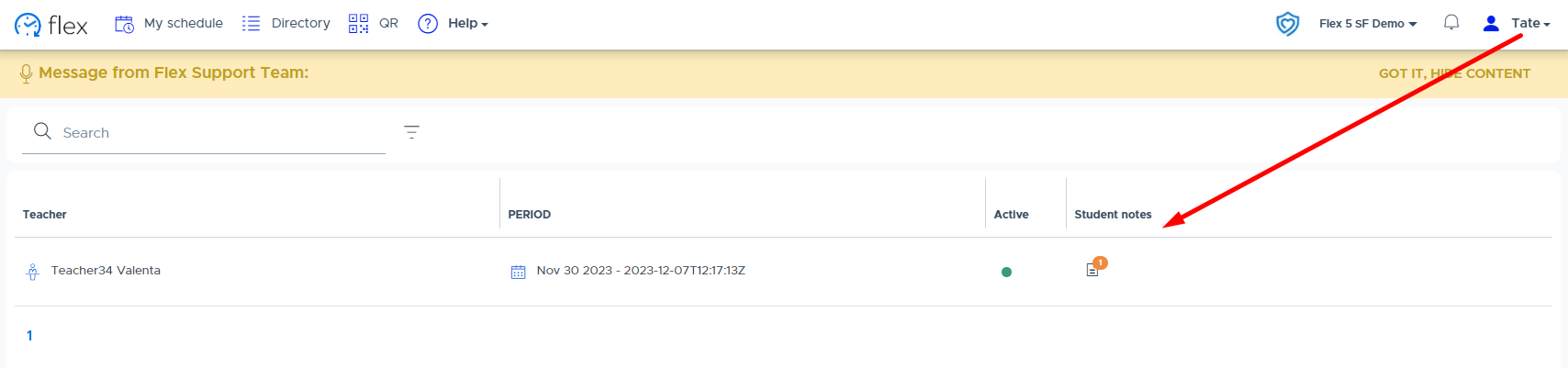
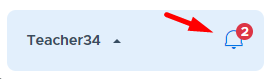
Below is an example of the adult in-app notification when a restriction comment has been added. The adult who imposed the restriction, designated “Principals”, and the restricted student will receive notifications when restriction comments are added that pertain to them.

Restriction Notifications for Students
| Trigger Event | Description |
|---|---|
| Restriction Imposed | Notification will be sent to a student when an adult sets a restriction on them. |
| Restriction Lifted | Notification will be sent to a student when an adult removes a restriction early. |
| Restriction Comment Added | Notification will be sent to a student when the adult, who imposed the restriction, or a “principal” adds a comment to the restriction for the student. |
Restriction Notifications for Adults
| Trigger Event | Description |
|---|---|
| Restricting teacher/adult adds a comment for the student | When an adult sets a student restriction and adds a comment in the “Note to Student” field or replies back to a student comment, the student and all “Principals” will receive a notification. |
| Restricting teacher/adult adds a comment for the “Principal” | When an adult sets a student restriction and adds a comment in the “Note to Principal” field or replies back to a comment, all “Principals” will receive a notification. |
| Restricted student adds a comment for teacher/adults | When a restricted student adds a comment for the adult who restricted them, the adult who set the restriction & all “Principals" will receive a notification. |
| “Principal” adds a comment to a restriction | When a “Principal” adds a comment for the adult who set the restriction, the adult who set the restriction and all “Principals” will receive a notification. If a “Principal” adds a comment for the restricted student, the restricted student and the adult who set the restriction will receive a notification. (All principals do not.) |
Student View of Restrictions
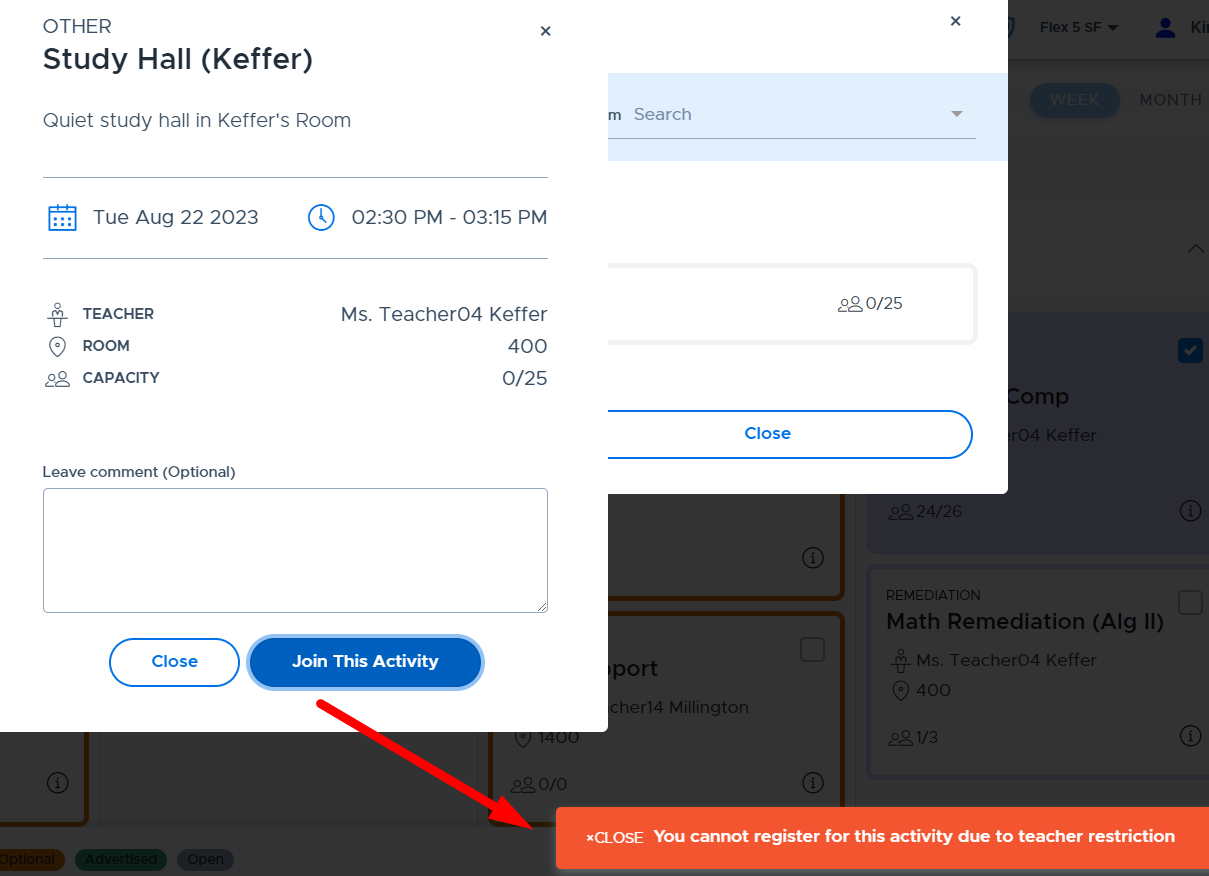
When a student attempts to join an activity in which they have been restricted, they will see the following message appear on their Flex screen:
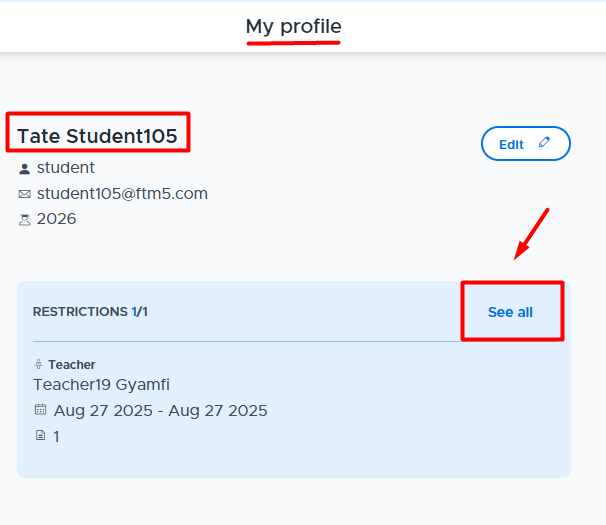
The student can see information about their restriction(s) by going to their Flex “Profile”, which is shown below. From the Profile screen, the student can click “See all” to see details about their past/present restrictions and comment back to the teacher, if desired.
The student must click on the “Notes” column to see the notes from the teacher and respond if they desire.
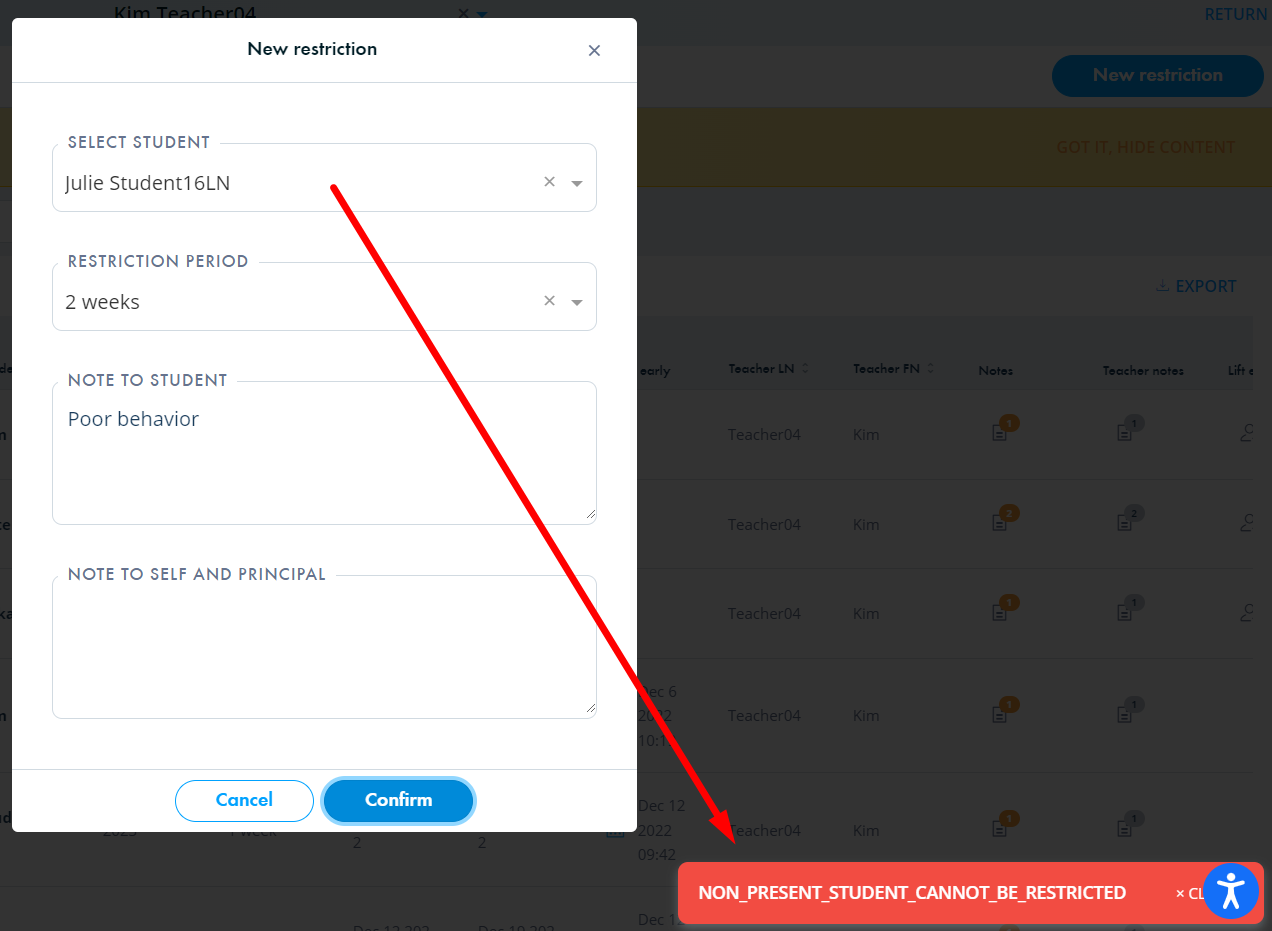
If the admin has the restriction setting toggled “off”, so that an adult cannot set a restriction without the student being present in one of their activities in the last 3 days, the teacher will receive the following message when trying to restrict a student they have not marked as present recently.