The Students tab provides a list of all students listed from all rosters in all class types, whether those classes were manually created or created through one of the many roster sync integrations available for Securly Classroom.
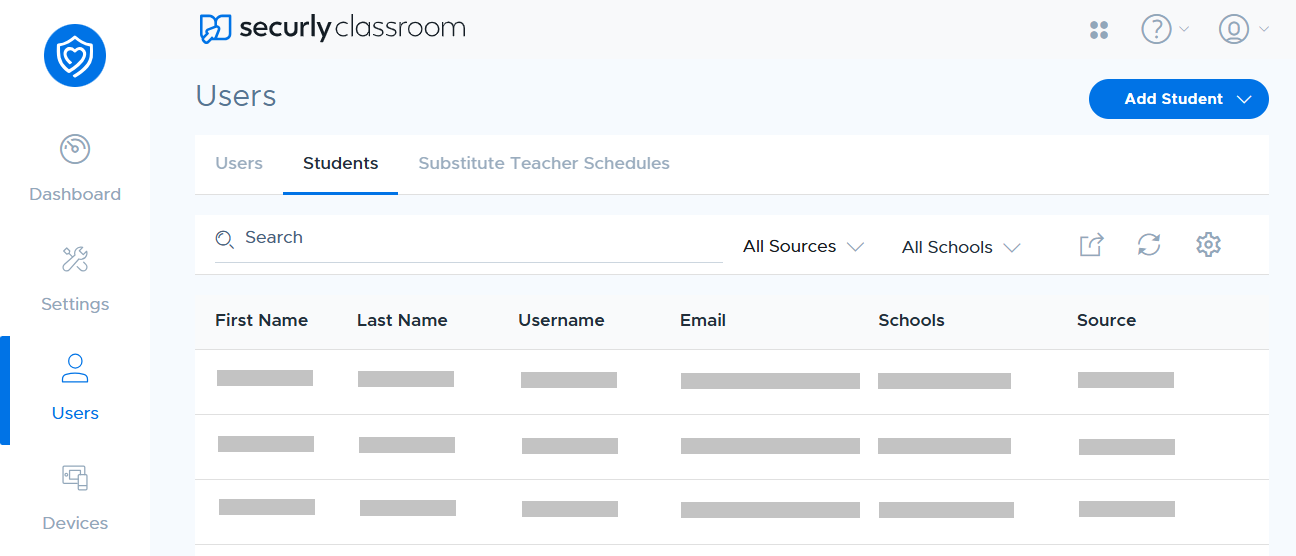
Clicking on a student allows you to access their history, or edit their information if they were added manually.
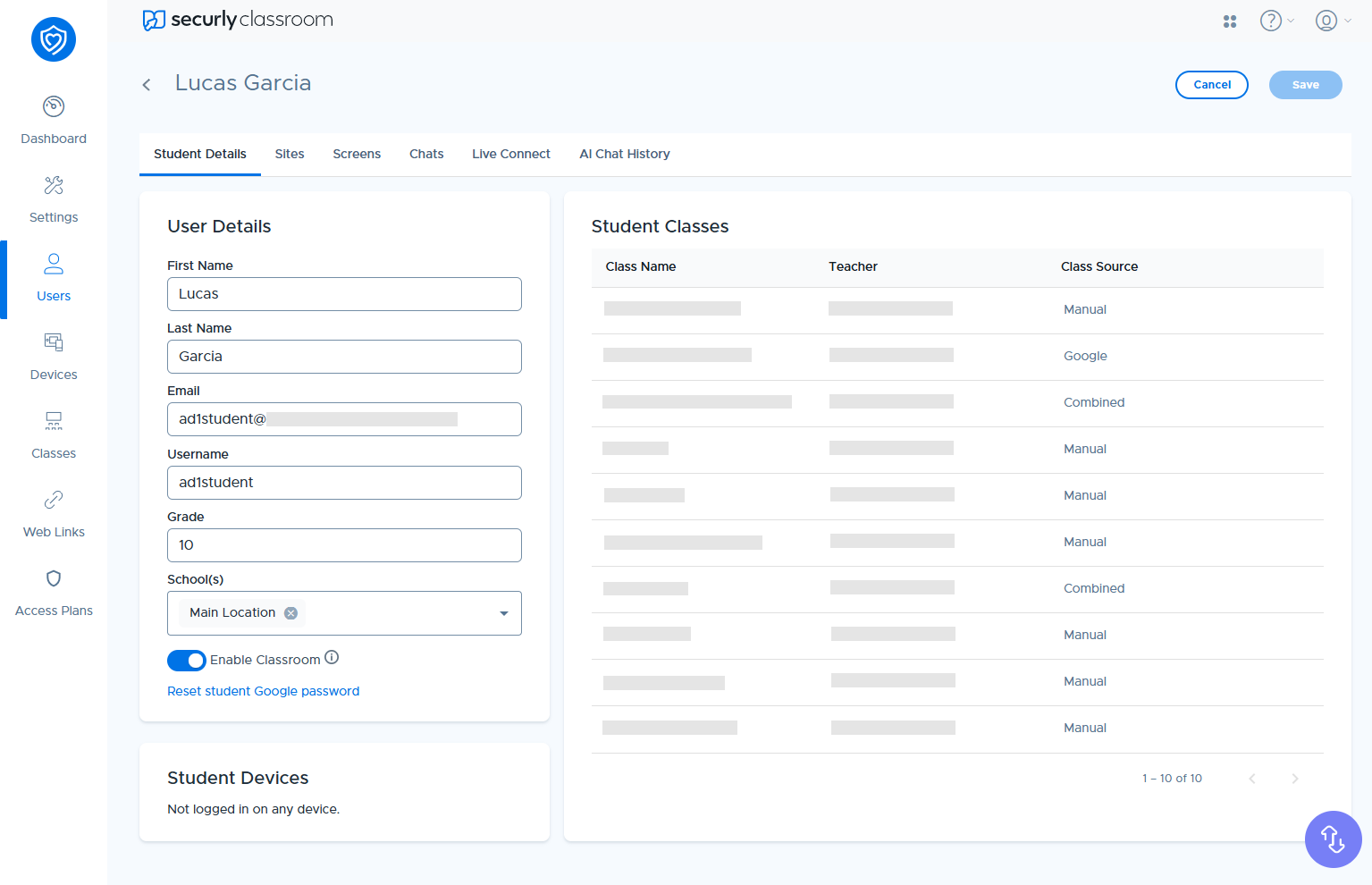
Under Student Details, you view details like name, email and username. You can also see all classes a student is in enrolled in for quick reference in the "Student Classes" panel.
The "Enable Classroom" toggle, if disabled, prevents the student from being included in any class by a teacher.
You will also see the option to reset the student's Google password from this screen, which allows teachers to quickly and easily help students regain access to their Google accounts. If teachers don't see this option, make sure to allow it in Permissions.
The Sites page displays a list of websites the student has visited, including any blocked sites they attempted to access. It also shows the date and time of each visit, the class during which the site was accessed, and the teacher for that class.
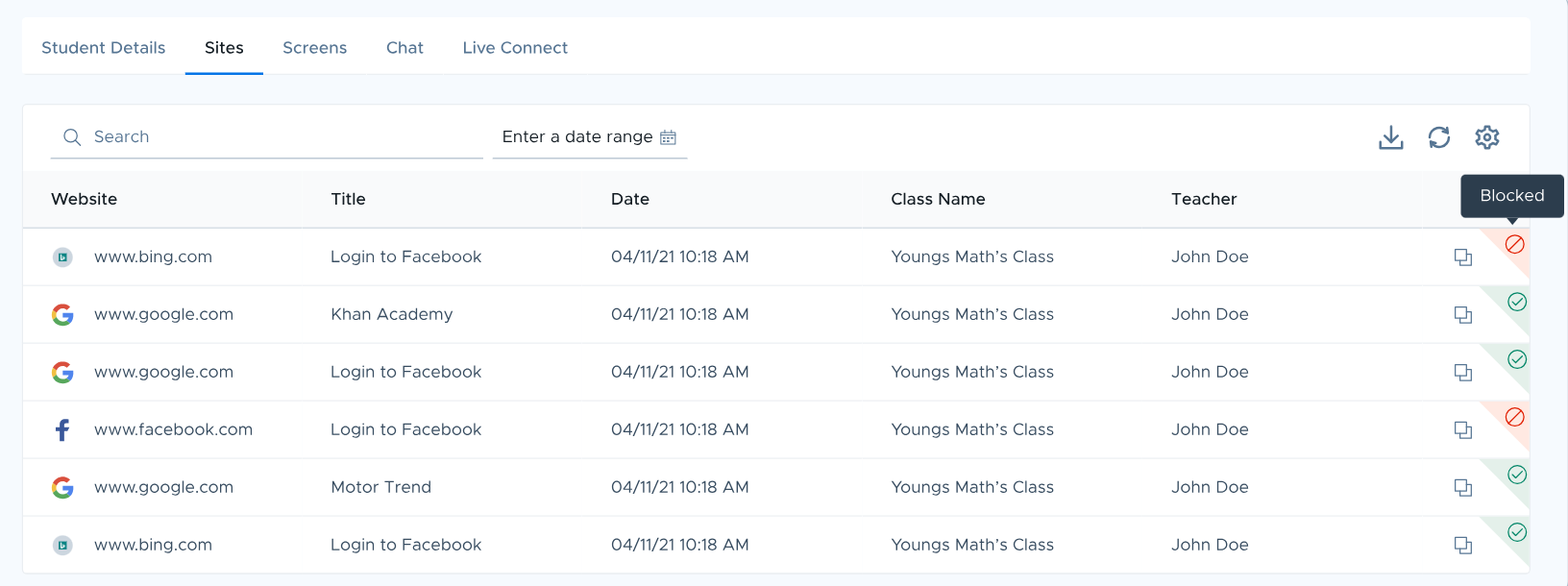
Blocked sites are shown with a red label on the right and allowed/visited sites are shown with a green label.
In the Screens page, you can view screenshots of the student's browsing activity.
From Chat, you can read transcripts of chats between a student and a teacher. Learn more about the Chat feature.

Live Connect lets you see the start time, end time, and duration of the 1:1 video conferencing between a student and a teacher. Learn more about Live Connect.
Lastly, the AI Chat History page provides a record of conversations a student has had with Securly AI Chat. Note that this page will only be available if the AI Chat integration is enabled by the admin under Settings > System > Integrations.