MDM administrators will receive advance email notifications when a token is approaching its expiration date. You can also check whether your token is expired or nearing expiry by navigating to** Settings > ASM Apps & Books** and reviewing the Expiry column.
.PNG)
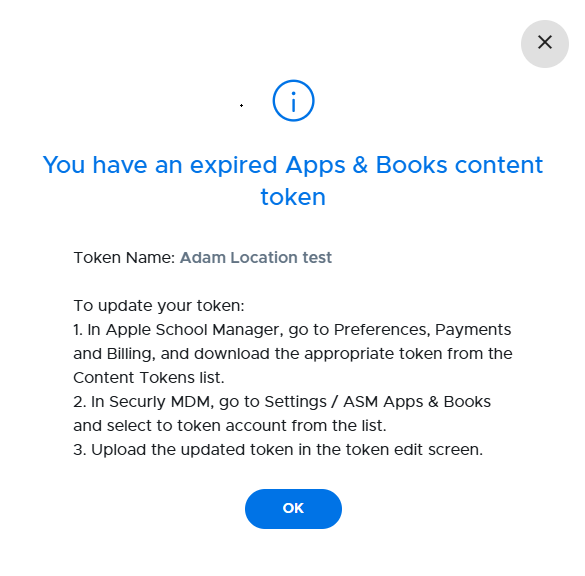
Once a token has expired, a popup will appear when you log in to Securly MDM, providing instructions for updating the token.
Updating an expiring ASM account token
-
Log in to your Apple School Manager (ASM) account, click on your Profile at the bottom of the left menu, then select Preferences, and click on Payments and Billing.
.png)
-
Under Apps and Books, scroll down to the Content Tokens and click on the Download button next to your school name.
-
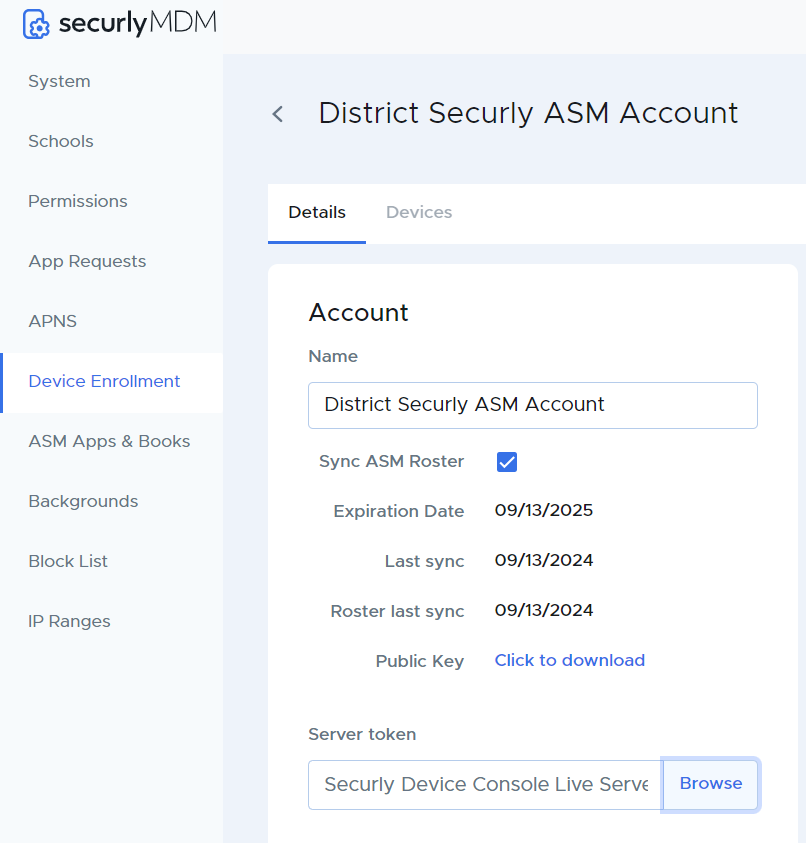
In Securly MDM, go to Settings > Device Enrollment > Automated Device Enrollment and select the ASM account.
-
On the Account panel, upload the server token that was downloaded from ASM, then click Save.