Just like the Admin Groups in Securly Filter, Securly Aware allows you to delegate admin access to additional co-workers for easier management.
Enable Admin Groups and adding users
For the first time, you would need to enable the ‘Admin Group’ from the Users menu to create a select group of users with access to Securly Aware. Only users included in this group will have access to the Securly UI, irrespective of whether they are Super Admins in Google Workspace. Enabling this feature restricts access to Securly Aware to only users in the ‘Admin Group’.
To enable Admin Group in Securly Aware:
-
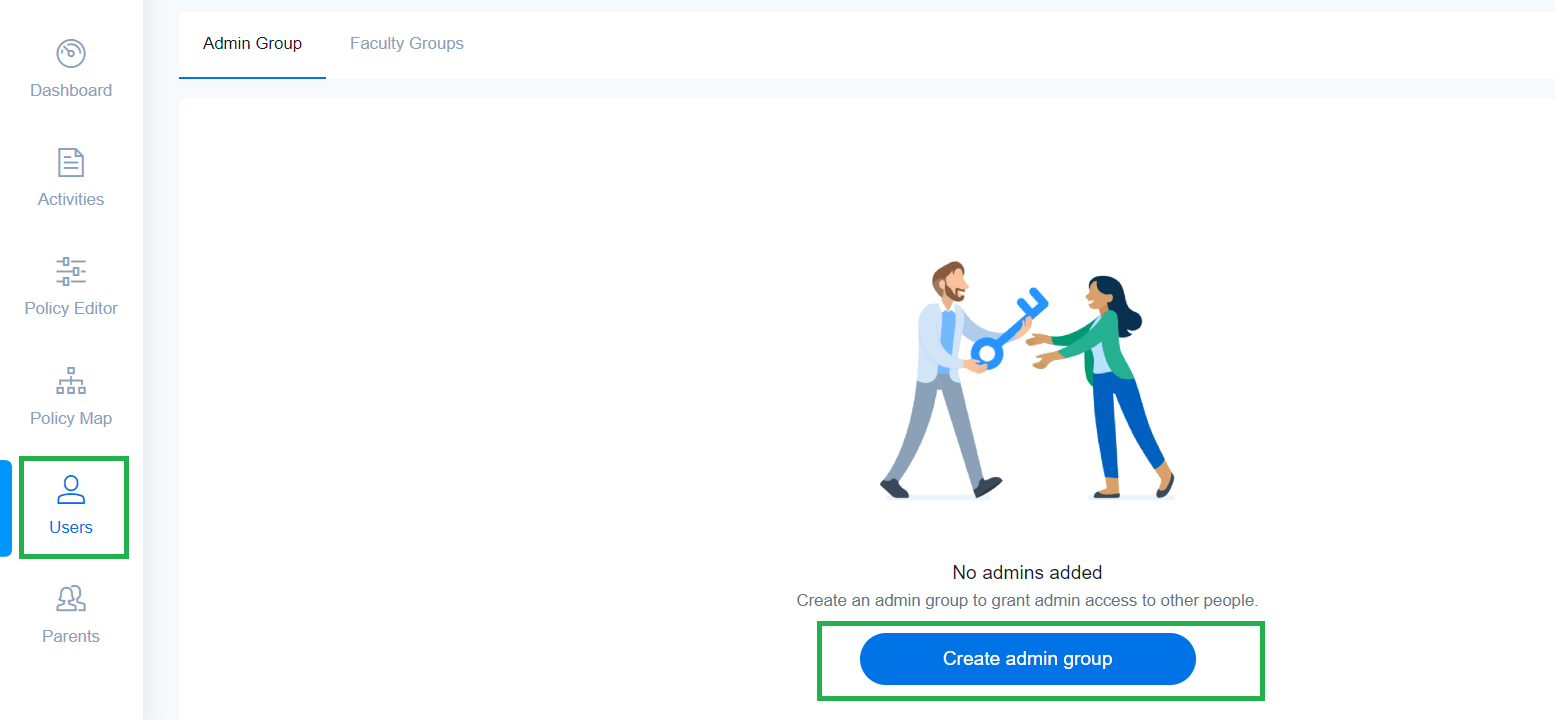
Log in and navigate to Users.
-
Select ‘Admin Group’ and click on ‘Create admin group’. In case there are multiple super admins, the first super admin to enable this feature would be able to exclude other super admins from the group.
-
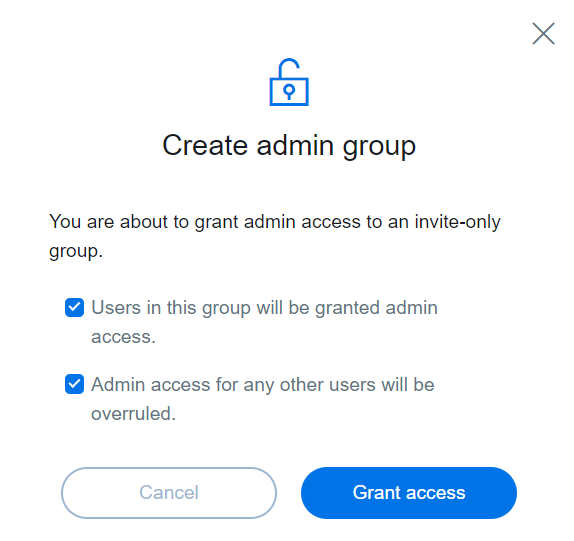
Click on checkboxes and select Grant access.
-
'Admin access granted successfully' is shown on the screen.
-
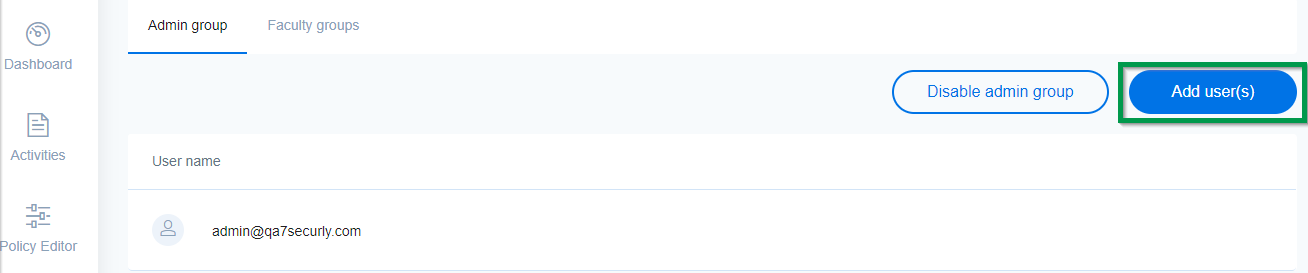
Click ‘Add User’ to add new users.
Disabling Admin groups
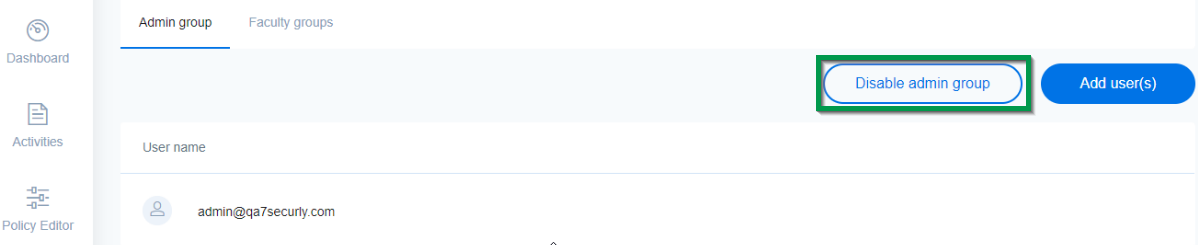
You can disable this feature by clicking ‘Disable Admin Group’. Access to the Securly UI would then become available to all those with the Super Admin role in Google Workspace.
Granting Super Admin rights in Google Workspace
Give other administrators of Securly super admin rights in Google G Suite. To learn more, check Google’s official documentation here. This gives users full access to control Securly Aware for your organization. You can also choose to provide users with partial access as well. To do this, you must create a faculty group.