Faculty Groups in Securly Aware function the same as in Securly Filter. School administrators can create these groups to delegate the monitoring of student activity and grant access to activity reports and email alerts. This feature is especially useful for staff members such as teachers, teacher’s aides, and counselors, allowing them to stay informed about student behavior and engagement.
Only a Securly admin has the authority to create, edit, and delete Faculty Groups. Faculty groups can not be cloned or renamed.
To create a new Faculty Group:
-
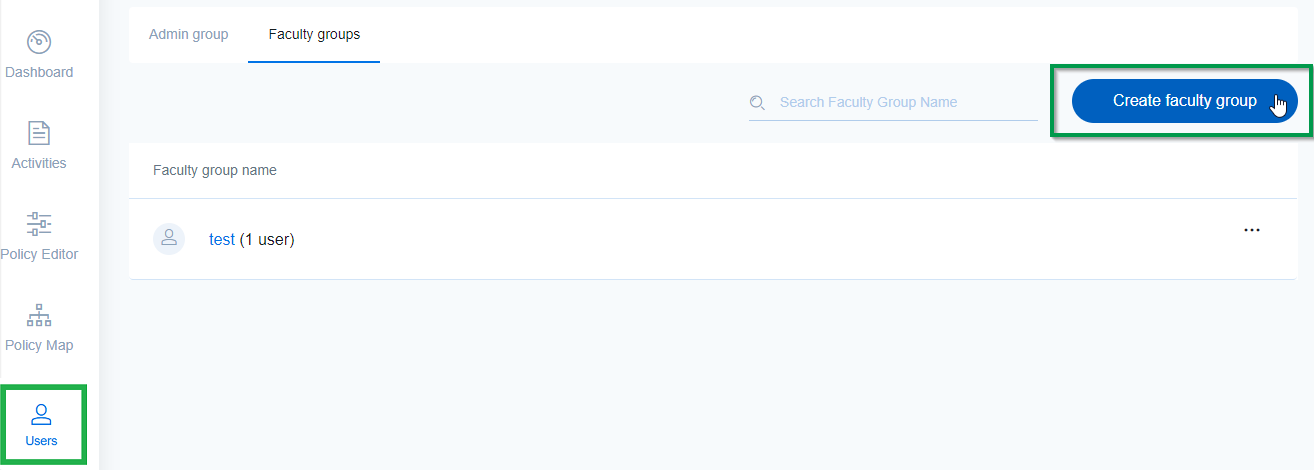
Navigate to Users > Faculty groups.
-
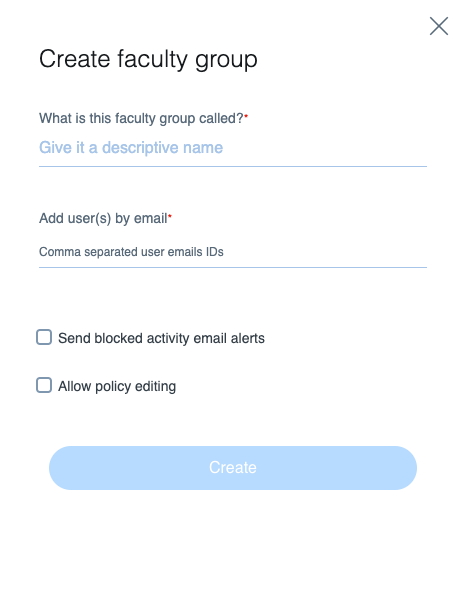
To create a new group, click on ‘Create faculty Group’. A pop-up will be launched where you enter the group name and the email(s) of the teacher, staff member, etc. separated by a comma. You need to enter at least one email to create a group.
-
To enable group members to receive alerts, select the relevant checkboxes and click on the Next button at the bottom.
-
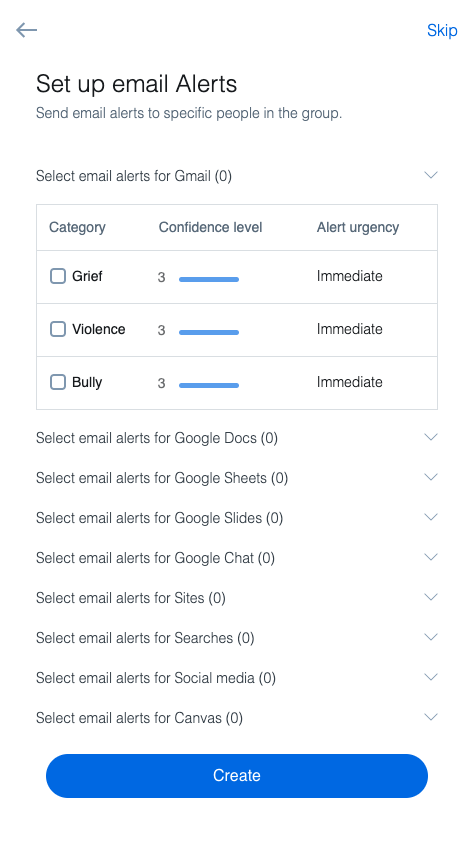
Select the relevant check boxes as seen in the screenshot below and set the confidence levels to determine your own threshold for receiving email alerts. This does not mean that we will detect activities only above your selected confidence level; it only relates to the email alerts you receive. We will continue to flag all activities as usual and log them in the Activities tab. They will be available to you at all times.
-
Finally, click on the Create button.
Once a new group has been created, you can:
- Allow users in the group to view reports for specific OUs.
- Add more users to the group.
- Modify alerts and access for the users in the group.
Allow users in the group to view reports for specific OUs
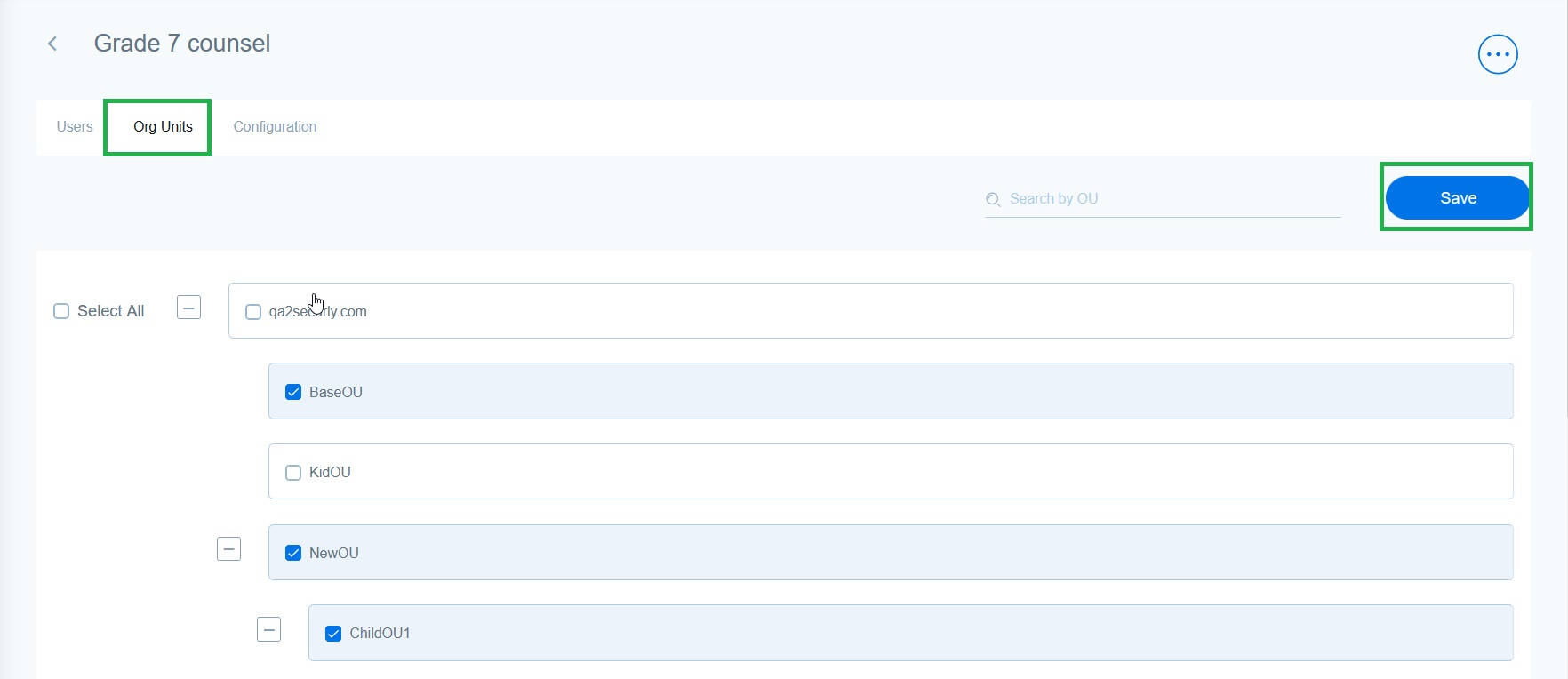
Once a new group has been created, you need to assign OUs to the group. Faculty group users will be displayed reports only for students belonging to the selected OUs. Got to the Org Units tab for your group, select the required OUs using the checkboxes, and hit Save.
Add users to the Faculty group
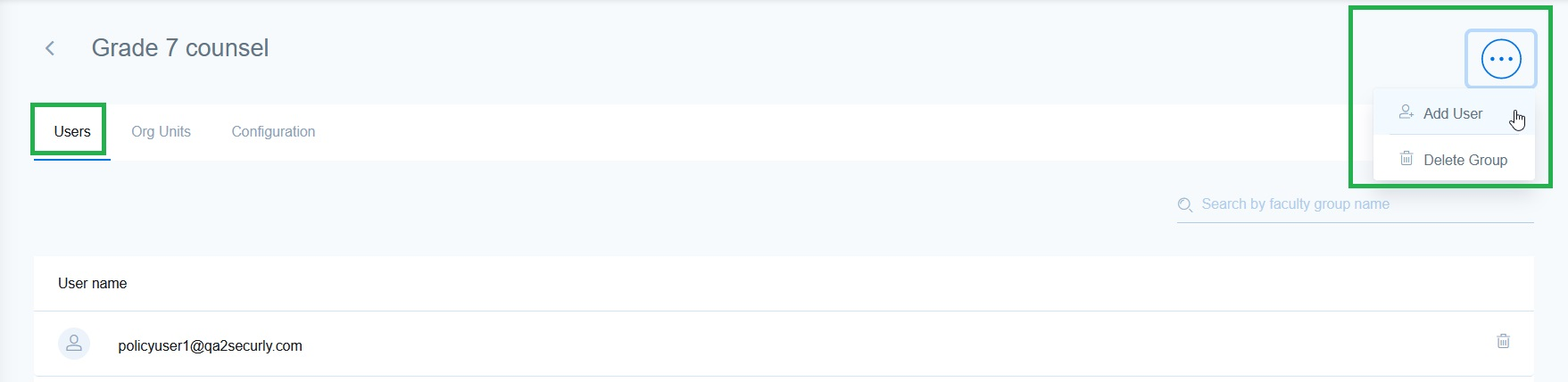
To add a staff member or teacher to an existing group, click on three-dot icon (...) on the right side of the screen, then click on 'Add User'. A pop-up will be launched where you can enter the email(s) of the teacher, staff member, etc. separated by a comma.
Managing configurations for a group
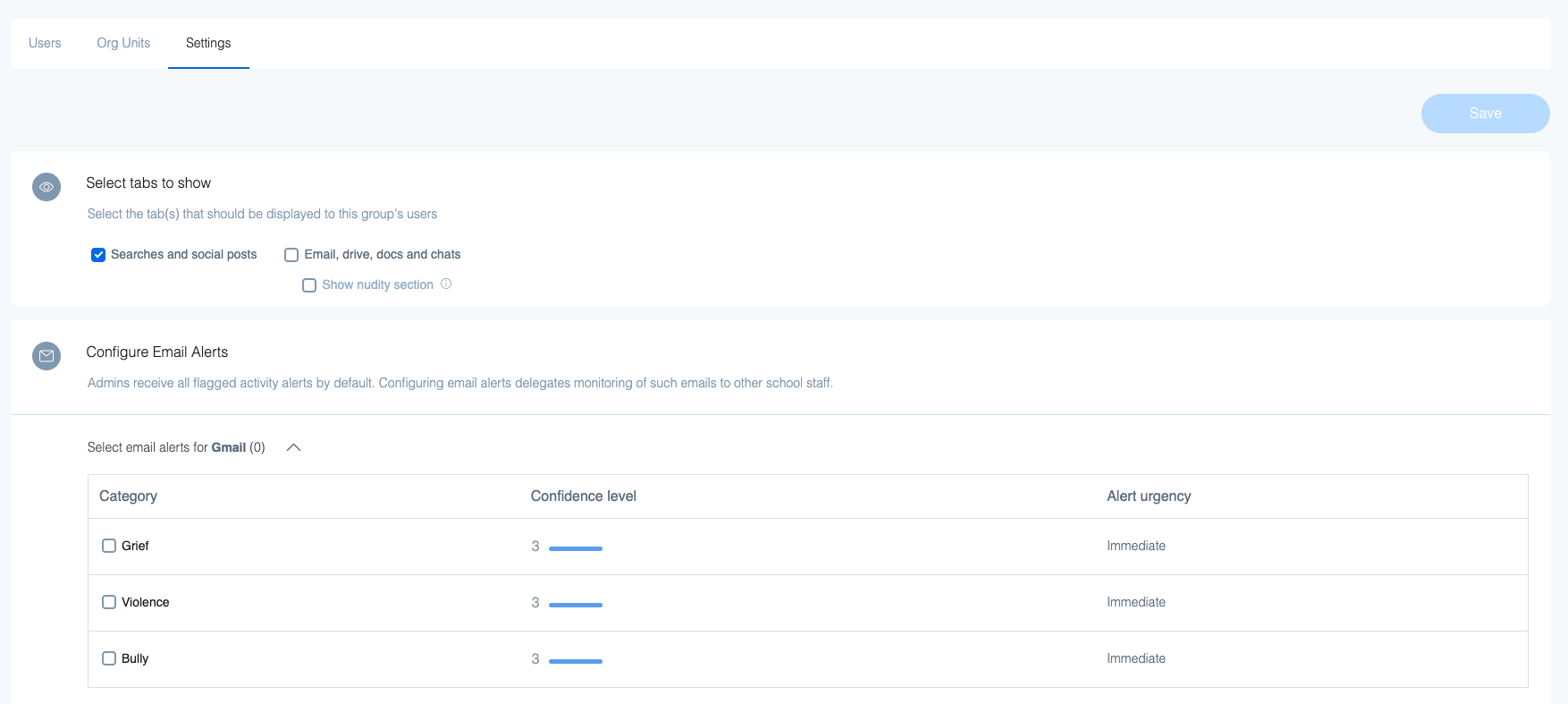
It is possible to edit access for the faculty group or change the email alerts they received, the confidence levels, categories, etc. by updating the relevant fields under the Configurations tab for Filter or Settings tab for Aware.