You can hide classes from the Classes menu by archiving them. This provides teachers a way to clean up their class lists by removing old, unused classes. Users with permission to edit classes will have permission to archive them. The process can be reversed by unarchiving the class. The Archive and Unarchive options are available in list view on the Classes menu.
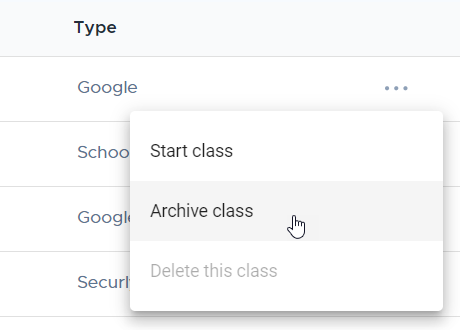
Click the three-dot icon for a class, then select the Archive or Unarchive option. Archiving a class will also disable any associated class schedules.
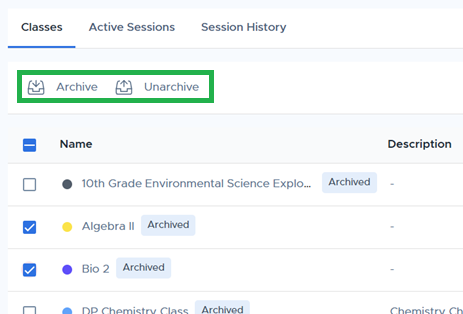
To archive or unarchive classes in bulk, select multiple classes using the checkboxes to reveal the Archive or Unarchive options.
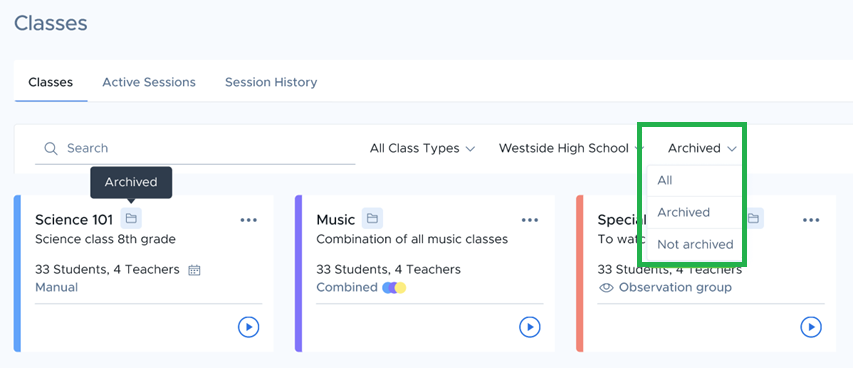
Archived classes are visible in the main card view of the Classes menu and have a folder icon next to the class’s name. You can also use the dropdown selector to filter the class list to show only archived classes.