To assign OUs to policies:
-
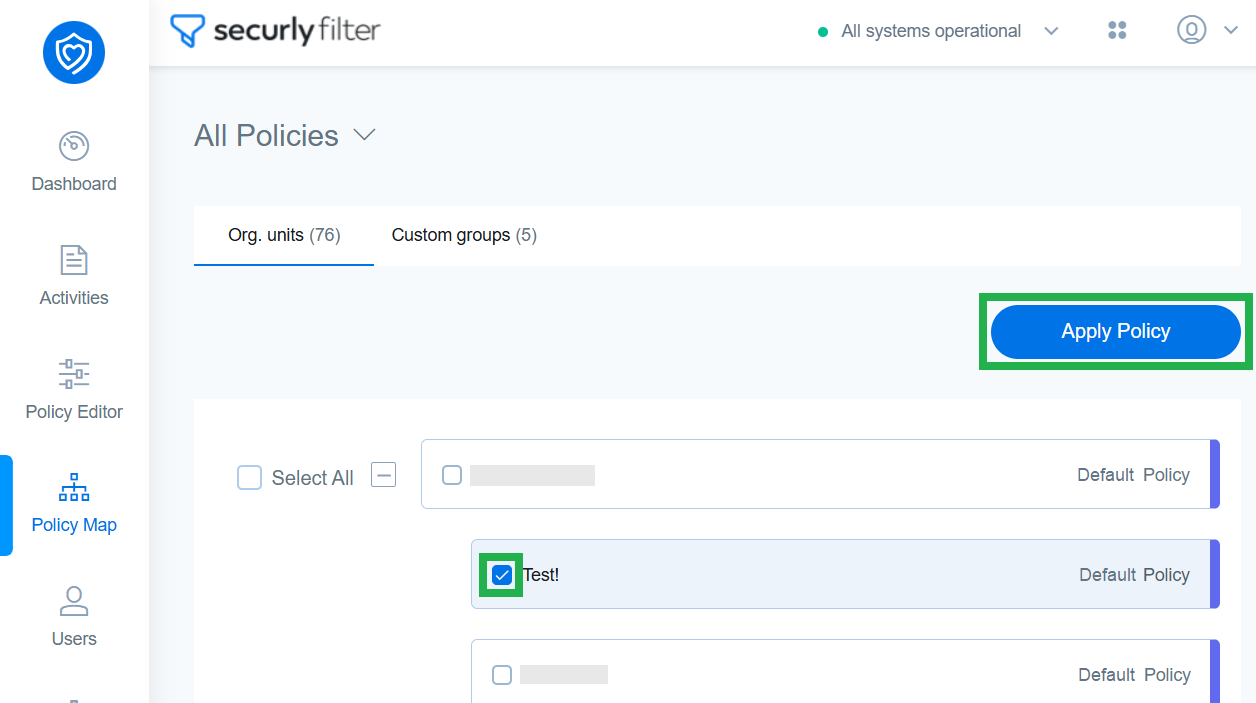
Navigate to the "Policy Map" and select the OUs you want to assign to a specific policy.
-
Click on "Apply Policy".
-
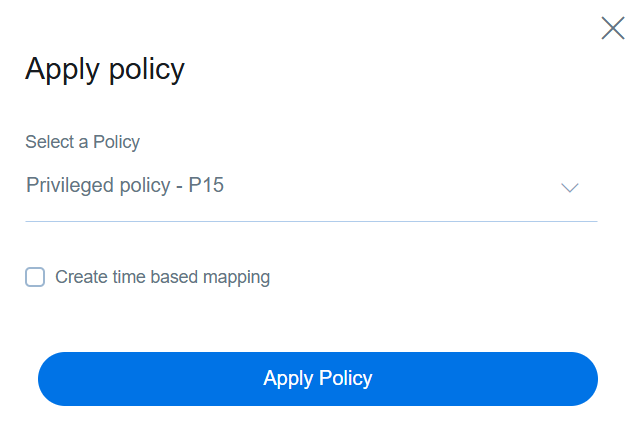
In the following sidebar popup, select Default or any policy option from the dropdown menu. Below this, you’ll also see a checkbox to set a timeframe during which this policy will be active for the selected OUs. Learn more about creating time-based policies.
-
Click on the Apply Policy button and the assigned OUs will then start displaying the name of the policy.
Note
When you move your Google Workspace OUs to Securly, they are automatically assigned to the Default Policy.
After applying the policies to the required OUs, your setup is complete.