An Admin can “Cancel” Flex for students based on their “Grad Years”. For example, this means that Flex can be canceled for all seniors but not the rest of the high school. Admins can also cancel it for all grades or all students.
Here is a video that provides an overview: Flex Cancellation
In order to cancel a Flex, an Admin should select Activities > Cancellation from the menu. Then click “New Cancellation” as shown below:
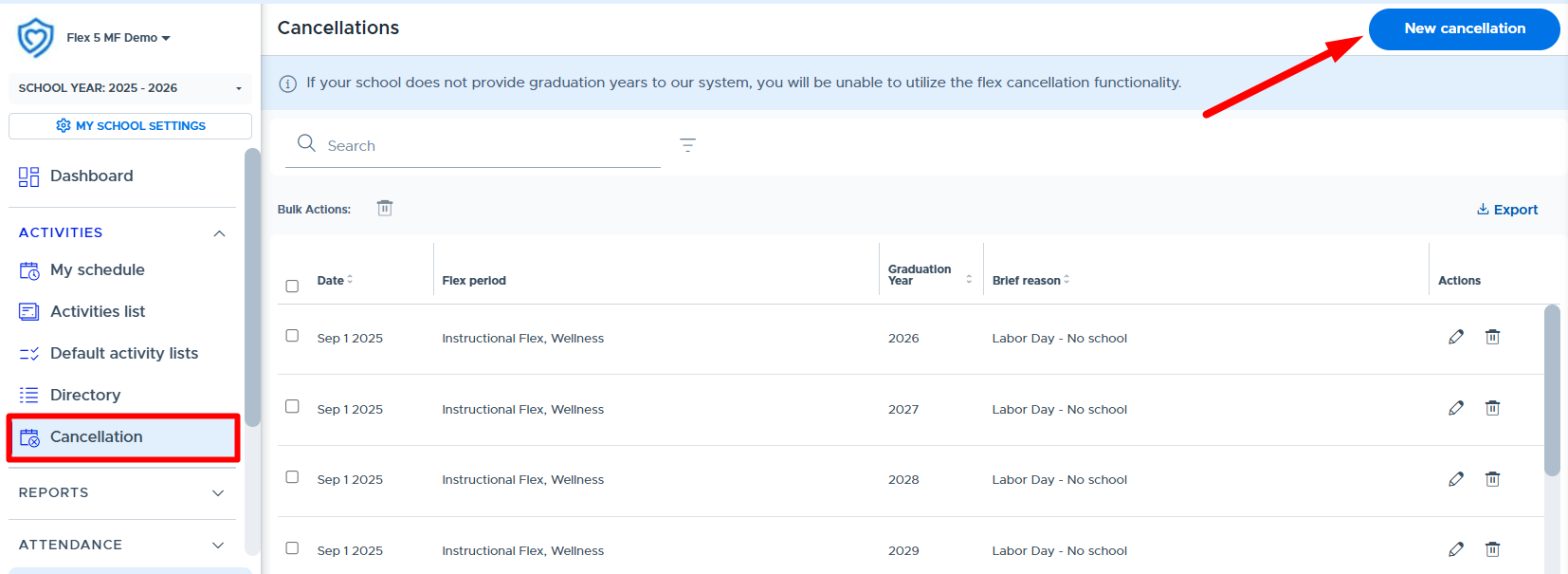
Complete the screen shown below:
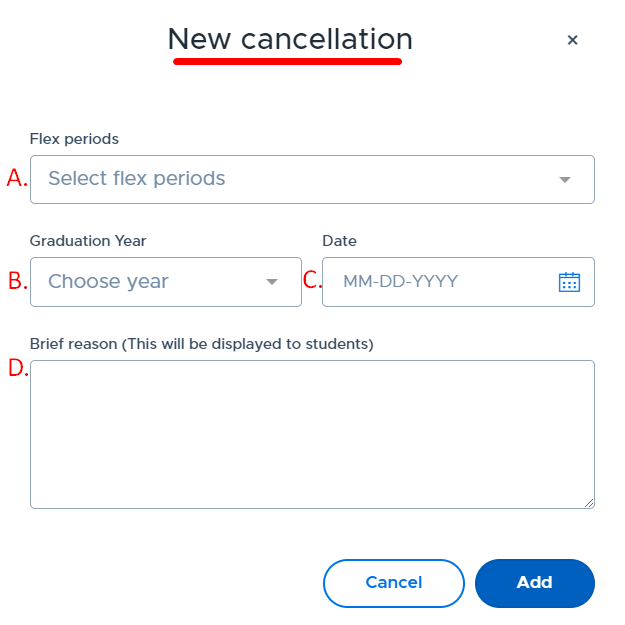
a. Select the Flex you want to cancel. If you run more than one Flex, each Flex will need to be canceled separately.
b. Select the graduation years for which you would like to cancel Flex. You can select multiple grad years. If your school does not share grad years for students, you will not be able to use the Cancellation feature.
c. Select the date you would like to cancel - at this time you can only select one day at a time.
d. Enter a “Reason”. What you type here will be seen by the students. An example might be: No School Today/Teacher In-service - Have a great day! > Click “Add” to save your changes.
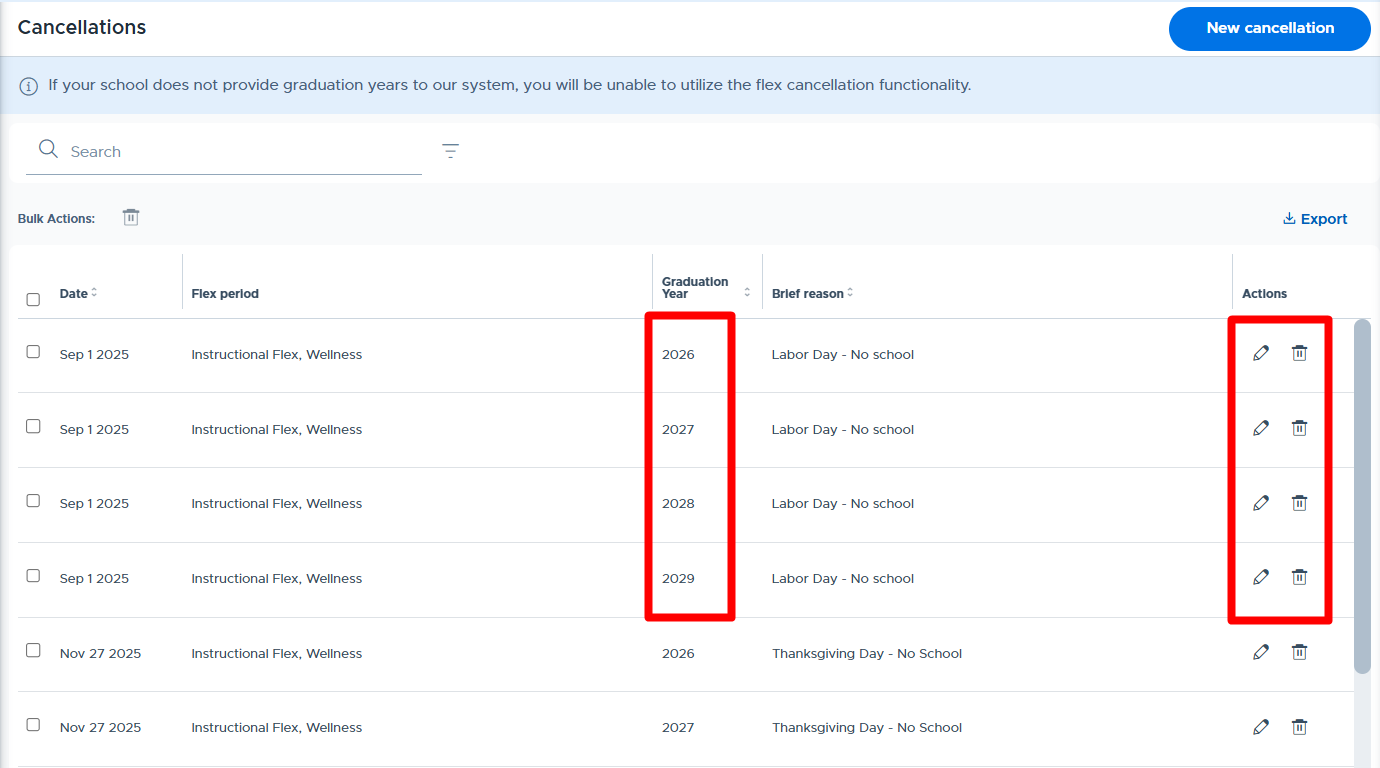
Once the cancellation has successfully been saved, the Flex cancellation is added to the main list on the “Cancellation” screen. The cancellation can be edited or deleted prior to the Flex period starting, by using the buttons in the “Actions” column. One cancellation for multiple grad years will be listed separately in the main list (see below), so be sure to edit/update each cancellation as needed.
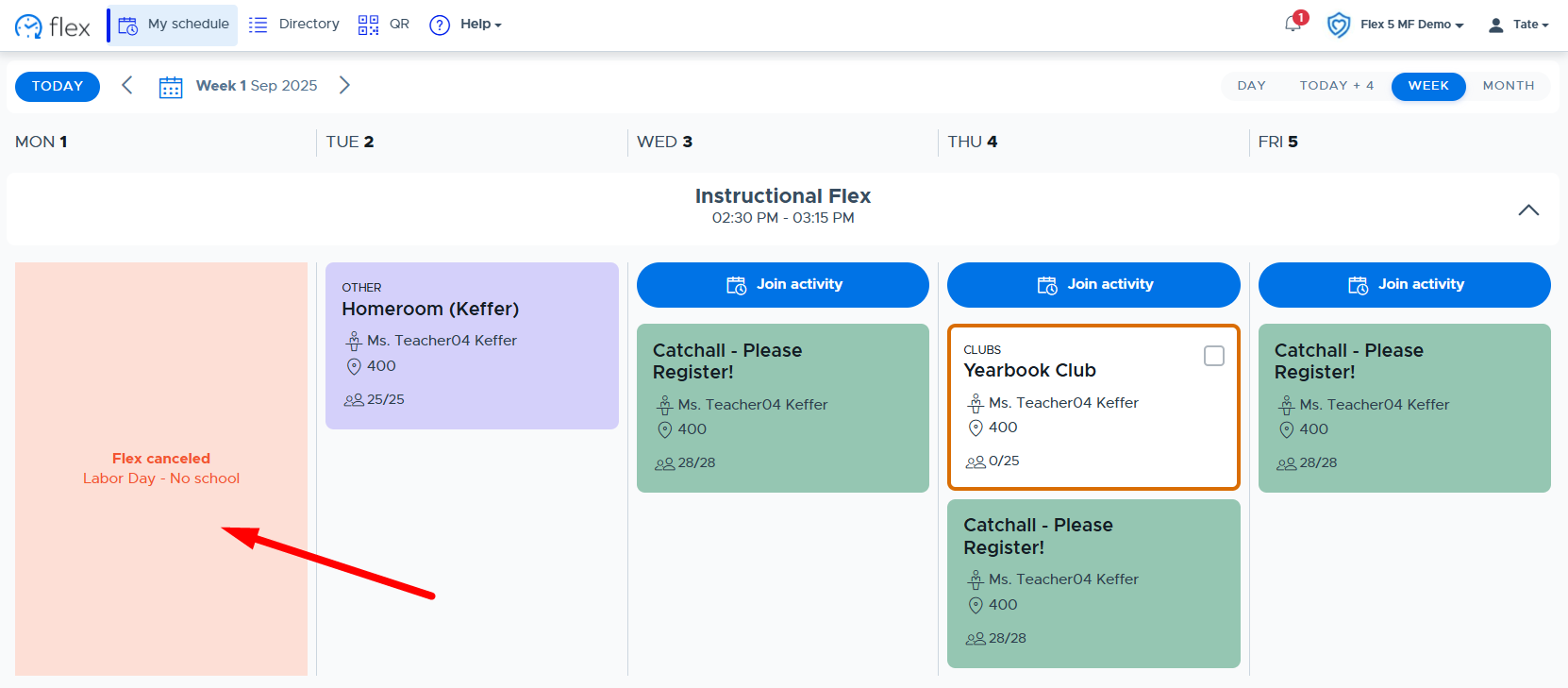
Below is what the student’s My Schedule screen looks like when a Flex is canceled:
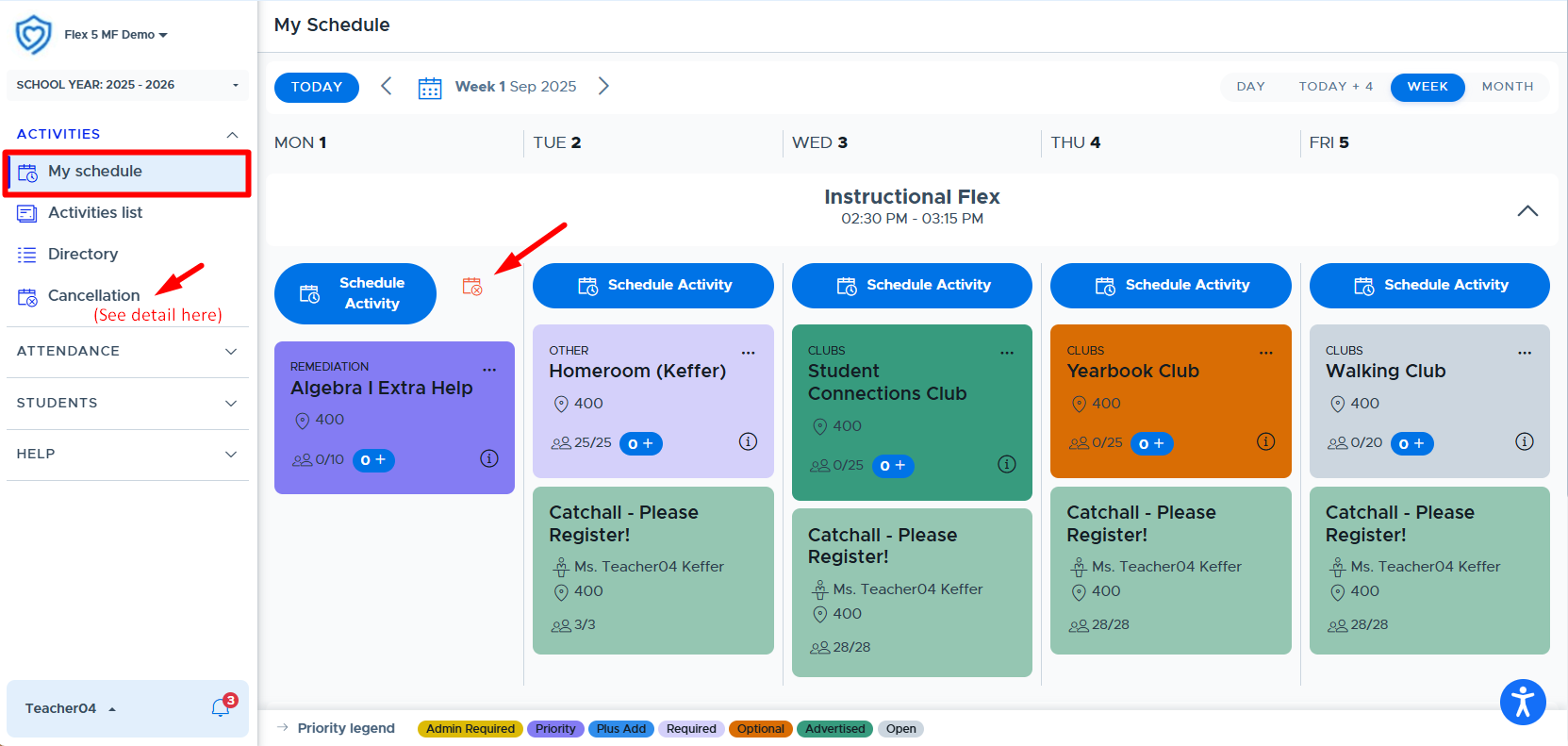
Below is the teacher’s My Schedule screen when flex has been canceled. Teachers will still be able to schedule an activity, since they may be doing this for grad years that are not part of the canceled Flex. Teachers/Staff can click on the “Cancellation View” link next to the Schedule Activity button or go to the Activities > Cancellation screen to view all canceled flex periods (and grad years).
You may also find it helpful to use the “Announcement” feature to further remind all users of the change in schedule.
If flex is canceled for a student who is included in a teacher’s mandatory activity, the teacher will see the student in the “Missing Student” section of the Attendance screen. There will be a note indicating this is due to an “Admin cancellation”. Please see the example below.

Cancellation Notifications
Adults and students (in applicable grad years) will receive “in-app” notifications when a flex period has been canceled. Adults will receive this notification if a flex period is canceled within the current calendar week (Mon-Fri). Students will receive this notification if a flex period is canceled for the current day. Below is an example of the in-app notification for adults, which can be accessed by clicking on the bell icon.
