Creating Case Manager Groups in Securly Aware allows for effective case management and ensures that the right team members are alerted to specific incidents.
To create a Case Manager Group and assign the appropriate organizational units or security groups to it, follow the steps below:
-
From the Navigate to the Users page, select the "Case Manager Groups" tab.
.PNG)
-
Click on the "Create Case Manager Group" button.
-
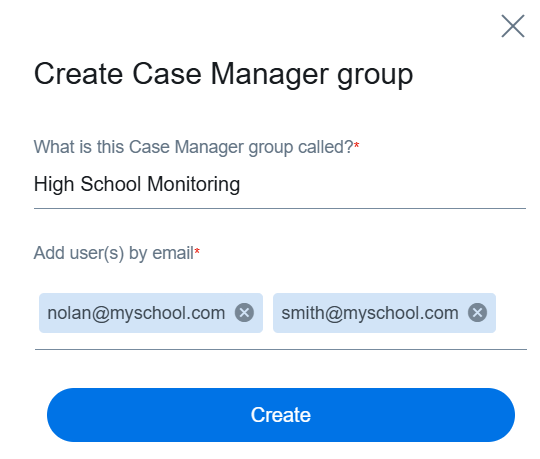
In the pop-up window, provide a descriptive name for the group and add users by entering their email addresses, separated by commas.
-
Click "Create" to establish the new group. Your newly created will now appear in under the main view.
.PNG)
-
After creating the group, you must select which OUs or security groups the Case Manager Group should have the ability to view and manage cases for. Just click on a group and check the boxes next to the relevant OUs or security groups as shown below.
(1).png)
If you need to search for specific OUs or security groups, use the "Search by Org. unit" field to quickly find them. -
Finally, click on the Save button.
- Ensure that each Case Manager Group is given access only to the OUs or security groups relevant to their role to maintain privacy and efficiency.
- Regularly review and update group configurations to adapt to changes in school or district structures.
Editing Case Manager Groups
To edit the name, add users to the group, or delete it, click the three-dots icon and select the required option.
.png)
To delete users from a group, just click on the group and hit the delete icon next to the username.
.png)