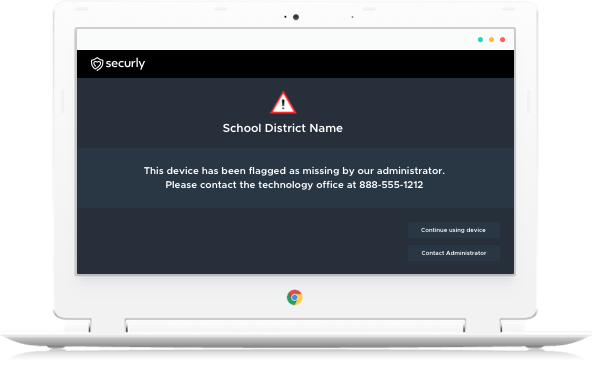
Securly Classroom's Lost Mode can help you find lost or stolen devices. When active, Lost Mode will automatically launch on a selected Chromebook. With Lost Mode you can:
- Display a custom message to notify the user that the device is lost or missing and where or how to return it.
- View the location of a device on a map.
- View the current and recent IP Address history of the device.
- View screenshots from the device.
- Set the device to be locked down to the Lost Mode screen, or to display the screen.
- Enable an option to allow the user to send a message to the administrator from the Lost Mode screen.
The articles in this section are a series of steps that will enable you to set up Lost Mode and ensure that the extension can properly function.
- Create an OU in your Admin console for lost devices
- Configure the Lost Device OU for the kiosk app
- Preventing Guest Mode and User Login
- Setting the Lost Device OU
Let's begin with step one, creating an OU in your Admin console for lost devices.