A time-based policy is a custom policy that is applied to OUs or Security groups for a specific period of time. As such you can either create a new custom policy or convert an existing one into a time-based policy.
When creating time-based policies it is important to remember that policy prioritization logic would determine which policy is applied to a student at any point in time. For example, if a student belongs to a custom group indicating policy priority P4, and the time-based policy is created with a priority of P6, then the student will get the custom policy even during the duration of the time-based policy rule as the priority of that policy is higher.
To make the most of your time-based policies you should place them higher up on the priority list. Learn more about changing a policy priority.
Setting up a time-based policy
-
Navigate to Policy Map and select an OU/Security group you want to assign the time-based policy to.
-
Click ‘Assign Policy’.
-
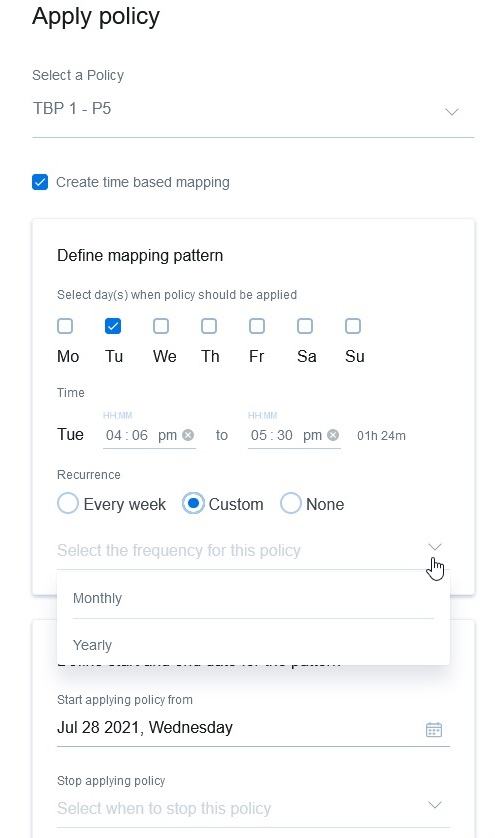
Select the checkbox for ‘Create a time-based mapping’.
-
Now select the days of the week when the policy should be applied. There is no limit to how many days can be selected.
-
Define the time range for each of the days of the week.
-
Select if and when the time-based mapping should recur.
-
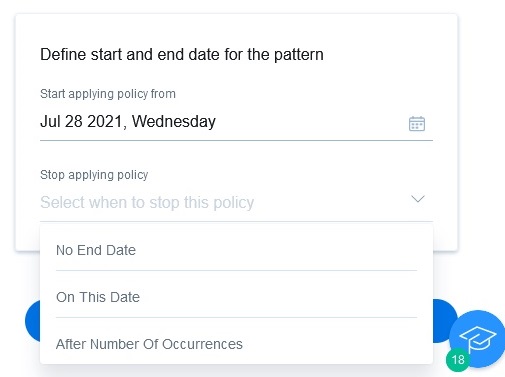
Select when the policy should start to apply by setting the date. If you do not select any, the date of the same day will be auto-filled.
-
Set when you want the policy to stop. The time-based policy could apply indefinitely, or for a specific number of days. This allows you the convenience of applying the policy for the complete year or semester and not worry about going back to it for maintenance again.
-
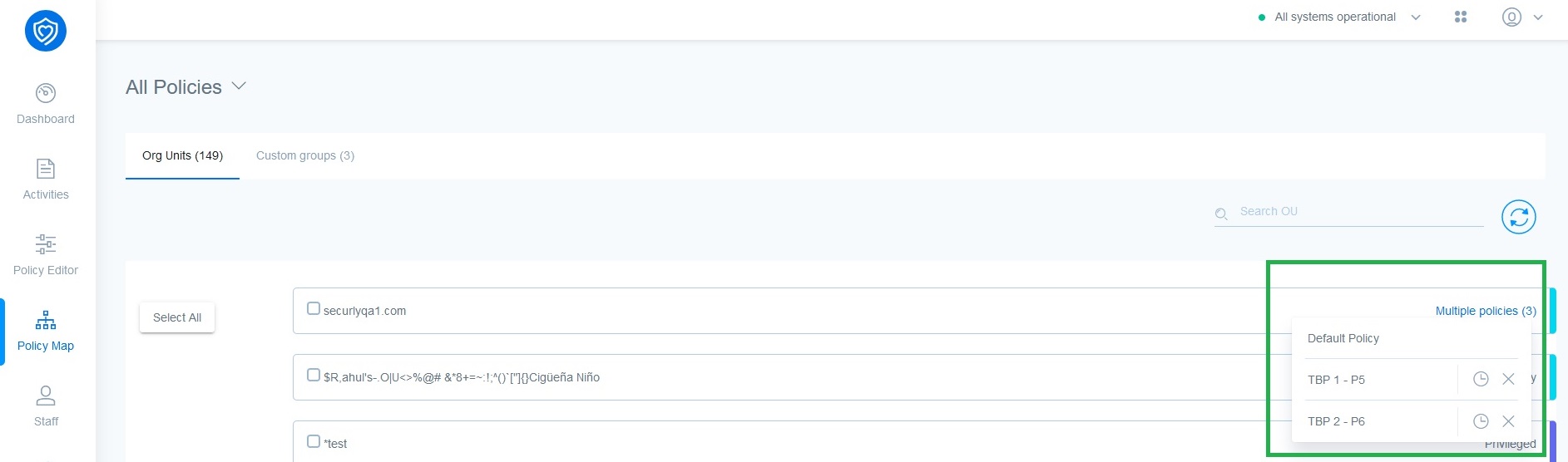
Click on ‘Apply Policy’ and navigate back to the OU/Security group page to see your selected OU/Security group has more than one policy applied, with one of them being the time-based policy.
-
To make further changes, you can directly edit this policy by clicking the 'Multiple Policies' link as shown below.
There is no limit on how many policies can be applied to an OU/Security group. However, when applying multiple policies there might arise a conflict of time where two or more policies overlap. This will be displayed to the admin in a tooltip and the admin can choose to make changes to avoid the overlaps.
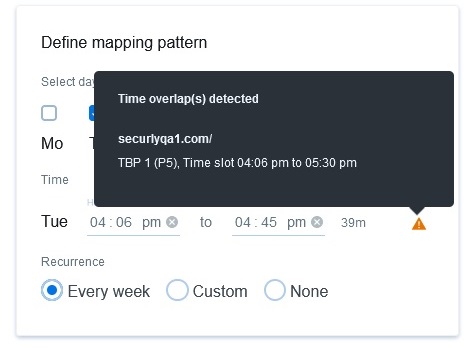
When an OU/Security group has overlapping policies assigned, the policy priority as set by the admin will be used to determine which policy is applied. For example, if policy A has priority 4 and policy B is priority 3, and they overlap between 3 & 4 pm, then policy B will be applied during that period. Learn about managing priority of policies.
For best results, it is recommended that you set up the time-based policies at least one day prior to the date you want them to be enforced.
Notes on using time-based policies with DNS and SmartPac
- If a time-based policy comes into effect during a browsing session, the pages will not be re-brokered or refreshed to get the new time-based policy automatically. The user will continue to be filtered as per the previous policy until such time that the user refreshes the page, opens a new tab/page or the 30-minute cookie expires, and the page is brokered again.
- Cookie TTL is valid at the browser level, which means Google opened in a new tab will fetch the cookie TTL from the existing open Google tab.
- If a student is browsing Facebook or Twitter and the time-based policy comes into effect, intermittent policy switching will not happen. The student will continue to get the older policy while browsing Facebook and Twitter.
- Following from the above point, if a student is browsing Facebook or Twitter while a time-based policy is being applied, and that ends and OU policy begins, the student will continue to be filtered as per the time-based policy for Facebook and Twitter.
- Similarly, for YouTube, if a time-based policy begins while the user is browsing YouTube, the time-based policy will not be applied.
- If a video is added to the time-based policy deny list and YouTube is accessed after the start time, then the video will be blocked.
- Keyword scanning will not work if the policy changes (i.e from an OU policy to a time-based policy) in the middle of the session for Youtube even if those are opened in a new table.