Follow the steps below to deploy the Filter Crome Extension with GPO:
-
Download the ADMX templates and follow these instructions to deploy to your domain or to your workstation.
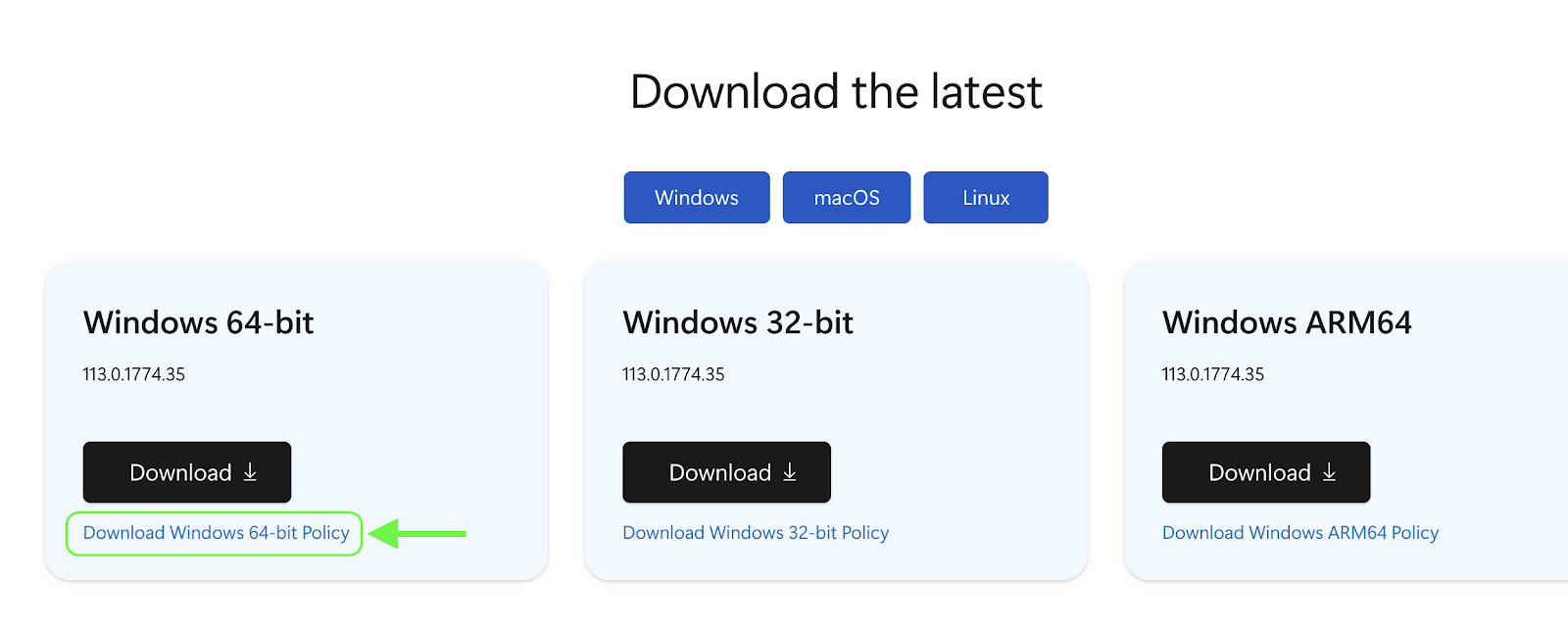
-
In your Group Policy Editor, go to Computer Configuration or User Configuration) > Policies > Administrative Templates > Google > Google Chrome.
-
Select Extensions.
-
Go to Configure the list of force-installed apps and extensions. Add the Securly Chrome extension and any other mandatory extensions.
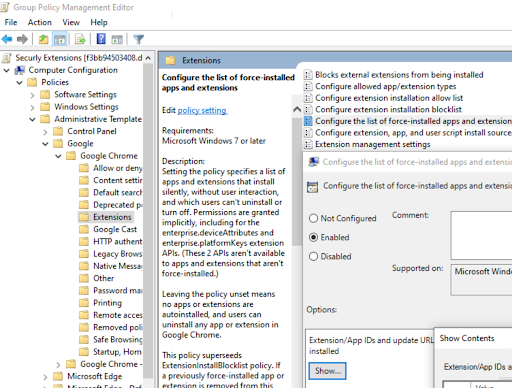
For the Securly extension, enter the extension ID followed by a semicolon and the custom URL with no spaces. This can be found by navigating to Filter Settings page > Account Details > Extension IDs. -
Enable Extension management settings.
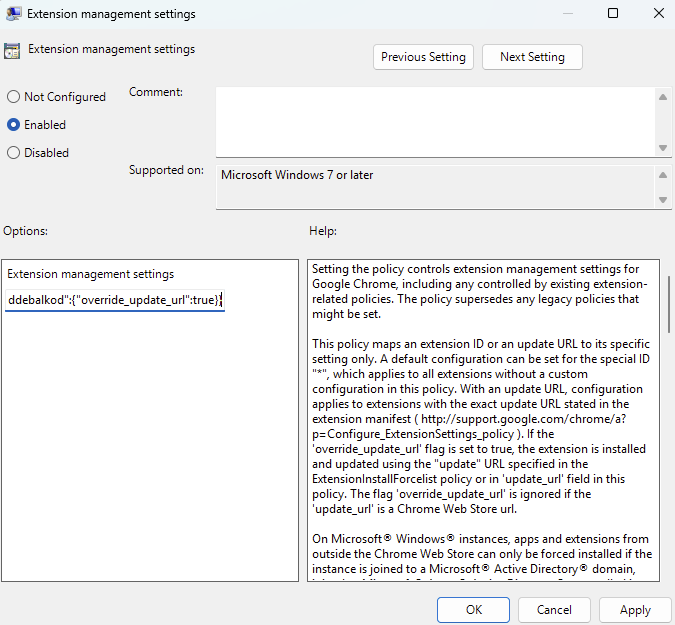 Use the following data in the box: {"kfiocjonplkilcjfgabfngiddebalkod":{"override_update_url":true}}.
 -
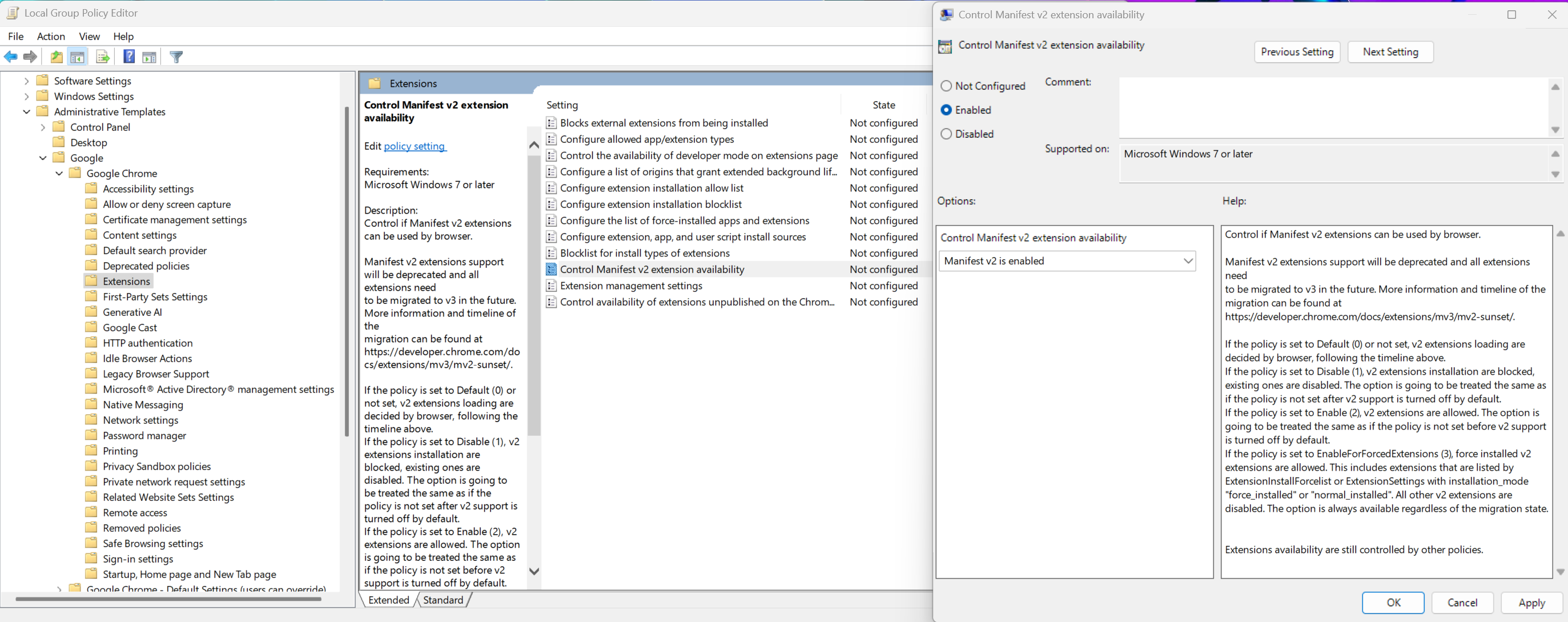
Enable Control Manifest v2 extension availability and enable it.
-
Use Configure extension installation blocklist to to block all other extensions (such as VPNs or proxies).
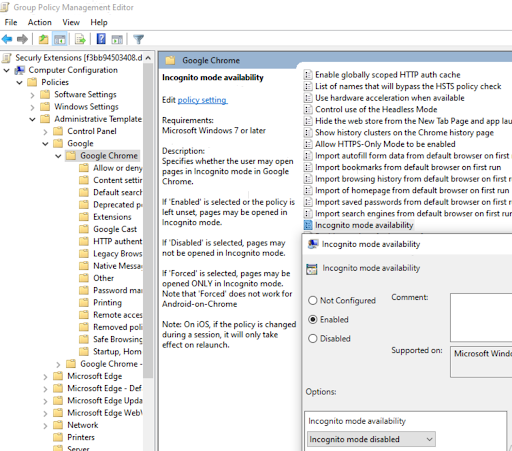
- Disable 'IncognitoModeAvailability'
- Disable 'Enable guest mode in browser'
- Disable “Enable ending processes in the Browser task manager”
- Disable “Browser sign-in settings” to force users to sign in to the browser. This can help with other Office apps.
- Disable 'Control where developer tools can be used'
Troubleshooting
Extension is missing or not functioning as expected
If the extension isn't showing up, isn't enabled, or isn't functioning as expected, it is likely you have not enabled extended MV2 support. Your other MV2 extensions likely work because they are grandfathered in.
How do I enable MV2 extensions in the Google Admin Console?
- Log into the Google Admin Console (admin.google.com).
- Navigate to Devices > Chrome > Settings.
- Select Organizational Units (Use either the root OU or specific OUs where Securly extensions are deployed).
- Under Users & Browsers, go to the Apps & Extensions section.
- Find the setting for Manifest V2 extension availability
- Change to Enable manifest v2 extensions
- Save your changes to ensure the setting is applied.
Extension is not working in ChromeOS 140+
In ChromeOS 140 and higher, Google has changed the way it enforces the Chrome Sync policy, resulting in the Securly extension lacking the necessary permissions to function properly. If extension syncing is not enabled from the Google Admin Console and a student disables sync for extensions from their browser settings, the extension doesn't function properly. To ensure extension syncing is active, follow the below steps:
-
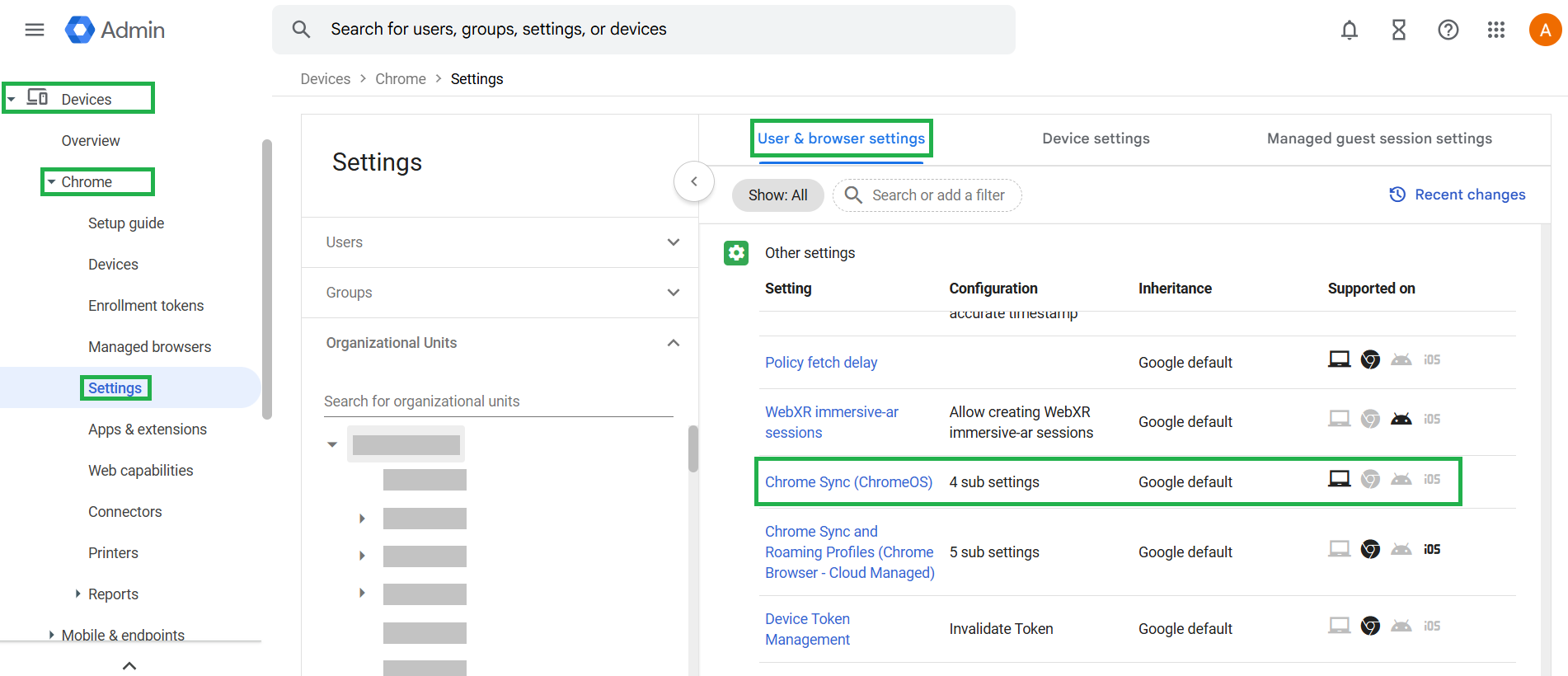
In Google admin console, navigate to Devices > Chrome > Settings > Users & browsers > Other settings > Chrome Sync (ChromeOS).
-
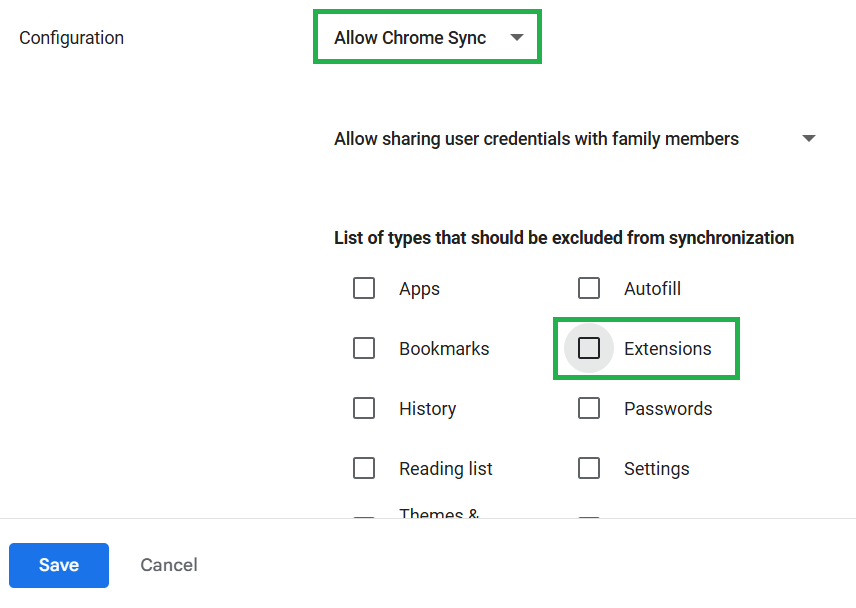
Ensure the ‘Allow Chrome Sync’ configuration is selected.
-
Uncheck ‘Extensions’ from the section for excluded sync types to ensure extensions are included in sync, and save your changes.