The Securly Edge Extension can be deployed quickly on your school's Windows devices using Intune. Follow the steps below for deployment:
-
Sign in to the Microsoft Endpoint Manager admin center.
-
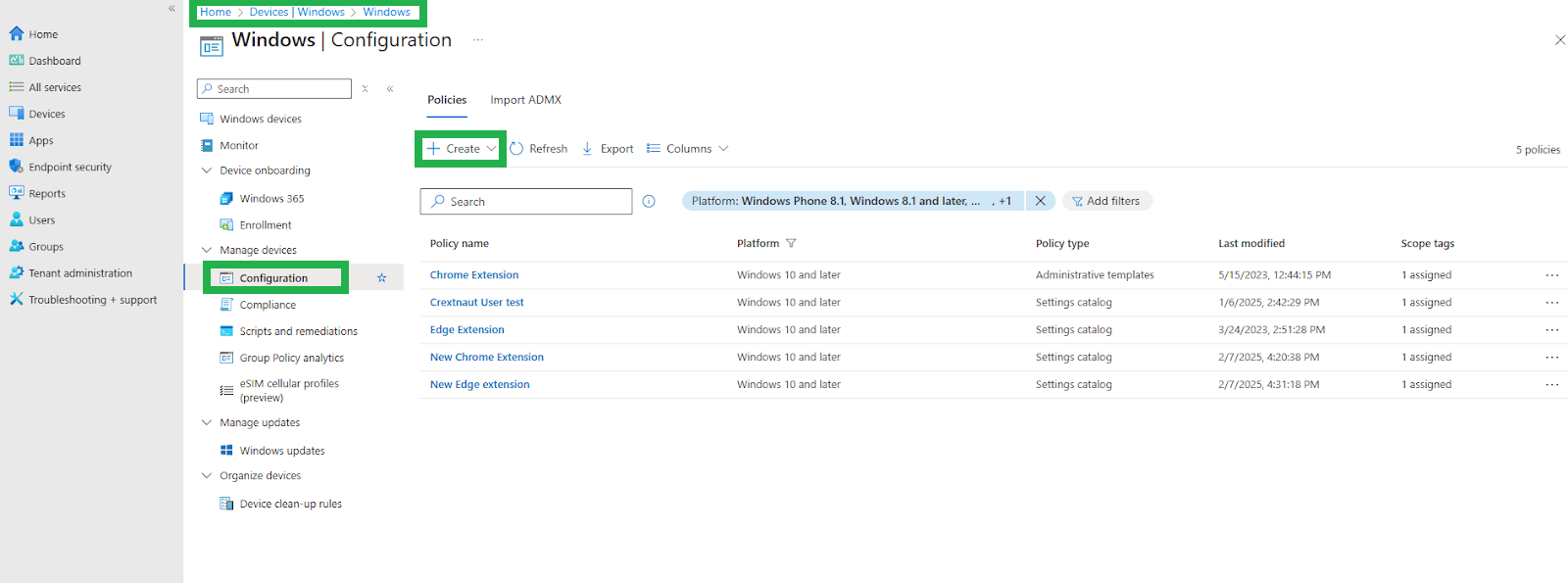
Select Devices > Windows > Manage Devices | Configuration profiles > Create profile.
-
Select Platform > Windows 10 and later > Settings catalog (preview). Finally, click on the 'Create' button.
-
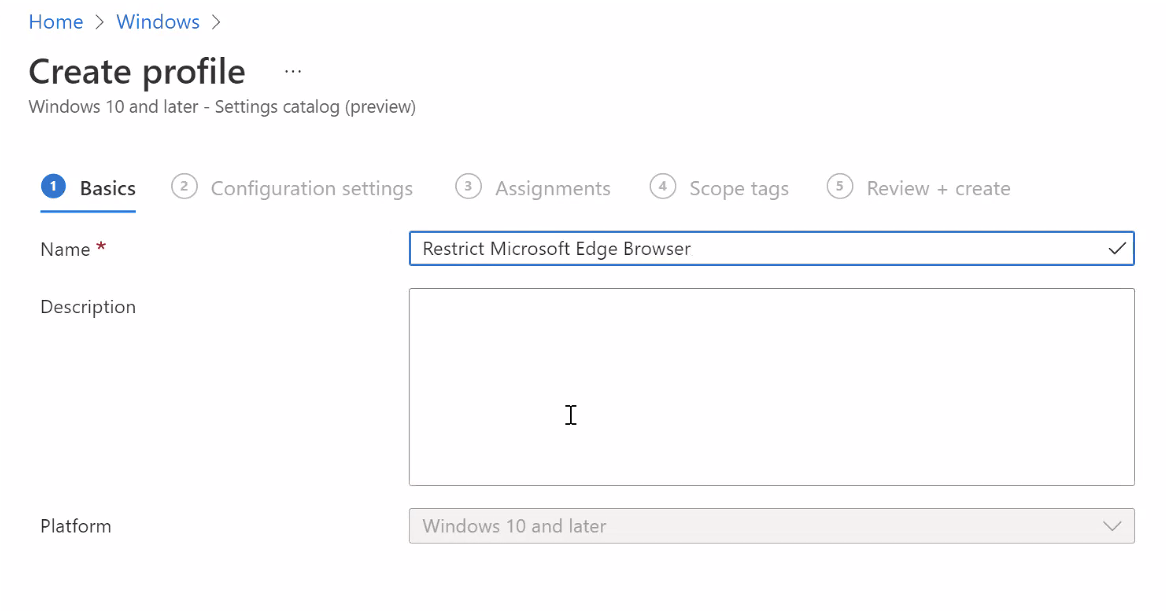
On the Basics tab, enter a descriptive name, such as 'Manage Edge Chromium Extensions,' then select Next. This will manage all extensions for Edge, similar to how Google Admin Console manages Chrome extensions.
-
In Configuration settings, select Add settings.
-
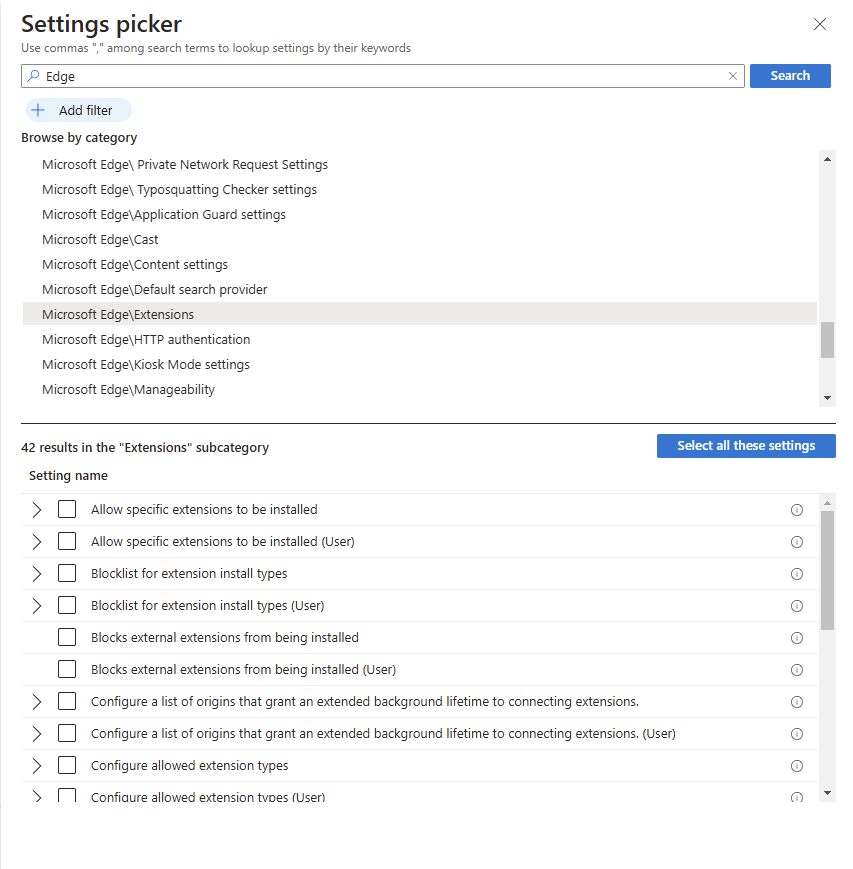
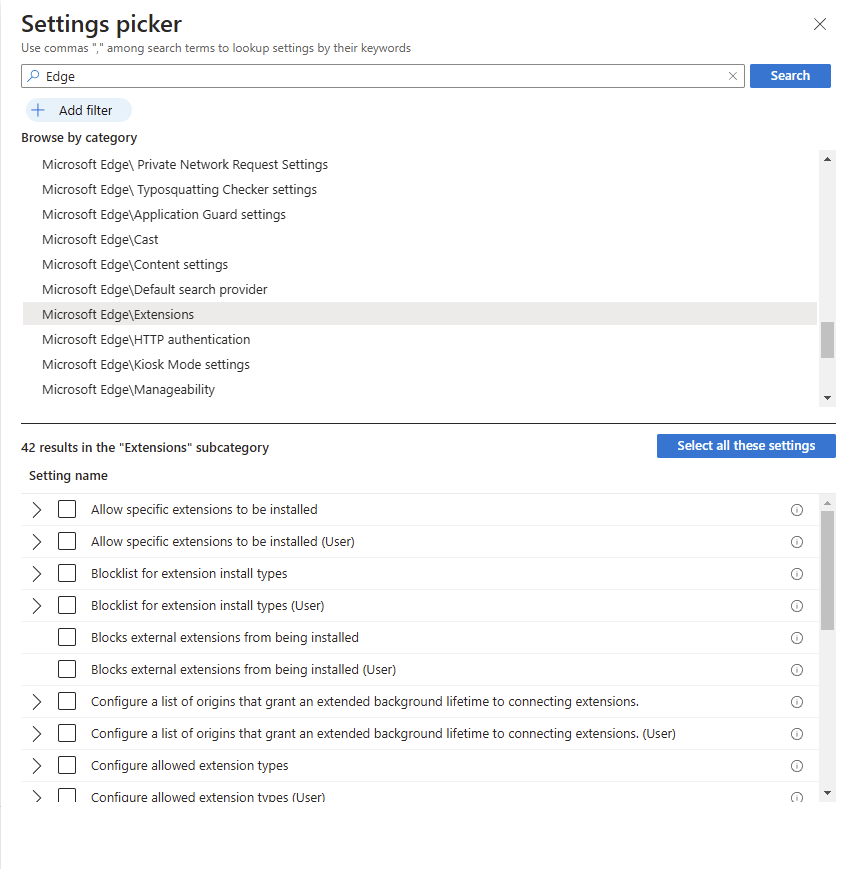
Search for “Edge” and select ‘Microsoft Edge\Extensions’ to see all the settings in this category.
-
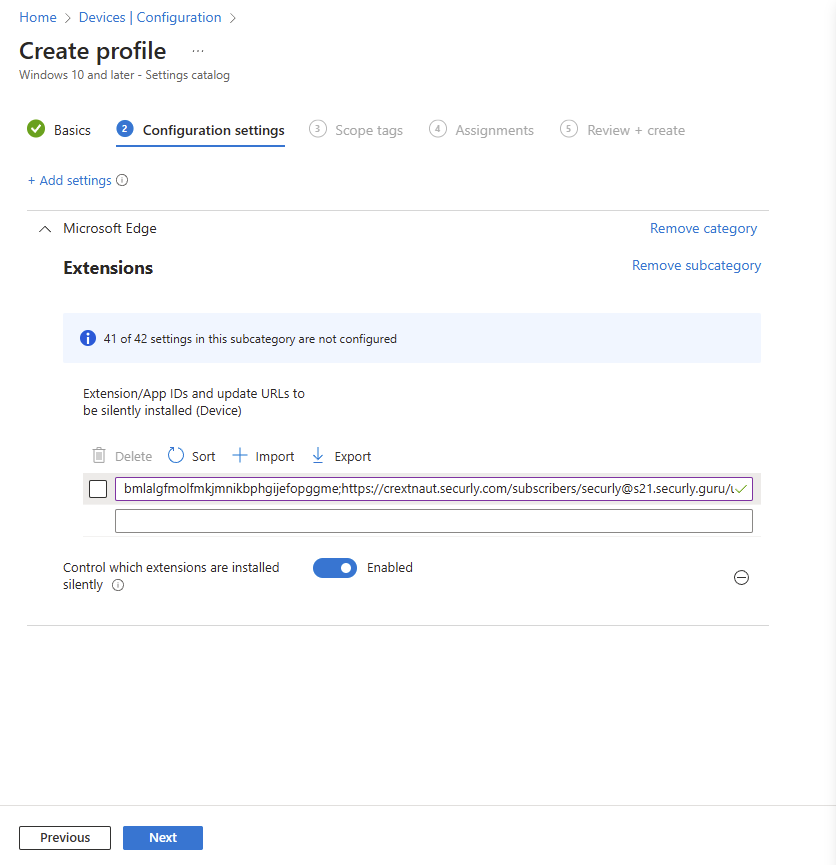
Select ‘Control which extensions are installed silently’. This can be done by user or by device. After enabling this feature, a blank box will appear.
-
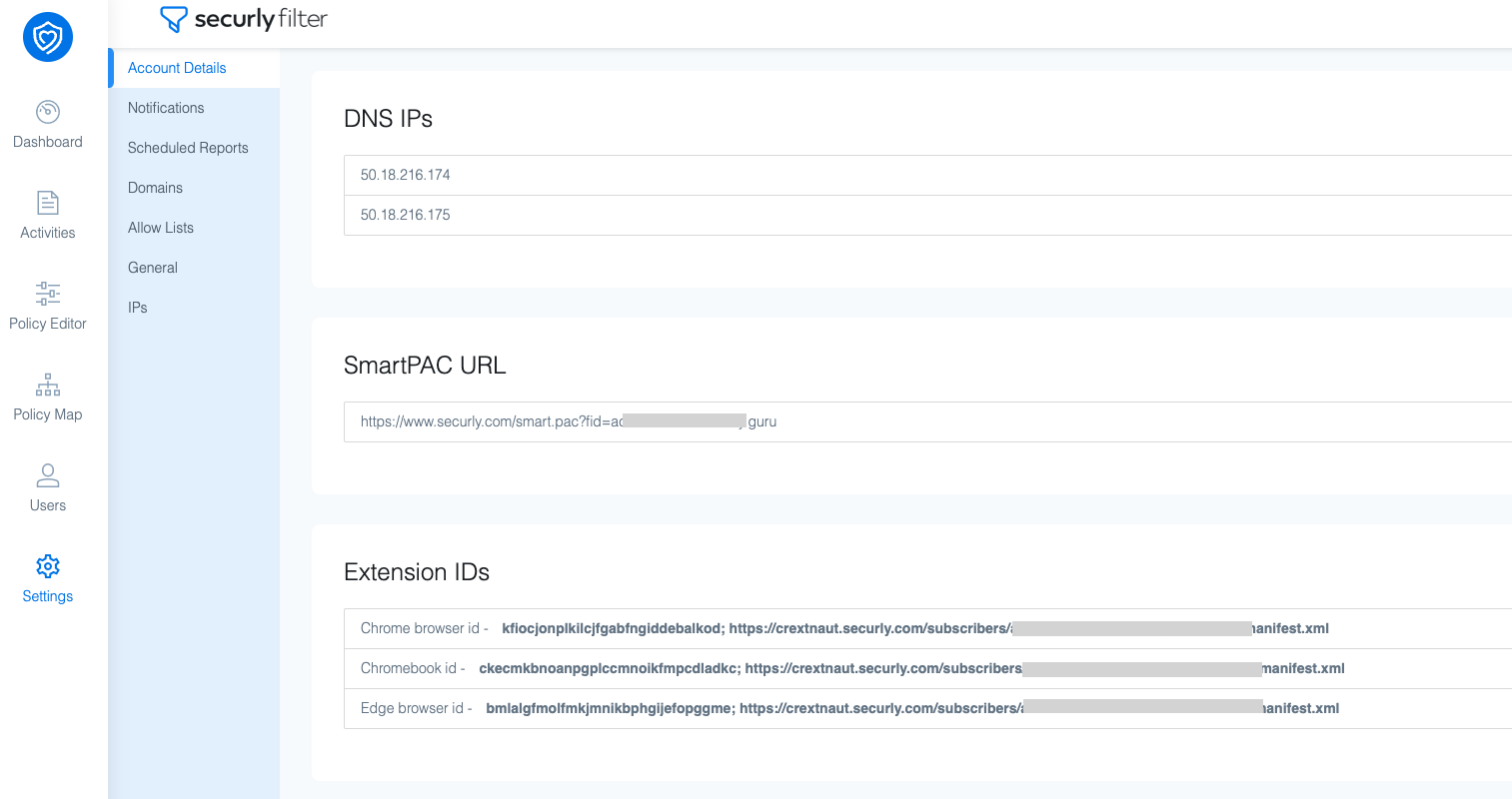
Now, you'll have to enter the Filter extension ID followed by a semicolon and the custom URL designated for your account. This can be found by navigating to Filter Settings page > Account Details > Extension IDs.
-
Once you've entered the extensio ID and custom URL, navigate back to ‘Settings picker’ and select ‘Control which extensions cannot be installed' and add “ * ”. This will prevent other extensions from installing in the Edge browser.
-
Click ‘Review + Save’ and then assign the new profile to the users.
When the configuration profile is complete, it will take time for the extension to push out for the users. It will depend on the sync frequency between the Windows device and Intune.
If you have a testing device handy, you can find the device and force the sync. Learn more about force syncing in this Microsoft article.