Follow the steps below to deploy the Filter Crome Extension with GPO:
-
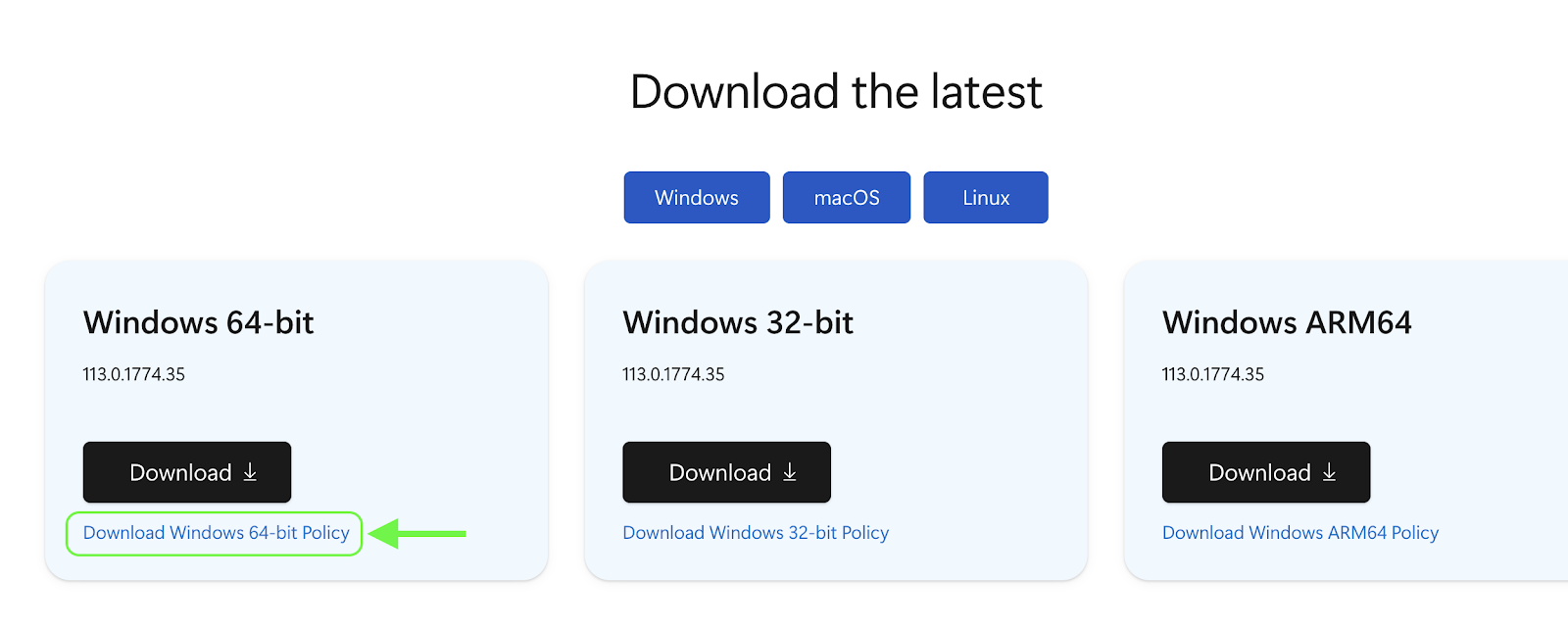
Download the ADMX templates and follow these instructions to deploy to your domain or to your workstation.
-
In your Group Policy Editor, go to Computer Configuration or User Configuration) > Policies > Administrative Templates > Microsoft Edge.
-
Select Extensions.
-
Go to 'Control which extensions are installed silently (ExtensionInstallForcelist)' and include the Securly Edge extension and any other mandatory extensions.
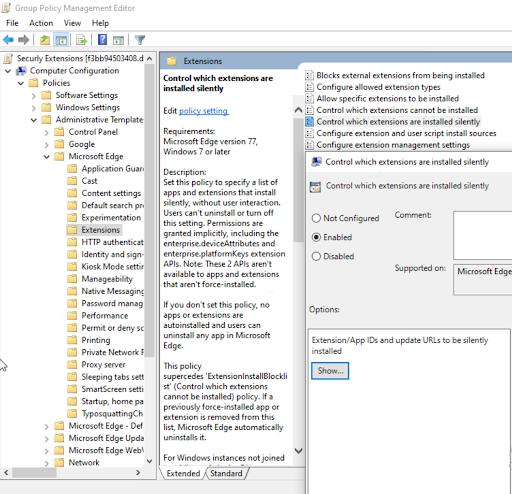
For the Securly extension, enter the extension ID followed by a semicolon and the custom URL with no spaces. This can be found by navigating to Filter Settings page > Account Details. -
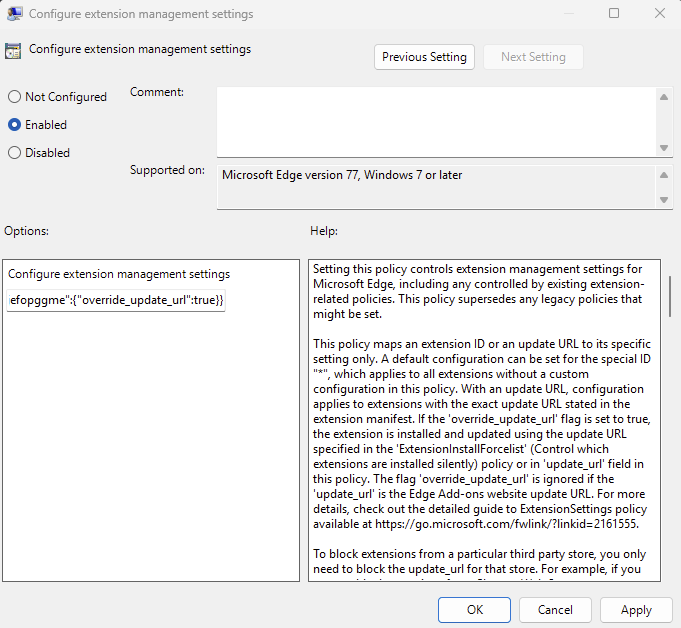
Select 'Configure Enable Extension management settings' and enable Override Update URL by using the following data in the box: {"bmlalgfmolfmkjmnikbphgijefopggme":{"override_update_url":true}}
-
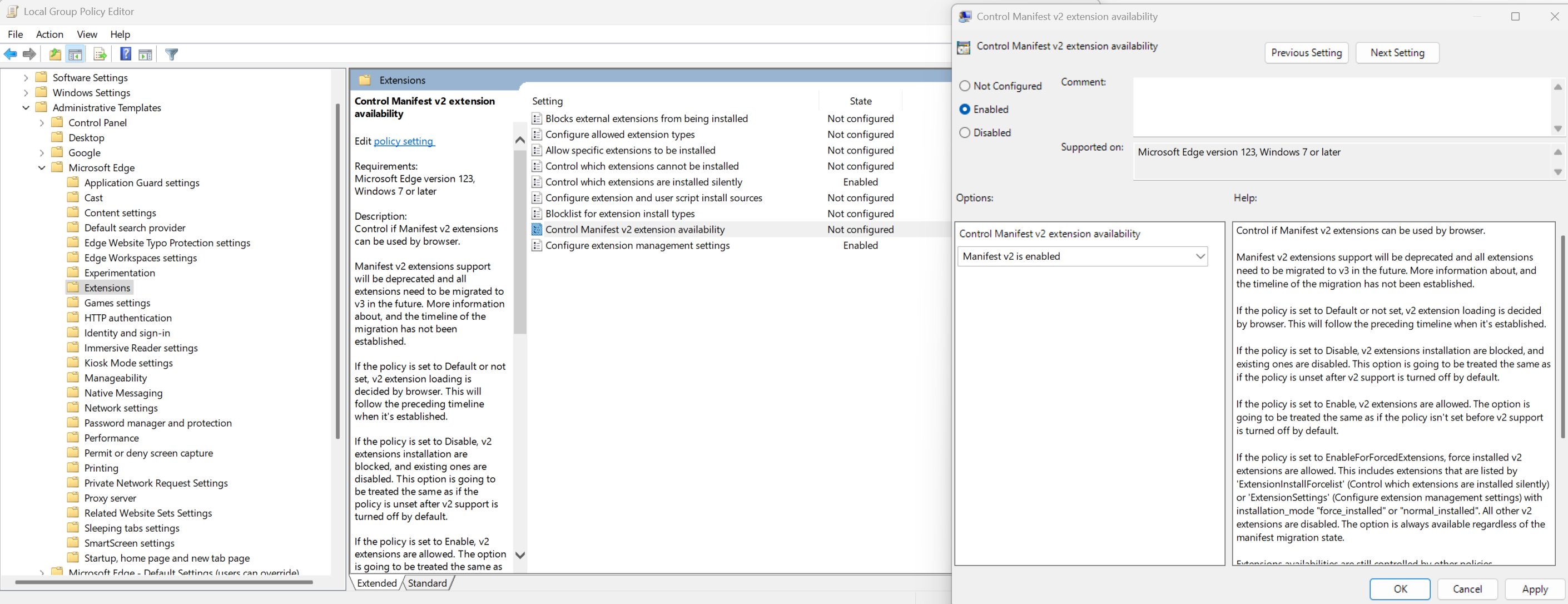
Enable “Control Manifest v2 extension availability” and set to "Manifest v2 is enabled"
-
"Control which extensions cannot be installed" [ExtensionInstallBlocklist] can be used to block all other extensions (such as VPNs or proxies)
-
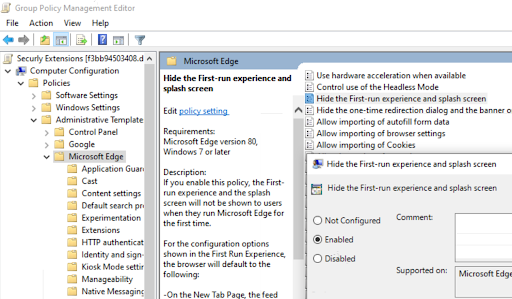
“Hide the First-run experience and splash screen” can be disabled.
-
Diable “Configure InPrivate mode availability” [InPrivateModeAvailability]
-
Disable “Enable guest mode” [BrowserGuestModeEnabled].
-
Disable “Enable ending processes in the Browser task manager” [TaskManagerEndProcessEnabled]/
-
“Browser sign-in settings” [BrowserSignin] may be used to force users to sign in to the browser. This can help with other Office apps.
-
Disable “Control where developer tools can be used” [DeveloperToolsAvailability].