To download activity reports:
- Click the Download button and choose if you want to download the report as a PDF or CSV file. This action will download the report as per the currently selected filters and selections visible on the screen. You will not be able to select any new criteria or filters for the report using this method.
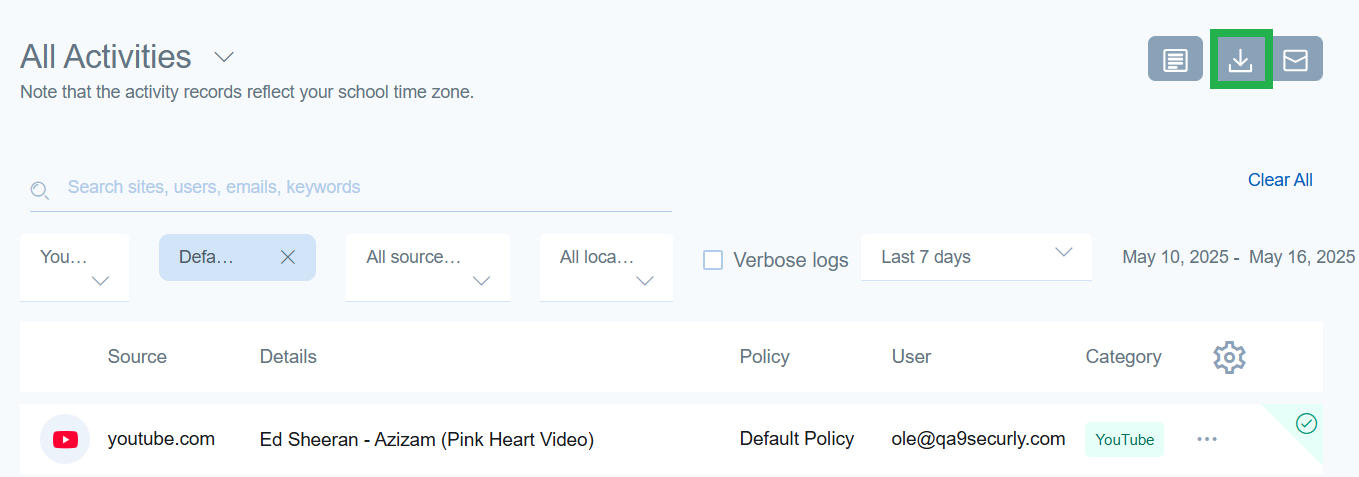
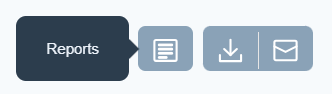
- Alternatively, you can click the Reports button and select multiple criteria and filters to download a report.
- Select the type of activity you want to generate a report for by selecting either ‘Blocked’, ‘Allowed’, 'Flagged', or ‘All’.
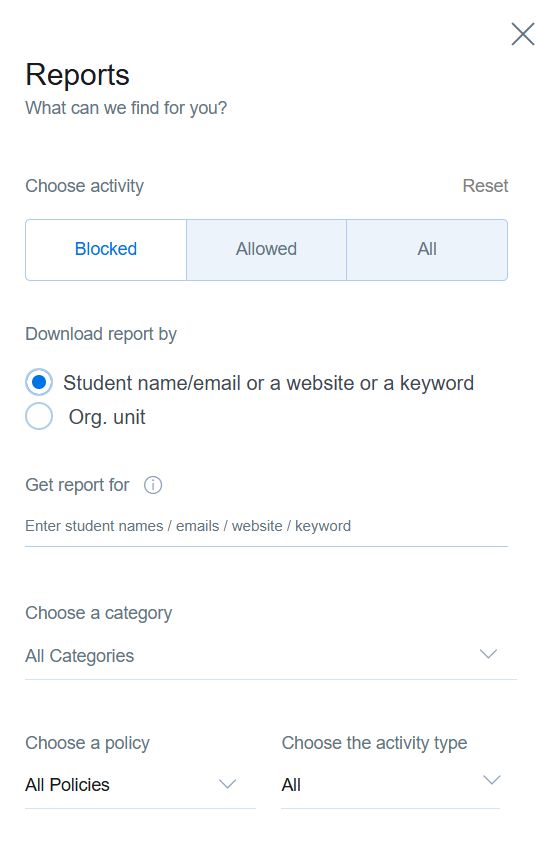
- Select the ‘Student Email’ radio button if you want reports for specific students or select the 'OU' radio button if you want reports for specific OUs. Reports for OUs can only be generated only for Blocked activity.
- Enter the email ID of the student you want the report for. You can enter up to 5 email IDs. The student email ID must belong to the school domain registered with Securly.
- Select an OU from the OU dropdown if you want to report for an OU. You can only select one OU at a time.
- Select Category and Policy.
- Select one of the filters for activity types - Recent, Site, Videos, Searches, Wiki, and Social Posts.
- Select the date range for which you want to generate the report. You can select a custom date range as well to a maximum of 30 days.
- Click on the Get report button and select the file type to get the report in either PDF or CSV format. The downloaded report will only display 5000 activities. If you anticipate your report to contain more than 5000 activities, please choose the email report option.
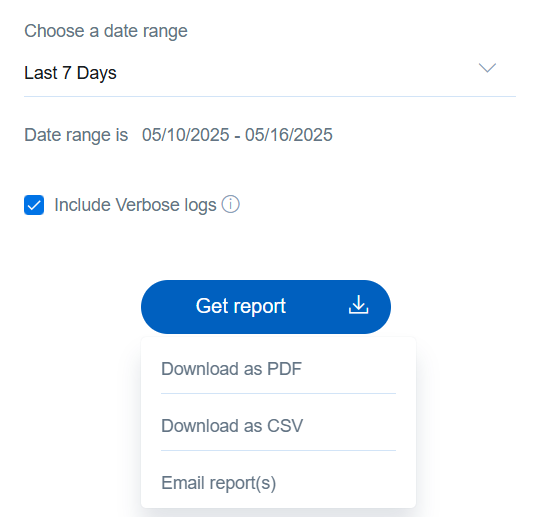
- Click "Download as PDF" or "Download as CSV" as the case may be.