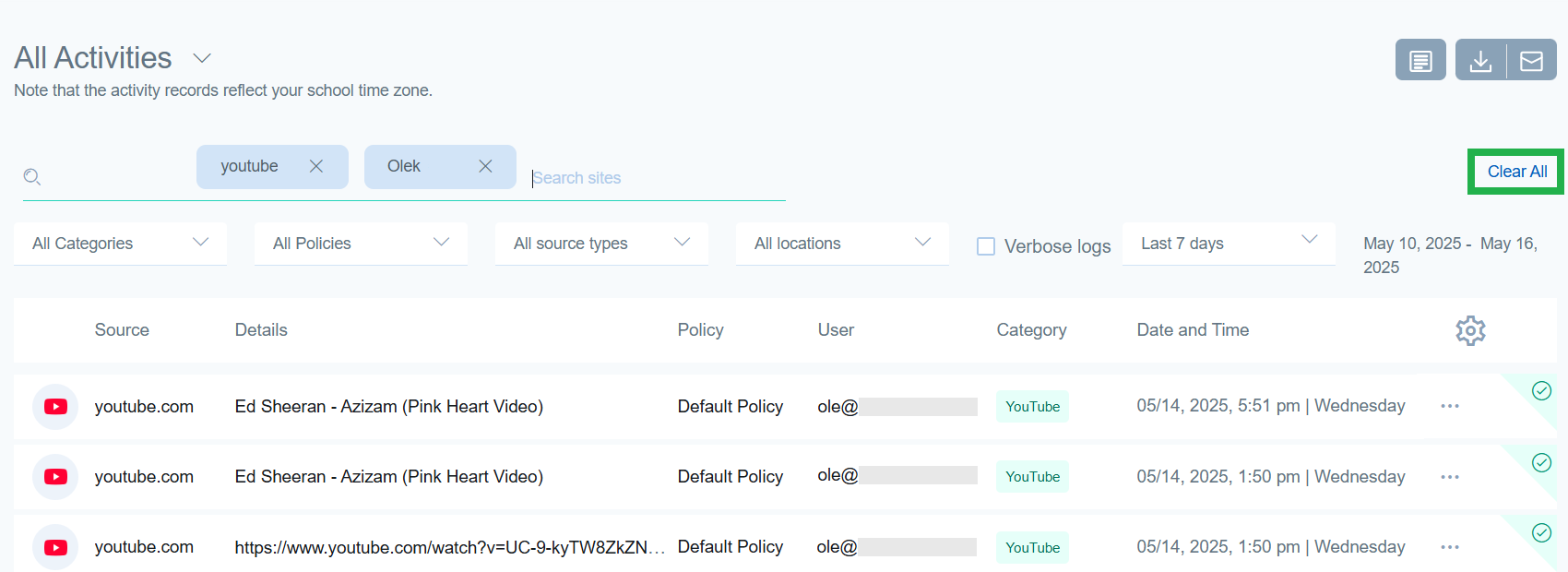
The search functionality not only supports exact match searches, but you can also input any keyword and a comprehensive list of search results will be displayed to you. This includes a list of all sites and keywords. However, if a user’s name includes the word you search for, it will not be displayed in the search results. This is true for both blocked as well as accessed sites.
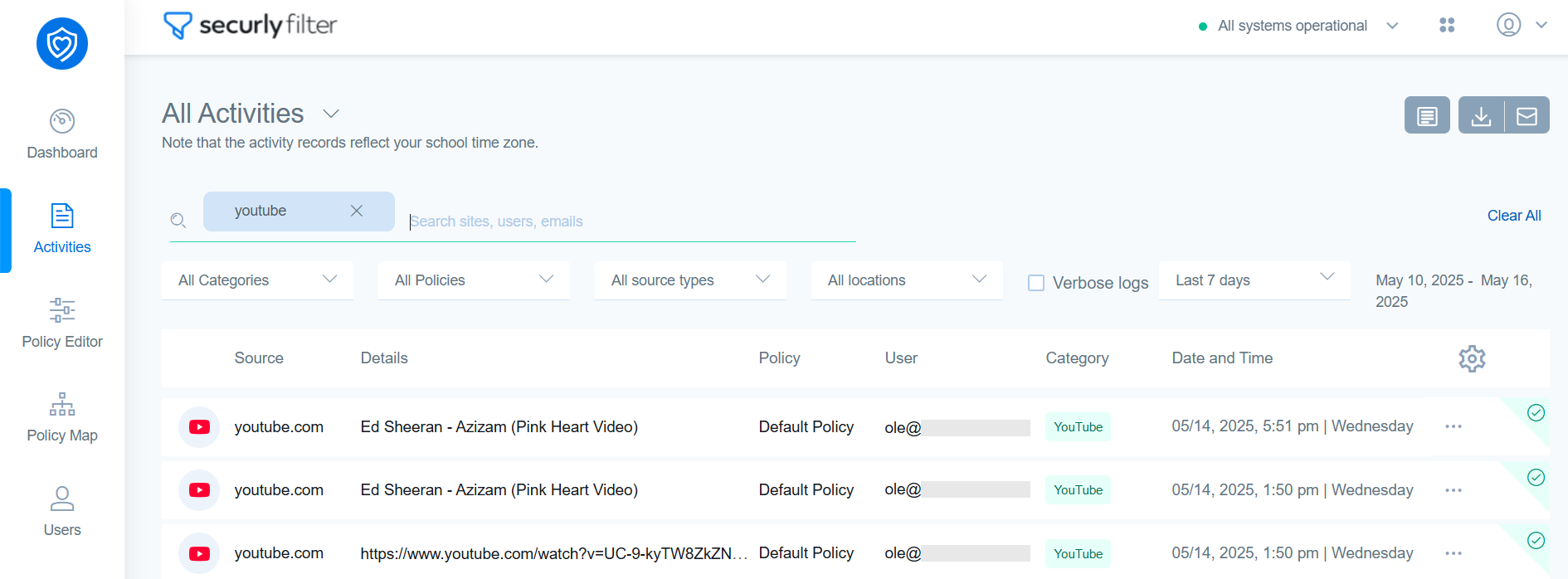
The search types you can perform include:
-
User search: User searches must contain an ‘@’ symbol. For example: student1@domain.com
-
Site search: Enter a section or all of a domain name. For example: webmd.com; Facebook
-
Keyword search: Enter partial or all of a keyword. Example: Beyblade; Prox (for proxy and proxies)
-
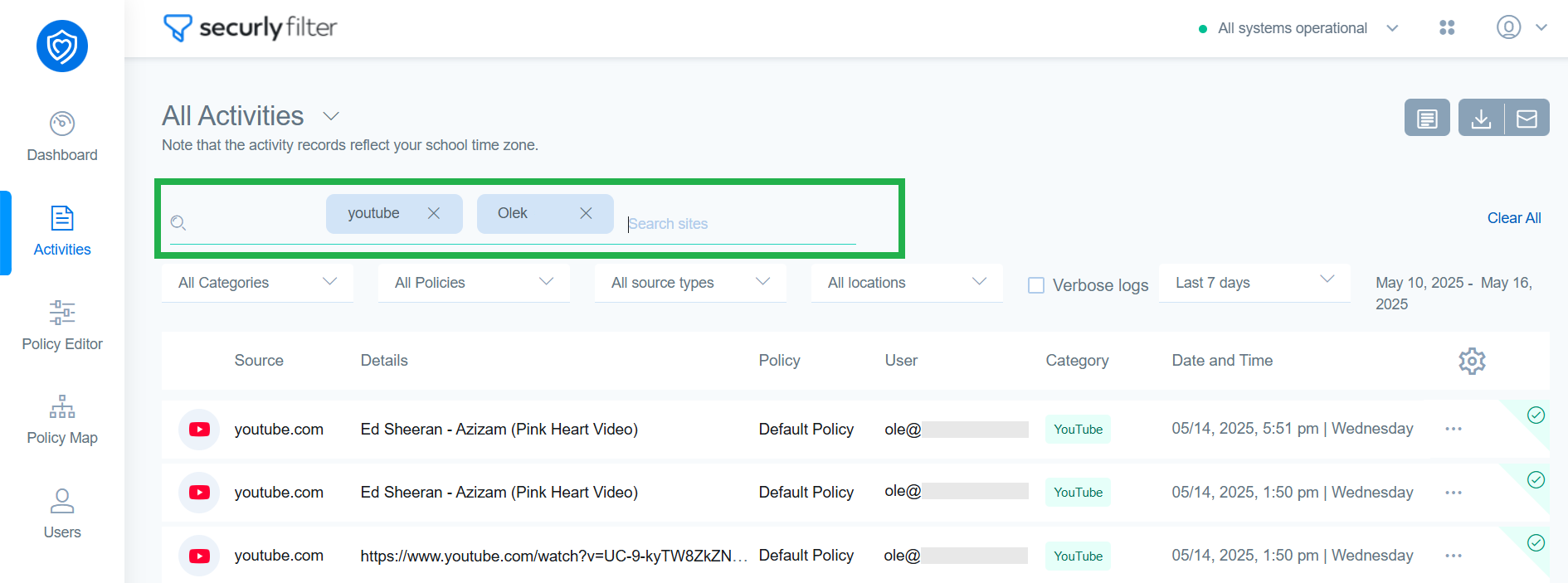
Advanced search: You can add more than one search item at a time. Press Enter after each entry. You can remove individual entries by clicking on the 'X' next to the entry. To clear all the filters, click on 'Clear All' on the right side of the screen.
-
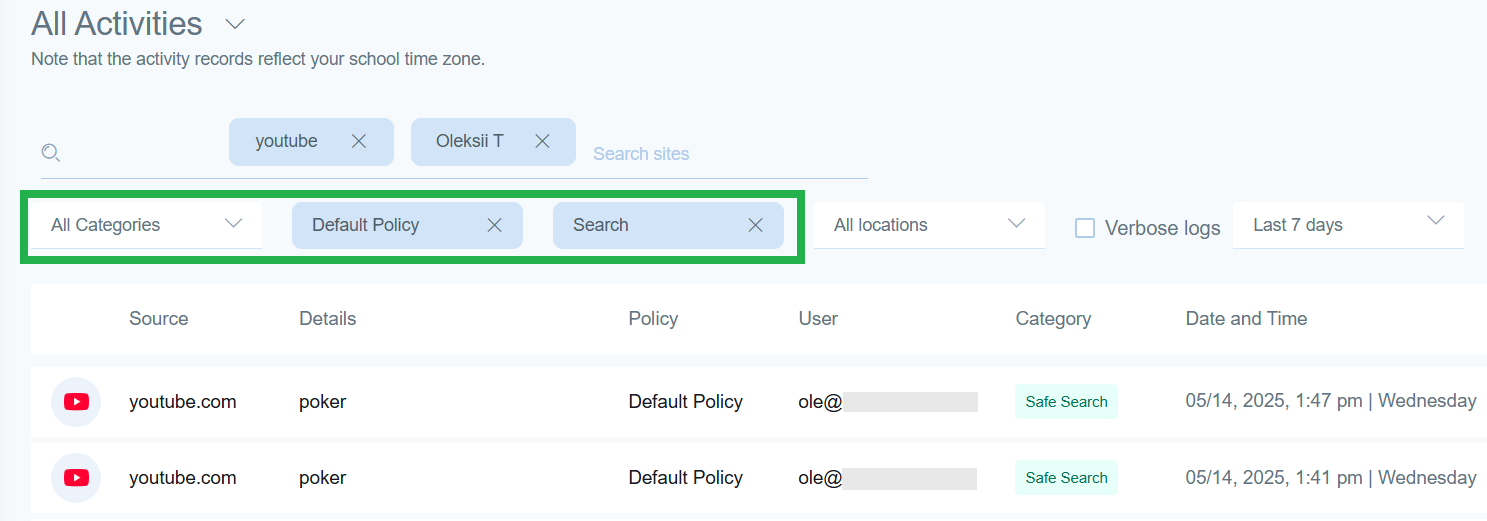
You can also add additional filters for Categories, Policy, and Date range to these search queries.
To clear all fields, click on 'Clear All' in far right side of the screen.