Enabling the Kiosk module will allow students to create passes from a single device in situations where they might not have access to their own device.
To activate the Kiosk functionality in your school, slide the Kiosk toggle to the right, and your Kiosk options will be displayed.
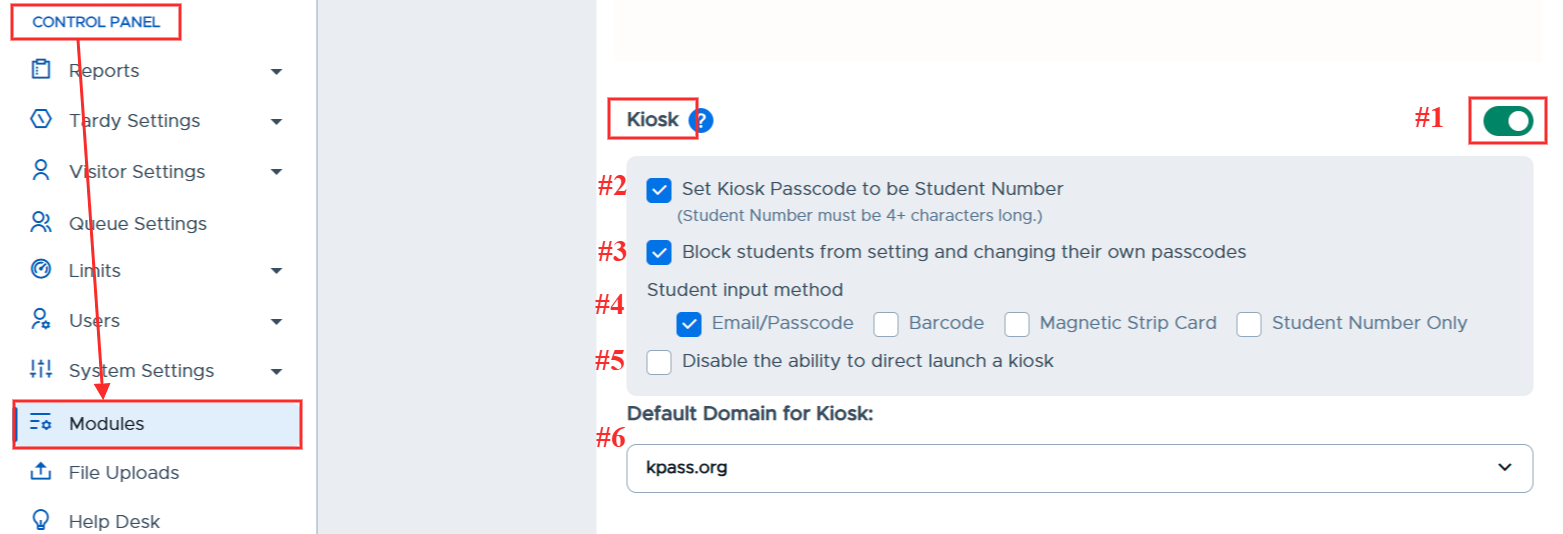
#1 Toggle Kiosk Mode “On” or “Off”.
#2 Set Kiosk Passcode to be Student Number - Automatically assigns the Student ID Number in Pass as the student’s passcode.
If this box is not selected, you will need to manually assign Kiosk Passcodes on the Main Users page.
#3 Block students from setting and changing their own passcodes - Prevents students from accessing and editing their own passcode.
#4 Student Input Methods - Check the box to choose your default kiosk input method. All options will be available to students when creating passes using a kiosk.
- Email/Passcode - Students will enter the first part of their email address and their assigned Kiosk Passcode.
- Barcode - Students will scan a barcode or QR code using the device or external camera. The barcode/QR code must include the Student Number that appears in Pass.
- Magnetic Strip Card - Students will swipe their ID cards using an external Magnetic Strip Reader. The magnetic strip must include the Student Number that appears in Pass.
- Student Number Only - Students will type in their Student Number, as it appears in Pass.
#5 Disable the ability to direct launch a kiosk - Removes the “Launch” button from the adults’ Kiosk screens. Adults will need to use the following URL: https://pass.securly.com/kiosk/login and then enter the Code from the Kiosk page (i.e.- p42rgh2v) to launch the Kiosk. Please see the Pass Teacher/Staff Guide →Kiosk for additional details. <check if last line is required - do we need a separate teacher guide>
#6 Default Domain for Kiosk - If you have multiple email domains, choose the student domain as your default for Kiosks.
There are four ways of managing Student Passcode:
- Student Passcode Management via Student Profile Settings
- CSV File Import of Student Passcodes
- Barcode or Magnetic Strip Scanning
- Student ID Number as Kiosk Passcode