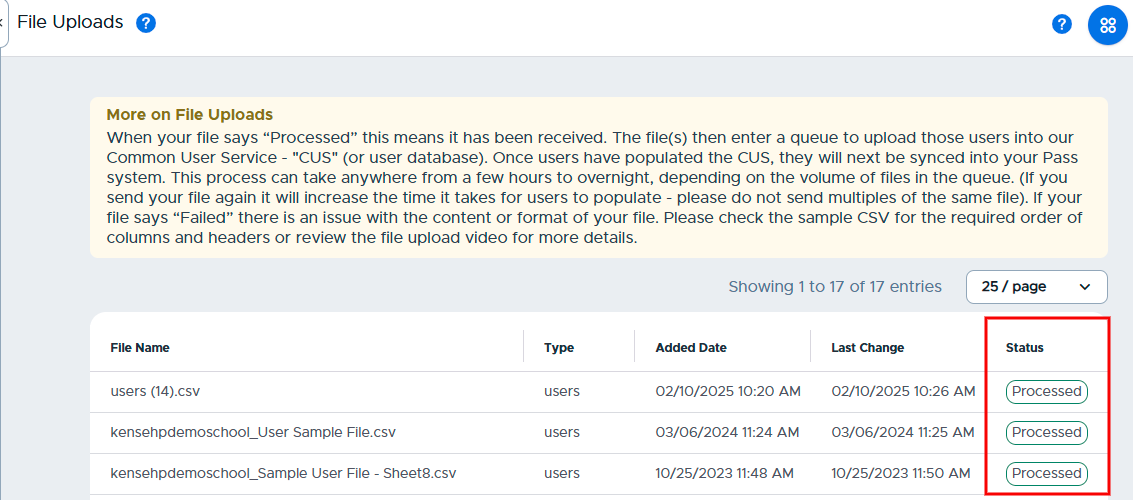
The File Uploads screen allows an Admin to view “User” files that have been uploaded to their Pass system. These files could be sent by the school via SFTP or uploaded directly through the system interface from the User Management →Main Users screen and Import Users option.
In both instances, the file is stored on the Pass SFTP server and the details are displayed on the File Uploads screen for system administrators to view. When files are uploaded they will not be processed instantaneously but put in a queue for processing. It will take 24-48 hours for the data in processed files to be fully integrated into Pass.
It will take 24-48 hours for the data in processed files to be fully integrated into your Pass system.
Once a file has been uploaded, it will go through the following statuses until it processes successfully or fails.
- Queued - The file has been received and is in line to be processed.
- Pending - The file is waiting to be processed.
- In process - The file is currently being processed.
- Processed - The file has been processed successfully.
- Failed - File processing was not successful. Check the following:
- File format matches the requirements.
- Confirm there are no blank email fields.
- Confirm all domains match school domain(s).
- Upload the adjusted file or contact the Pass help desk for assistance.