Student Quick Reference Guide
*Securly Flex is a browser-based online system that provides flexible activity period management. Students log into the system to make selections for how they will spend their flex time. Students may have voice & choice activities from which to select, or they may find a teacher has requested or required them to attend a certain flex activity. Students may receive morning agenda emails to let them know where they’re scheduled that day.
Logging into Flex
Students can access Flex by going to the following URL: https://flex.securly.com/login Select the login option that applies to your school and enter your credentials. Your school may also use Clever or ClassLink to log in - please follow your school’s login instructions.
Using the My Schedule Screen
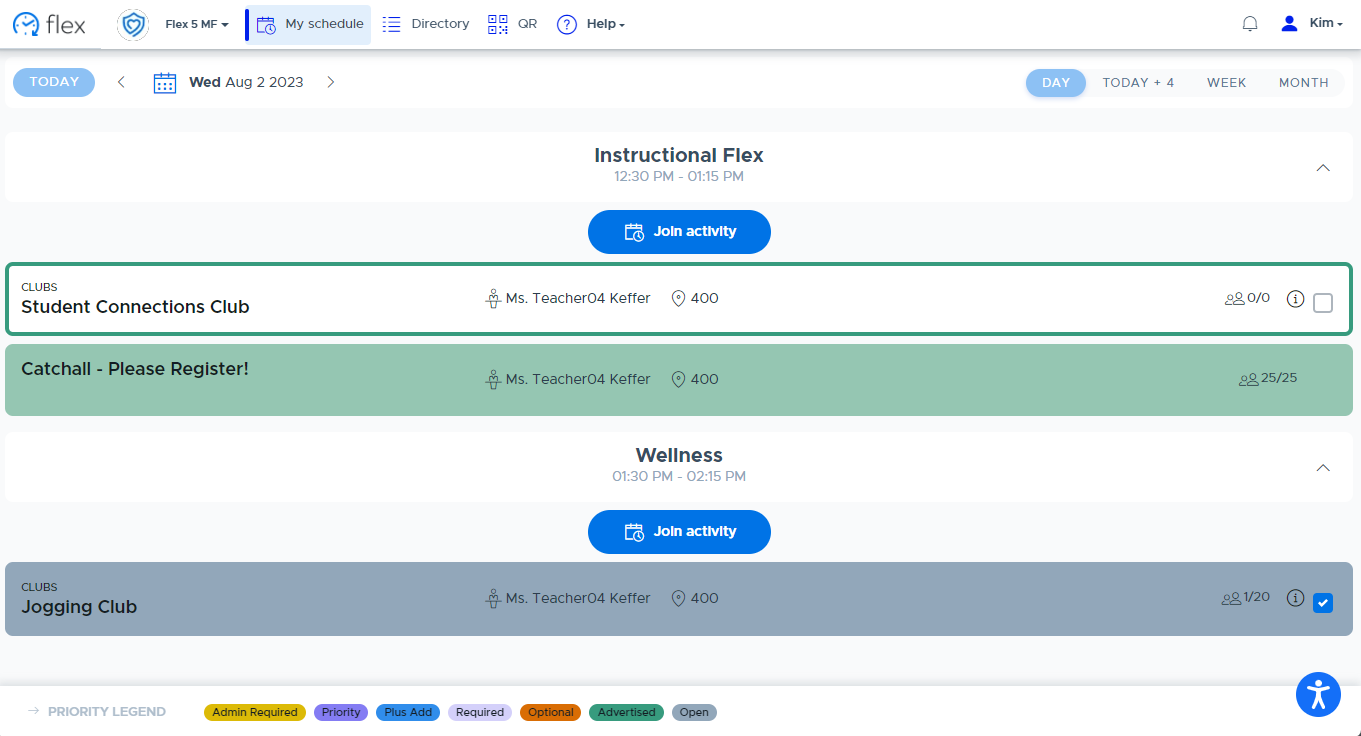
The “My Schedule” screen includes the following:
- There may be an announcement from administration at the top of the page, which would show in a yellow banner.
- The screen defaults to “today’s date” but different dates and “views” can be selected by using the options at the top of the screen.
- Each active flex period will be listed, which is where students will select an activity or check which activity has been scheduled for the student to attend.
- The Activity Priority levels are labeled and color-coded based on the type of activity being scheduled.
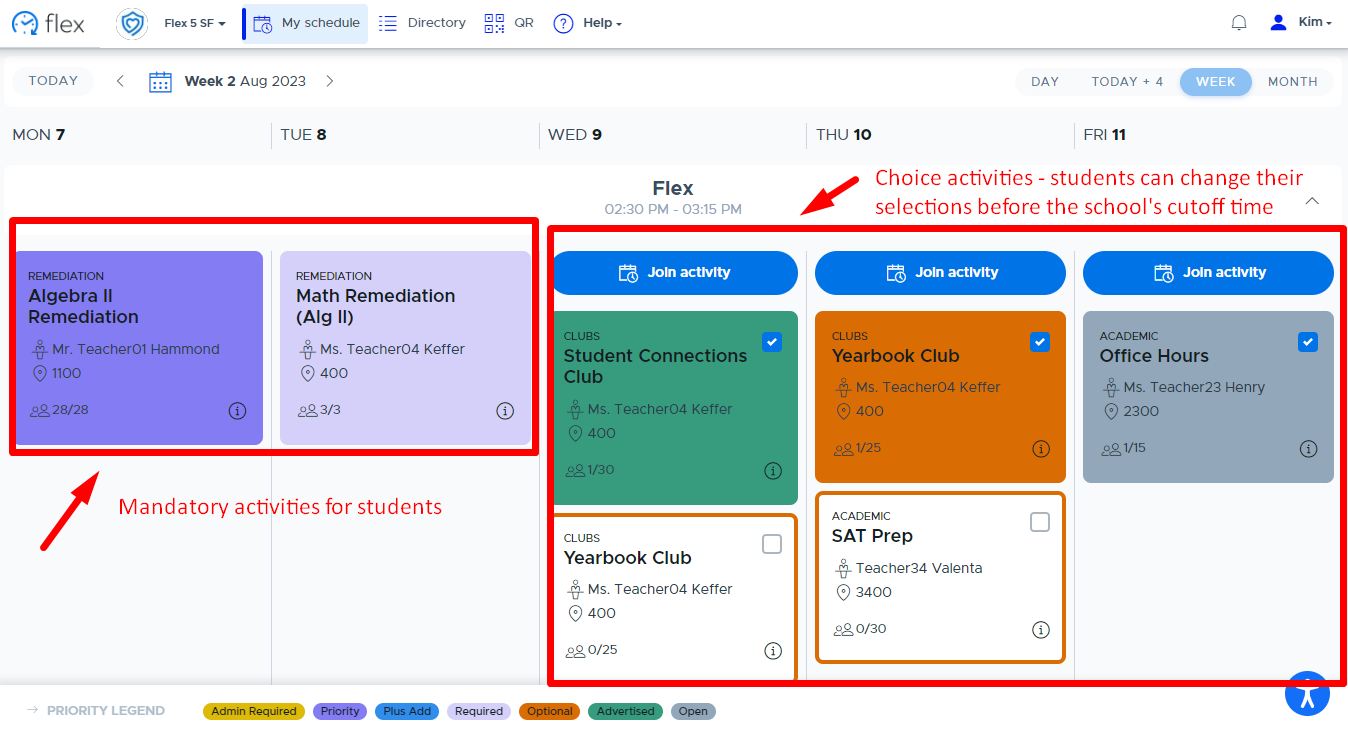
Sample student “My Schedule” screen:
Understanding Choice & Mandatory Activities

When teachers create their activity session, they decide which priority level should be used. Choice activities give students the option to select what they attend during the flex session. Mandatory activities are pushed to the student’s calendar by the teacher and in general, the student cannot make any changes. Please note: Schools may not utilize all of the available priority levels described here and/or schools can customize the names. The colors of the priority levels will remain the same. As you move from right to left, the priority level increases.
Choice Activities in Flex:
- An Open activity (gray) is open to all students who have the privilege of choice.
- The Advertise activity (green) is placed on a student’s schedule by a teacher who thinks that the activity might be of interest to the student. The student can simply check the box to register for this activity, if they choose. The Advertise activity is still open to all students who have the privilege of choice.
- The Optional activity (orange) is a choice activity that only shows up on a student’s calendar if the teacher included the student in the group for that particular activity. The student still has the choice to select this or a different choice activity.
Mandatory Activities in Flex:
- A Required activity (light purple) is created for a select group of students. If a student is placed in a Required activity, the student must attend the activity unless a higher-priority activity is scheduled for that student.
- A Plus Add activity (blue) will pull a student from a Required activity or any choice activity previously selected.
- A Priority activity (dark purple) will pull students from Required and Plus Add activities or any choice activity previously selected.
- The Admin Required activity (yellow) is the highest priority activity. Students will be pulled out of all other scheduled activities for this activity.
Please note: If two or more mandatory activities of equal priority are placed on the student’s schedule for the same flex period, the first scheduled activity will default but the student can choose between these activities. (Plus Add is different - the student is scheduled with the first teacher who plus adds them.)
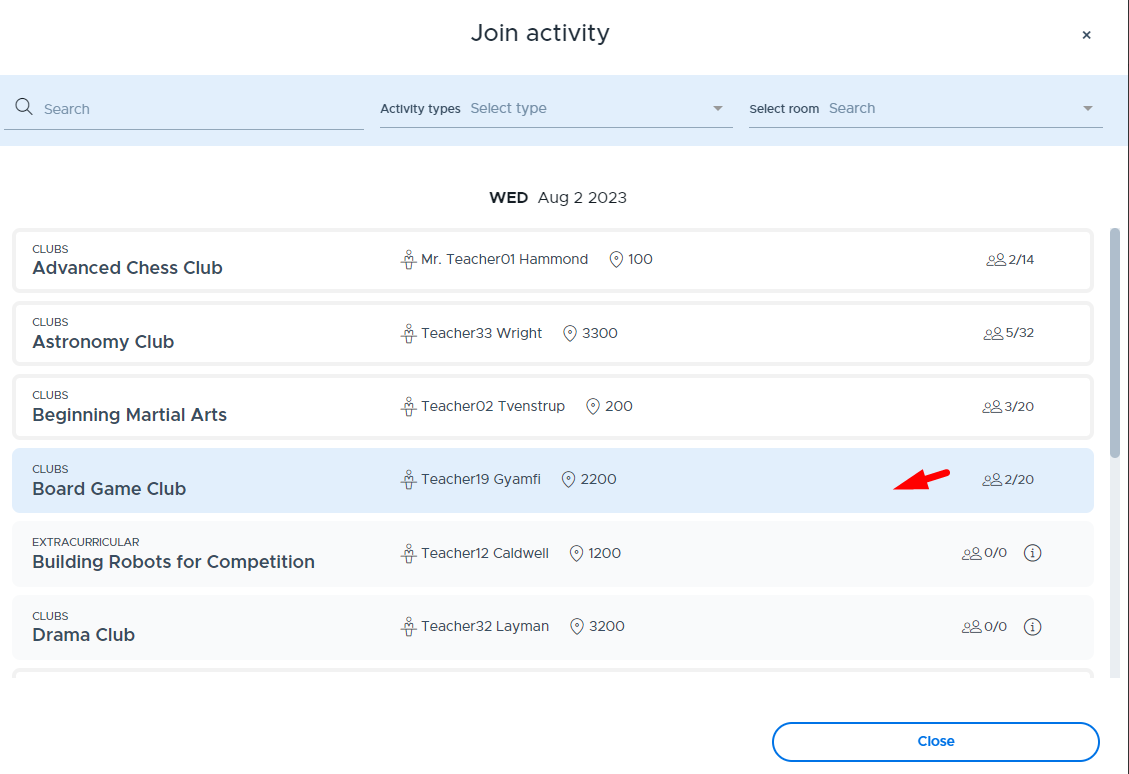
If a student has not been mandated to attend an activity, they can register for a choice activity by clicking on the “Join activity” button from their Flex calendar. The “Join activity” selection screen will appear, as shown below.

*Searching for and Selecting an Activity
Students can search for an activity using the name of the activity or the teacher’s name. Filters can be applied to search using the Activity Types or Room. This feature will aid in narrowing down selections, especially when a school has a large number of choices.
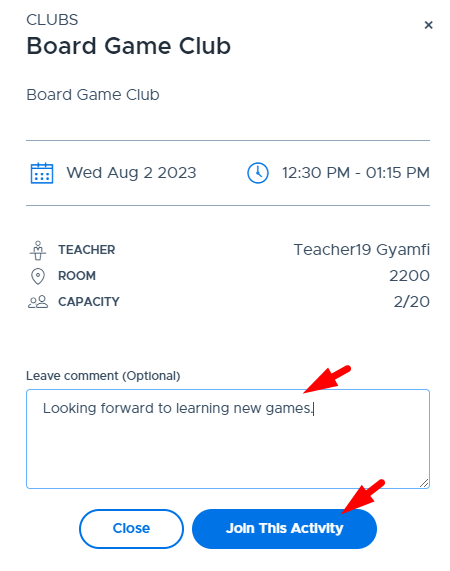
Students register for an activity by clicking the activity they are interested in and clicking the “Join This Activity” button. The activity will be placed on the student’s schedule and can be seen on the calendar after the student closes the “Join activity” window. There is also an opportunity for the student to add a comment for the teacher by using the “Leave Comment” text field.
Please note, some activities may not be available to all students and may be grayed out for any of the following reasons: the maximum attendees for that activity has been reached, the student is not in the group for that activity, or there is some type of student restriction. In all of these cases, the student will be unable to register for the activity.
Sample Student Schedule:
*Cutoff Time & Changing an Activity Registration
Changes can be made to the Flex schedule until the school’s “Cutoff Time”. The cutoff time is determined by your school administrators. It may be shortly before flex begins or the night before. At the cutoff time, students cannot make any changes to their selections or register for a new activity. The system is locked down with the exception of teachers being able to add students to activities, using the “Plus Add” function.
- In order for students to make changes to their choice selections before the cutoff time, go to the calendar screen and click the “Join activity” button and use the “Search Activity” screen to select a different activity.
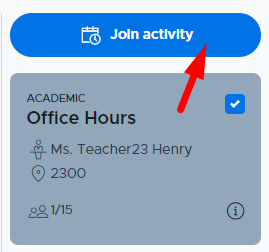
- If a green and/or orange choice activity has been placed on the student’s calendar, simply check the box to register for this activity, as shown below.
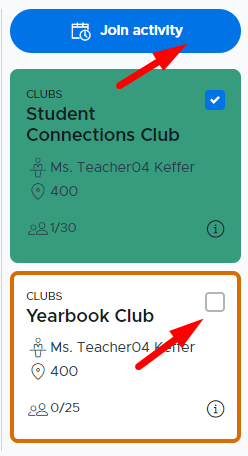
- If a student is not registered for an activity by midnight the night before or the school’s cutoff time, one of the following will happen:
- The student’s schedule for that day will be blank in Flex. In this case, please follow your school’s guidelines for where to go, etc.
- The student may automatically be assigned to a teacher’s activity or a “Catchall” room.
Student Notifications
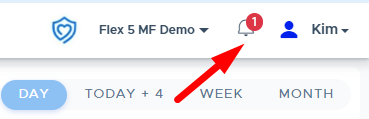
Students will receive “in-app” notifications to let them know about same-day schedule changes and other important schedule-related events. Schools have the option to set up a daily agenda email notification. Agenda emails go out to all students by 7 AM to let the students know what they are registered for that day during flex. Below is an example of the student’s Flex screen and the “in-app” notification on the bell in the top right corner.
Student Restrictions
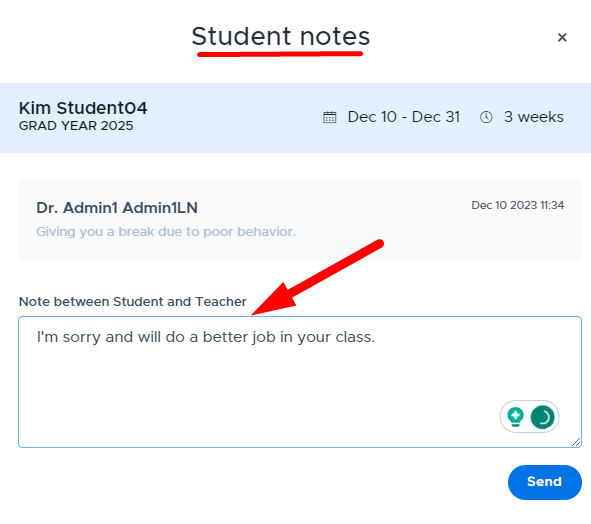
An adult can restrict a student for up to 4 weeks from registering for their choice activities. A student will receive an “in-app” notification when a restriction has been imposed. Restrictions can be viewed and responded to in the student’s profile. Below are examples of the “in-app” notification, profile screen, and where a student can add a note back to the adult.


The student can respond to the restriction with a message that will be seen by the student and adults.