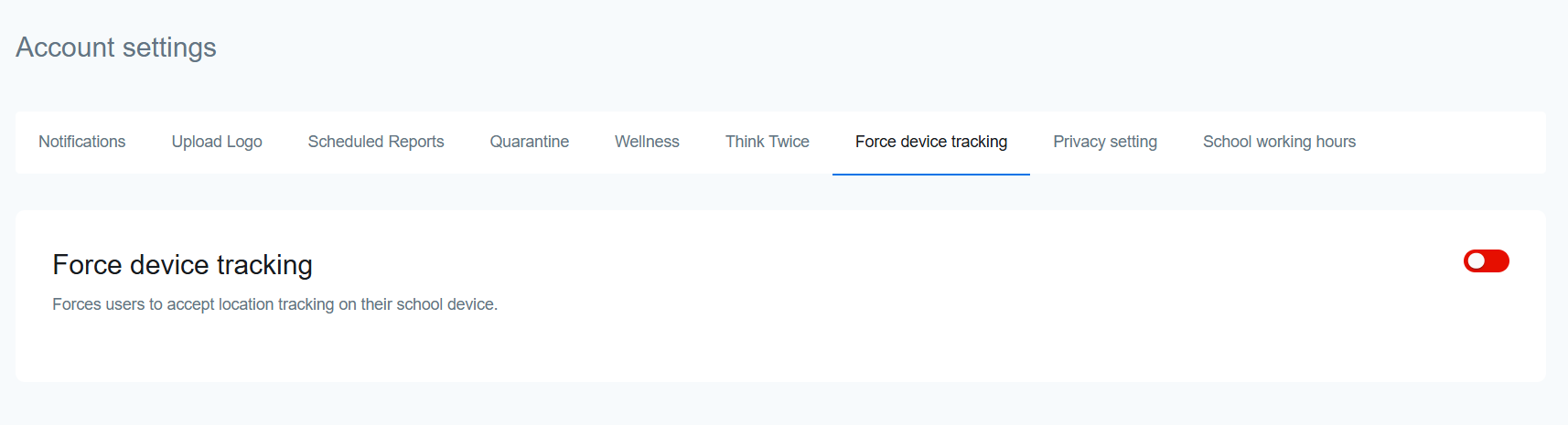
Force device tracking forces users to accept location tracking on their school device via browsers.
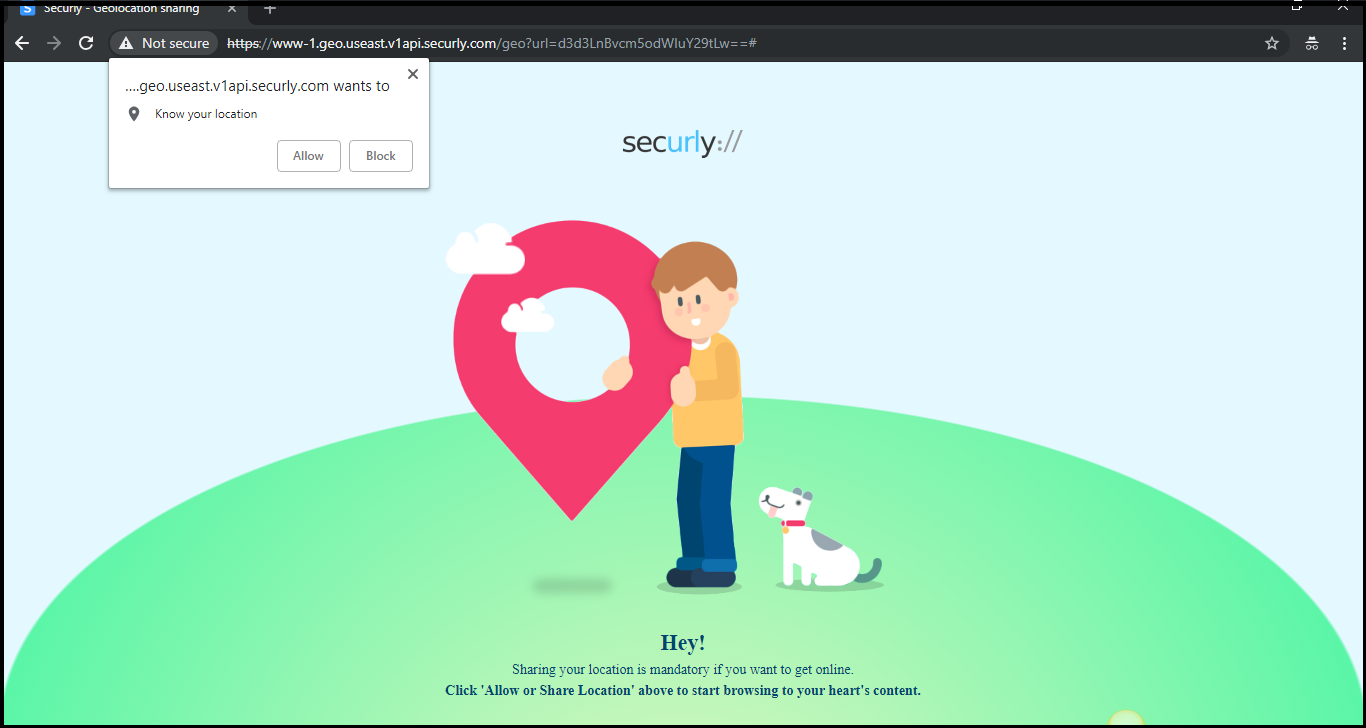
If the student does not allow this, they will encounter a blocked page (as shown below) whenever an attempt to access any website is made.
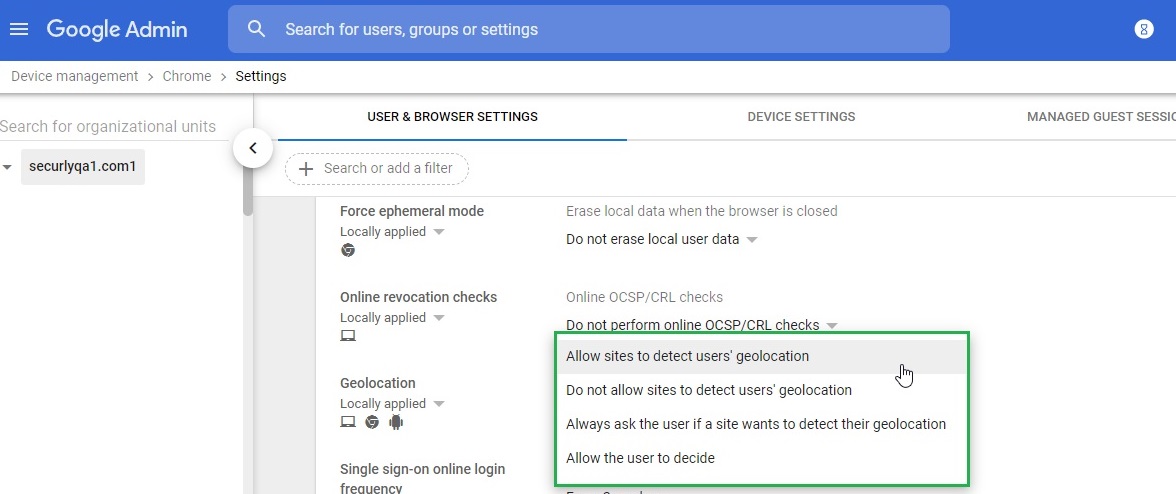
If you are a Chromebook user, you can also force geolocation tracking for all your Chromebooks via Google Workspace. This would eliminate the need for students to accept location tracking as mentioned earlier in this article.
To force geolocation via Google Workspace:
- Log in to your Google Workspace admin account
- Navigates to Device Management > Chrome Management > User Settings > Security > Geolocation.
- Select "Allow sites to detect user geolocation" from the drop-down.