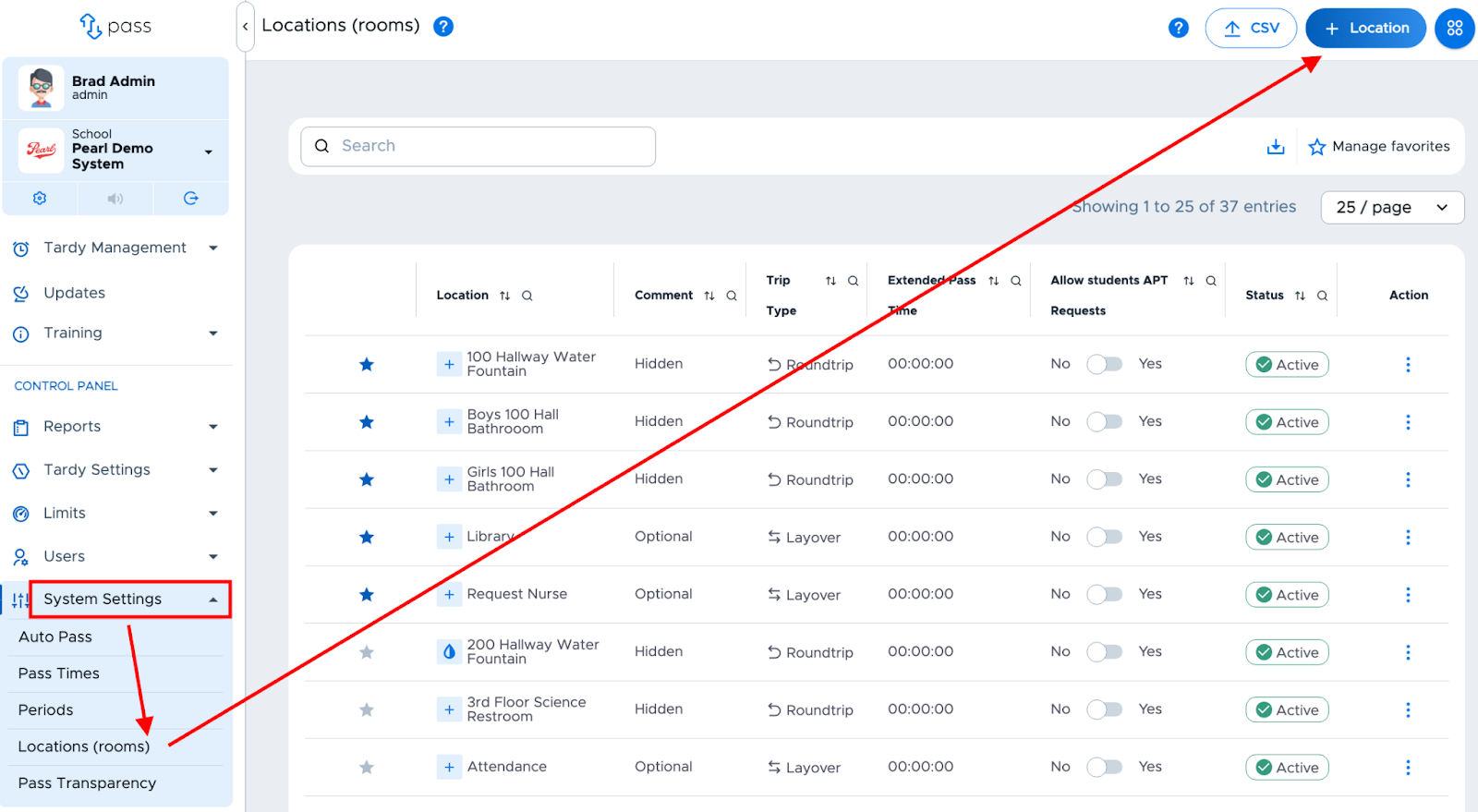
From the Control Panel menu, click on System Settings → Locations (rooms).
To add a location to your system, click the blue + Location button in the top right corner of the screen.
Enter/select the following information on the popup screen and then click Submit:
- Location name - Supply a name for the location or room.
- Icon - Select an icon that represents that location (Click on the dots below the icons to see more options).
- Trip type - Choose from the below typea.
- Layover - The student leaves point A and goes to point B and then returns to point A and is pinned out/in at each location by different people.
- One Way - The student leaves point A and goes to point B and is pinned out/in at each location by different people and does not return to the original destination.
- Roundtrip - The student is going to an unattended location and returning to the original destination. |
- Comment type - Choose from the below types.
- Mandatory - Students are required to make a comment on the pass.
- Optional - Students are not required to make a comment.
- Hidden - Students do not need to make a comment on the pass.
- Extended Pass (Optional) - Check the box to select the time frame for this location.
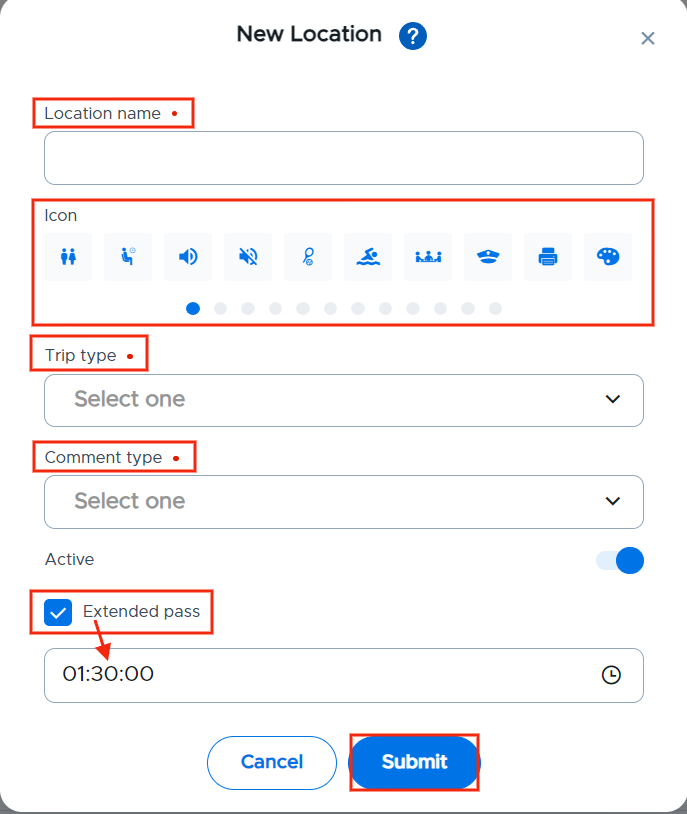
The red dots to the right of the information indicated a required field. Remember to click Submit when finished adding each location.
Additional points to remember
- Individual teacher classrooms should NOT be added here. Students will use the teacher’s names to create passes to/from teacher classrooms. If you do add teacher’s rooms here, it may cause confusion for the students when making a pass, because that “teacher’s name/room” will show up twice.
- Admin, Staff, and Teachers can “associate” themselves to the rooms/locations in which they work so that they can monitor passes to/from those locations. For example, an admin may associate with the Main Office or Guidance Office.
- There is an option to “Import Rooms” from a CSV file.
- Click on the CSV button and follow the instructions on the Pass screen.
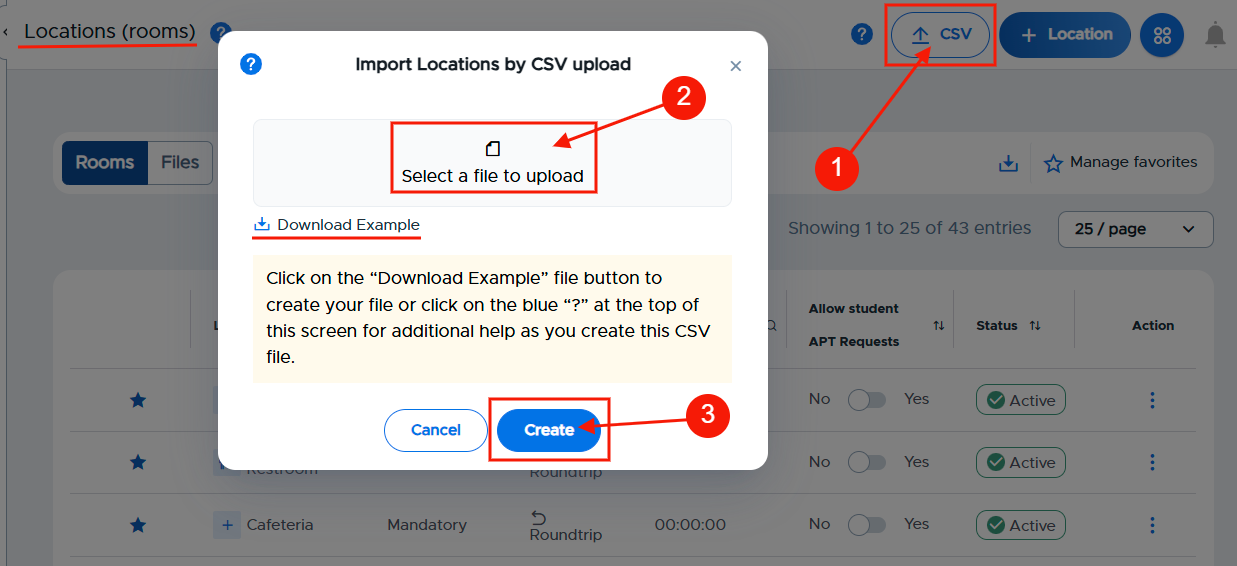 There is a sample file available that shows the column headers and data required. If you upload a Locations file, you can easily track the status on the Locations (rooms) page. In the upper left corner, simply click Files. The name of the file, status, and date created will be displayed on the screen.
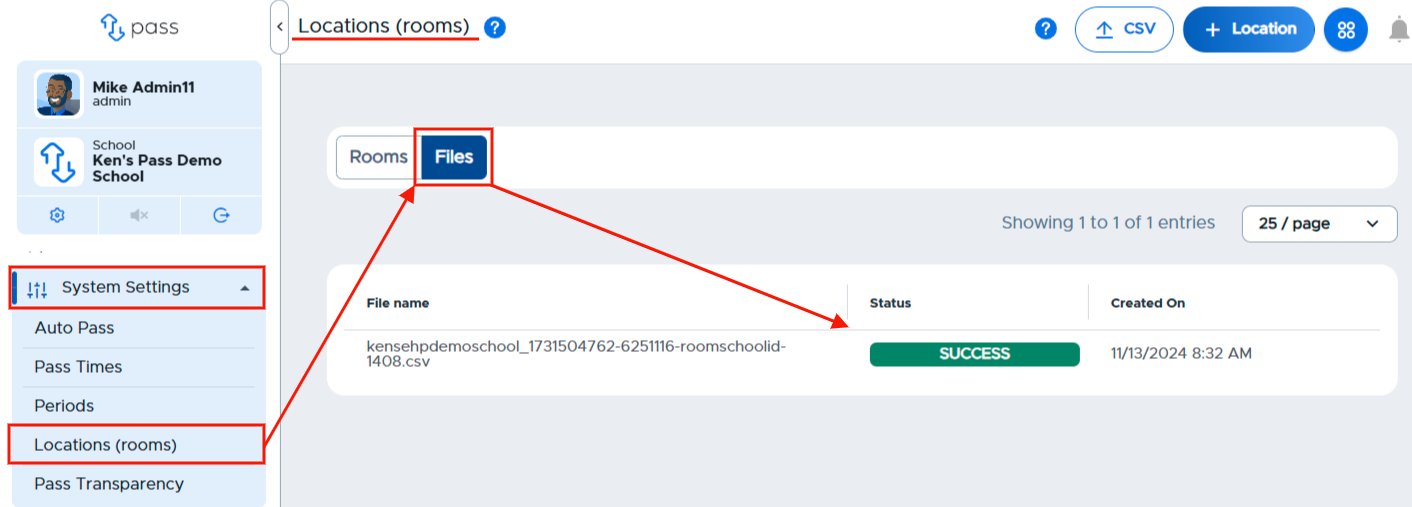
- Click on the CSV button and follow the instructions on the Pass screen.
Important Note:
If you upload a locations file that contains a location/room that already exists in your Pass system, the upload will fail.
Video Alert
Please watch the "Adding/Editing Locations (rooms)" video.