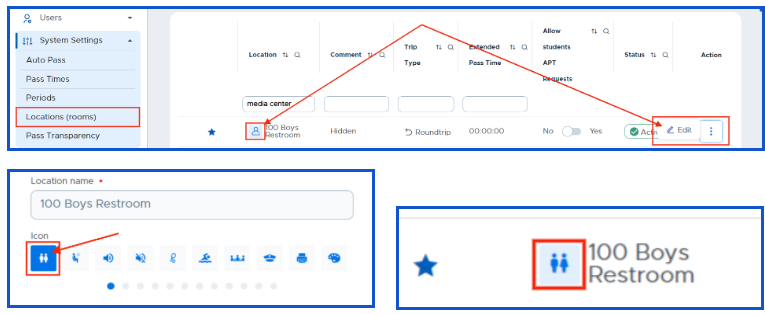
An Admin can also manage favorite rooms and people from Locations (rooms) screen. These favorites will appear on the adult’s screen (Teacher Pass) and on the student’s screen when creating a pass. You can select up to 10 locations as favorites.
To select a location as a favorite:
- Click on the star to the left of the location OR click Manage favorites on the right side of the screen.
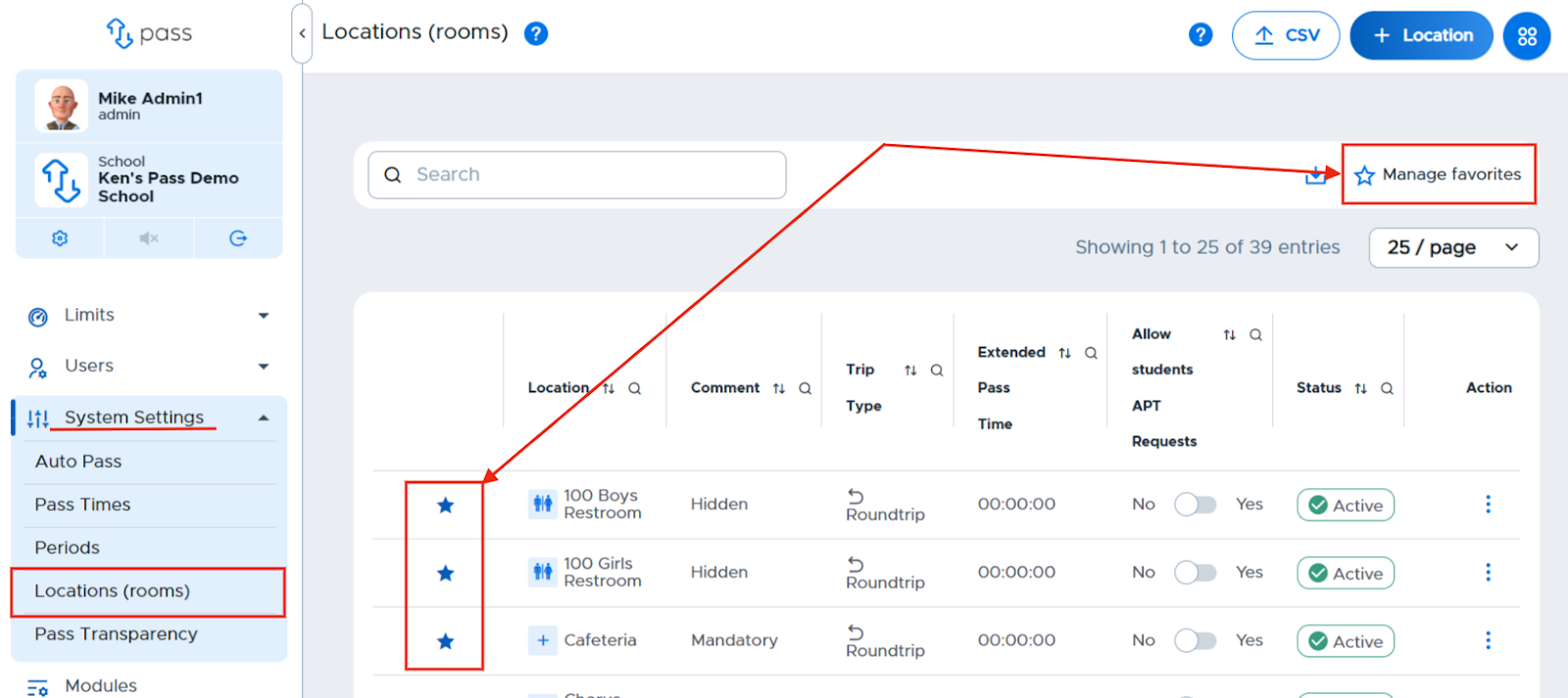
- Click Add favorite(s) and select locations from the drop down menu or begin to type the location and then click on it when it appears. When finished, click Save.
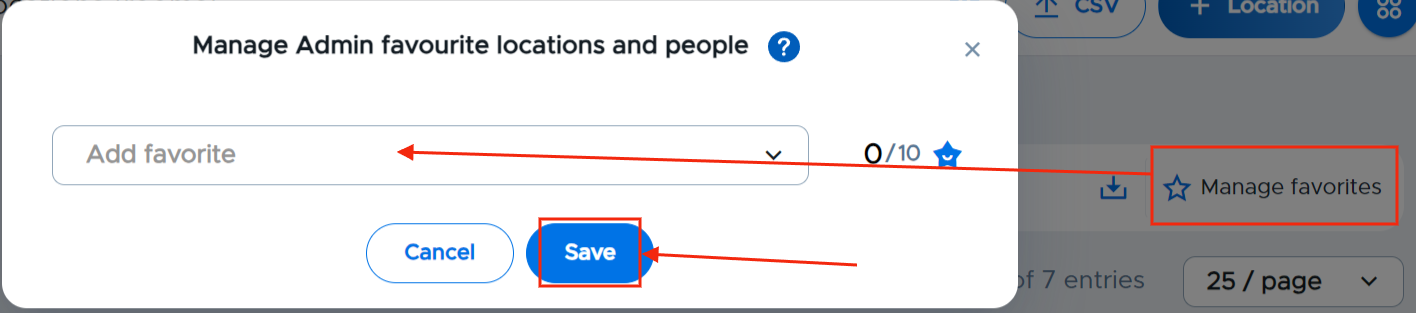
- Selected favorite locations will have a blue star to the left of the location.
Editing a location
-
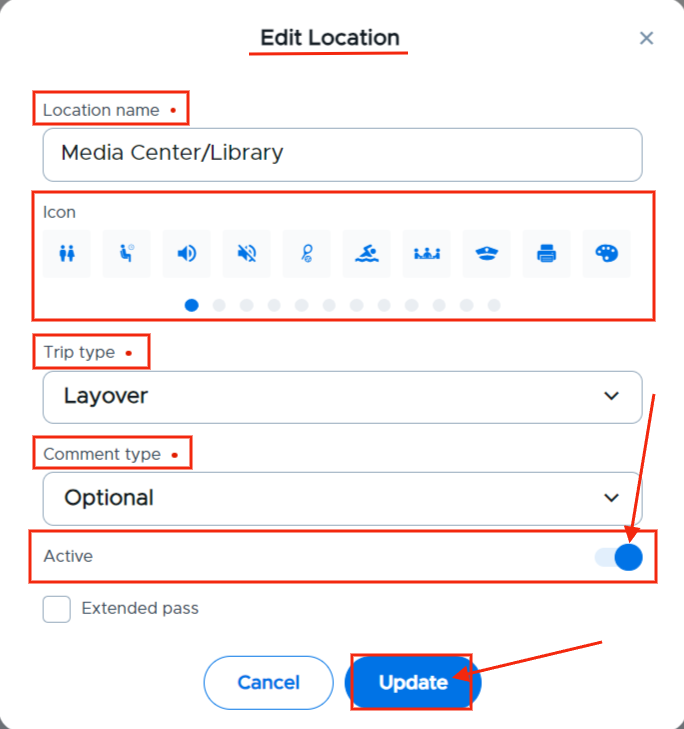
To edit a location (change the name, icon, comment, pass type, or status):
-
Click on the three (3) dots under the Action column for that location.
-
Click Edit and make adjustments.

-
Click Update.
-
-
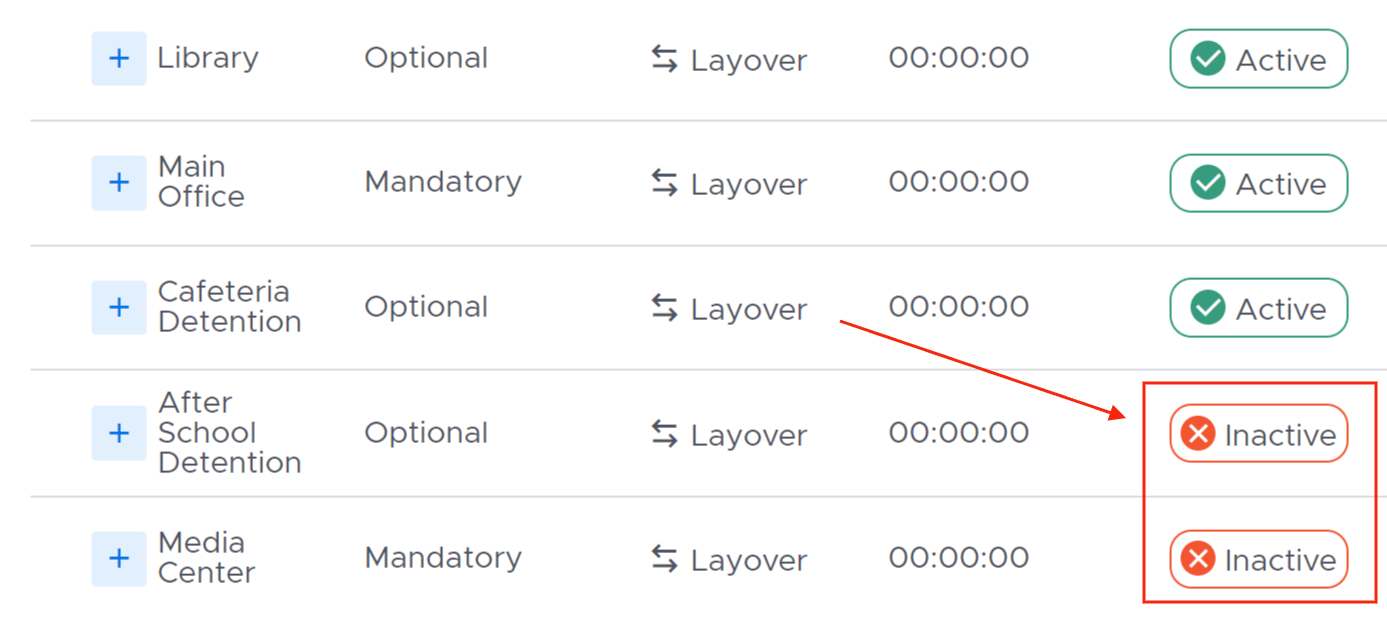
To make a location inactive:
- Follow the steps for editing a location and change the status to inactive. Inactive locations appear at the bottom of the list.
-
To make an inactive location active again:
- Click the three (3) dots under the Action column for that location.

- Click Edit.
- Change the status of that location.
- Click Update.
- Click the three (3) dots under the Action column for that location.
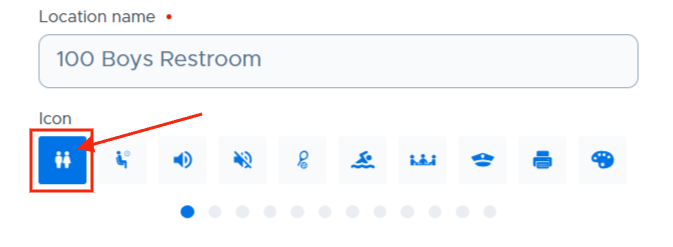
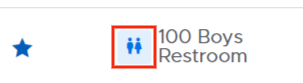
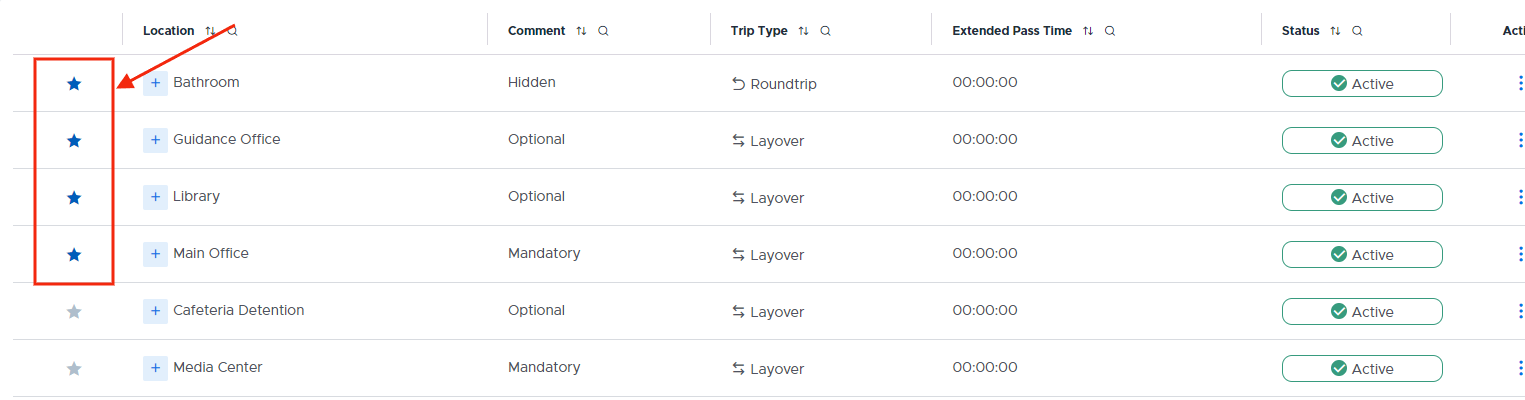
- To change just the icon of a location, click on the icon to the left of the location OR click Edit to the far right of the location, make the appropriate change to the icon for that location, and then click Update.