Securly Filter lets you allow or block websites, domains, or keywords in addition to those in the Securly database. You can either add these domains and keywords at a global level or at an individual policy level.
Global Level allow/block settings
Any domains or keywords added to the Global Allow or Block list here will be applicable to the entire user base and all policies.
Select the Search terms or URL tab to add to the lists at the Global level. You can use the following formats in the relevant tabs:
- Top-level domain: *.com, *.io (this will allow/block all domains with the specified TLD)
- URL: example.com/thisisadummy (You can add such URLs to the blocked list. The Global Allow list lets you add only some URLs to avoid crowding and conflicts between rules.)
- Subdomain: *.example.com (this will allow/block all associated subdomains)
- Keyword: examplekeyword (You would need to select either “Exact” or “Contains” as mentioned previously to define how it should be implemented and also include an asterisk before the first letter and after the last letter with no spaces in between)
Any domains you add to the Global Block List that are not present in our database will be sent to PageScan
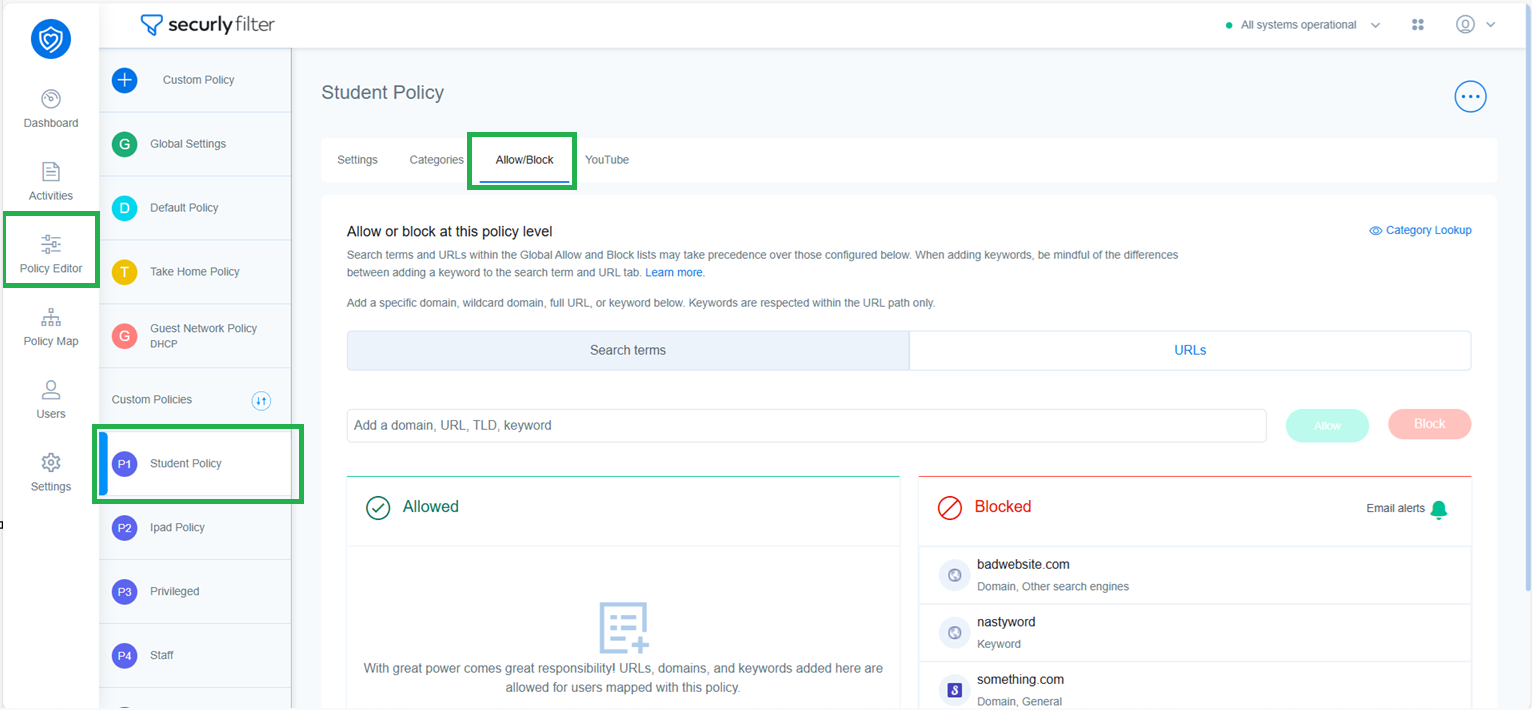
Policy Level allow/block settings
Any domains or keywords added to the Allow or Block list here will only be applicable to users who have been assigned that particular policy.
Adding search terms to the list
- Select the ‘Search terms’ tab, and enter the keyword in the field.
- Click the (...) more icon and select either ‘Exact’ or ‘Contains’ to determine how keyword searches are allowed or blocked. Example: If you add the keyword “butt” and select ‘Exact’, then only the word “butt” will be allowed or blocked on various search engines. If you add the keyword “butt” and select “Contains”, then all words such as “butterfly” will be allowed or blocked on the various search engines.
Similarly, you can add a phrase such as "momo challenge" and select either 'Exact' or 'Contains' to allow or block the phrase on various search engines. - Use the Allow or Block button
Adding URLs to the list
Select the ‘URLs’ tab and add either:
- Specific domains such as reddit.com
- Wildcard domains such as *.example.com (this will allow/block all subdomains of example.com)
- Full URL such as https://www.example.com/topic/Games
- Keywords such as examplekeyword. Keywords will be applicable only as part of the URL path.
The Default Policy does not have an allow list by design. The Default Policy should be your most strict policy. If you would like to allow something for the default policy, instead add it to the Global Allow list, but this will allow it for all users.