Pass Admins have the ability to manually archive all users in the system, regardless of whether the “Prevent from Archiving” toggle is on. This includes users who were rostered via user CSV file, third-party sync, or who have been manually added directly to the system.
If an Admin manually archives a user that was originally added via user CSV file or third-party sync and that user is not removed from the file or third-party sync, they will be returned as an active user (“unarchived”) in Pass upon the next file upload or sync.
Archiving a user
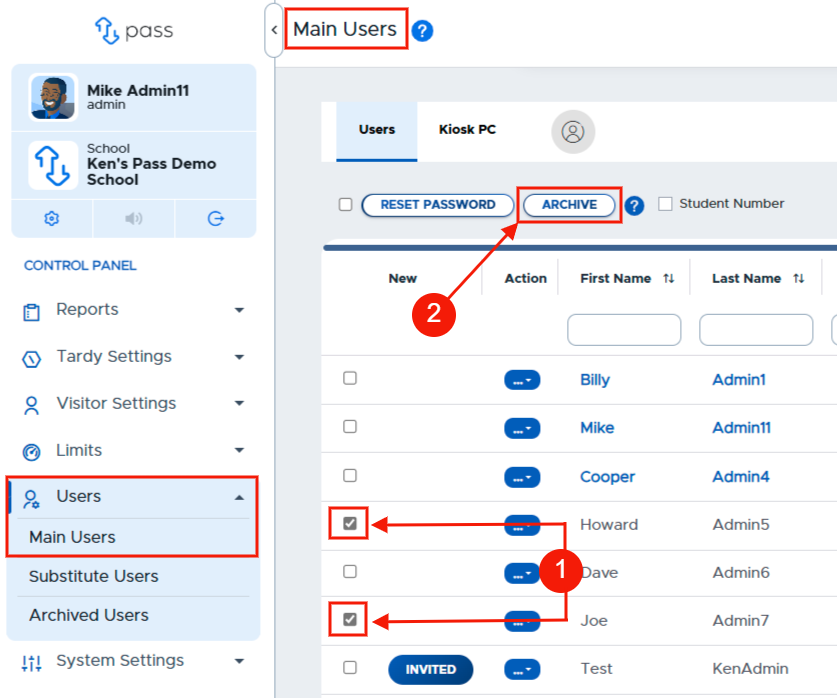
- Navigate to Users → Main Users.
- To archive an individual user, search for the user, click on the checkbox to the left of the user’s name, and click ARCHIVE.
OR
To archive multiple users at the same time, locate the users, click the checkboxes to the left of the user's names, and then click ARCHIVE. - Archived users can be found by clicking on Users → Archived Users.
Viewing archived users
- Navigate to Users → Archived Users.
- Search for the archived user(s).
Restoring an archived user
- Navigate to Users → Archived Users.
- Search for the archived user(s).
- Check the box to the left of that person’s name and click UNARCHIVE USERS
OR
Click on the yellow UNARCHIVE button to the right of the user’s name.
To view and manage archived users, go to the Control Panel menu > Users > Archived Users. From this screen (shown below), you can search for archived users that have not yet been completely removed from the system and “unarchive” users, if needed.
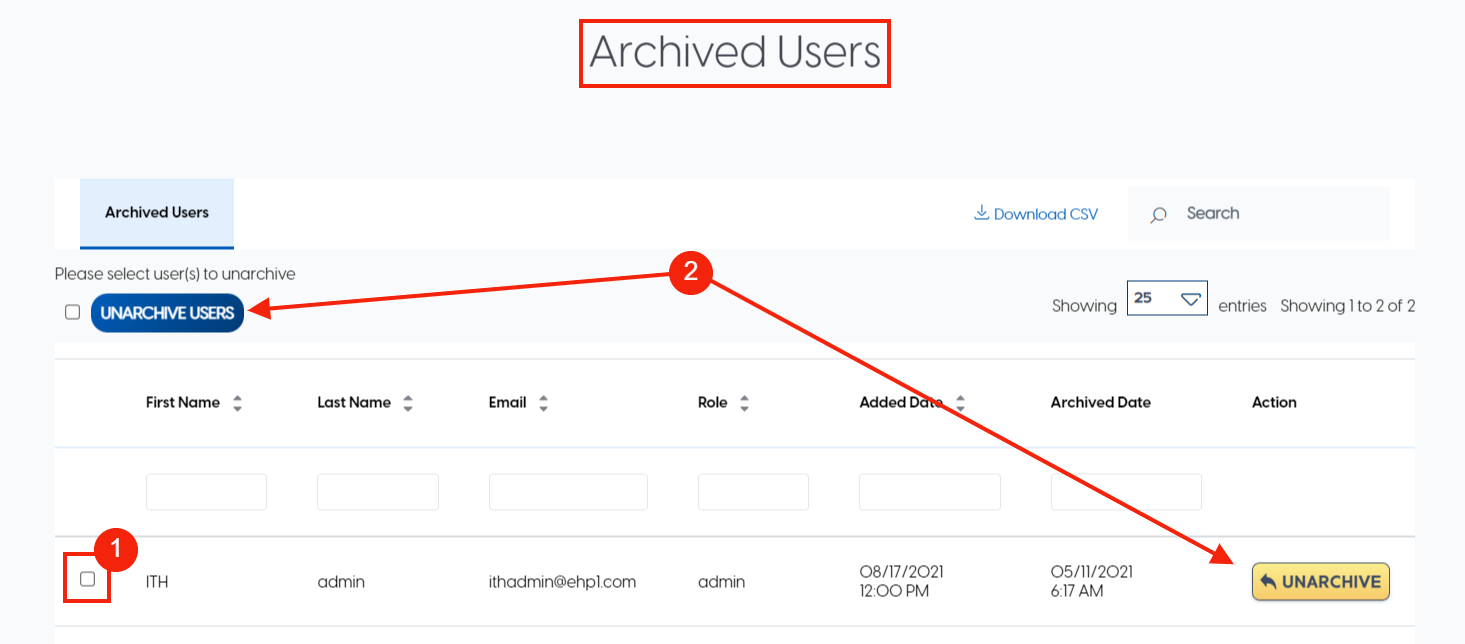
Users who have been archived in the last 90 days will appear on this page.