Auto Pass is an optional feature that allows schools to make certain types of passes available for students to start and stop, start only or stop only without requiring a teacher’s digital approval.
Auto Pass availability is associated with the adult’s account. Auto Pass functionality will only work when the “from” field is a person. It will not work from a location.
Creating an Auto Pass
Auto Pass involves a 2-step process.
Step 1 - You choose the locations in the building that can be utilized as auto pass locations.
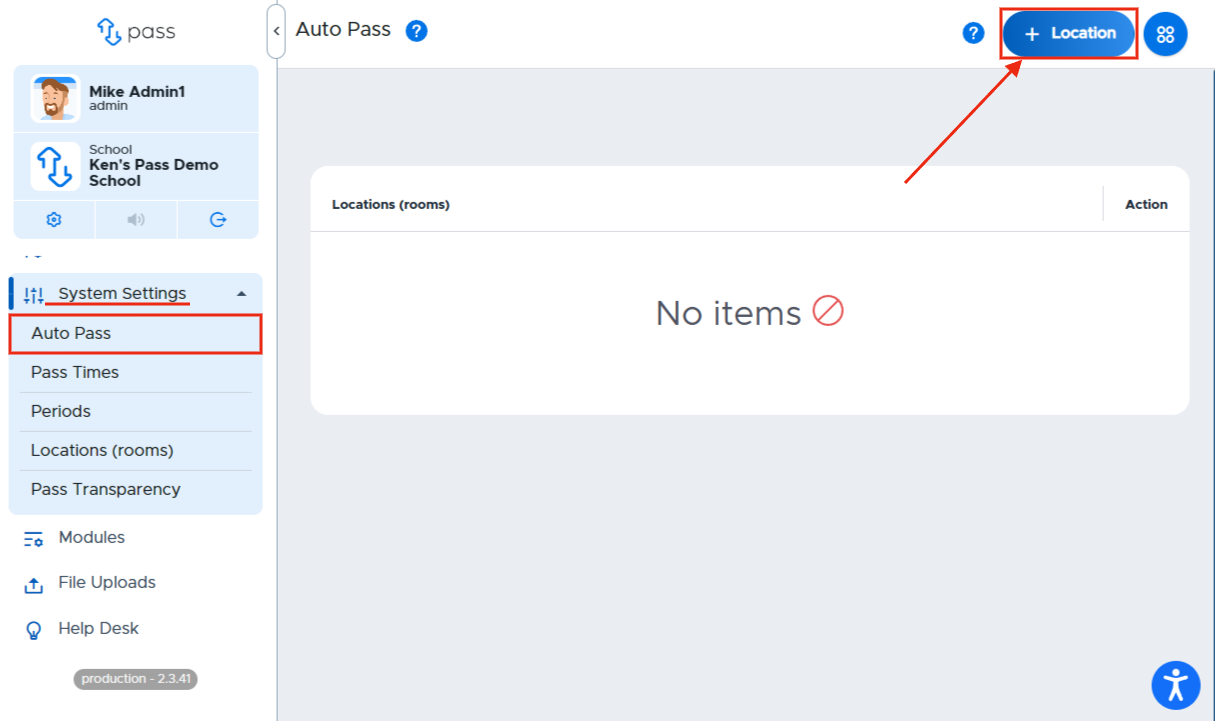
From the Control Panel menu, click on System Settings → Auto Pass.
To add Auto Pass locations:
- Click the + Location button in the top right corner.
- Click Select locations.
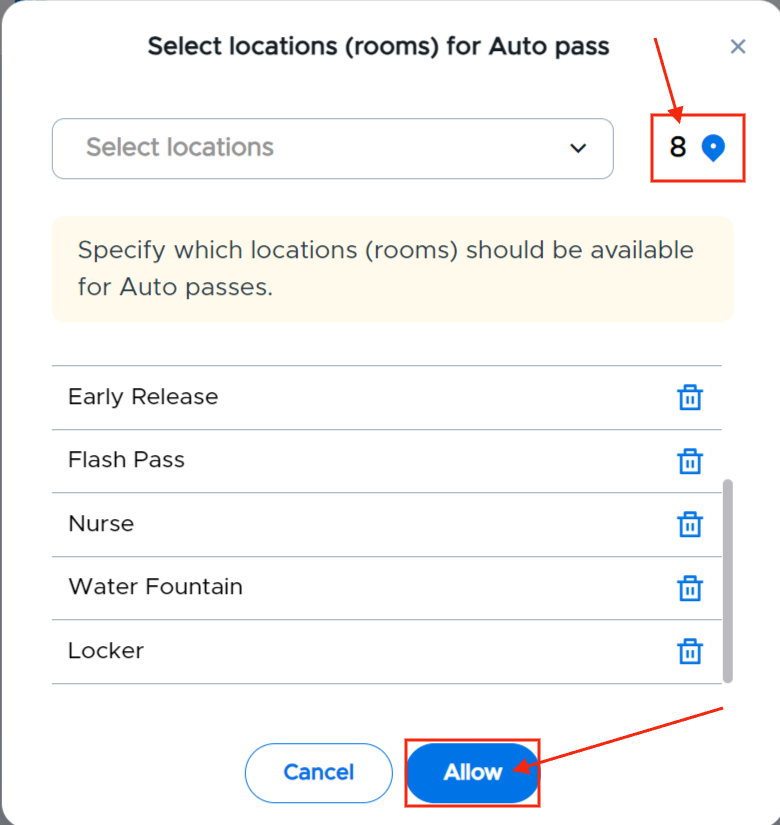
- Use the multi-select dropdown to select one or more locations at a time:
-
Click the +Location button in the top right corner
-
Click in the Select locations field.
-
Type the name, or scroll for the name of that location and click on that location.
-
Repeat the typing/searching and clicking for any other locations needed.
-
When finished, click Allow.
-
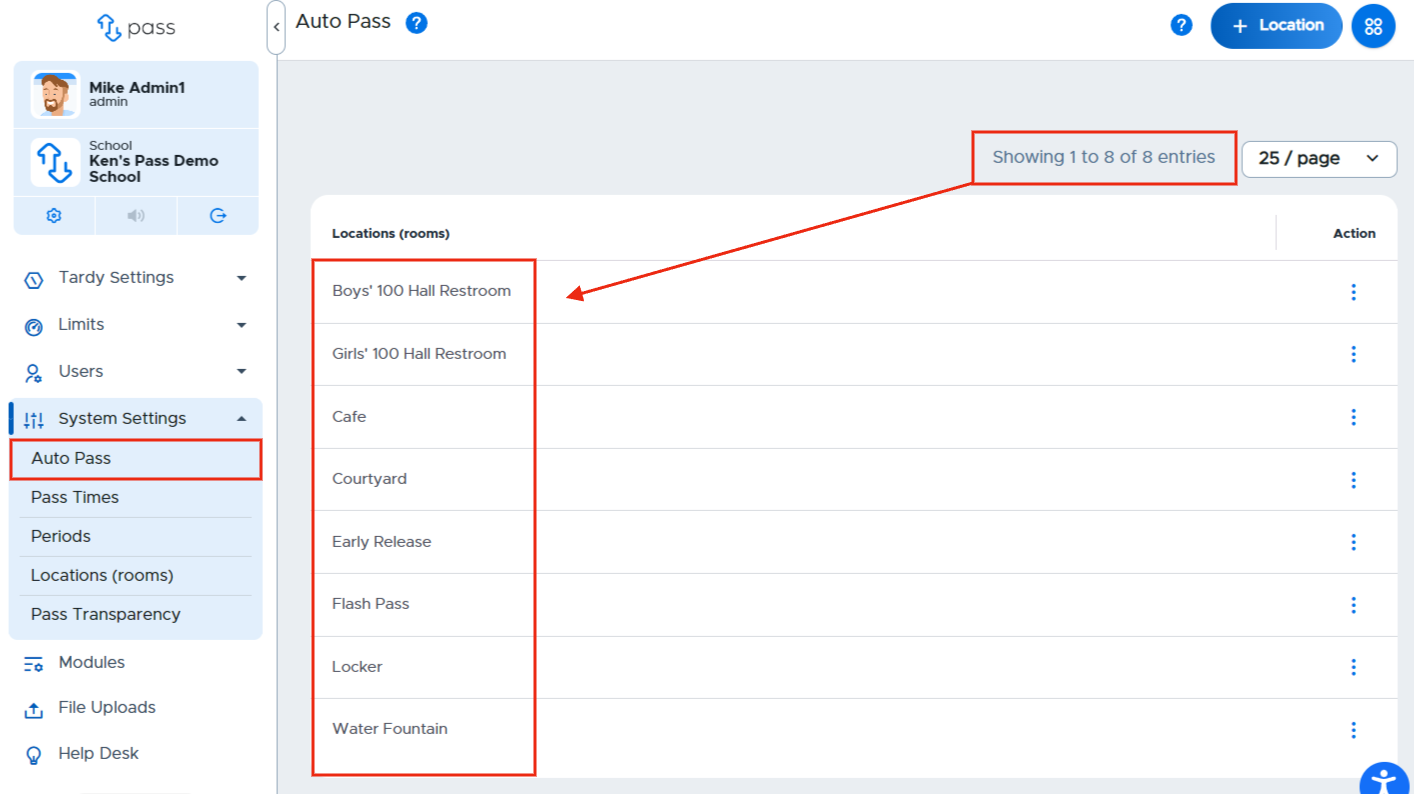
Once your locations have been selected, they will appear on the Auto Pass page.
To remove a location from the Auto Pass location list:
- Click on the three(3) dots under the Action column on the right side of the screen for that location and click Delete.
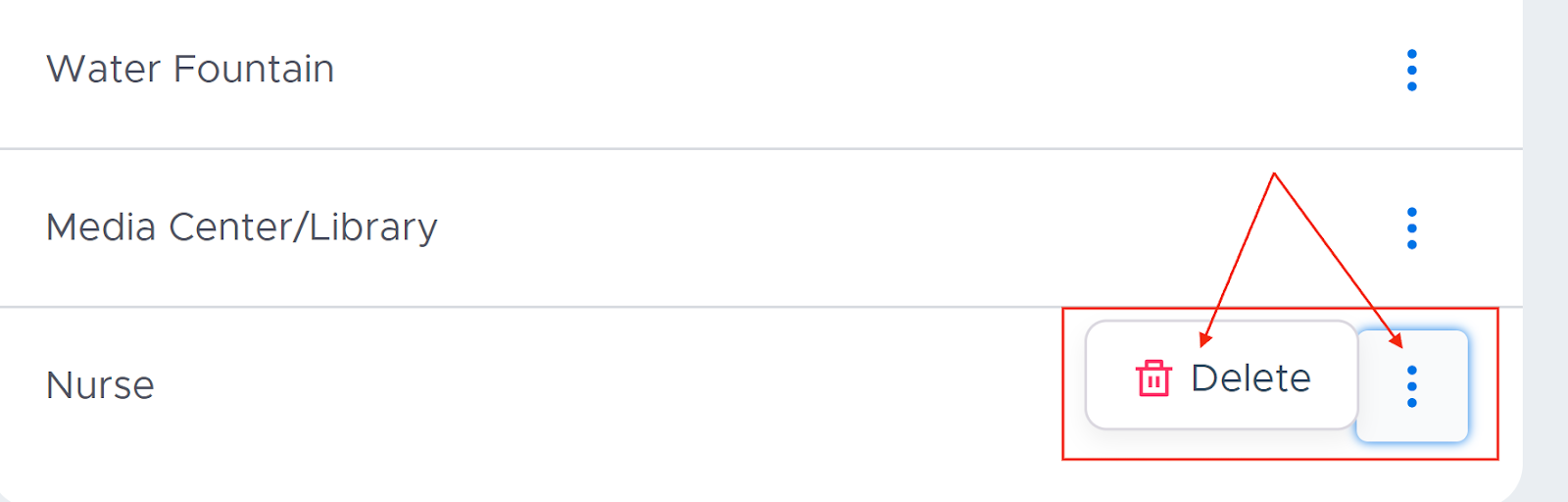
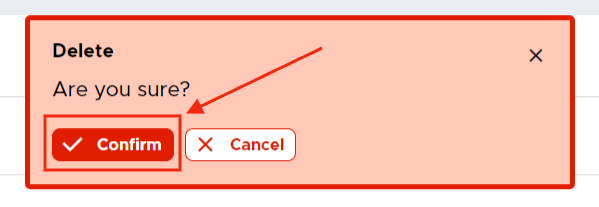
- On the popup window, click Confirm, which will then remove the location from your list.
Step 2 - Teachers can choose which locations to use as auto pass locations for their classroom from their own Dashboard.
Once this feature is activated, the “Auto Passes” tile will appear on the dashboard. Click on the edit pencil icon to select the Auto Pass locations and any limits that you would like to apply.

When choosing those locations, adult users can choose to have the students do the following:
- START/STOP their own passes
- START their own passes
- STOP their own passes.
Users can also limit the number of students who are out of their classroom on an Auto Pass at any given time.
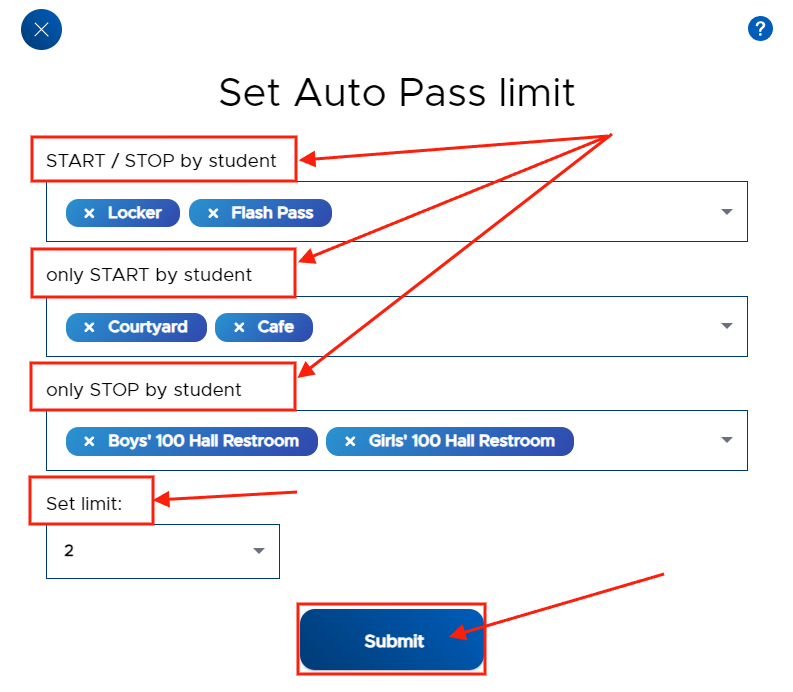
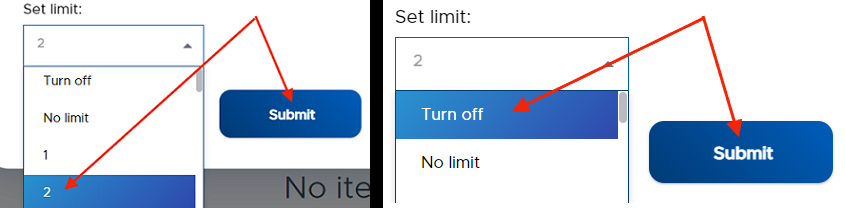
Limits can be adjusted throughout the day to meet the needs of certain classes. Users can “Turn off” the Auto Pass functionality for one class and then reset the limit for another class, both with just a few clicks. Remember to click Submit any time you make a change to this screen.
Following the pass protocols that have been set up in each user’s location, students can create passes to those auto pass locations the same way that they create their own passes. Once permission has been given to leave the classroom, the student can then START his own pass from his own device by clicking on the Play button.
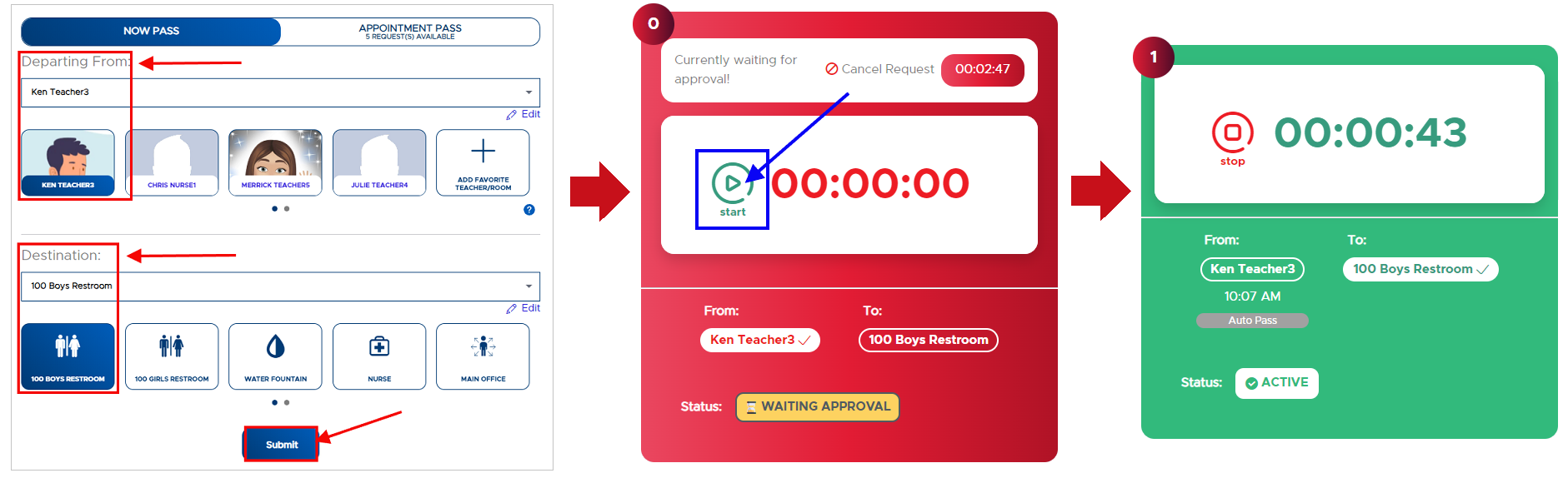
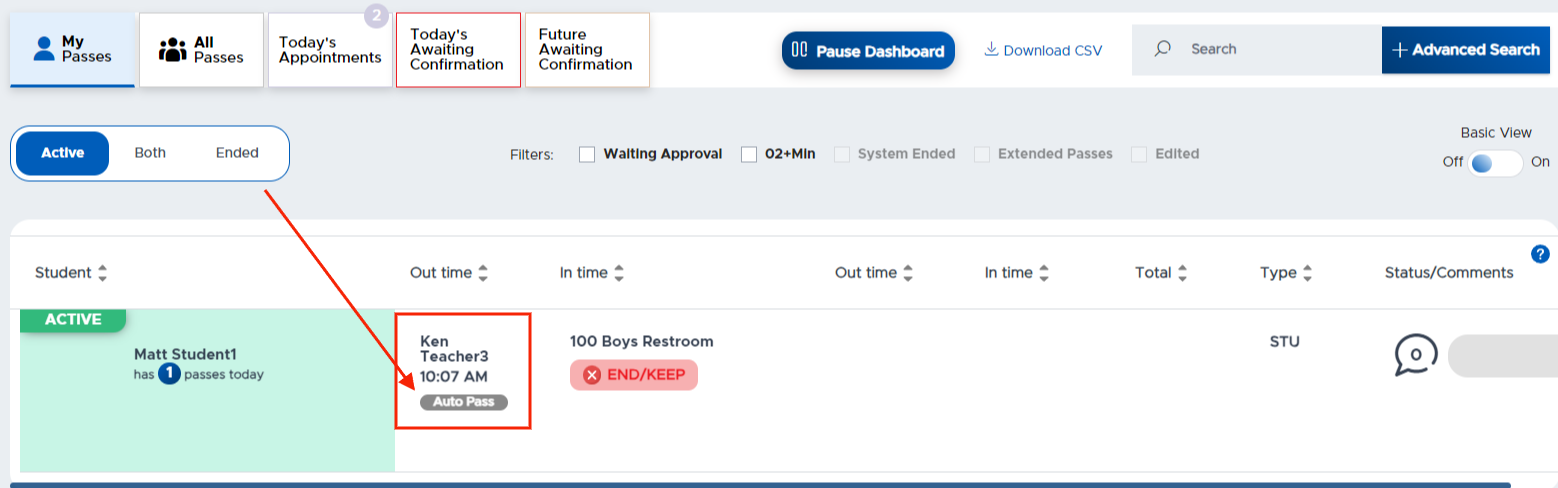
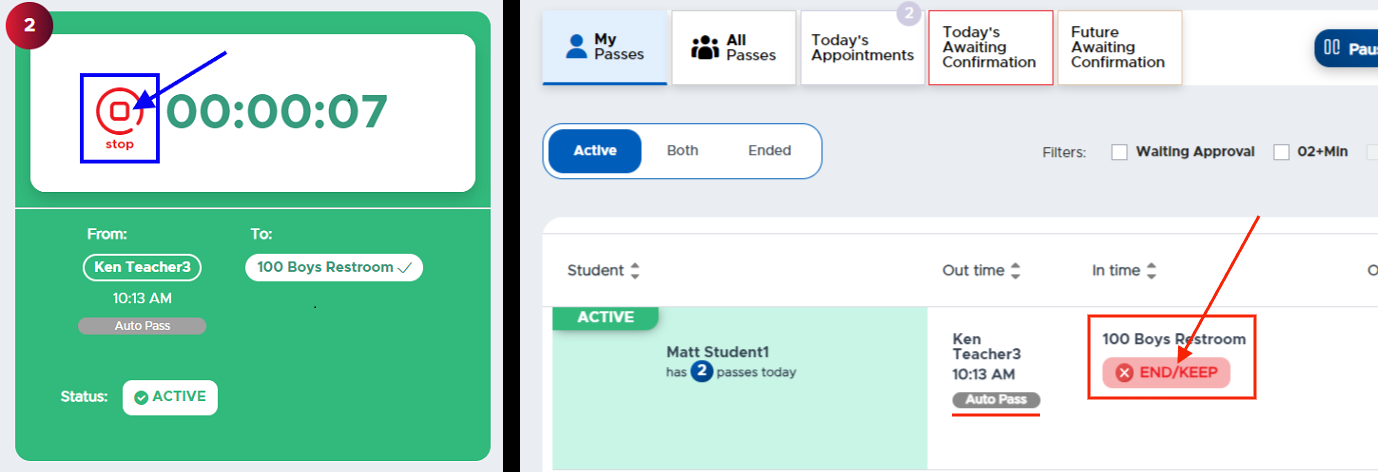
When the student returns to the classroom, the student can end the pass by clicking on the STOP button on his device, or the teacher can end the pass from his Dashboard by clicking END/KEEP.
For more information, watch the "Enabling Auto Pass" video below.