In the default Thumbnail view, teachers will only see student screens, whereas this view will also display icons for each open tab on the student's device below the thumbnail.
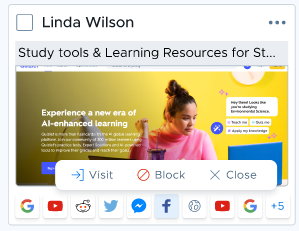
Clicking on a tab icon will reveal the usual tab actions to visit the site, block the site (adding the entire domain to the currently active/temporary access plan), or close the tab for the student.
If there are more tabs than can fit in a row, an overflow button (+X) indicating the total number of additional tabs will appear, linked to the student’s Detail View which shows the full tab list.