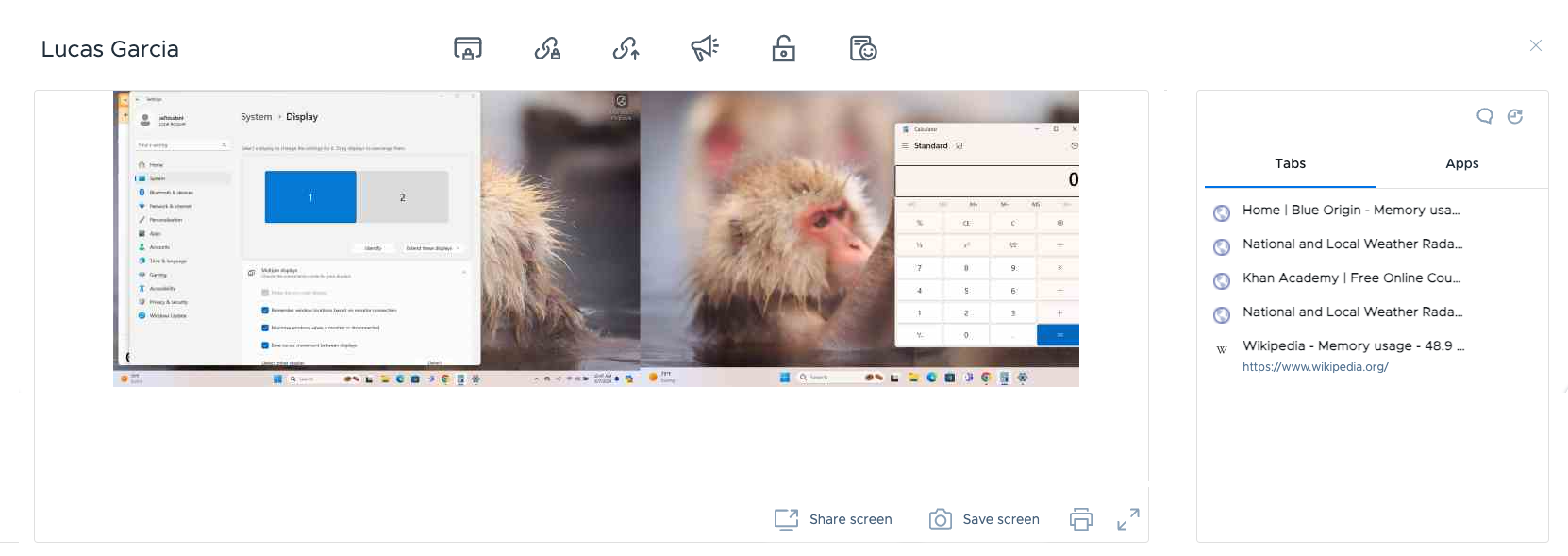
In Securly Classroom, regardless of whether a student is using a multi-monitor setup or multiple workspaces, teachers will see their active window in the thumbnail and open browser tabs in the tab list.
For schools that using the Windows or macOS agents, teachers wills see the students' entire desktops, but only the ones that the students are actively looking at. All browser tabs will still be listed in the tab list.
Chrome OS multi-desktop view
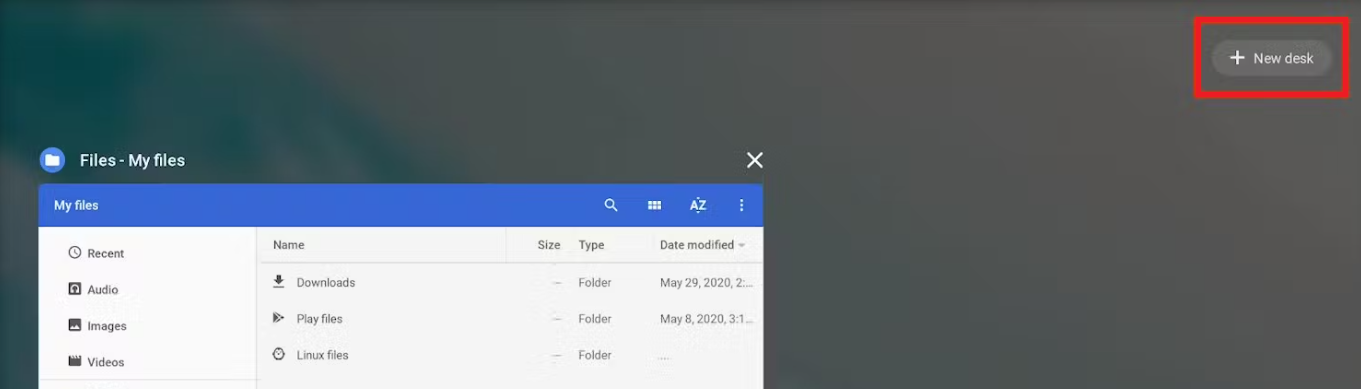
Swiping up on the touchpad with three fingers or pressing the Show windows key on the top row of the keyboard displays all of the windows on the current workspace. This brings up the "+New desk" button for creating another workspace.
Windows multi-desktop view
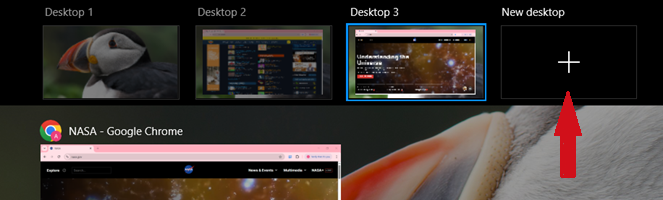
A student can use the Task View (Windows key + Tab) to create separate workspaces.
Mac multi-desktop view
On Mac, students can use the Mission Control key , or press Control-Up Arrow to configure multiple workspaces.

In all above the above scenarios, teachers will just see the active and open tabs as shown below.
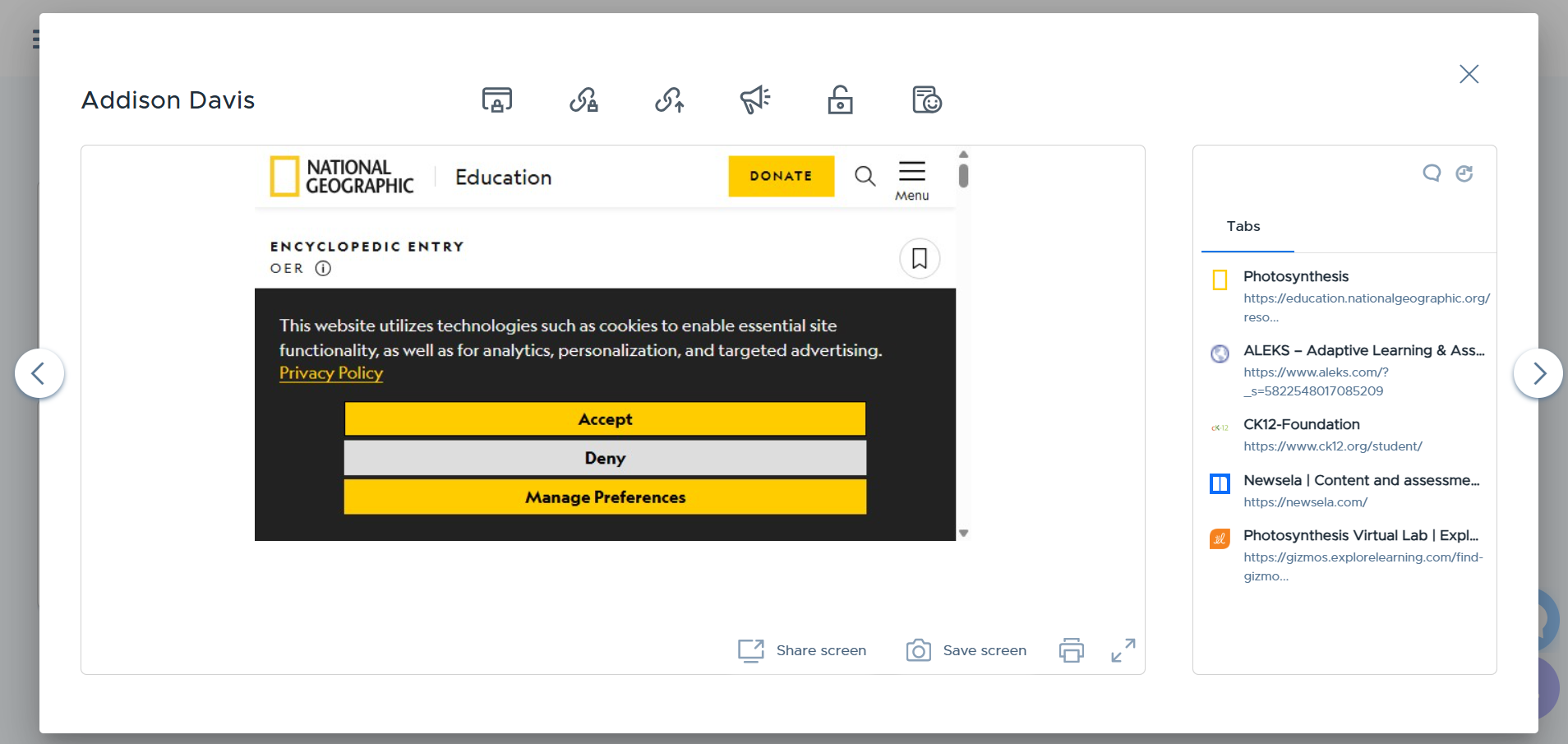
Multi-desktop view on devices using the Classroom agent**
On Mac and Windows devices with the Classroom agents, the open browser tabs as well as the entire desktop (including the extended display area using a secondary screen) is shown.