Pass Blocking provides an admin with the ability to block passes for all users for a specified period of time, including daily and weekly blocks. This can be done for specific types of passes (Student-initiated Pass, Teacher Pass, Kiosk Pass, and/or Appointment Pass) or all passes. When a Pass Blocking Period is created, users will not be able to initiate a new pass. The admin can create a message for students already out on a pass with specific instructions on what to do during the pass blocking period. (For example: Please go to the nearest classroom immediately.)
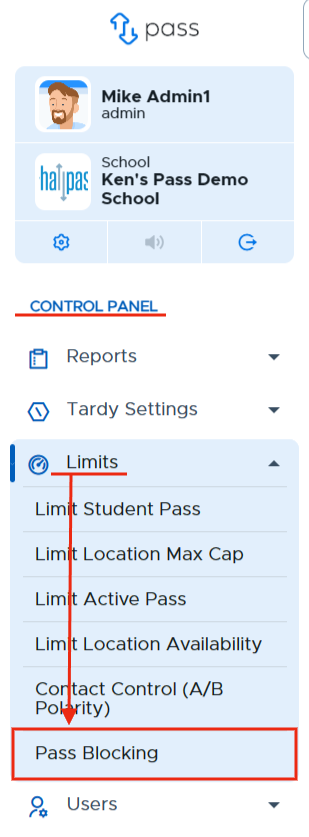
To create pass blocks for your school, under the Control Panel, click on Limits → Pass Blocking.
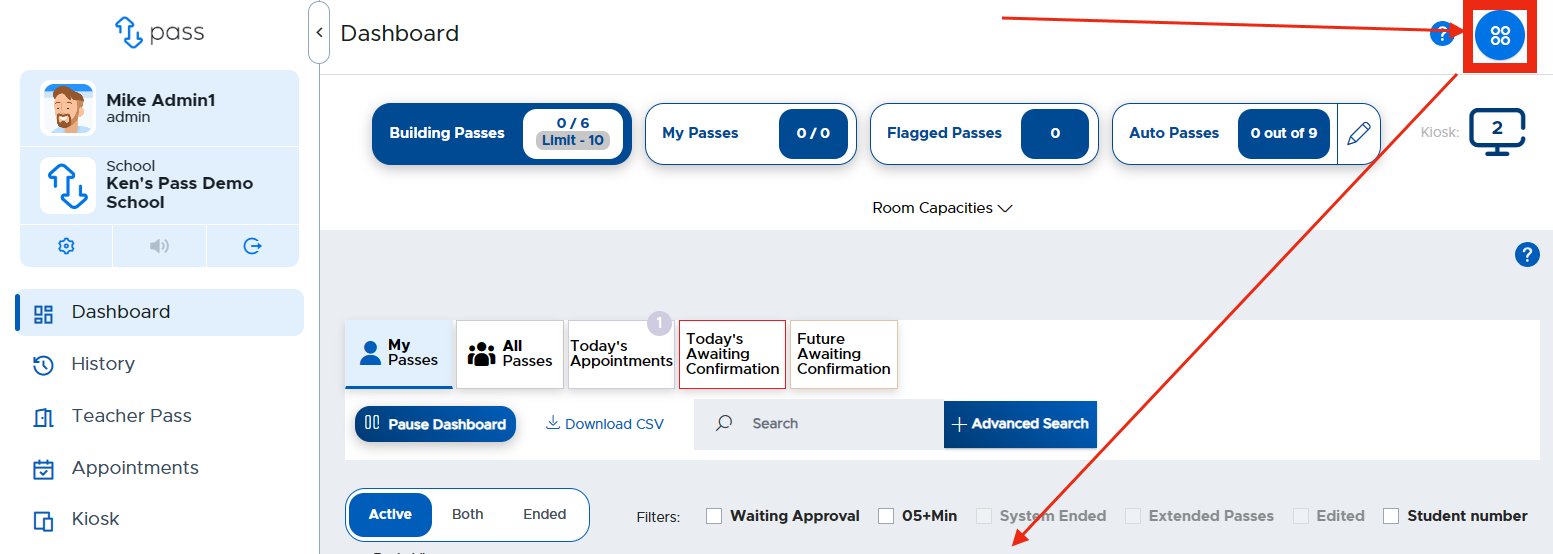
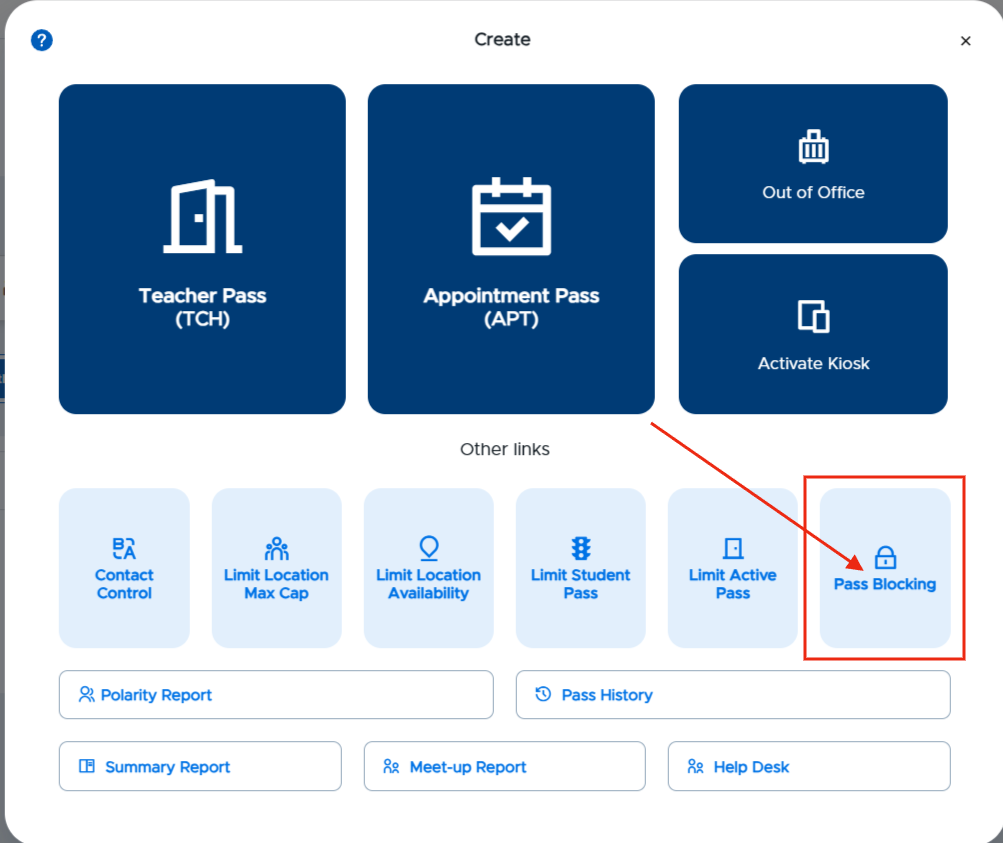
You can also click on the blue Create button in the upper right corner and click on the light blue Pass Blocking tile.
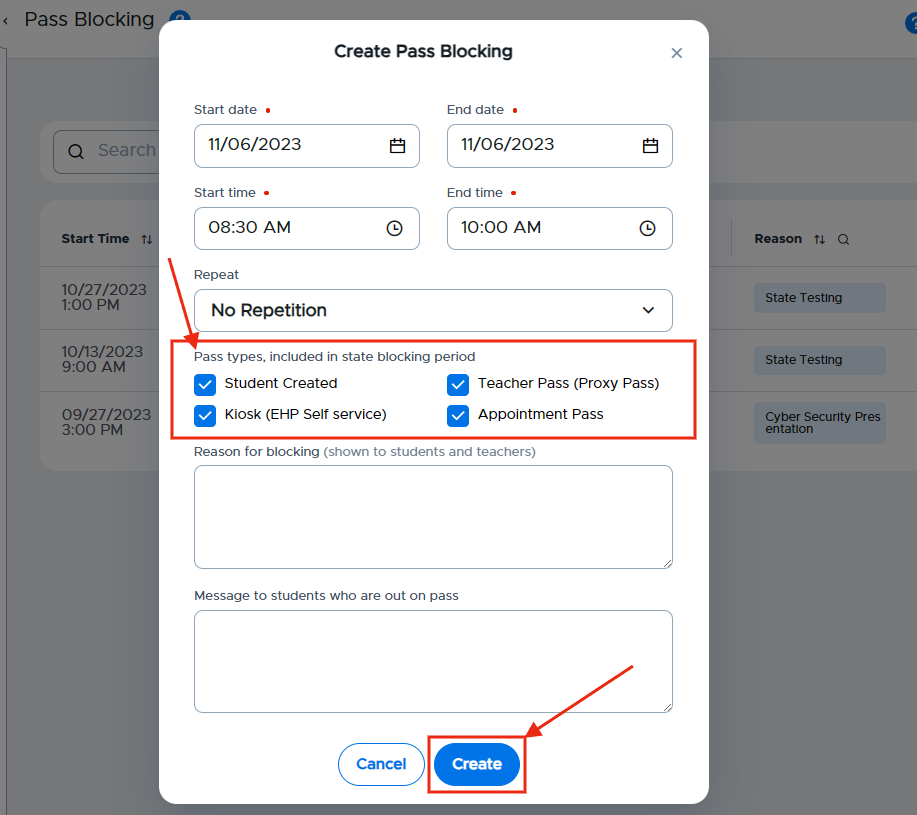
To create a pass block, click on the blue + Block button in the top right corner of the screen. Choose the following when creating the block:
- Start and end date
- Start and end time
- Repetition (“No Repetition”, “Daily”, or “Weekly”)
- Recurring pass block (i.e. - first 10 minutes / last 10 minutes of each period)
- Pass Types to include in the block
- Reason for the block
- Message to the students who are out on a pass
When finished, click the blue Create button.
An active pass block can be edited or deleted. An expired pass block can be deleted. To take action on a particular block, click on the three (3) dots to the right of that particular block and choose Edit or Delete.
If editing a pass block, click Edit, make the appropriate changes to that particular block, and then click Update.
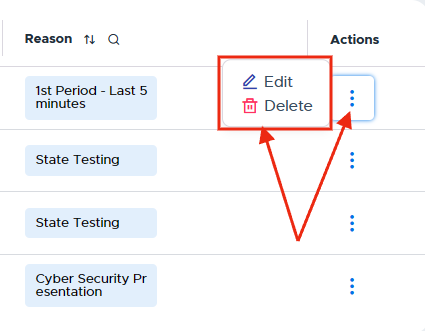
If deleting a pass block, click Delete and then the red Confirm button.
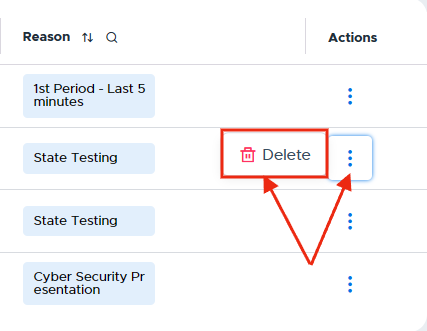
- Need to "Pause" a Pass Block? Follow these steps:
- Click the three (3) dots to the right of the block.
- Click Edit.
- Deselect the Pass Types that are currently blocked.
- Click Update.
- To reinstate the Pass Block, follow these steps:
- Click the three (3) dots to the right of the block.
- Click Edit.
- Select the Pass Types to be blocked.
- Click Update.
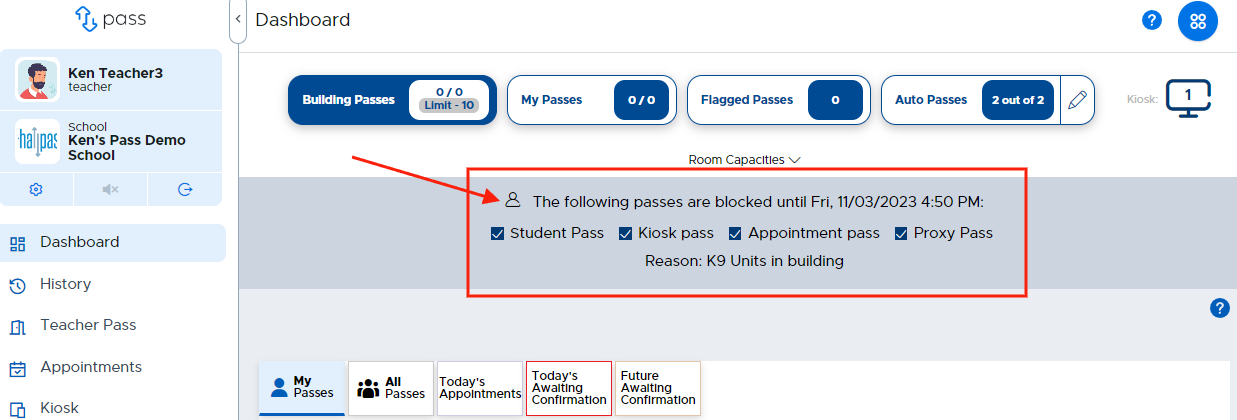
Dashboard Screen during pass block
All adults will see the details of the pass block on their Dashboard.
Teacher Screen during pass block
If a pass block has been set to include Teacher Passes or Appointment Passes, the teacher will see the message below when creating a Teacher Pass or Appointment Pass.
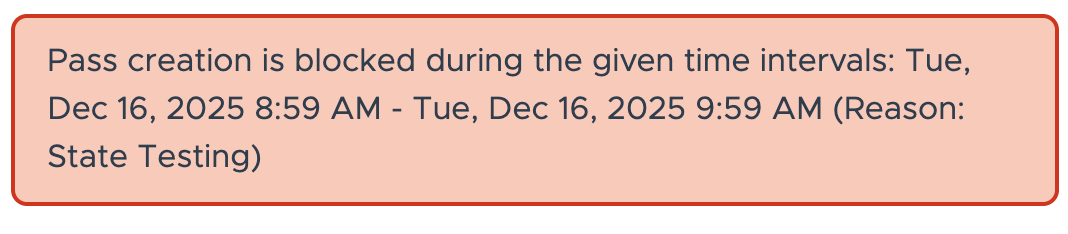
Student Screens during pass block
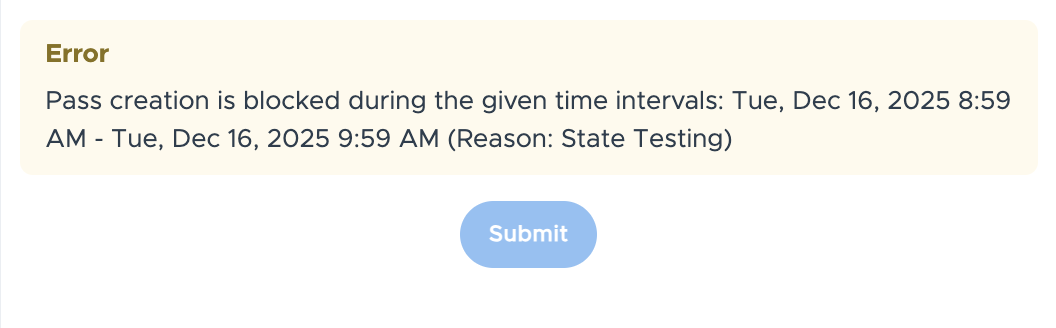
Students will see the following message when trying to create a new pass during a pass block period of time.
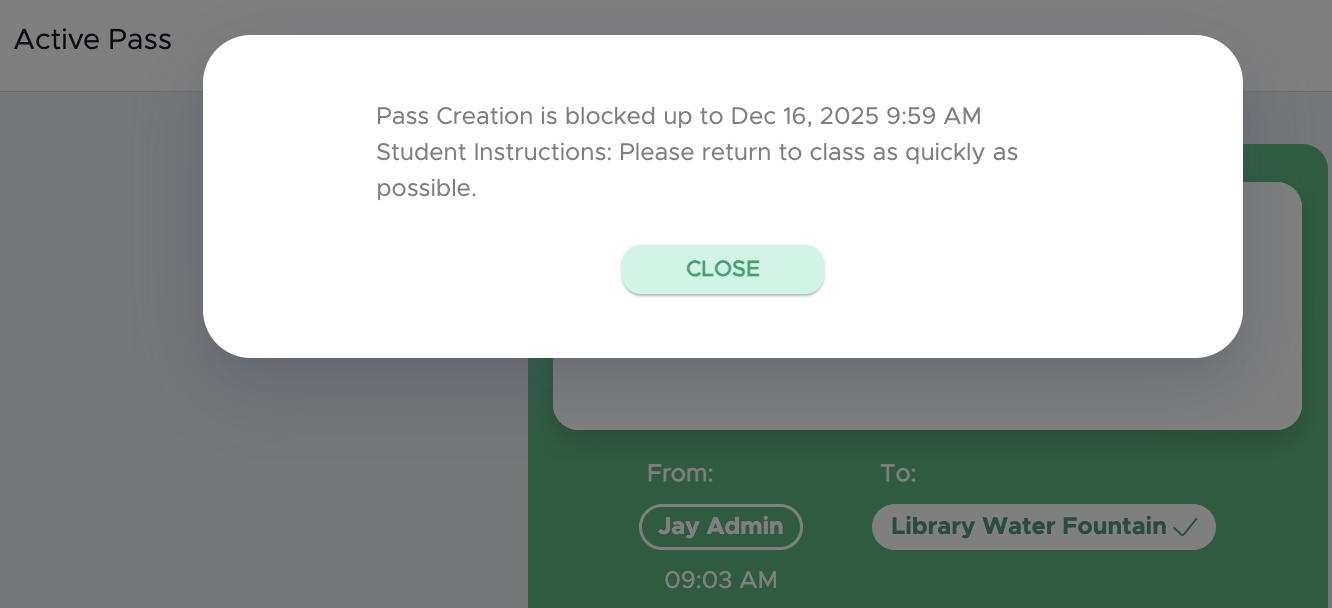
If a student is out on a pass when the pass block is set and has a device with him/her, he/she will receive the following message on his/her Pass screen. The messages to the students (or instructions) are customized by the Admin who set up the pass block period.
Implementing a “10/10” Rule
Some admins desire to set a “10/10” Rule (or a “5/5” Rule) so as to block passes during the first 10 minutes and last 10 minutes of a period/block. To create this type of block, use your bell schedule to create the blocks (two per period - one at the beginning and one at the end). See the following illustration and then adjust your pass blocks according to your schedule.
Five-period Day with a Flex Period
| Period | Start Time | End Time | Blocks Created | Repeat |
|---|---|---|---|---|
| 1 | 7:45 AM | 9:00 AM | 7:45 AM - 7:55 AM and 8:50 AM - 9:00 AM | Daily |
| 2 | 9:05 AM | 10:20 AM | 9:05 AM - 9:15 AM and 10:10 AM - 10:20 AM | Daily |
| 3 | 10:25 AM | 11:40 AM | 10:25 AM - 10:35 AM and 11:30 AM - 11:40 AM | Daily |
| 4 | 11:45 AM | 1:00 PM | 11:45 AM - 11:55 AM and 12:50 PM - 1:00 PM | Daily |
| 5 | 1:05 AM | 2:20 PM | 1:05 PM - 1:15 PM and 2:10 PM - 2:20 PM | Daily |
| Flex | 2:25 PM | 3:15 PM | 2:25 PM - 2:35 PM and 3:05 PM - 3:15 PM | Daily |
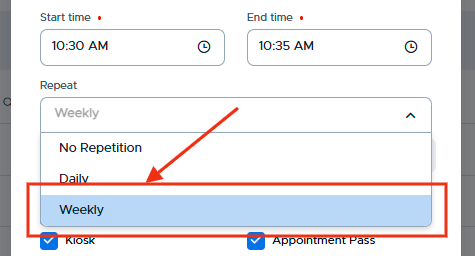
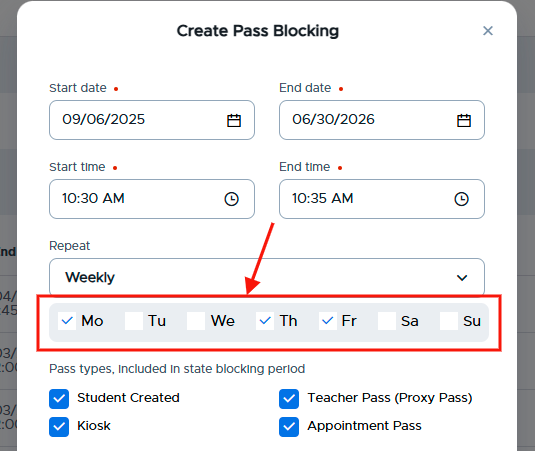
In the event that you want to have some flexibility with your “10/10” pass blocks, select the Weekly repeat option and then choose the days of the week that you desire the blocks to be in force.
For more information, watch the "Setting Up Pass Blocking" video below.