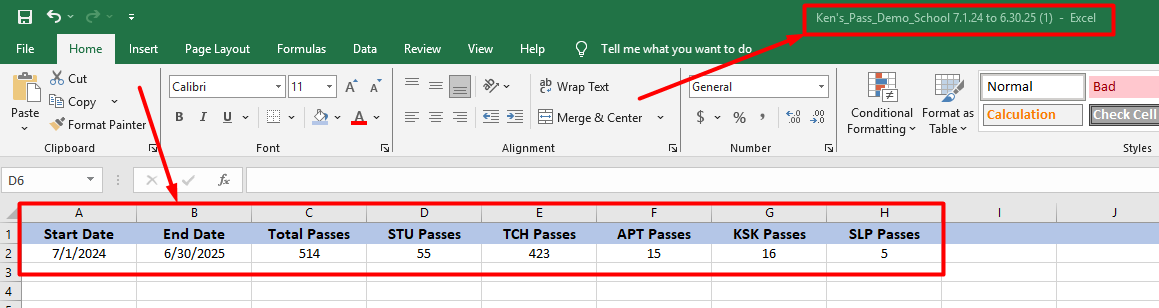
Admins can run a Pass Totals report that displays the total number of passes and the totals for each pass type for a specified date range.
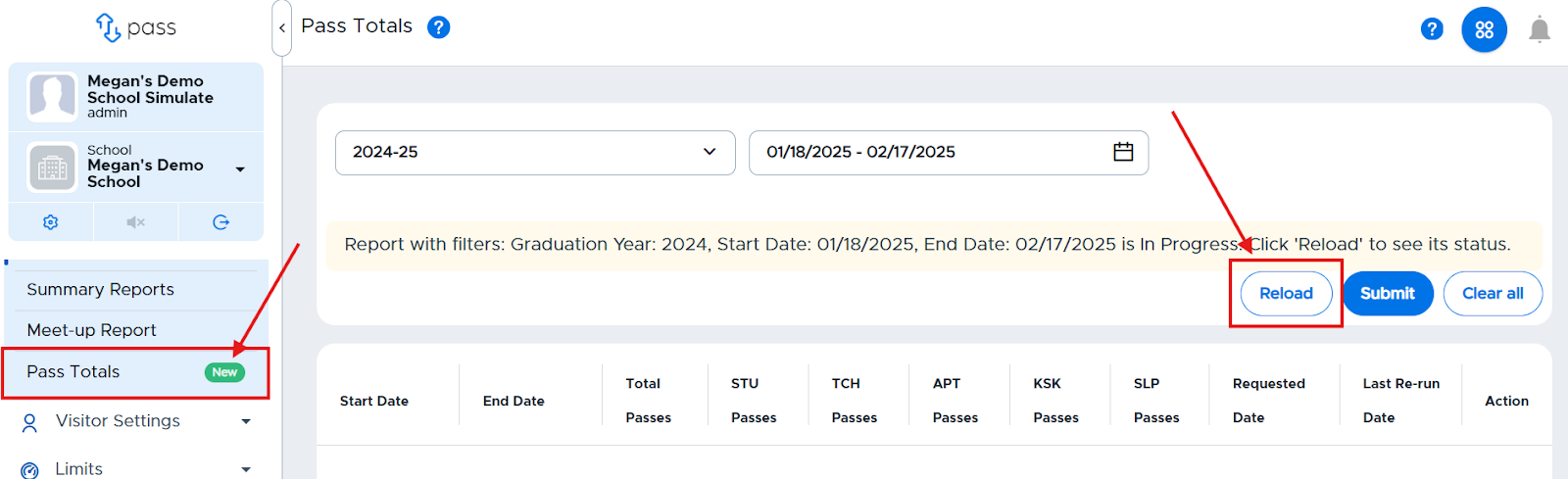
From the left navigation menu under the Control Panel, click Reports → Pass Totals.
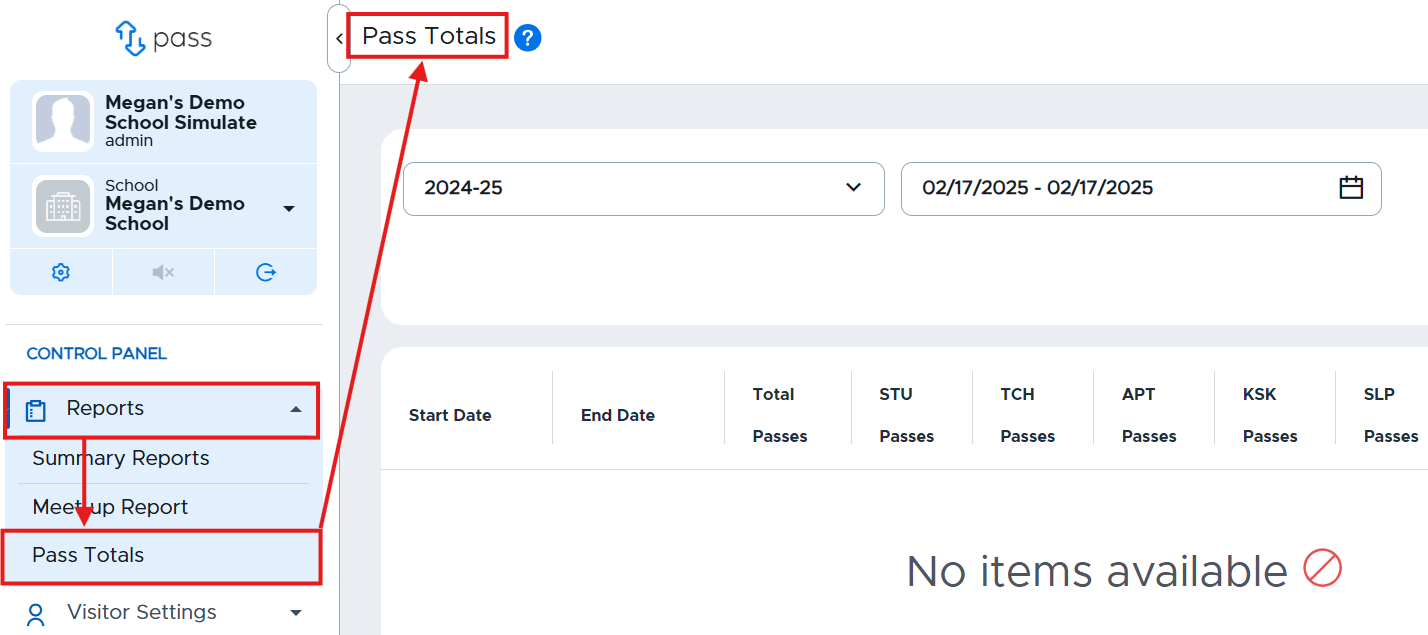
Choose the school year and the date range desired from the dropdown boxes for the report. (The current school year and today’s date will be the defaults for these parameters.)
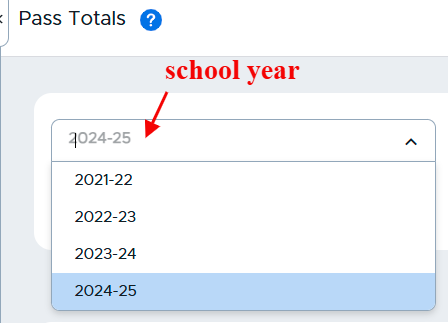
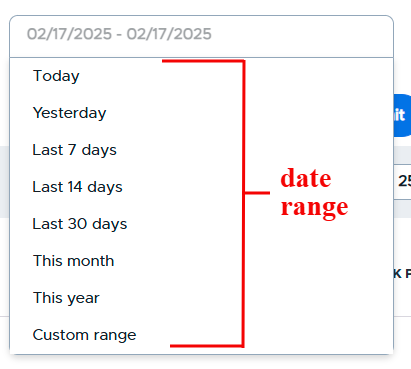
Click Submit. (Depending on the size of the report, it may take time before the report is ready.) You can navigate away from this page while the report is created. When the report is ready, a green “New” icon will appear on the Pass Totals tab on the left menu. Then click Reload. The report will be displayed on the table.
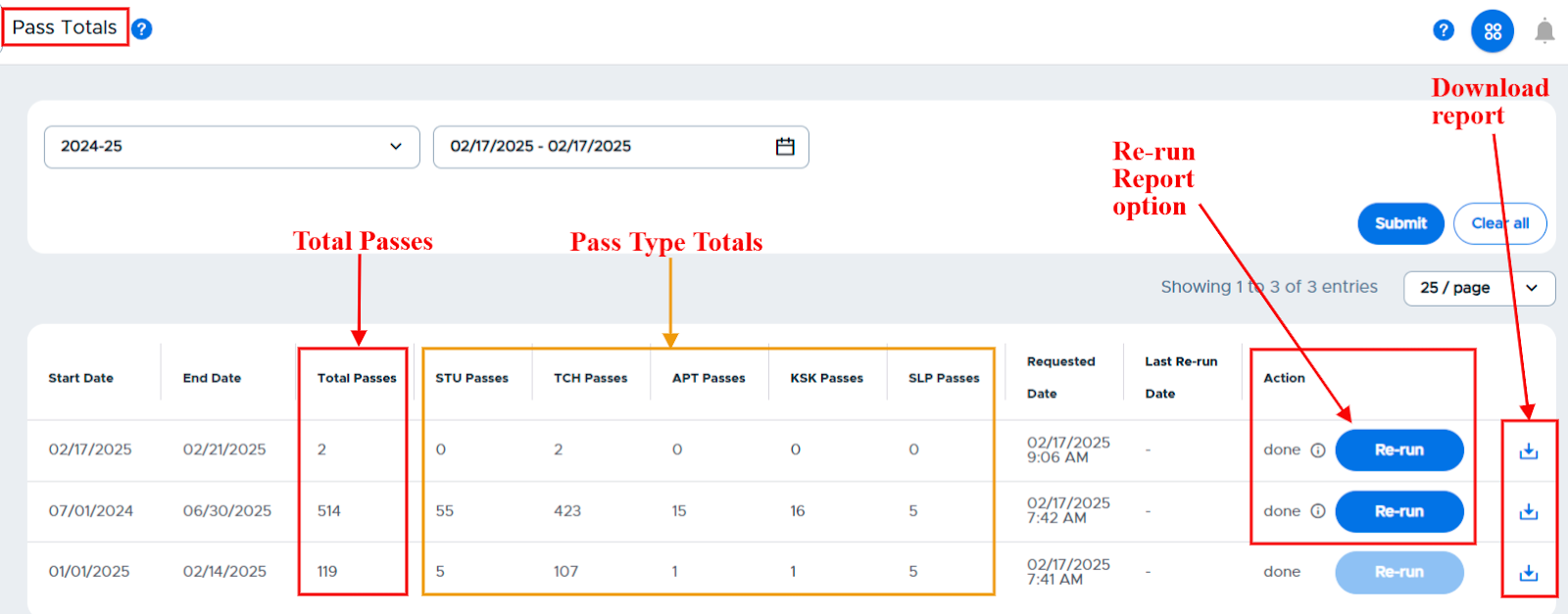
The Total Passes, along with the pass type totals, for the specified date range will be displayed. If the end date for the date range is today or in the future and passes have occurred after the report has been run, you can Re-run the report to get the updated totals. You can also download the report as needed.
Re-run Report
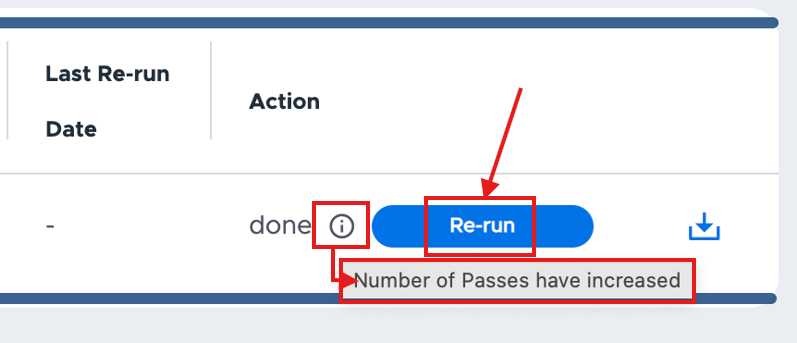
If the end date for the date range is today or in the future AND passes have occurred after the report has been run, you can Re-run the report to get the updated totals.
When downloaded, the name of the file will include the name of the school as well as the date range of the report. (The columns of the report below have been modified for easier viewing.)