This report allows you to identify how many times a specific student (Student A) has been on a pass simultaneously with other students. Any students who were on a pass at the same time as Student A in the given date range will be shown on the list. There is a column that will show how many times they have had overlapping passes. If the students shared a starting location or a destination, that will be indicated with a "yes" in the last column. If further research is needed, the History screen will provide details of dates, time, locations, etc.
To gather information about a student possibly meeting up with another student, click on Meet-up Report.
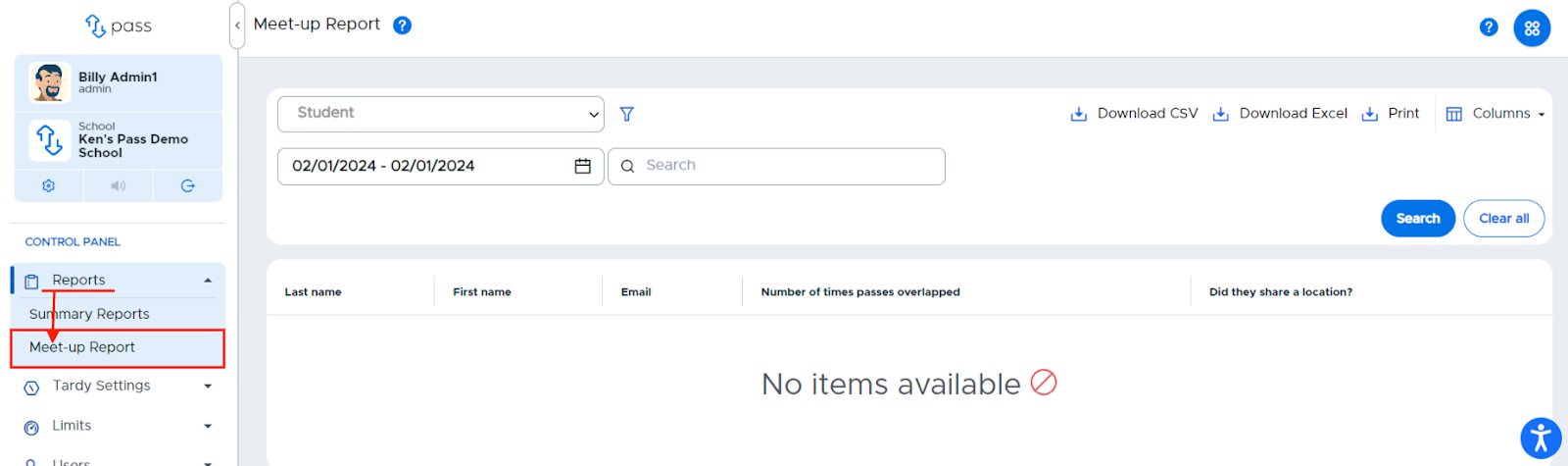
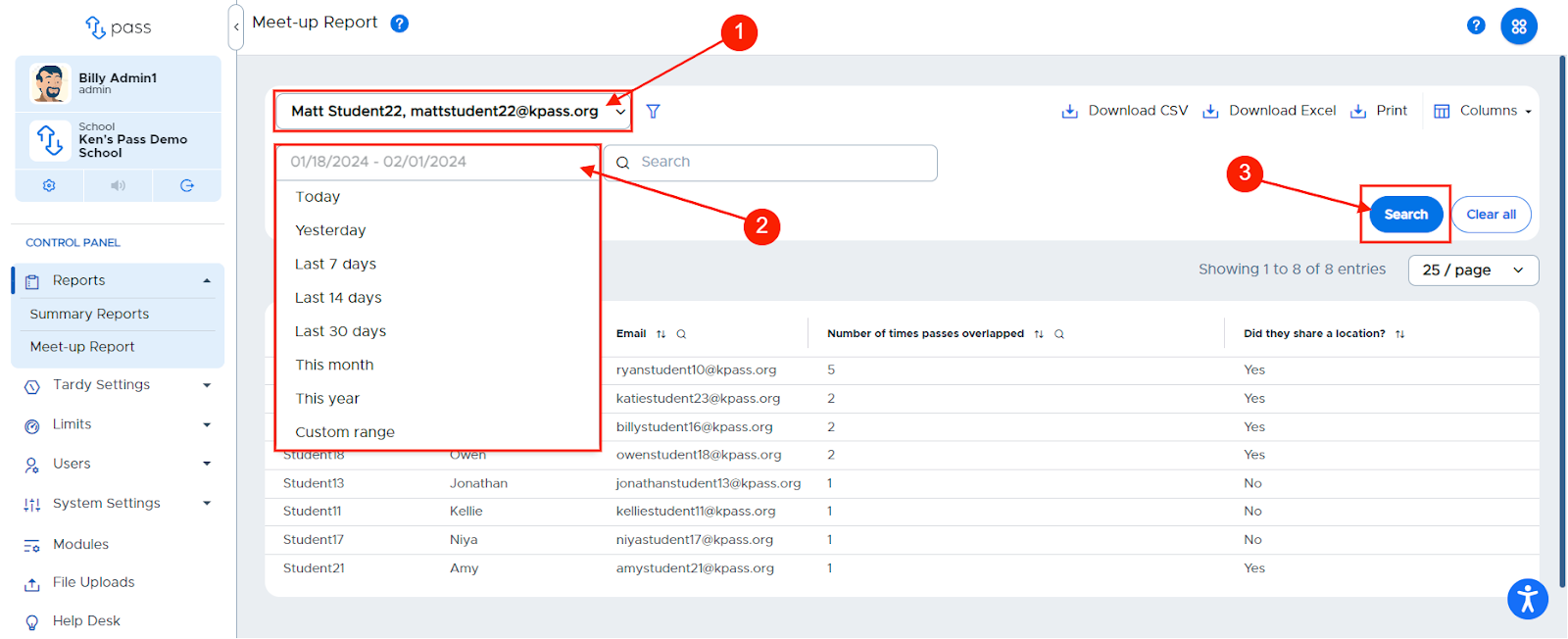
Click Student and select the name of the student from the drop-down menu OR type the name of the student. Click in the date field and select the date range. Then click on the blue Search button.
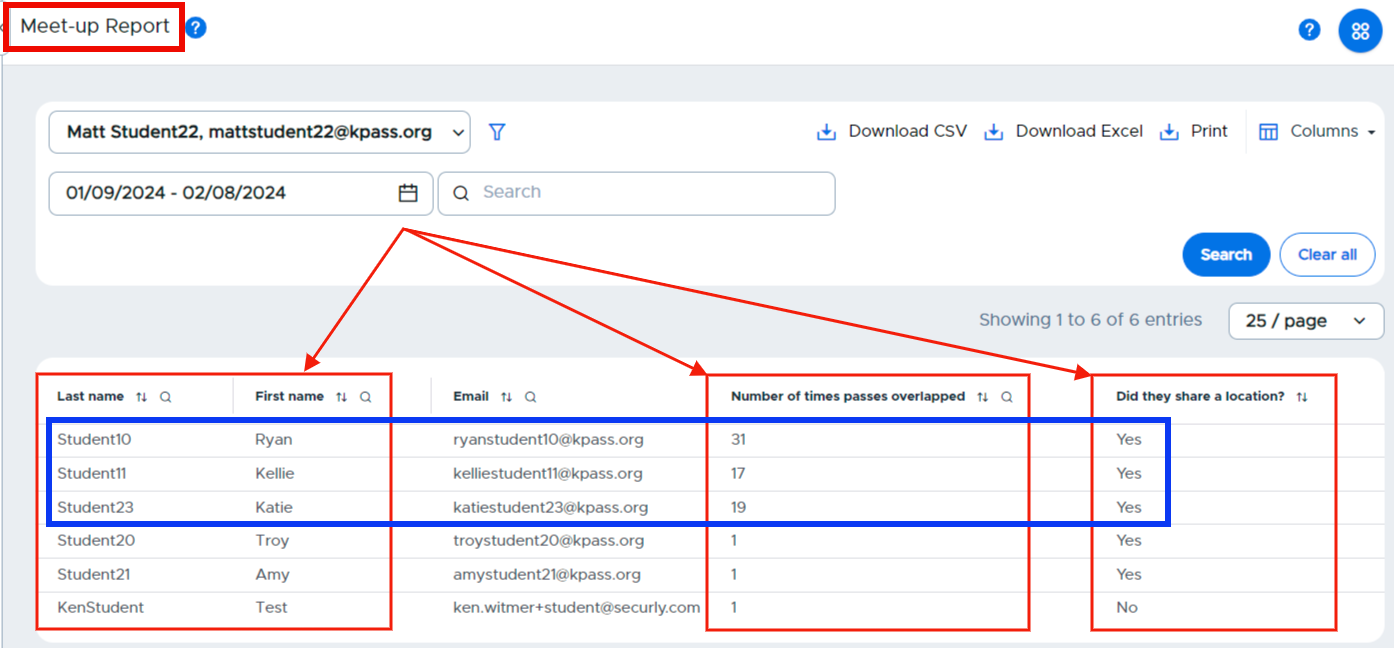
Your Meet-up data will appear in the table below. You will see how many times that student has had overlapping passes with other students. The last column shows whether or not the students have shared a departing location or a destination. (If the number of overlapping passes is relatively high and there is a shared location, that likely indicates a meet-up situation.)
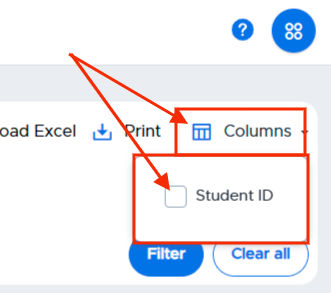
To add the Students’ ID number to your data report, click the Columns icon and check the Student ID box.
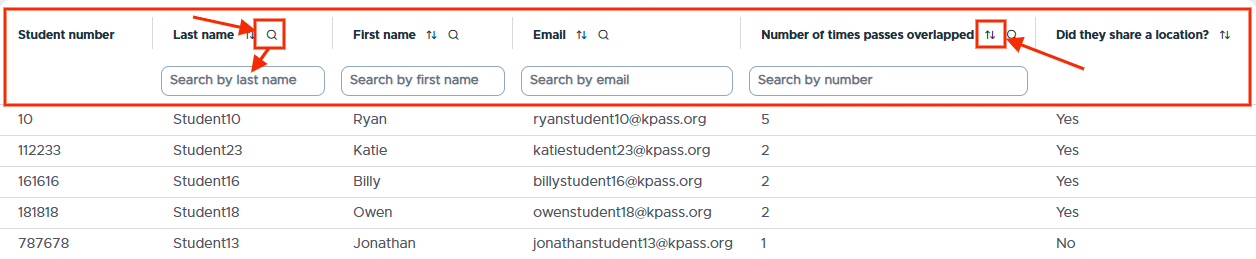
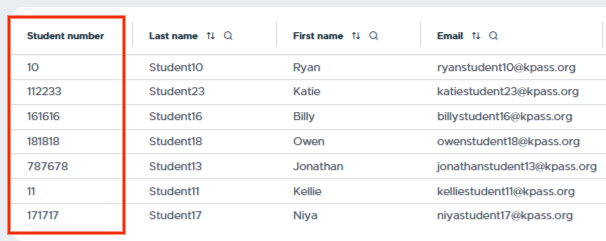
The students’ ID numbers will appear to the left of their names.
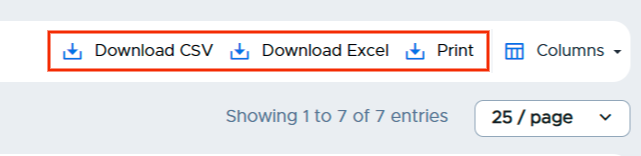
You can also download the data to a CSV, an Excel file, or print the report.
You also can sort and/or search the columns as needed.