The Roster Integration settings menu enable you to manage synchronization of student data.
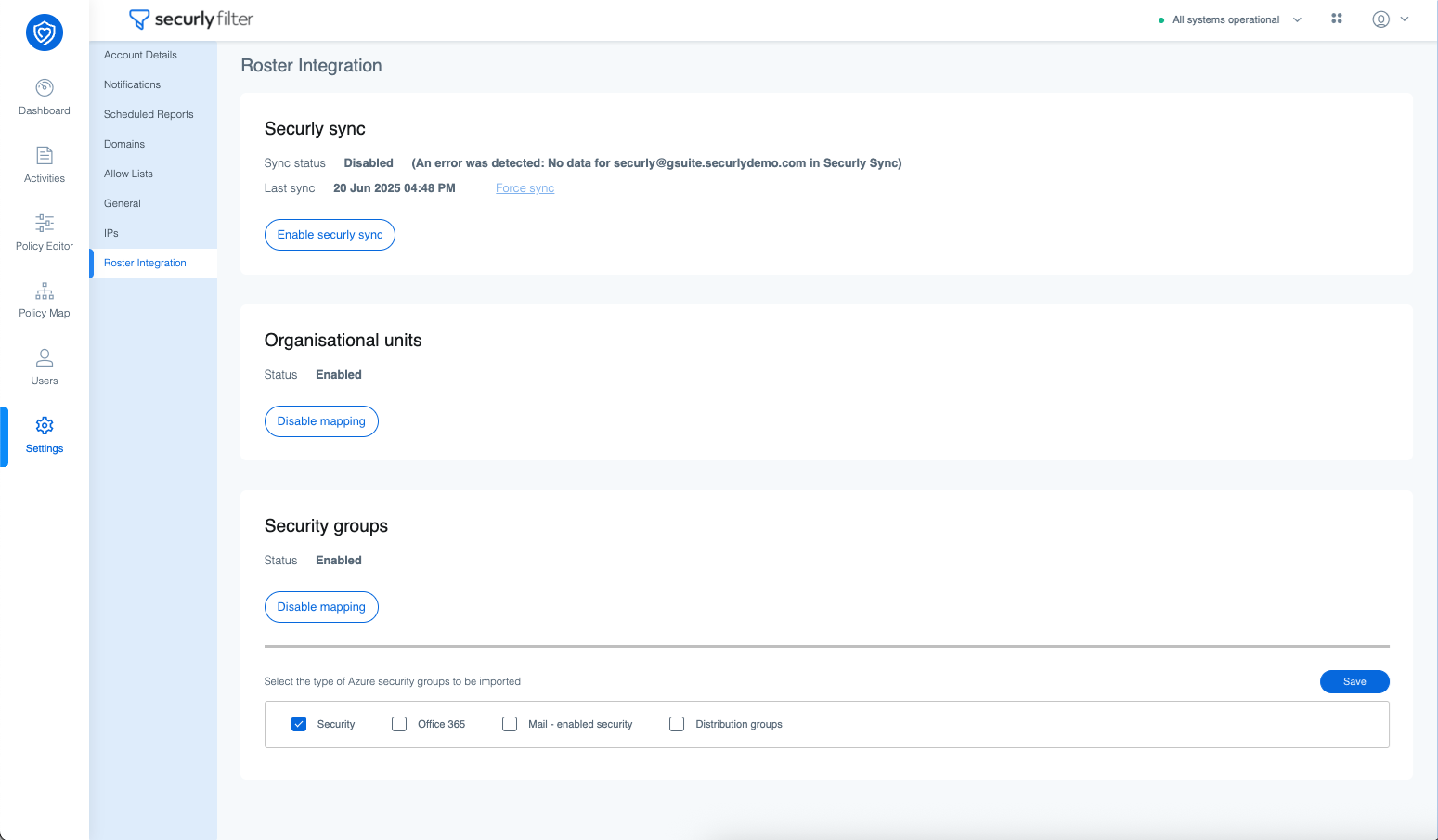
You can choose from the following primary sync methods - Google OUs and Microsoft Azure. If you use Microsoft Azure, you can further refine your sync by selecting specific group types, including Security groups, Office 365 groups, mail groups, and distribution groups.
For a more streamlined experience, you also have the option to use Securly Sync to sync SIS data for policy mapping, logging, and reporting. Securly Sync is our centralized rostering solution that allows you to create a single connection to your school's SIS for other Securly products you use (Home, Classroom, Pass, and Flex).
In Securly Filter, instead of relying solely on the conventional OU structure, Securly Sync pulls three key data points— Organization, Role, and Grade—to construct a new logical unit (a Securly Sync Unit) for policy mapping. This allows for attribute-based control for policy mapping, meaning Filter identifies users by "who they are" rather than just by "where their account sits" in the OU.
So, rather than the generic OUs that admins manually add, the system is able to gather the unique identifiers to create a specific unit like "Lincoln High District - Student - Grade 10". You can view and apply policies to all your Securly Sync Units just as you would for Google OUs and Azure AD units from the Policy Map menu.
Securly Sync supports connection through OneRoster, Direct API connection, PowerSchool integration, and custom connections including SFTP if needed.