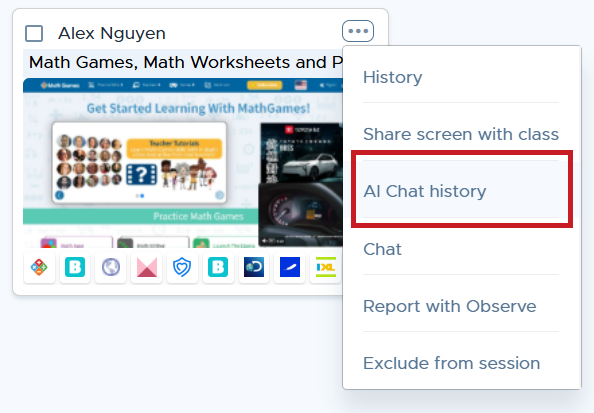
AI Chat History records a student's conversations with Securly AI Chat. To access this feature, the AI Chat integration must first be enabled by an administrator under Settings > System > Integrations.
Viewing this history helps teachers see how students are using AI, keep them on task, and better understand the kinds of questions they’re asking.
There are three ways to view a student's AI Chat history as shown below.
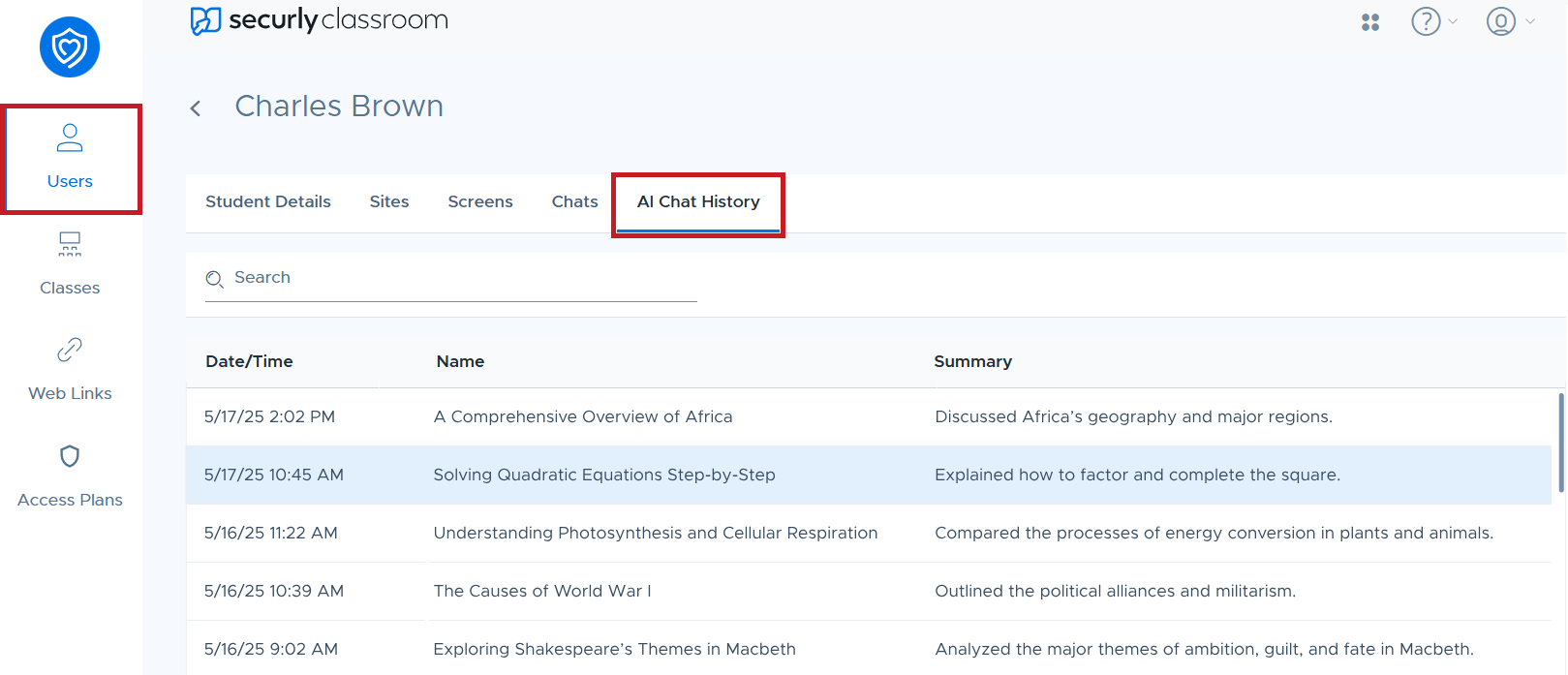
Viewing AI Chat history from the Users menu
Go to Users > Students, select a student, then click on the AI Chat History tab.
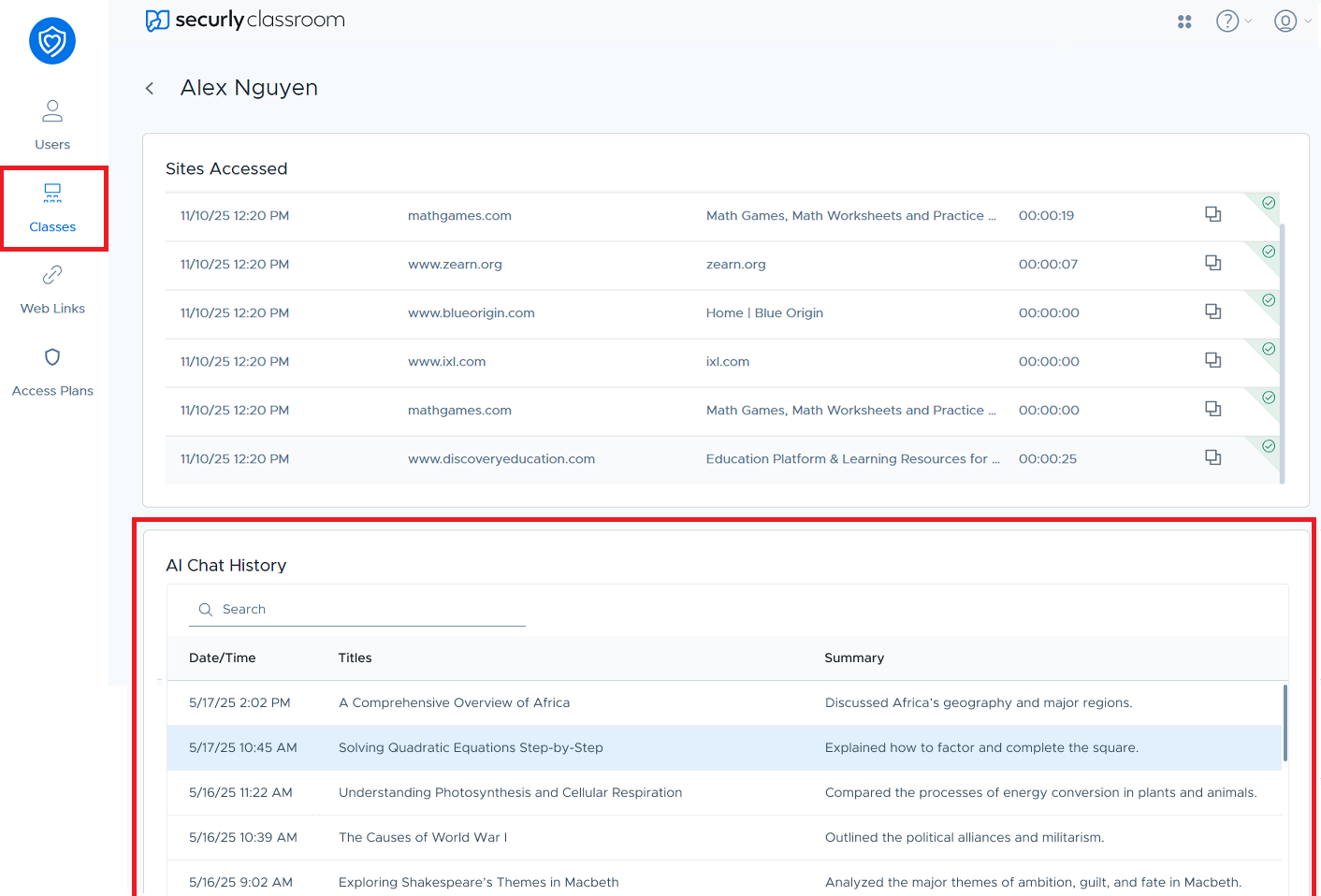
Viewing AI Chat history from Session History
Go to Classes > Session History. Then, select a class and open the Students tab, choose a student, and scroll down to the AI Chat History section.
Viewing AI Chat history during an active Class Session
Right-click on a student's thumbnail and select the AI Chat history option.