The Take-Home Policy is a customized policy that you can create to be applied specifically when students carry their school-owned devices home. This allows you to differentiate between off-site and on-campus policies.
Setting up a take-home policy
- Navigate to the 'Policy Editor' and click 'Custom Policy'.
- Select the radio button for 'This is your Take-Home Policy' and give it a name.
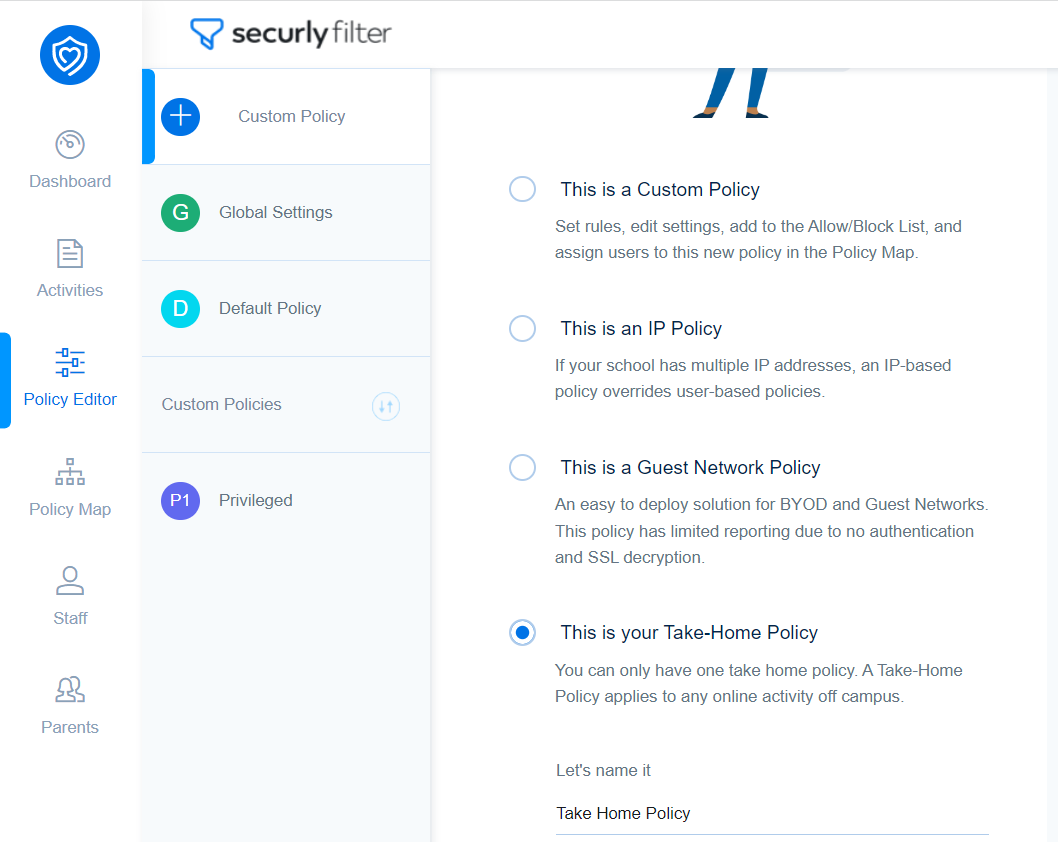
Note that you can only have one take-home policy at any given time, and it will apply to all users unless you specify otherwise. You cannot assign OUs to the take-home policy. The option to create a take-home policy will be unavailable if one take-home policy already exists.
Excluding users from the take-home policy
This option is available only if a take-home policy has been created. Users excluded from the Take-Home Policy will have the same filtering policy on and off-site. This is the same functionality as if the Take Home Policy was not created.
To exclude users from the take-home policy:
- Navigate to Policy Editor and select the policy whose users you want to disable the take-home policy.
- Enable the "Exclude from Take-home Policy" field.
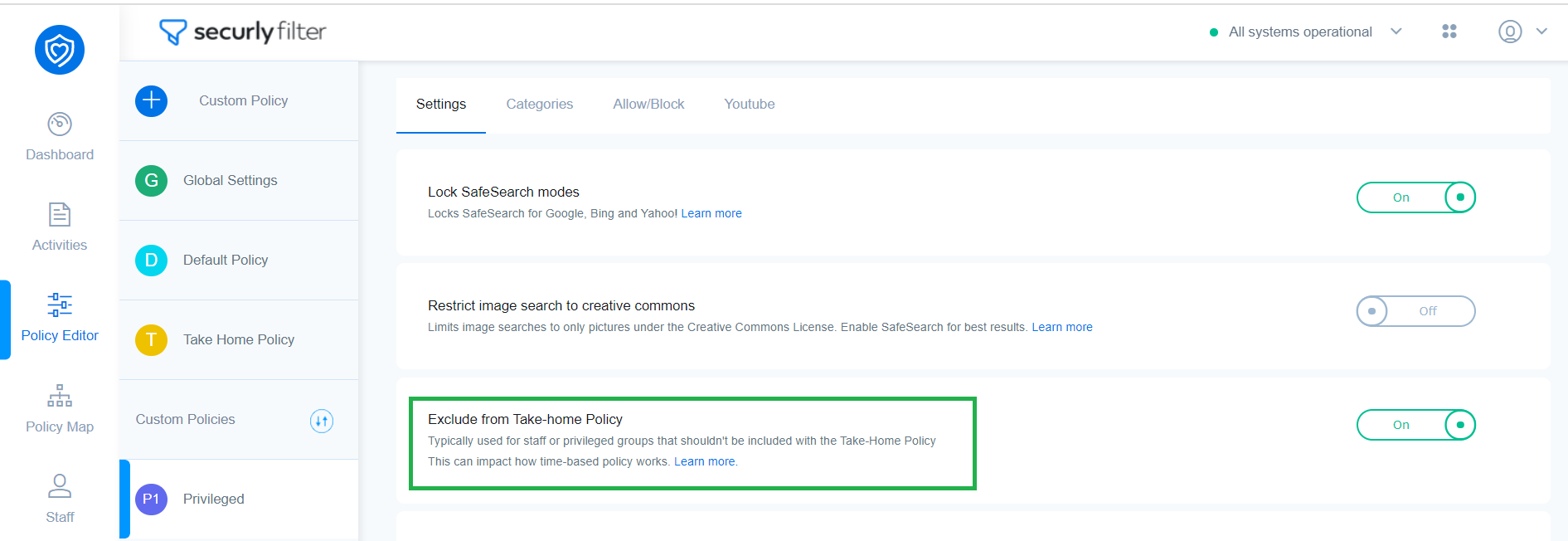
Note that users excluded from the Take-Home Policy will have the same filtering policy on and off-site. This is the same functionality as if the Take Home Policy was not created.