Guest network policy can be created to provide limited access for guests (parents, visiting teachers, visiting students, etc.) on your school network.
To set up a Guest Network Policy:
-
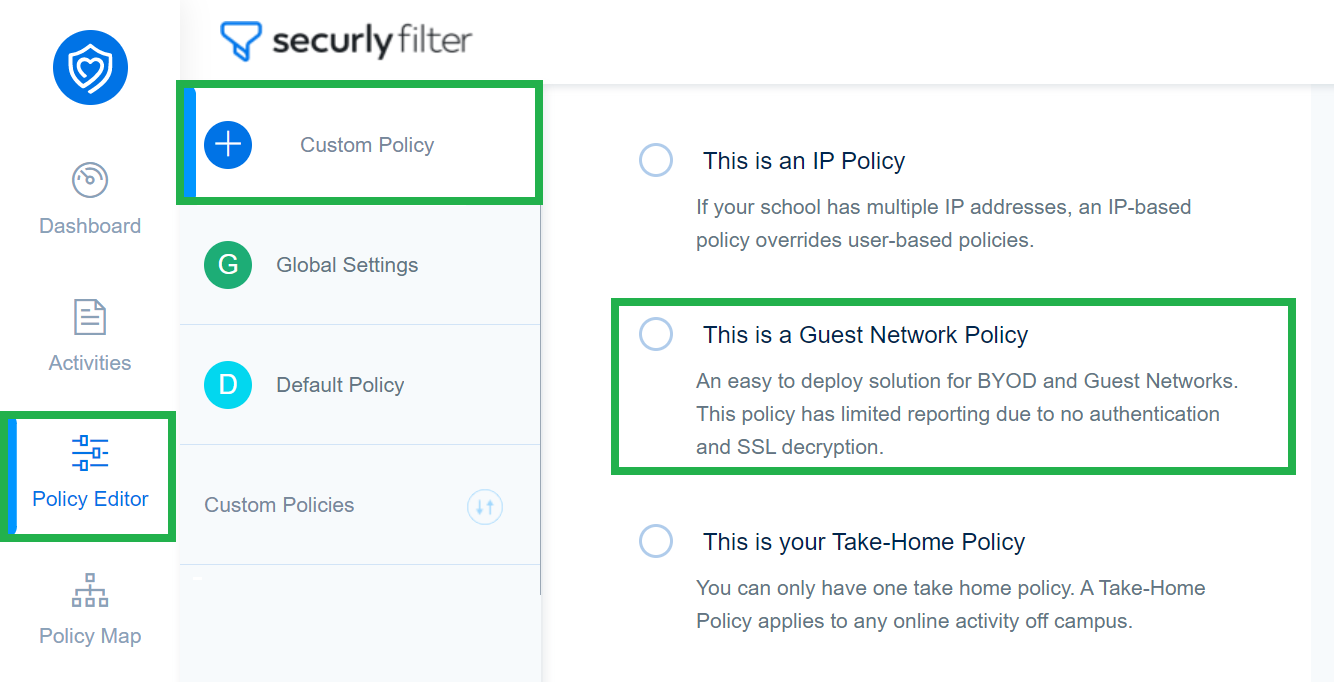
Navigate to Policy Editor and create a new Custom Policy.
-
Select the 'This is a Guest Network Policy' option.
-
Once the Policy is created, you'll see the IPs tab. This tab will list the DNS Server IPs that you would use for DNS on your Guest Network. Most customers set SSID or DHCP scopes that had those DNS Server IPs directly. Any device receiving those DNS servers will get your Securly Filter Guest Network Policy.
Notes on Guest Network policy
- Guest Network Policy does not require any certificates to be deployed for web filtering to work for guests. All traffic will be filtered and blocked according to the Guest Network Policy and Global Allow/Block list.
- Under the Reports tab, the Guest Network Policy will only log in and display the blocked content that a user attempted to visit.
- You can whitelist and blacklist websites for the Guest Network Policy as and when required. However, wildcards are not supported.
- YouTube Restricted Mode is enabled for all guest users.
- Guest Network Policy defaults to a safe search for Google and Bing search engines.
- Guest Network Policy doesn’t not support:
- User-based policies
- Keyword scanning
- Yahoo search
- Forced login
- Mapping OUs
- Display of devices signed in under GNP on the geolocation map
- Restrict Google logins to personal accounts
- Wildcards
- Image results are filtered using the Restricted Image Search for Creative Commons functionality.