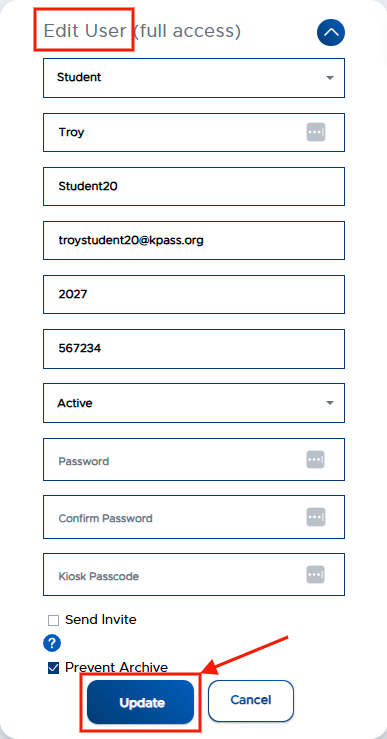
Pass will allow Admins to edit a user’s record directly in the system; but if the user is rostered from a sync with a third-party source or via User CSV File upload, then the data will revert back upon the next sync/upload if the data is not changed at the source. There is one exception to this, which is the “Role” field. If this is updated for an adult directly in the system, it will not revert back.
The source of data for most schools, who roster users into Pass from a third-party source, is the school’s Student Information System or “SIS”. In these cases, it’s probably necessary to contact your IT professional who manages the SIS in order to edit a user’s information in the SIS. Once the edit is made, this will be updated in the third-party system and subsequently in Pass as the system syncs.
For schools that roster users via user CSV file, it is possible to make an edit to most of the user data fields directly on the file and reload this into the system. Please see the Create & Manage CSV User Files document about editing via the user file.
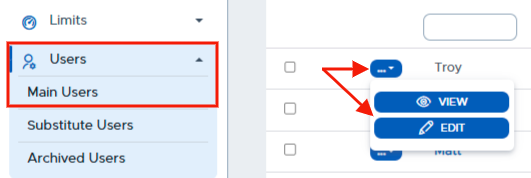
For users who have been added manually, you can easily edit the user's information from within Pass. Below is the Pass “Users” screen where edits can be made. From this screen, click the three (3) dots unde5r the “Actions” column for the desired user and click EDIT.
On the “Update User” screen, make the necessary changes and click Update.