Users can be added to the system individually from the “Users” screen in Pass. When adding users individually, the user will be able to log into Pass by using an assigned “manual” password OR through Google or O365 single sign-on (SSO).
As security is important to us, we require users to utilize a valid email address when logging into Pass. You can read more here. Users are required to validate their email address when logging into the system “manually” using a password assigned in Pass. This does not apply to those using a single sign-on method such as Google, O365, ClassLink, or Clever.
Password Guidelines
The following guidelines apply when designating a Pass password for a manually-authenticated user.
- Passwords must have a minimum of 8 characters and a maximum of 64.
- Passwords should contain a mix of upper and lower case letters, numbers, and at least one special character.
- Please avoid common words as a part of your password.
Steps to Add an Individual User
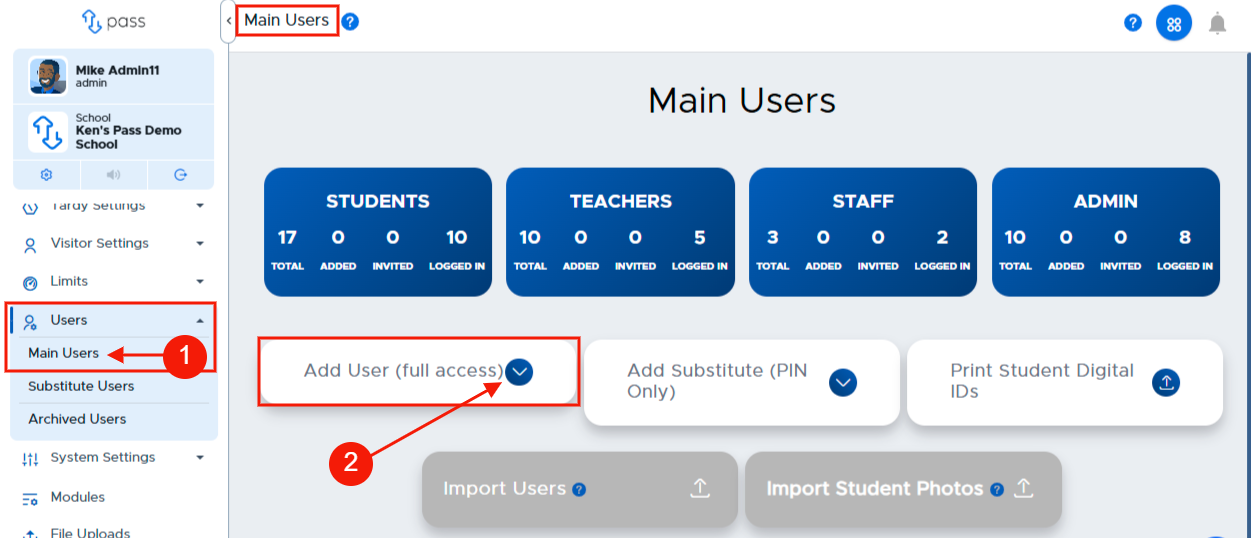
In order to add a user individually, under the Control Panel, click Users → Main Users. On the Main Users page, click Add User (full access).
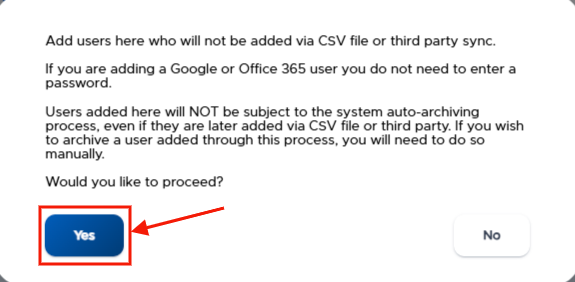
Click “Yes” at the message shown below - if you wish to proceed. Please see the additional notes below:
- If the user will be logging in with Google/O365 SSO, then leave the password field blank. If they will be a “manually authenticated” user, then enter a password that will be managed in Pass.
- For users who are “manually authenticated,” Admins may need to assist in resetting their Pass passwords and will need to manually archive them when needed.
Video Alert:
Please watch the “How to Reset Passwords for Manual Users” video below.
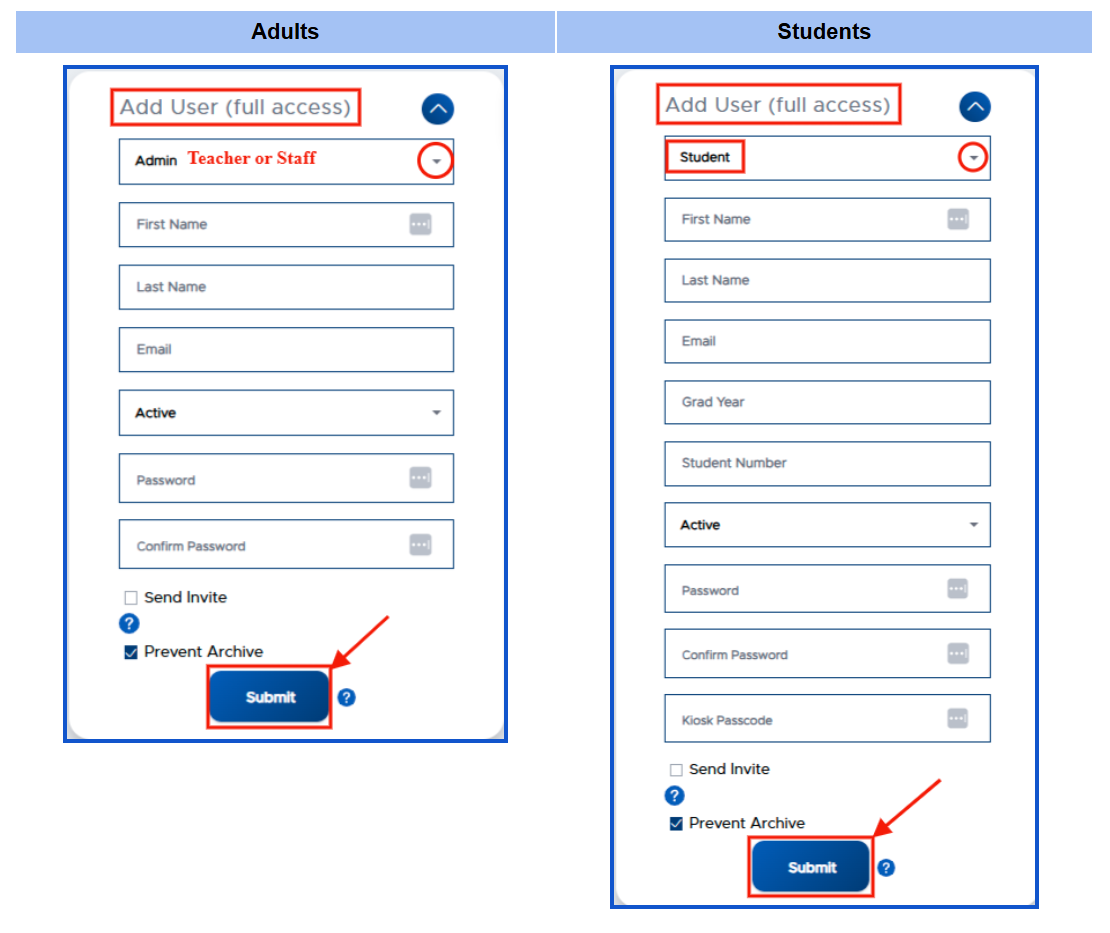
On the “Add User” screen, the following information should be selected or entered:
- Role (Admin, Teacher, Staff, or Student)
- First Name
- Last Name
- Email: Enter the user’s email address, which must be a valid email.
- If you are adding a user who does not have the school email domain, reach out to the help desk to have their domain added to the school. This is often used for contract employees.
- Personal email domains can be requested and added via the help desk, if approved by a school Pass Admin.
- Active status
- Grad Year (if a student user)
- Student ID Number
- Password/Confirm Password: Enter a password here if the user will be “manually” authenticated.
- In other words, they will not be logging in using Google/O365 credentials and the account password will be managed within Flex.
- Please refer to the above “Password Guidelines.”
- Kiosk Passcode (if being uses)
- Please see the “Kiosk Module” section for additional details about the Kiosk Passcode.
- Send Invite - Checking this box will send the user an email with a link to set up their Pass password. Remember that the “Send Invite” option only works for users being added with a valid email address.
- Prevent Archive - This box defaults as checked for a new user. This prevents the user from being automatically archived if/when your school syncs with a third party or uploads a new user CSV file.
- For example: If Pass syncs with Securly Sync or ClassLink every few hours or a user CSV file is sent via SFTP each night and this user is not included in that source, by having this box checked the user will not be archived.
- Please see the Manually Archiving User section for more information.
Click Submit when finished.
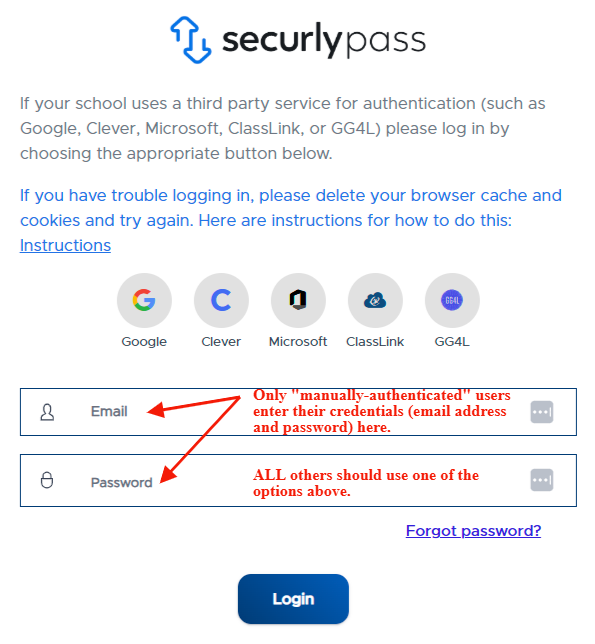
Below is the Pass login page showing where “manually authenticated” users enter their credentials to log into the system.