This limit allows an Admin to set how many passes can be active at one time in the building. The Admin specifies which pass types count towards the active pass limit, such as Student (STU), Teacher (TCH), and Kiosk (KSK). Appointment Passes cannot be included in this limit. By default they will take place regardless of this limit setting.
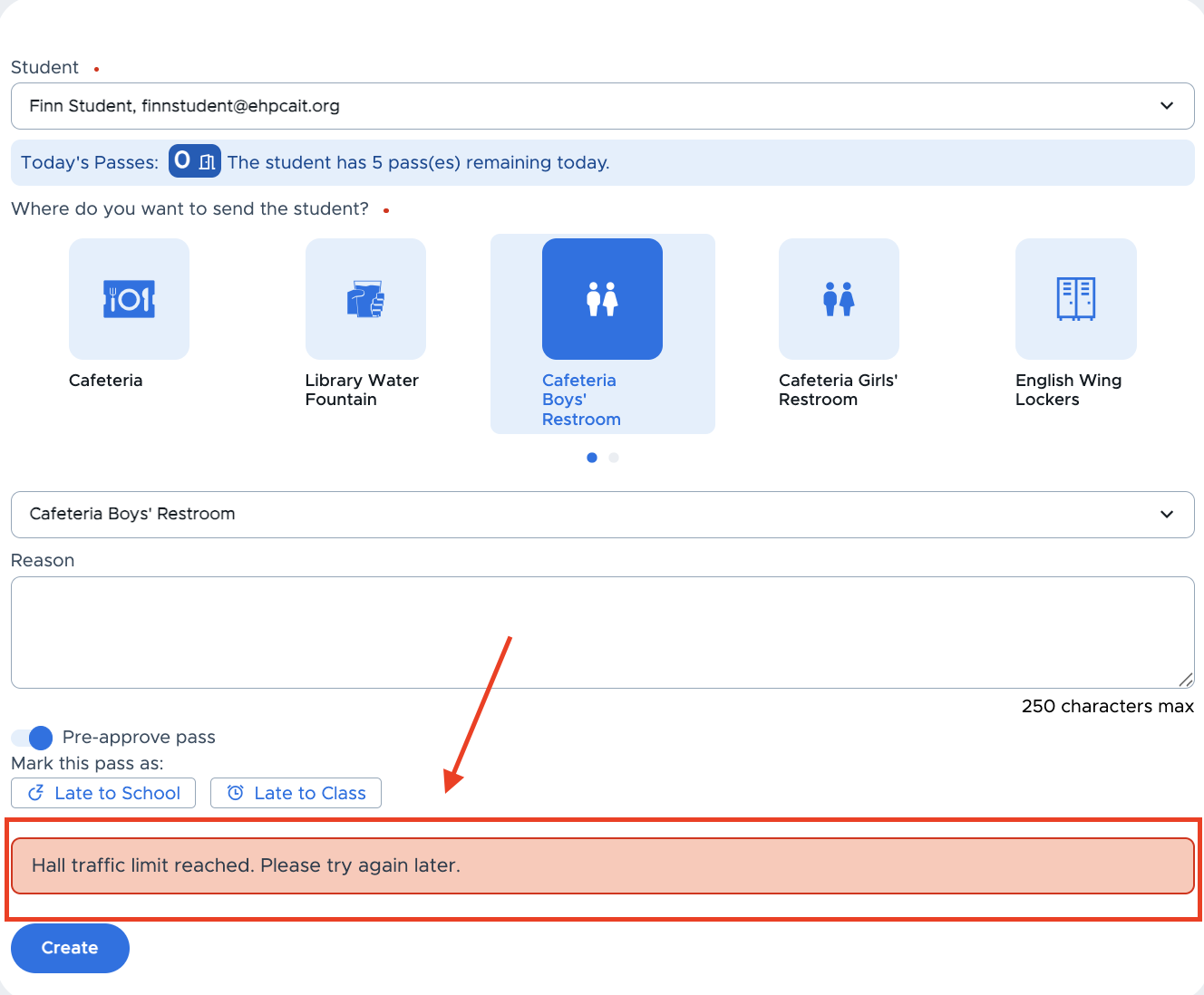
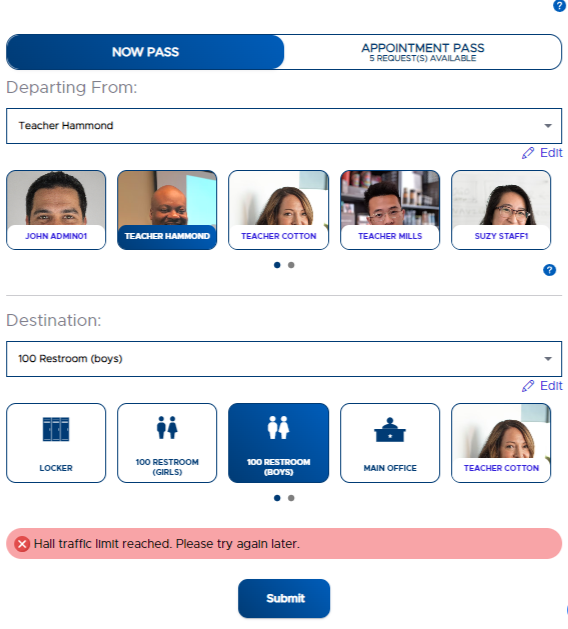
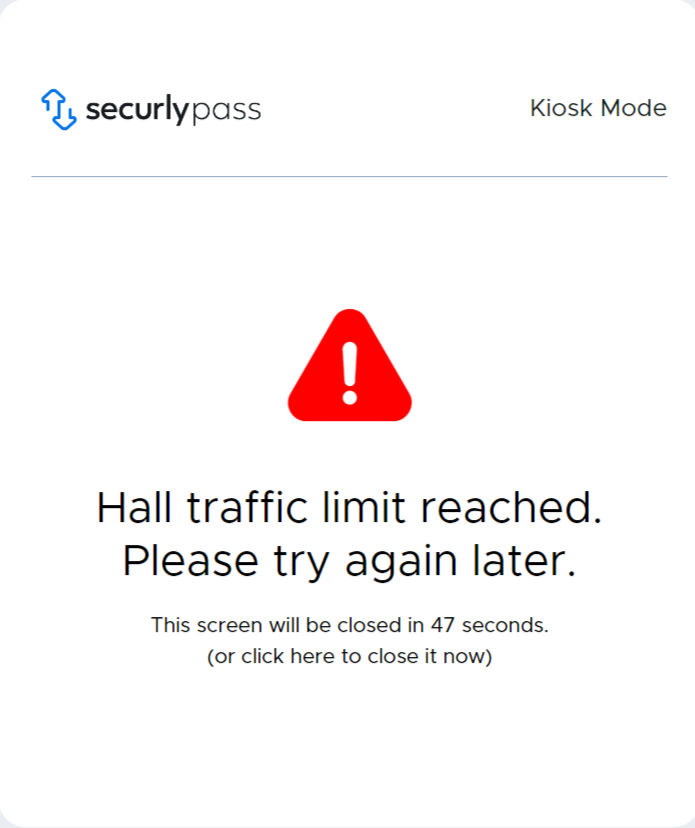
The active pass limit shows on all Teacher, Staff, and Admin Pass dashboards; but only an Admin can adjust the limit. When a pass is initiated and the limit has been reached, the following message appears to the user: “Hall traffic limit reached. Please try again later.” Please see below for additional details specific to each user role.
Administrator
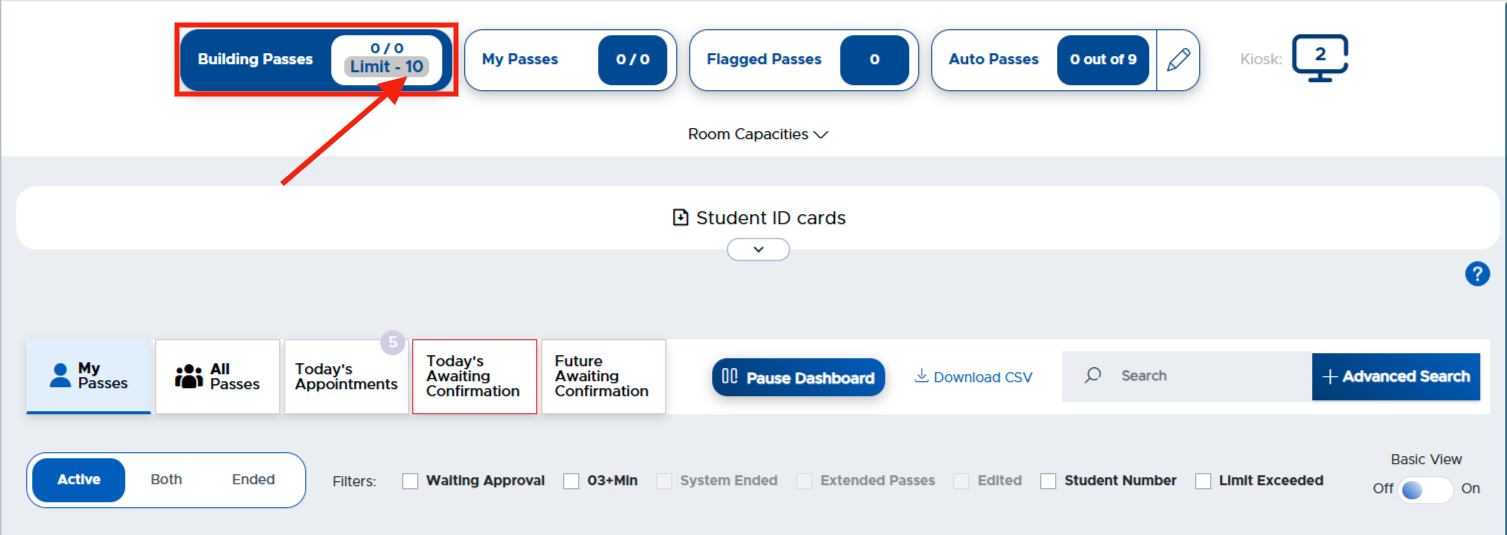
Below is where the Active Pass Limit shows on all Pass dashboards. An Admin user can click on this to adjust the limit settings, as shown below.
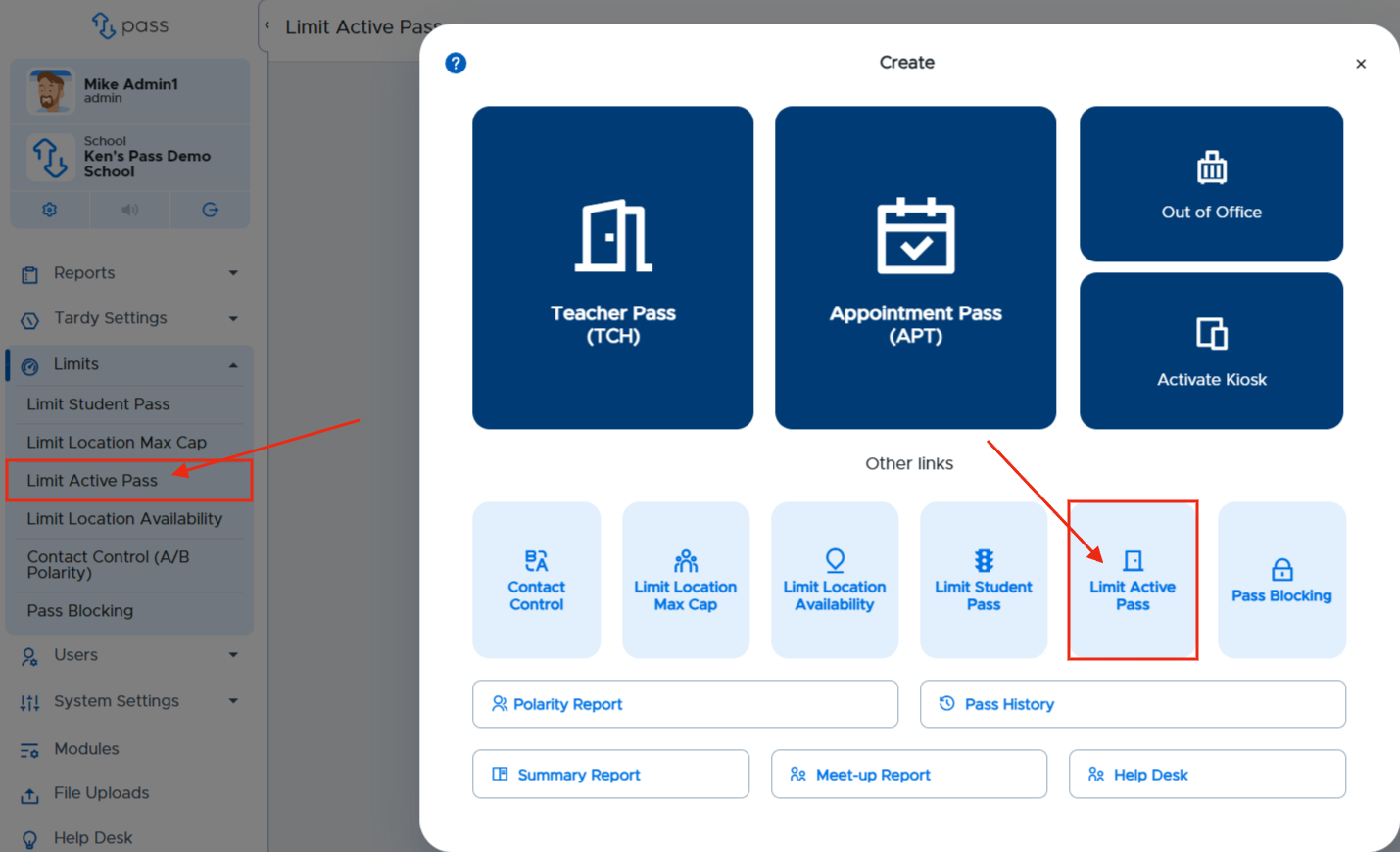
Admins can also access the active pass limit settings from the Create button on the top menu bar and from the Control Panel menu as shown below.

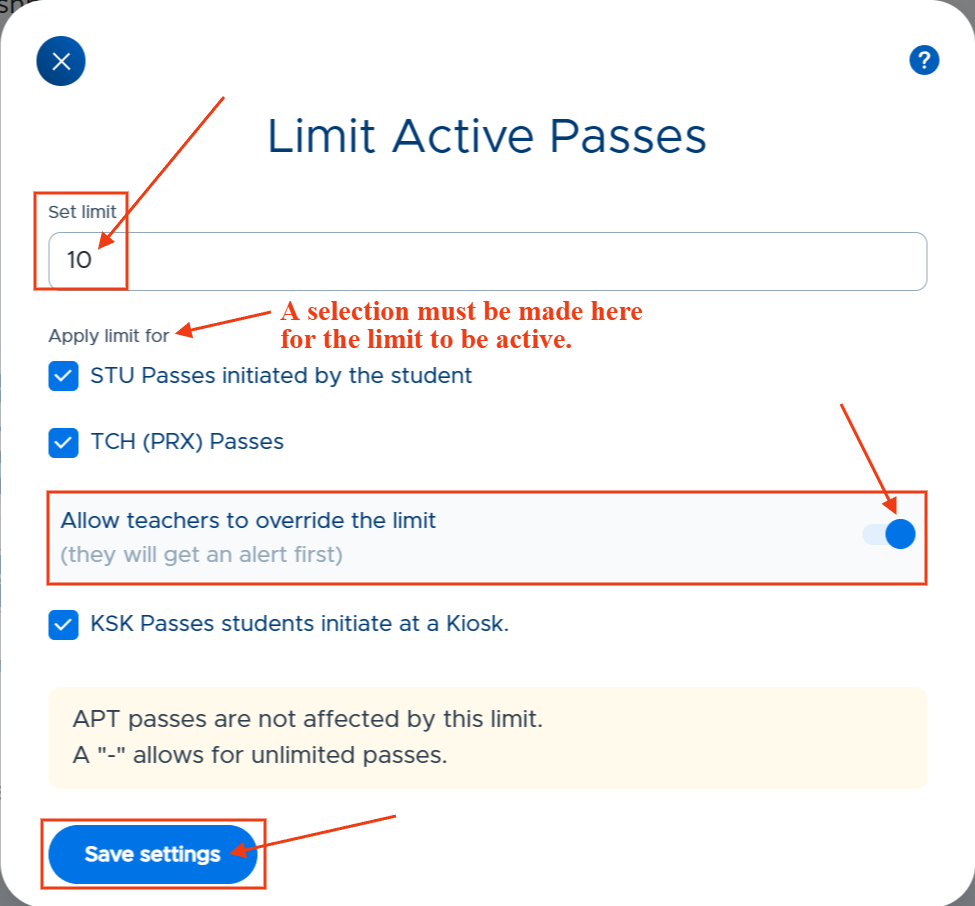
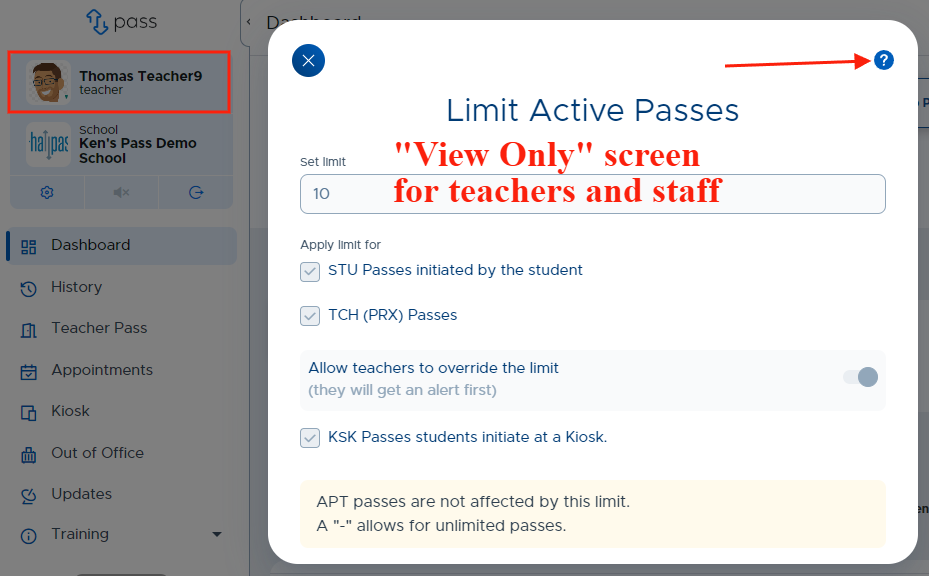
At the following screen, an Admin enters the active pass limit in the Set Limit field and selects which types of passes should be included - STU passes, TCH Passes, and/or KSK passes. In addition, when including Teacher passes, the Admin can select whether or not to allow teachers to override this limit. (Toggle to the right to allow teachers to override the limit; toggle to the left if teachers are not allowed to override the limit.)
Teacher/Staff
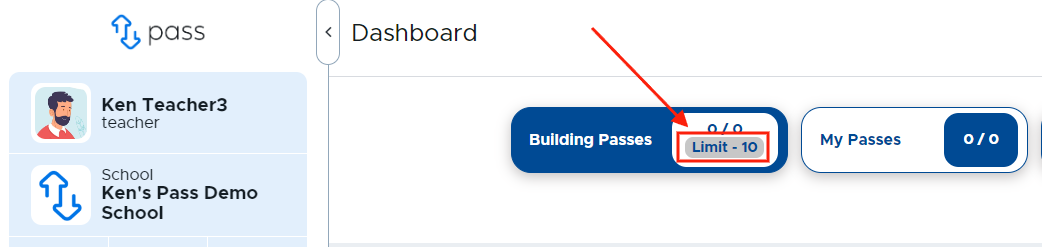
Teachers and Staff members will be able to see the Active Pass Limit on their dashboard once this has been set by an Admin. They can click on this to see the details but cannot make changes.
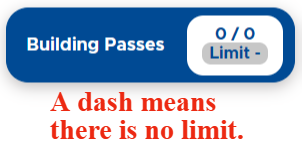
When there is no Active Pass Limit set, the dashboard will show a dash in this area, as shown below.
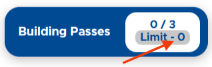
It is also possible to set the limit to equal “0”, which will slow down or stop the traffic in your hallways. Appointment Passes and any pass types that were not included in the limit may still take place.
Teacher Pass
Here is what a teacher or staff member will see when attempting to create a Teacher Pass (if this type of pass is included) when the Active Pass Limit has been reached:
Student Pass
When a student initiates a standard pass or a pass in Kiosk mode, below is what they will see when the Active Pass Limit has been reached:
Standard Pass
Kiosk Mode Pass
For more information, watch the "Setting the Active Pass Limit" video below.