Limit Location Max Cap allows an Admin to limit how many students a specified location can accept. Admins, teachers, and staff members can initiate setting this limit, from their Pass dashboards, for locations with which they are associated in their “My locations” section of their Profile Settings. (More info is shown below.)
In addition, an Admin can click on the “Limit Location Max Cap” menu to view or set limits for rooms with which he/she may not be associated with or to which no one would be associated. (This can also be accessed from the blue “Create” button.) The following screen appears where the Admin can set a max capacity limit for any location that is already created in the Pass system.
To create a limit, follow the steps below:
-
Click on the blue Create button in the upper right corner.
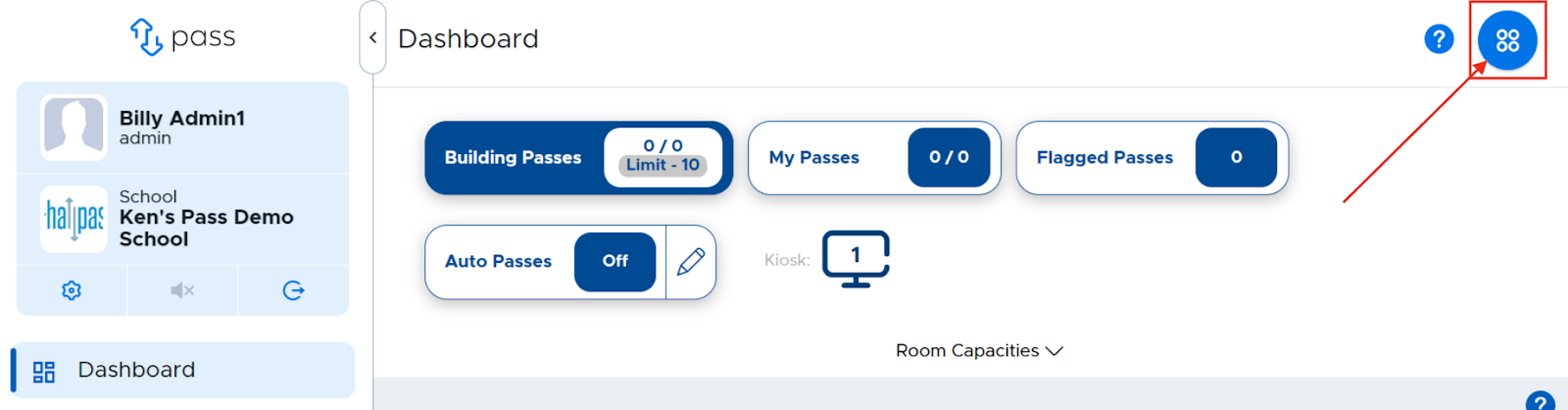
-
Select the Limit Location Max Cap option, or under the Control Panel on the left menu, click Limits → Limit Location Max Cap, then click the blue "+ Limit" button in the upper right corner.
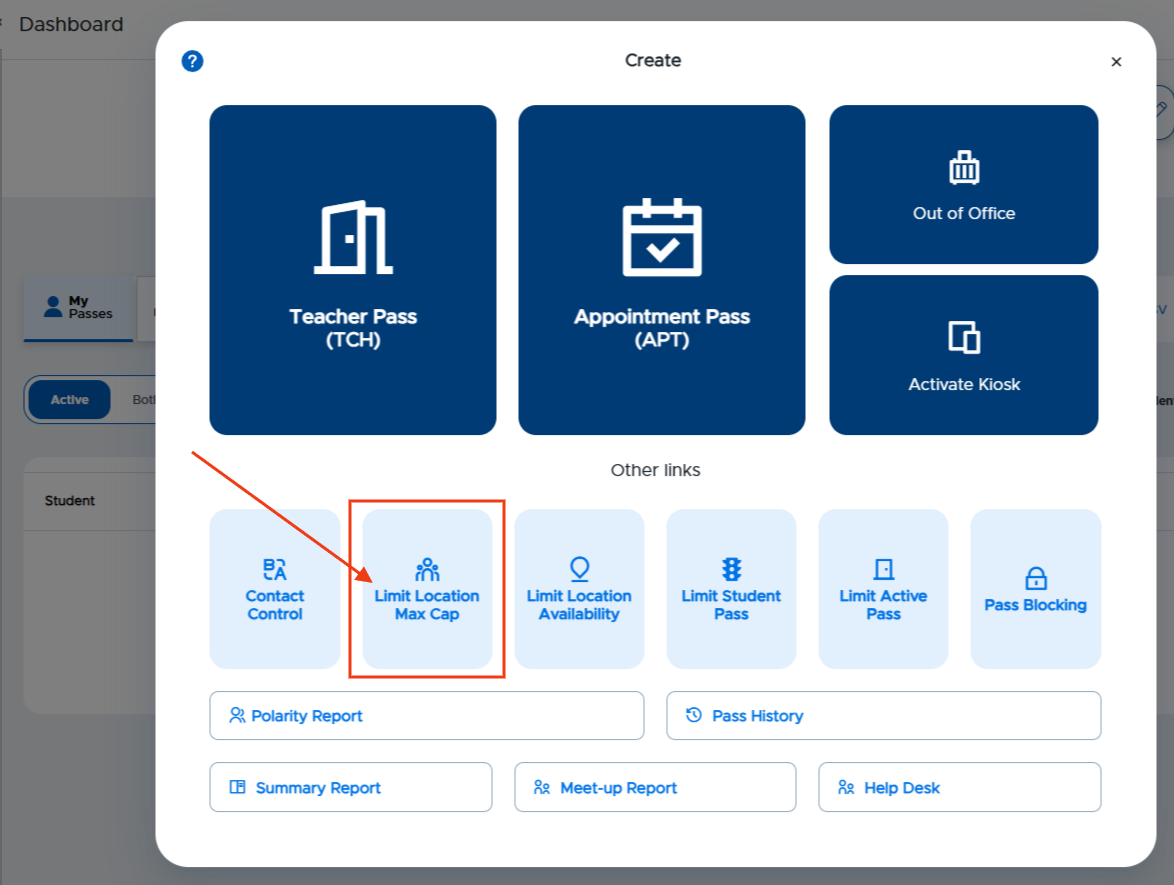
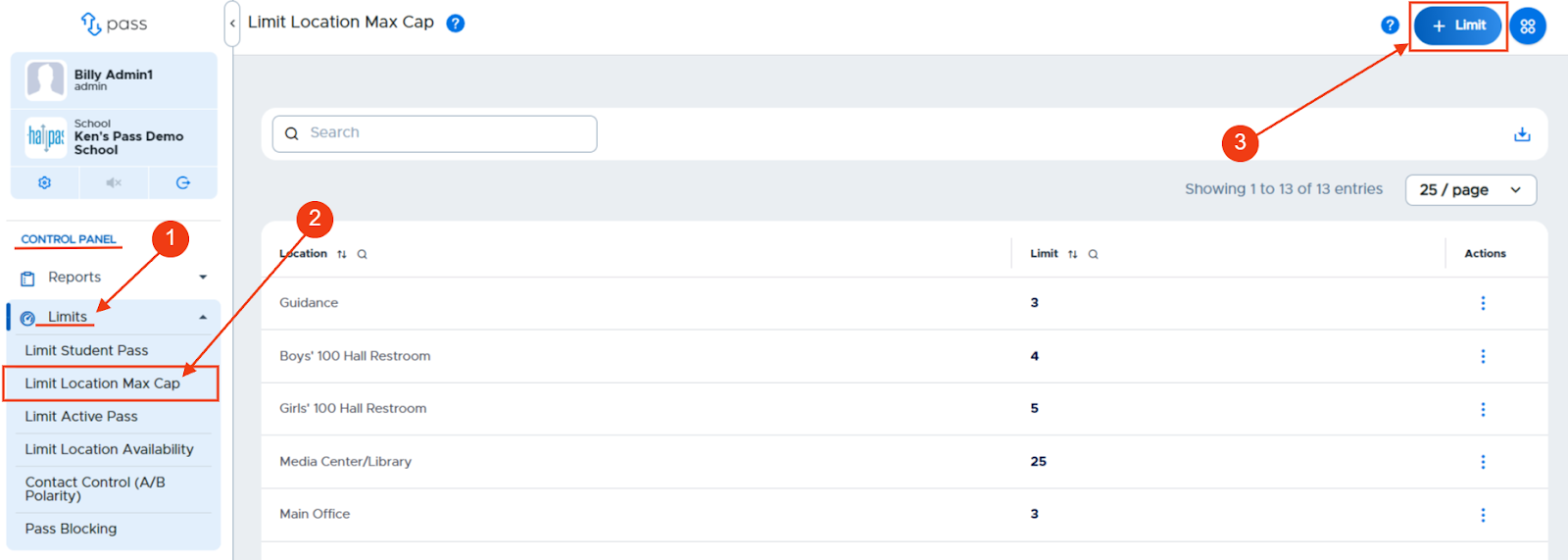
-
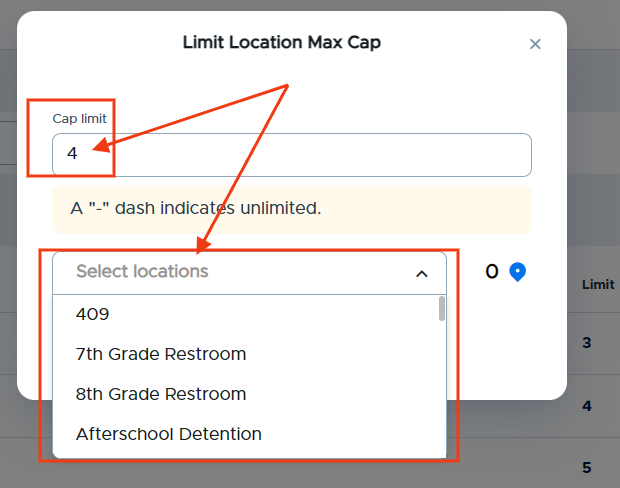
On the popup screen, type in the desired limit for that location, click Select locations, and use the multi-select dropdown to select one or more locations at a time.
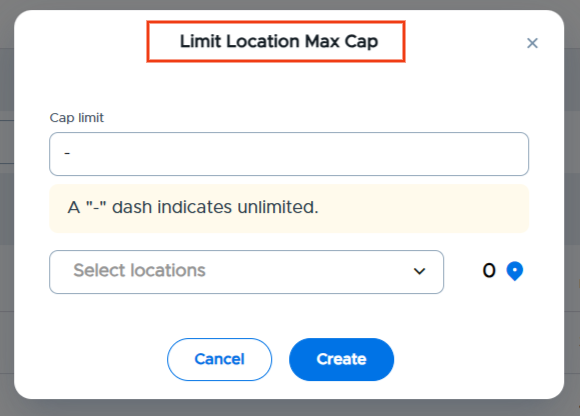
-
To add a location, click in the Select locations field, type the name, or scroll for the name, of that location. Click on that location. If other locations are needed, type or search for those locations and click on those locations to add them. When finished, click Create.
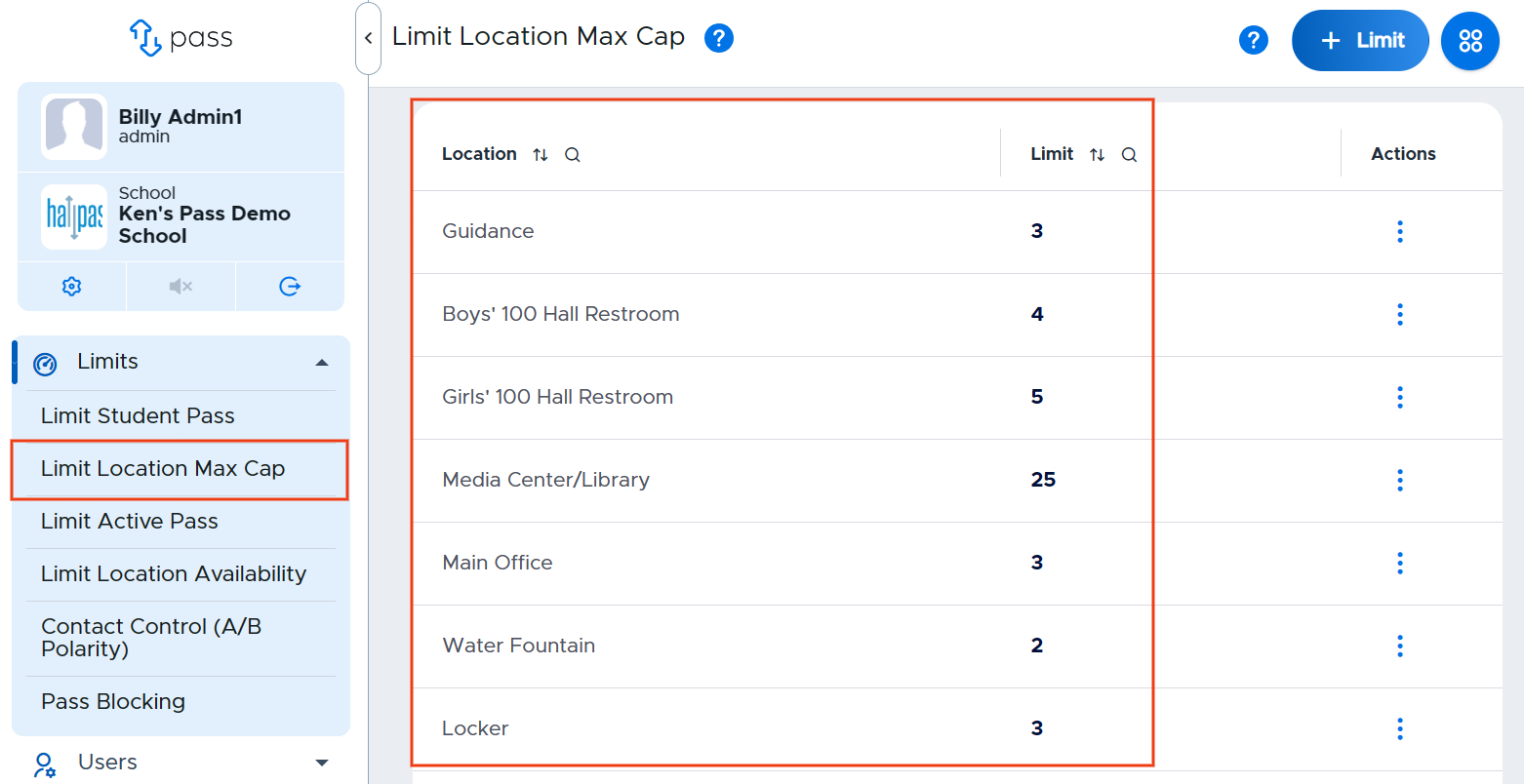
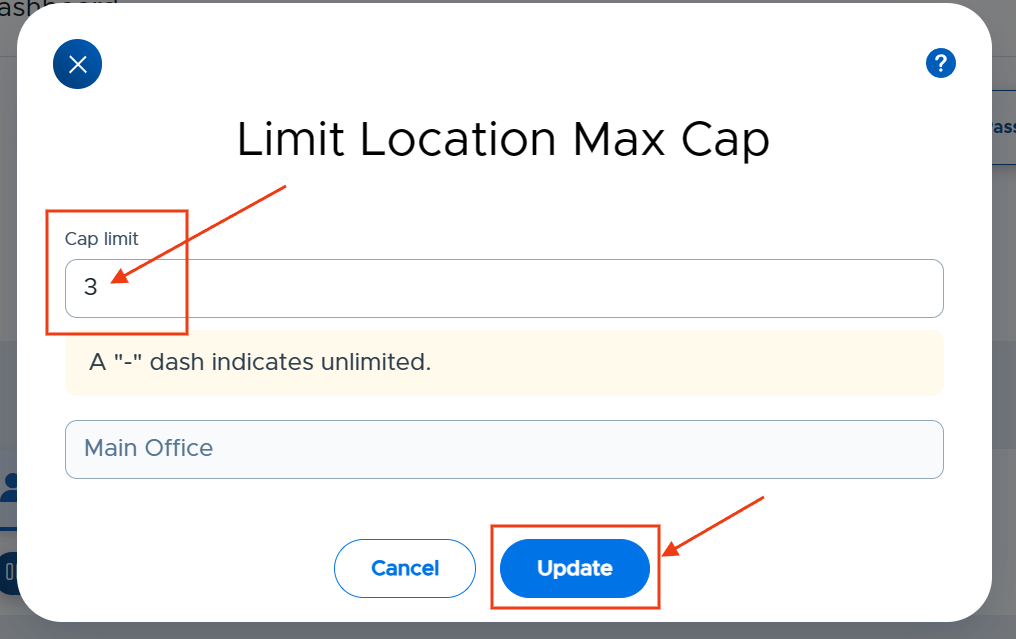
The Location Max Capacities will show on Admin, Staff, and Teacher Pass dashboards for the rooms/locations with which that user is associated in their Profile Settings → My locations. Users linked to a location (in their Profile Settings) can click on Room Capacities on the dashboard and edit the location max capacity setting, as shown below.


Students will not be able to create a pass to a location that has reached its max capacity limit. They will receive a message letting them know this limit has been reached.

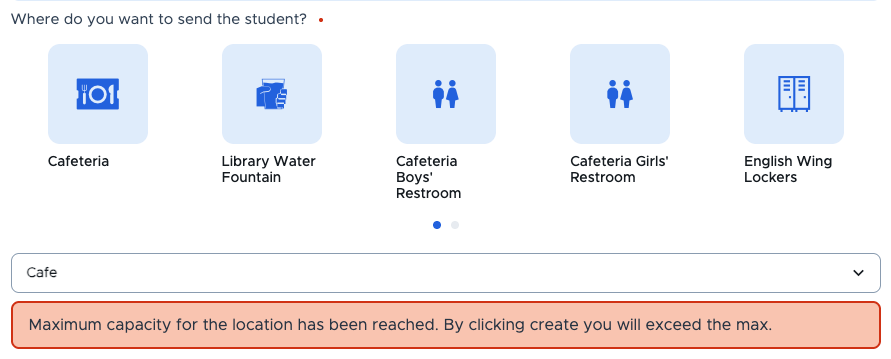
Teachers who are creating a Teacher Pass for a student and the location has reached its max capacity limit will receive the following message. Teachers can choose to activate the pass (or not) in this situation.
Video Alert:
Please watch the “Setting a Limit Location Max Cap” video below.