The Limit Location Availability feature allows Admins to set up “Access Denied” or “Membership Only” locations for students. The settings screen shown below can be accessed from the Pass Limit / Blocking menu or from the blue “Create” button.
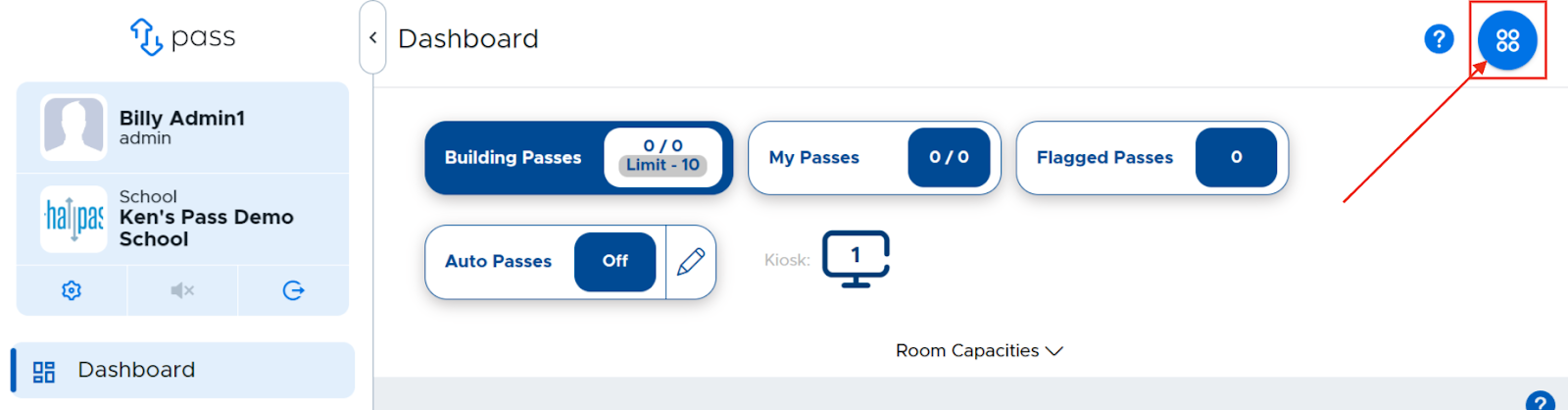
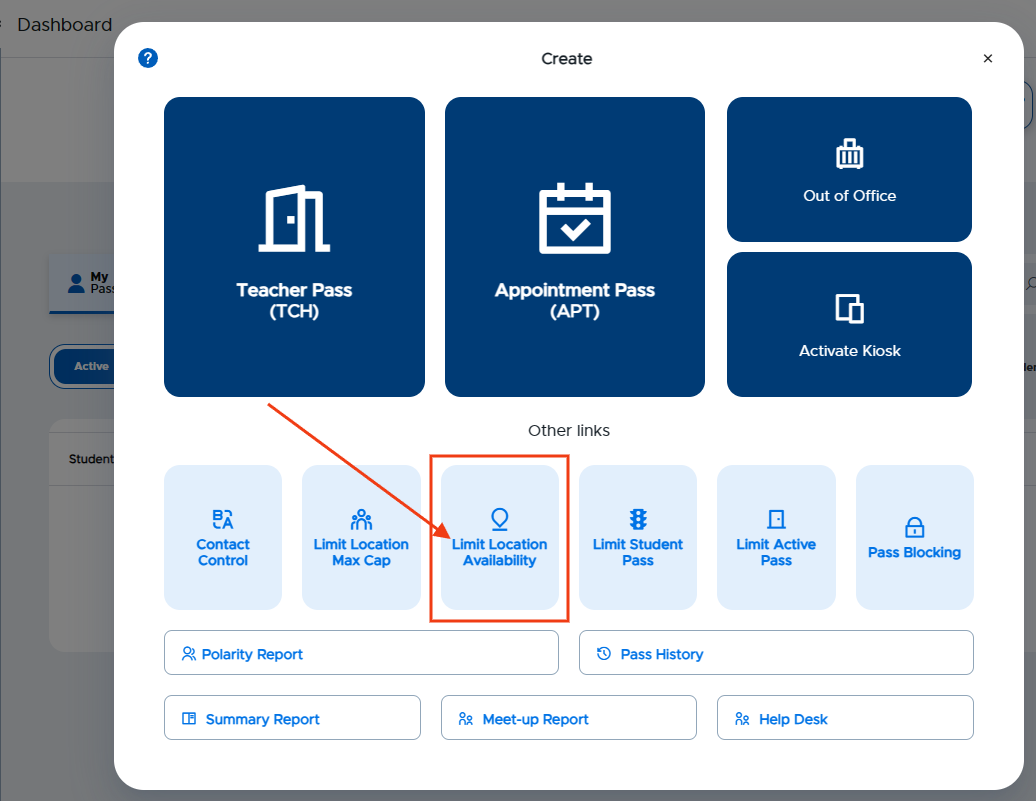
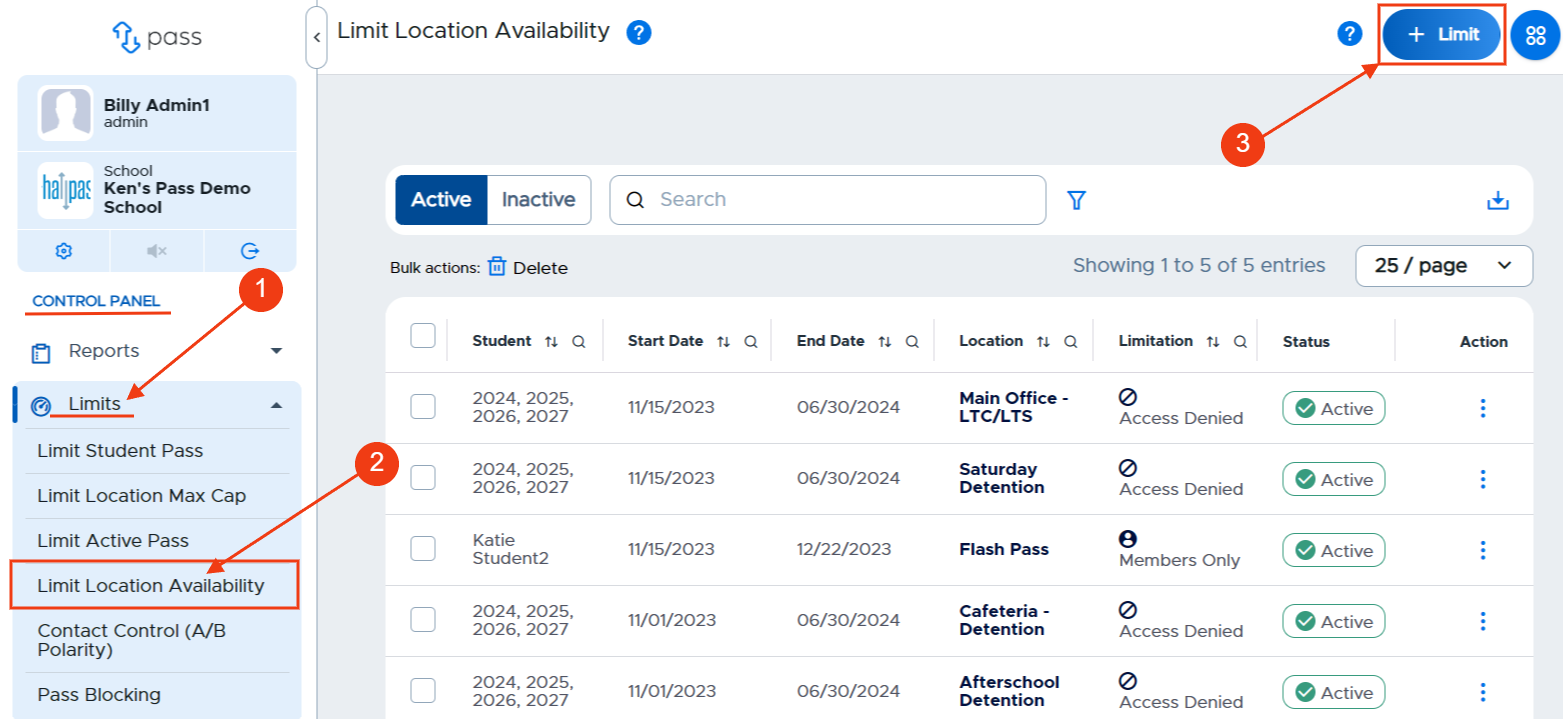
To create a limit, click on the blue Create button in the upper right corner and select the Limit Location Availability option, OR under the Control Panel on the left menu, click Limits → Limit Location Availability → blue + Limit button in the upper right corner.
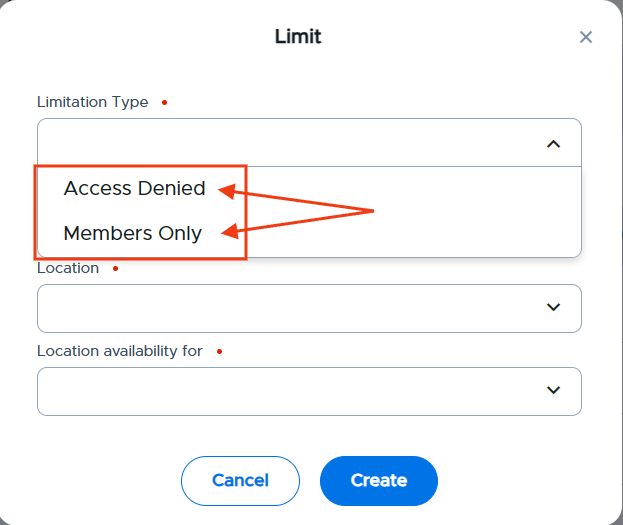
On the popup screen, complete the following fields:
- Limitation Type (dropdown menu - “Access Denied” or “Members Only”)
- Start Date/End Date
- Location (dropdown menu)
- Location availability for (dropdown menu) - When choosing your students, the multi-select dropdown will allow you to select one or more students at a time. To add a student's name, click All Students, from the dropdown menu click Selected Students, and type the name, or scroll for the name, of that student. Click on that student's name. If other students' names are needed, type or search for their names and click on their name(s) to add them.
Click Create when finished. The limitation will appear on the screen.
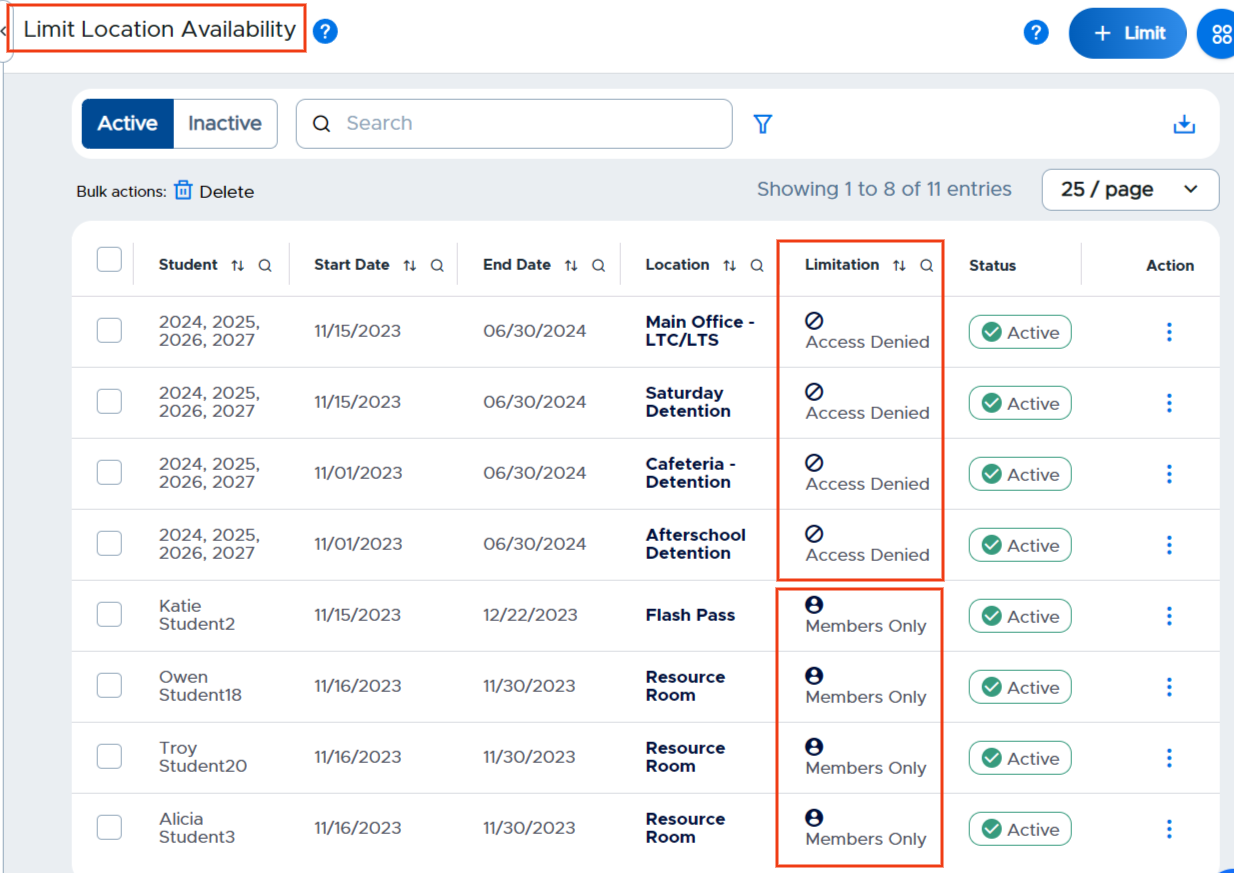
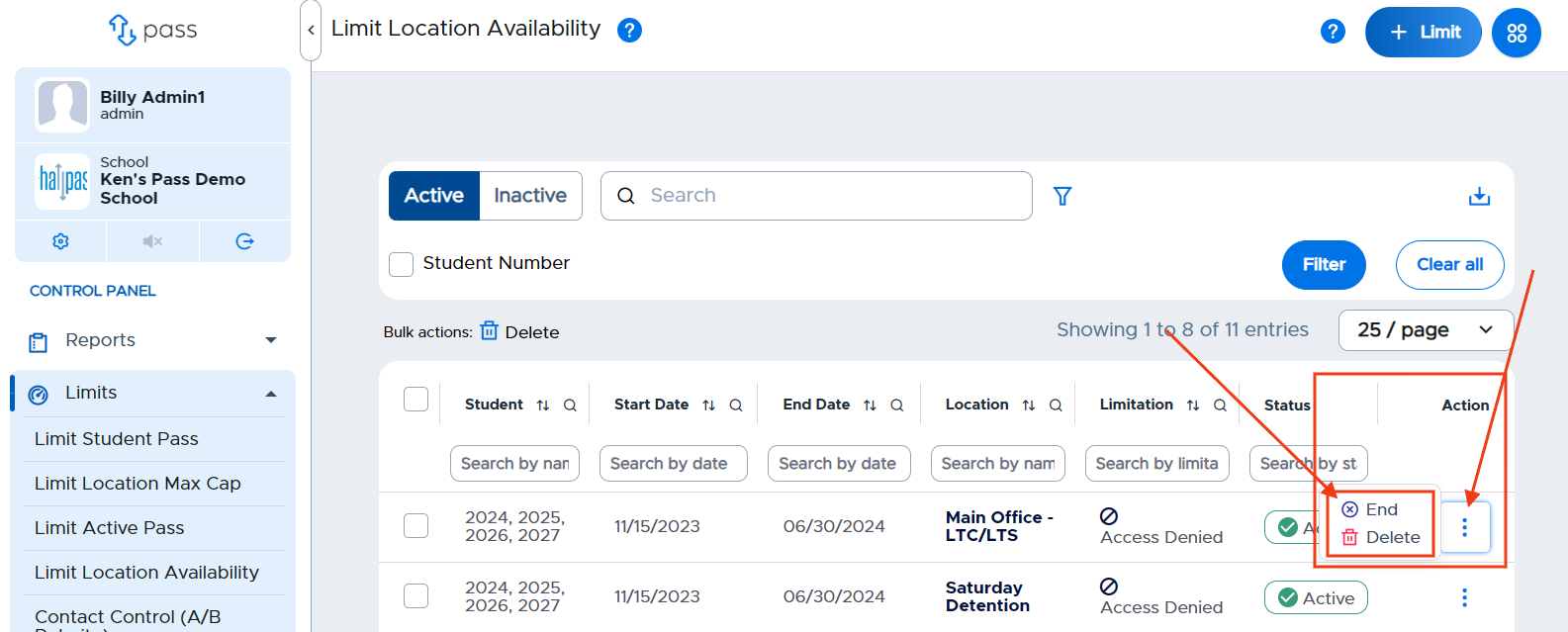
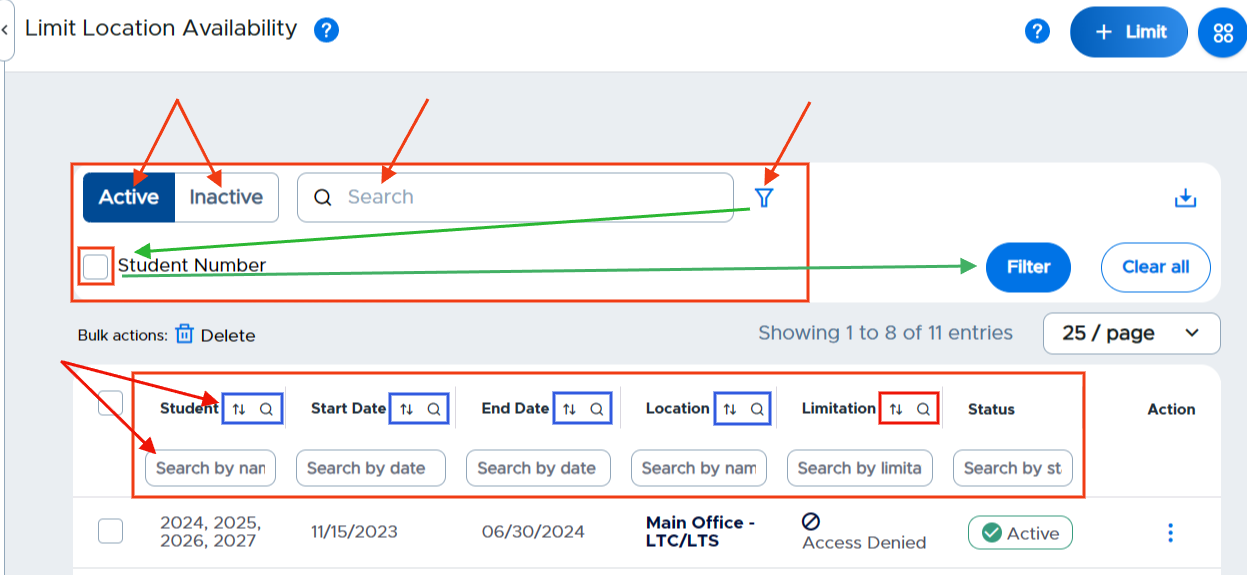
Once a Limit Location Availability has been added to the system, Admins can view and manage (End or Delete) these limits. To End or Delete a limit, click on the three(3) dots to the right of the limitation and make the appropriate choice. If you have a large number of students who have limitations, you may find the Active/Inactive tabs, Search window, filter (select Student Number and then click the blue Filter button), and column sort/search functionalities beneficial.
Access Denied Limitation
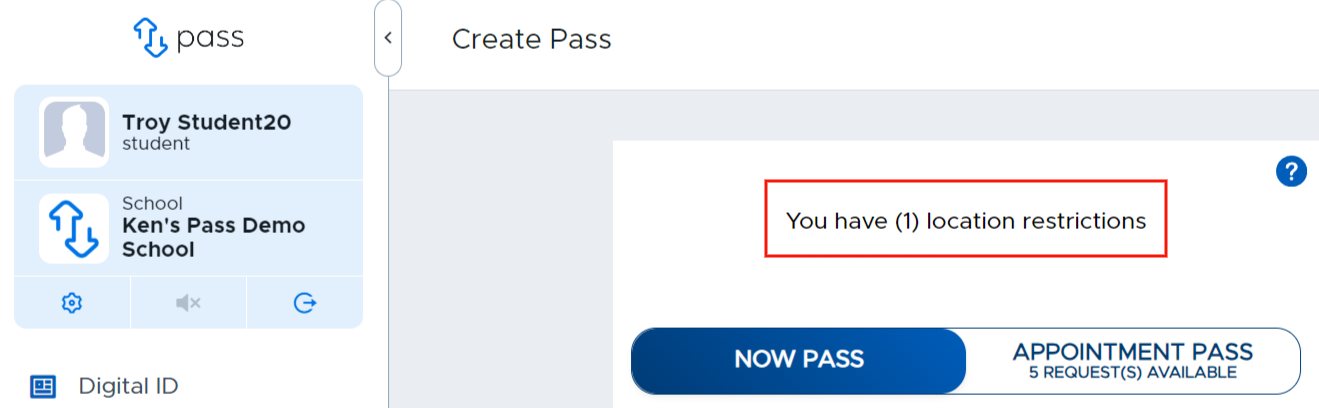
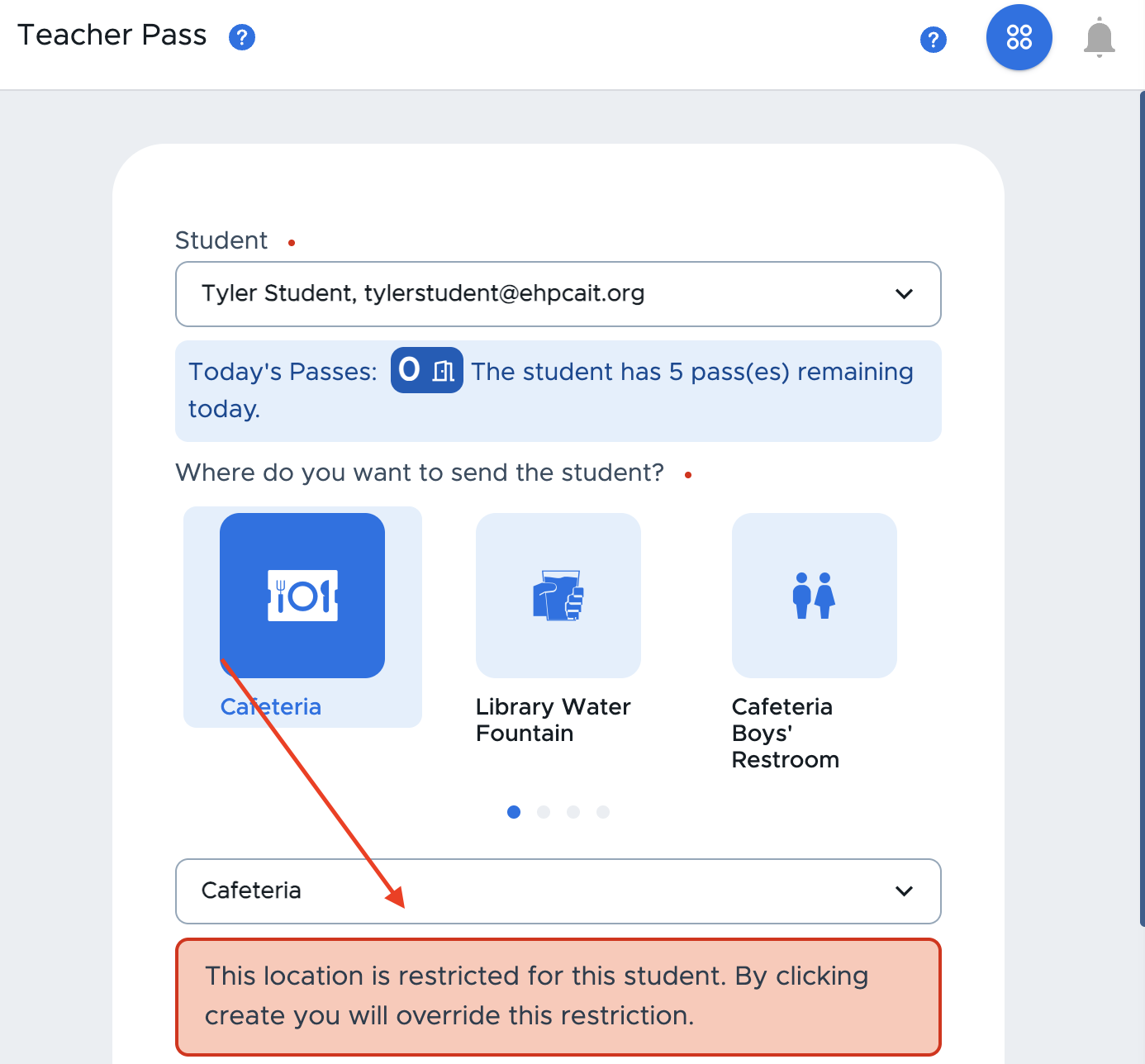
If a student misbehaves in a certain location or otherwise needs a restriction, you can set up an “Access Denied” limit for that student. The student will have a notification on their Pass screen that they have a location restriction, but it will not specify what location. (See the example below.) The “Access Denied” location will not appear in that student’s “Destination” drop down list. A student with a location restriction could still be given a Teacher Pass by a Teacher or Staff member to that location, but there is an alert on the Teacher Pass for the teacher or staff member. (This is also shown below.)
Members Only Limitation
Conversely, you can set up a room as a “Members Only” and give students access to the location for a set date range. This might work well for Off Campus Lunch, Stretch Break (for IEP or other exceptional students), certain bathrooms, etc. Only students who are given membership to this location will have this option in their “Destination” drop-down list. It is also important to note that if a room has been used for “Members Only" but currently has no members (students attached to that room), then it will appear to all students.
For more information, watch the "Setting a Limit Location Availability" video below.