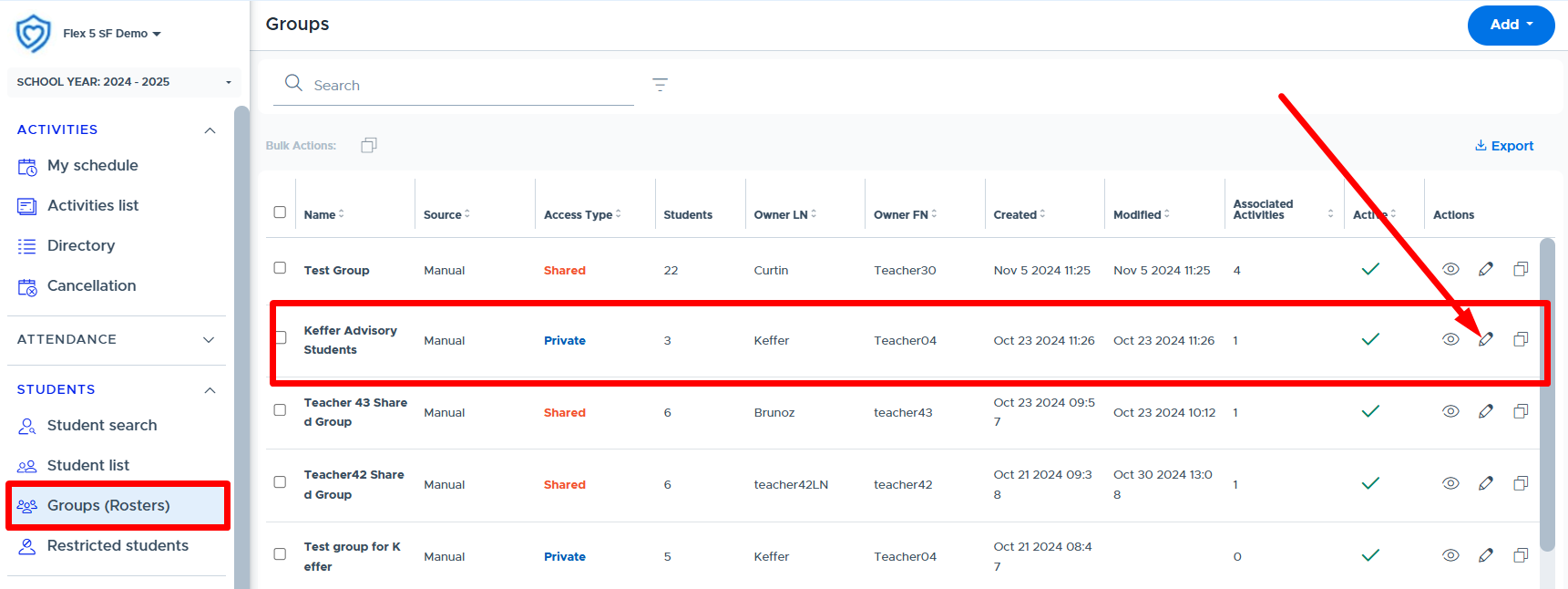
When Admins create and/or add activities to the Default Activity Lists screen, they can “lock” them. Locking an activity restricts edits an activity owner can make to their activity as the “owner”. It does not completely block them from interacting with the activity. Below is where an Admin can lock an activity on the Default Activity Lists screen.

When an activity has been locked by an Admin, the activity owner cannot update the master activity. They can schedule a locked activity. In addition, they can update/edit certain fields on a scheduled activity from the My Schedule screen. Here is what can and can’t be done by the activity owner when an Admin locks an activity:
| Can Do | Cannot Do |
|---|---|
| Schedule a locked activity | Update/edit a master activity |
| Remove a locked activity from the schedule before the Cutoff Time | Edit the Activity Type, Priority Level, Room, & Activity Cap fields (on scheduled activity) |
| Edit the Activity Title, Description, & Shared Teacher fields (on scheduled activity) | Edit the “Allow Autoassign” toggle (on scheduled activity) |
| Update the members in a Group linked to the locked activity | Change the linked Group on a locked activity (on scheduled activity) |
| Add “Additional Students” to a scheduled activity that is locked | Make a locked activity “Inactive” |
| Apply edits to other dates the activity is scheduled (but not to the master activity) | - |
If a Flex Admin locks another Admin’s activity, it will limit the Admin activity owner in all the ways outlined above. All Admins have access to the Default Activity List screen and can “unlock” their activity, so there should be no reason to lock another Admin’s activity.
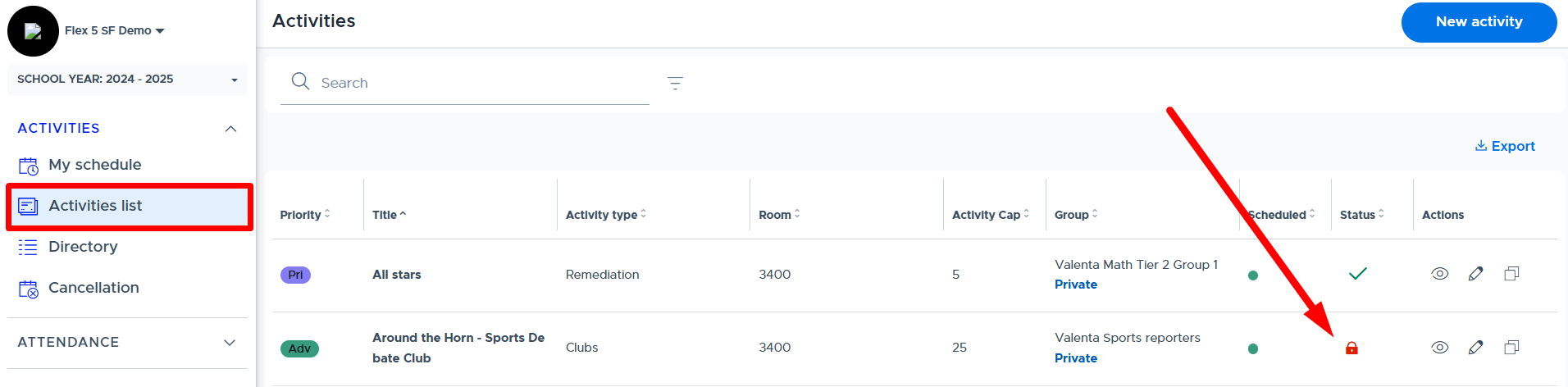
Below is what a “locked” activity looks like on the activity owner’s Activity list:
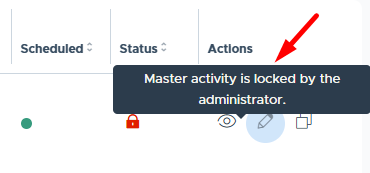
Here is the message if the owner attempts to edit the activity:
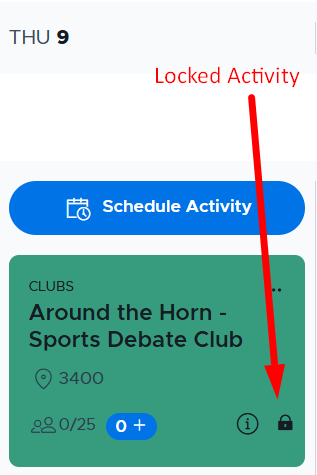
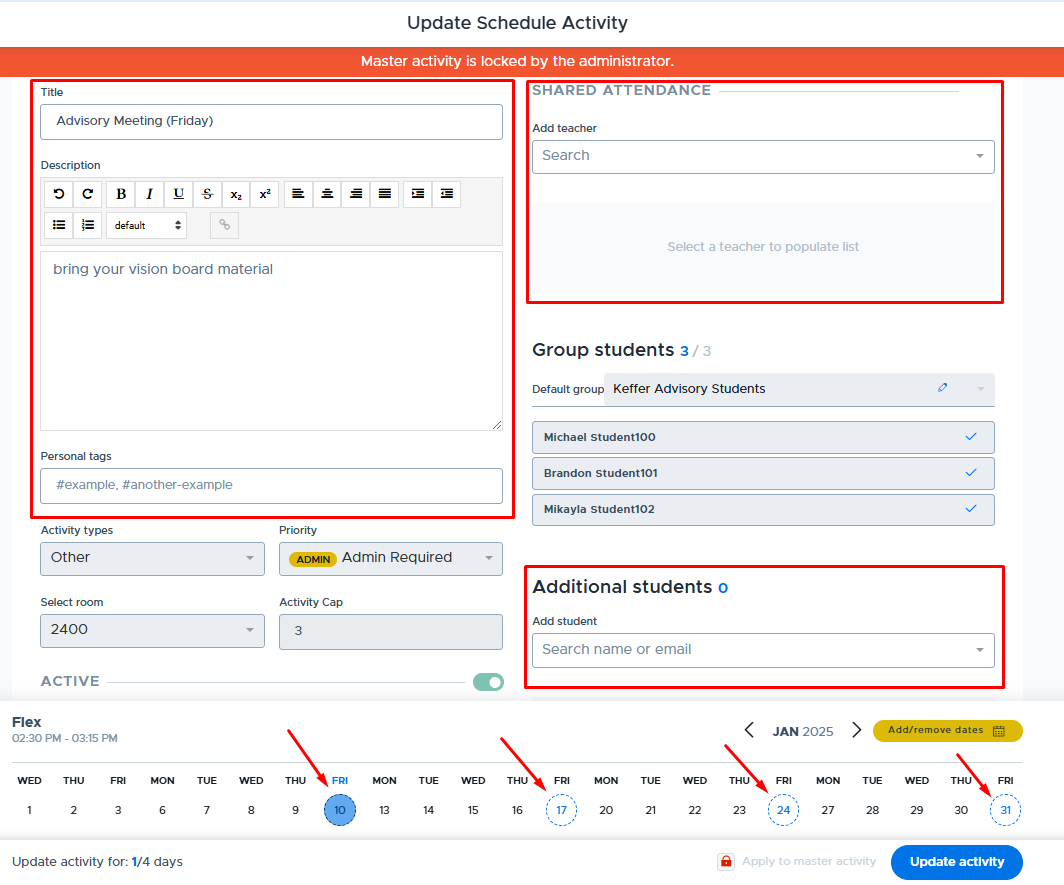
The activity owner can schedule a locked activity. Below is what this looks like when scheduled.
The activity owner can edit the following information for a scheduled locked activity: Title, Description, Shared Attendance, & Additional Students.
In addition, the activity owner can update the Group membership of the Group that is linked to a locked activity. This is done from the Students > Groups screen in Flex, shown below. These updates must be done before the school’s cutoff time to be applied the same day.