Summary Reports provide Admin users with aggregated data about their school's overall system usage. These reports can be run for Locations (pass destination), Adults (pass granters), or Students (pass takers).
Now Reports
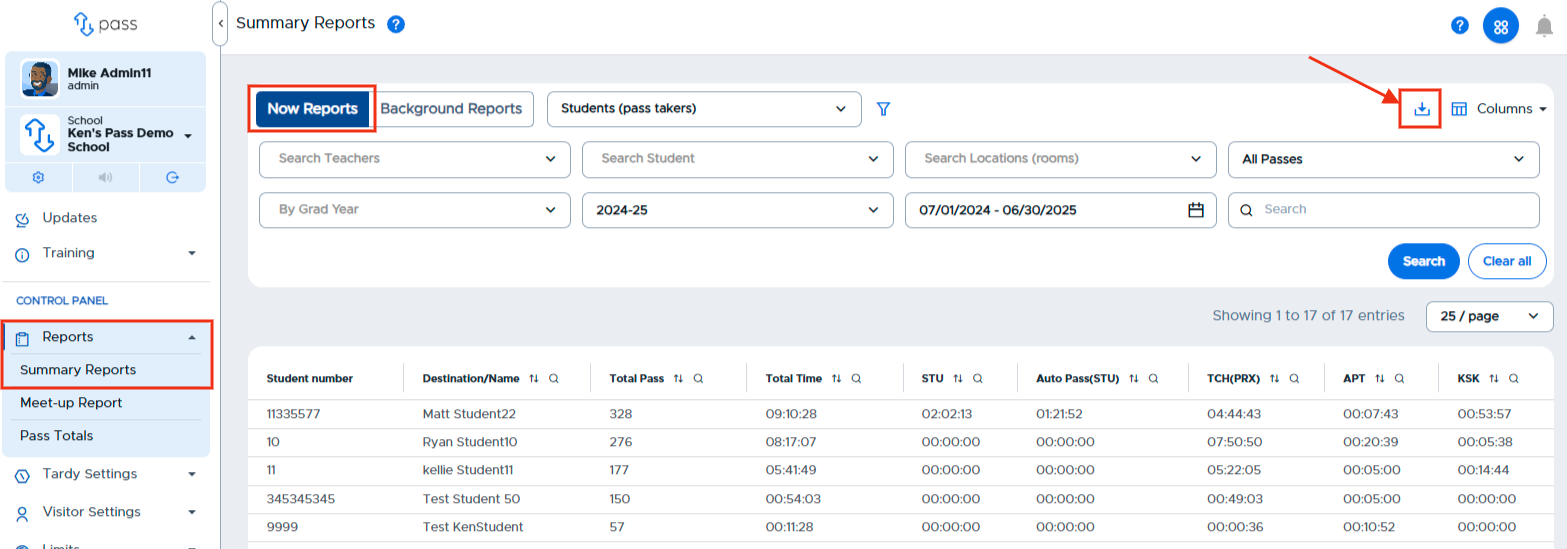
Using the Now Report is a quick way to see high-level information about pass locations/destinations, pass granters, and pass takers. The time frame for a Summary Report will default to today’s date, but the date can be adjusted and the data can be filtered and sorted as needed.
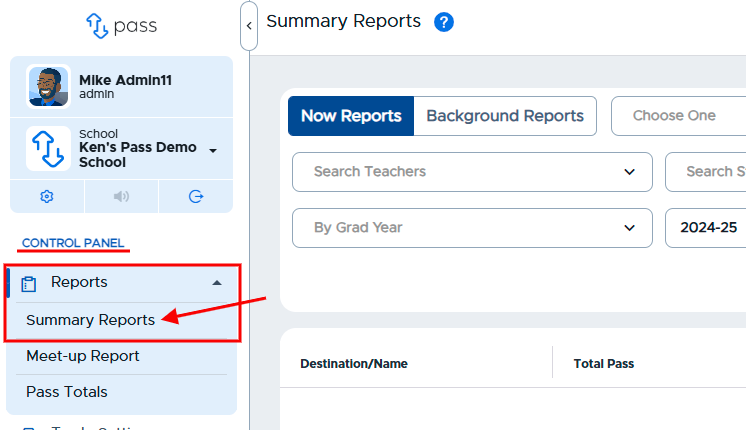
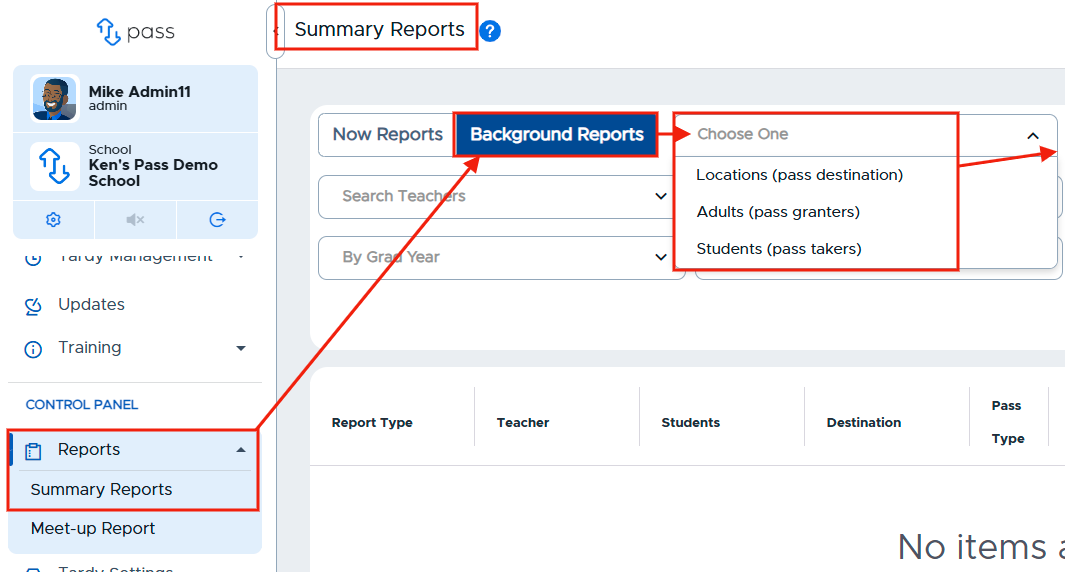
From the Control Panel menu, click on Reports → Summary Reports.
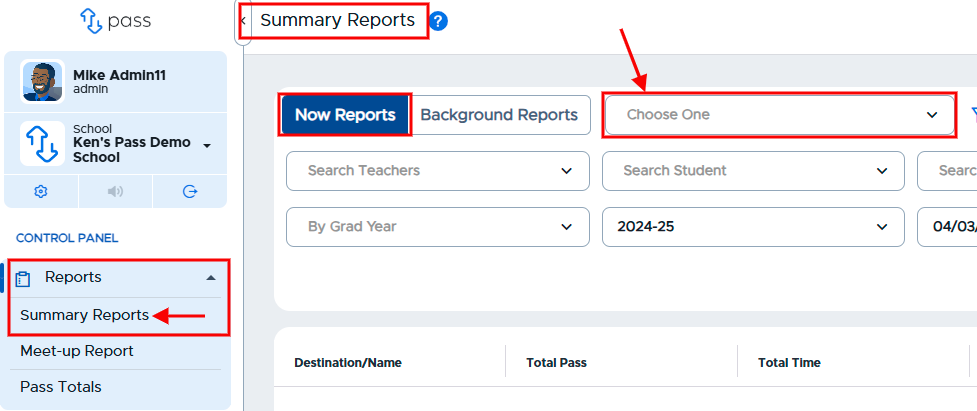
Click Choose One. From the dropdown menu, select the report that you would like to run:
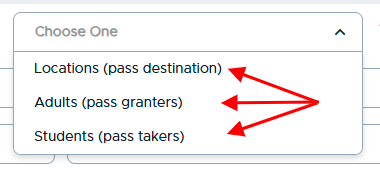
Once the report has been selected, choose your search parameters (filtering options):
- Search a specific teacher or teachers
- Search a specific student or students
- Search Destinations/Locations
- View by Pass Type (All Passes, Student Created Pass (STU), Auto Pass (STU), Teacher Pass (TCH), Appointment Pass (APT), Kiosk Pass (KSK)
- View students by Grad Year
- Historical data by school year (defaults to current school year)
- Set date range (defaults to today’s date)
Quick Tip:
You can start by selecting your report and date range, running the report, and then adjusting the other parameters as needed.
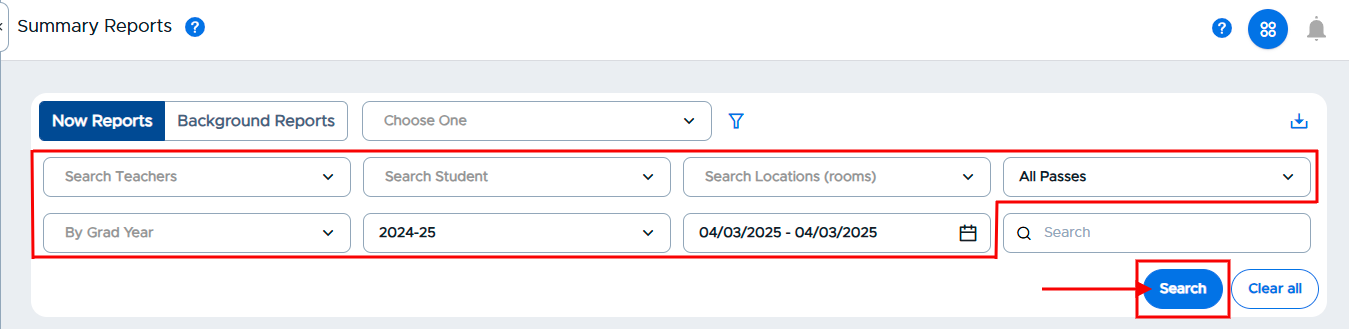
When all of your parameters have been selected, click Search. Your results will appear on the screen. To alter the parameters, adjust the dropdowns and click Search again. To perform another search, click Clear all, redefine your parameters, and click Search.
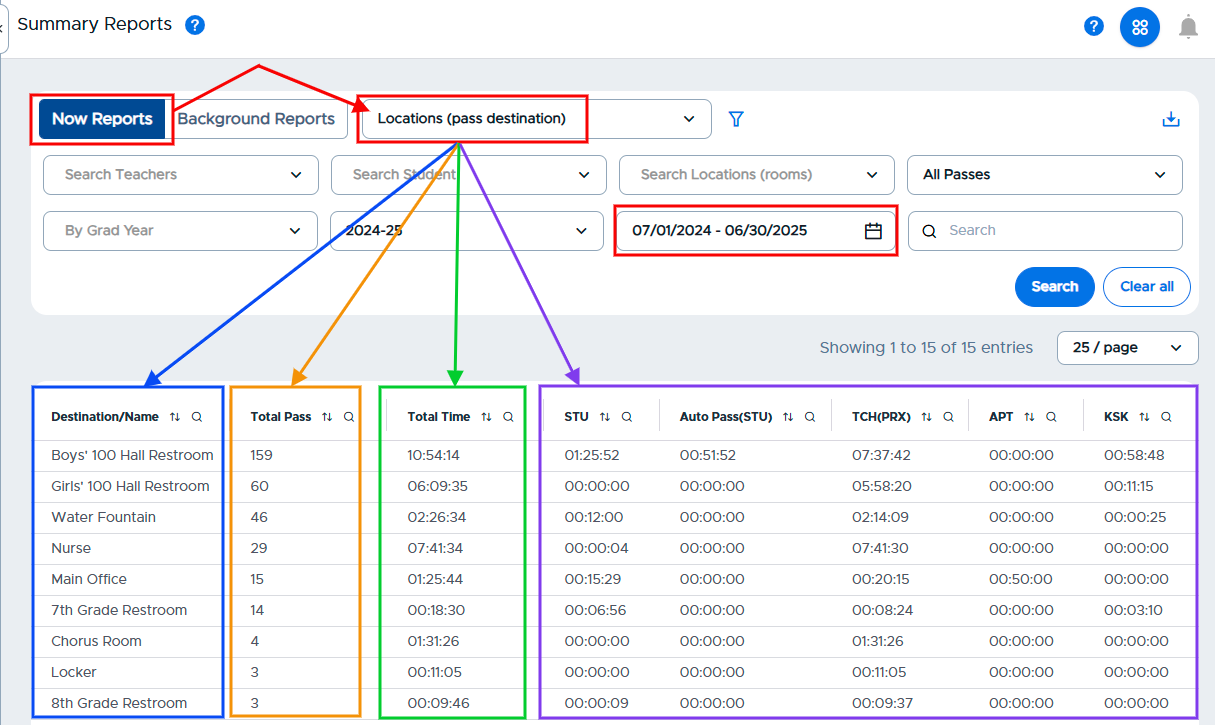
The search results on the bottom half of the screen show total passes by destination or name, total number of passes, total amount of instructional time that has been missed, and then time out of the classroom per different pass types.
Locations (pass destination)
This will show how many passes have been written to each location. This data will not include passes to individuals and may therefore differ from other reported numbers.
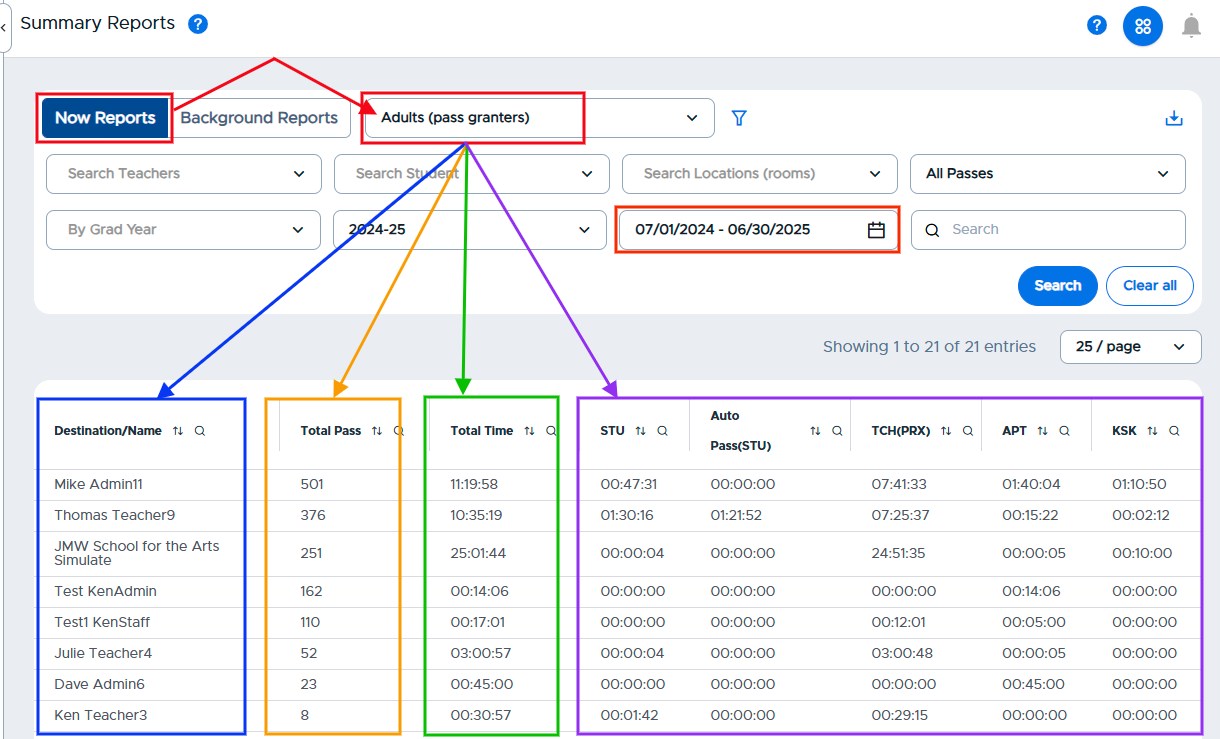
Adults (pass granters)
This report will provide a list of adults and the number of passes they have interacted with. The data will include passes on which they have used their PIN, passes that they approved on their dashboard, and Auto Passes that were created by students from that adult. (It will NOT include specific PIN usage data, though.)
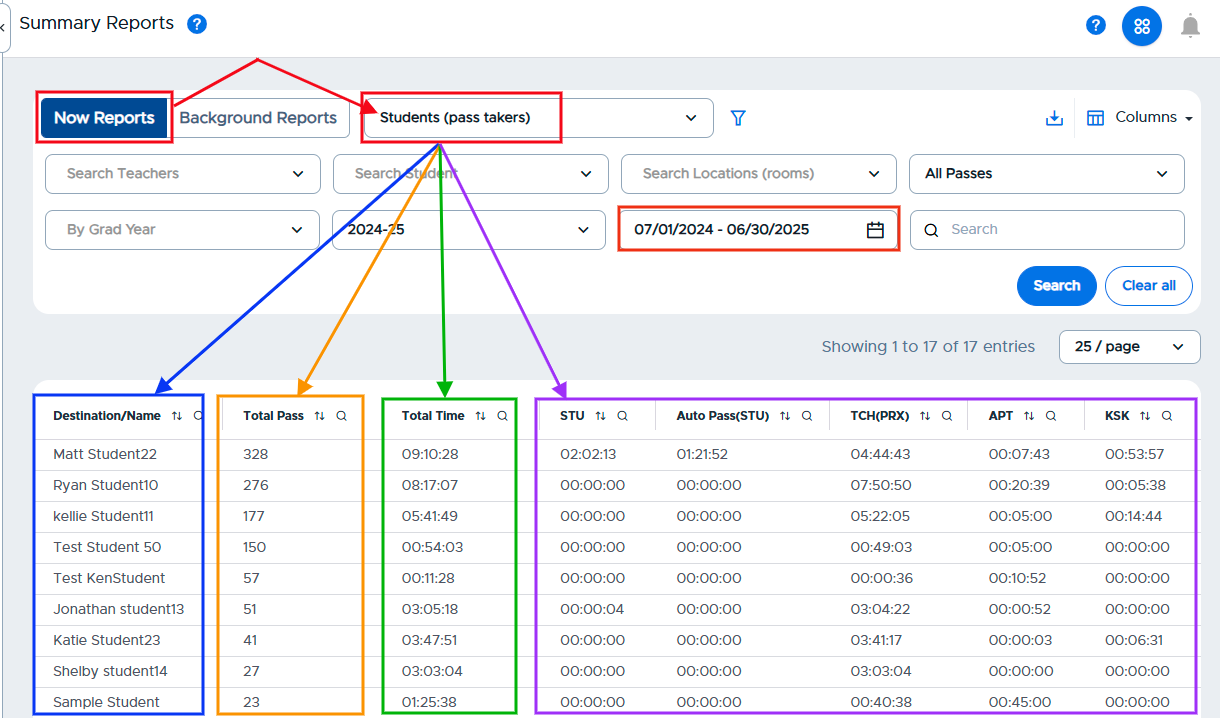
Students (pass takers)
This will generate a list of students who have used Pass and how many passes they've taken. This includes all types of passes except for Missed Appointment Passes.
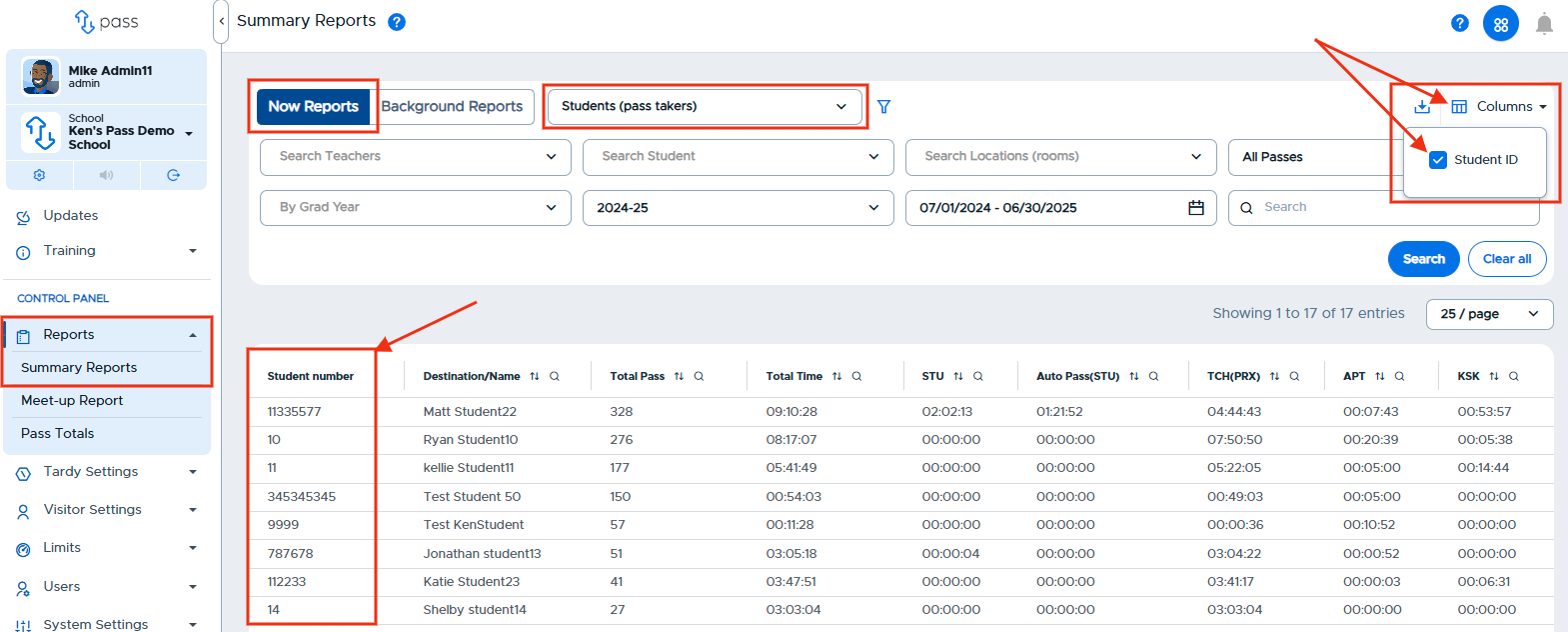
When searching for Students (pass takers), you can also include the Student Number, if desired.
Finally, you can download this information for any reason simply by clicking on the download icon in the upper right corner of the screen.
Background Reports
Admins can also run Background Reports. These are larger reports that contain more data than a standard report can quickly display.
To run a Background Report, select Background Reports, choose one of the three report options: Locations (pass destinations), Adults (pass granters), or Students (pass takers). Choose the date range and any other parameters that need to be set, and click Create.
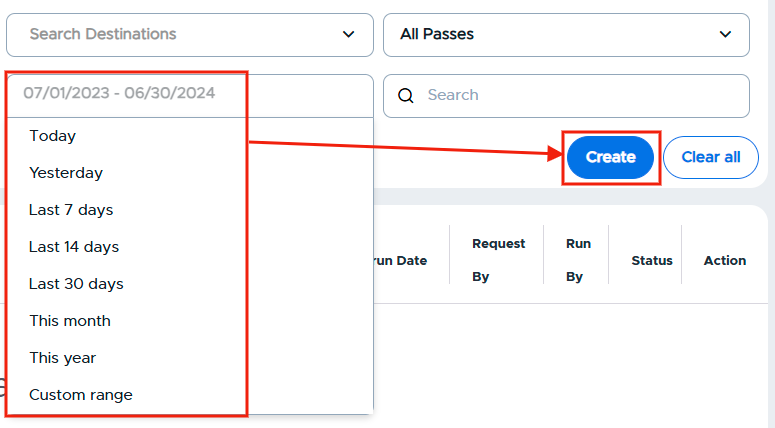
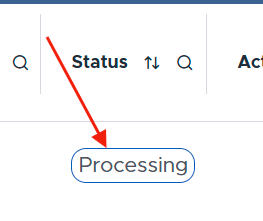
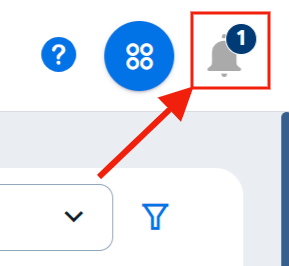
Once you click Create, on the table below, you will see the report that is being generated. On the right side of the screen under the Status column, you will see the status Processing, which means the report is running in the background and can be downloaded later. Click on the Notification Bell in the top right corner to get the status of the report.
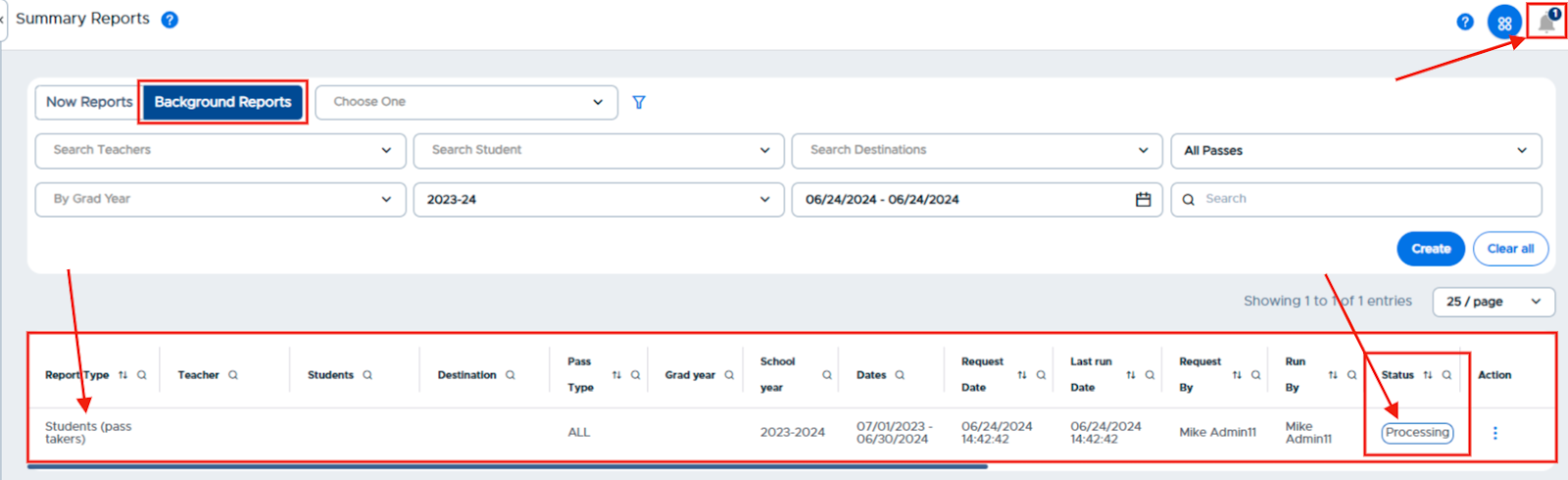
Notification Bell and Message
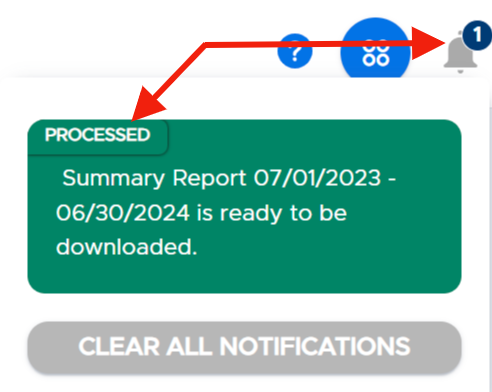
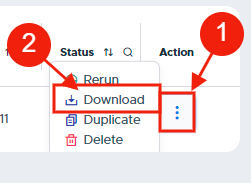
When ready, the report will have the "Processed" status, and will be ready to download. Click on the three dots under the Action column and click Download.
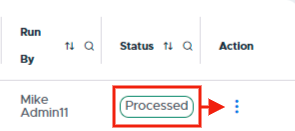
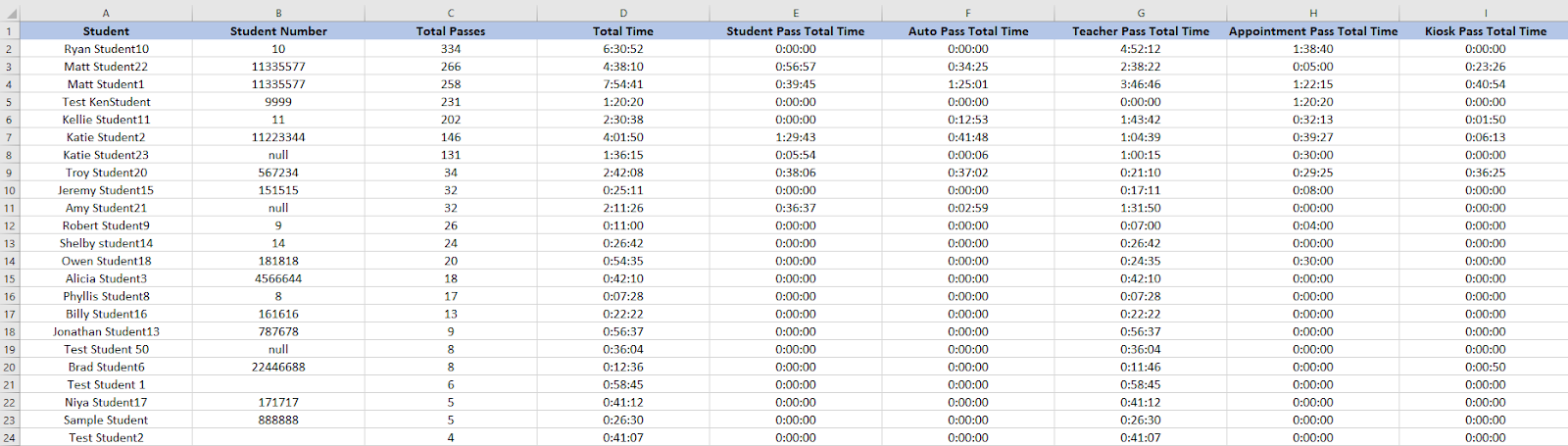
With the report downloaded, you can then manipulate, sort, and/or print the report as needed. (Formatting added for display purposes.)
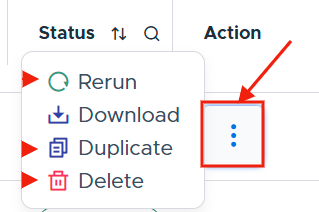
Once the report is processed, in addition to the Download option, you also have these three options:
-
Rerun - Once a report has been processed, it is available to download for one calendar year. You can rerun the report and download as needed.
-
Duplicate - This option will pre-fill the report fields with the information from this current report. You can then modify and update the parameters and click Create to run the report.
- For instance, if you run the following report on October 1st - Background Reports → Locations (pass destination) → Time frame (07/01/2024-06/30/2025) - you will get all of the data for your locations from the beginning of school through September 30th. If you duplicate the report at the end of each subsequent month, you will get all of the data on your locations from the beginning of school through the end of that particular month. (July-Oct, July-Nov, July-Dec, etc) Once downloaded, you can sort, manipulate, and/or print the results as needed.
-
Delete - If your reports list is too large, you can choose to delete reports at any time. Any Admin can delete any report; be sure to check with the “Requested by” individual before deleting their report.